View Documents in the ClearToPay™ Portal
The Documents page provides a list of all the documents that have been uploaded through the portal for your company. The grid also displays the document type, upload date and the individual who uploaded the document.
This page also provides the ability to upload miscellaneous documents that are not associated with insurance, certified payroll or lien waivers. These documents appear in the list, but do not get sent to a queue and do not have an approval status.
To see documents associated with the vendor tiers beneath you, navigate to that tier vendor's page and go to their Documents tab.
Note
If there are any Notes or Document Matches associated with a document, they are visible in the sidebar when you select it in the grid. See How to Use the Sidebar in Sage Paperless Construction for more information.
From one of the job or vendor pages, click .
A page similar to the following displays:
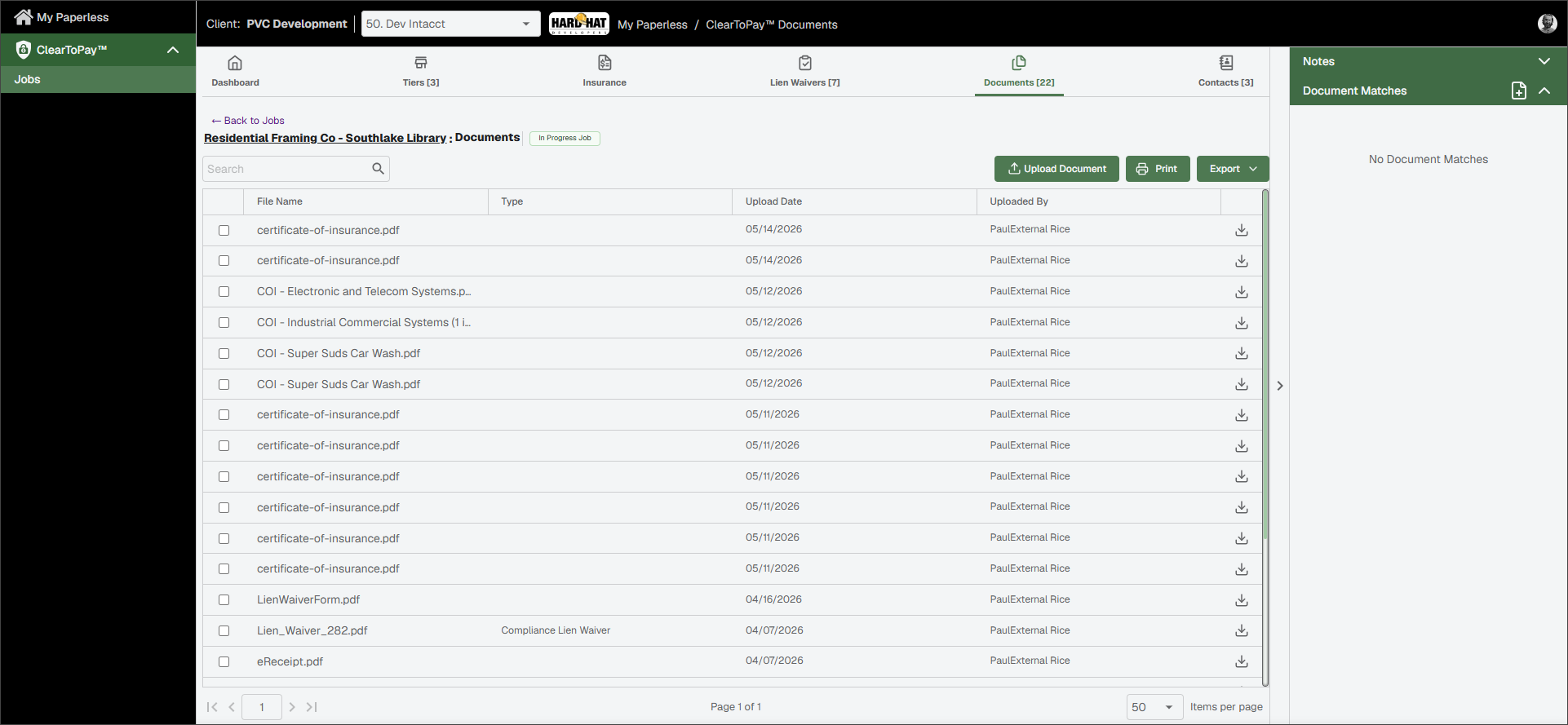
From the vendor Documents page, you can do the following:

To search for a specific document, enter the a keyword in the Search field. Then, press
Enteror click the Search icon.
icon.
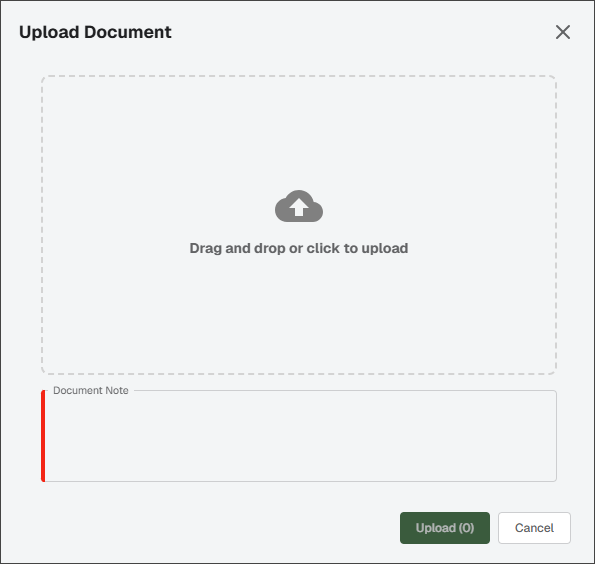
Click to upload one or more files from your local drive directly to this page. You must enter a description of the document in the Document Note field prior to clicking .
Note
Miscellaneous documents added to this page are not indexed or routed to any specific queue.

Click print to print the Documents grid.

Click to export the grid information to Excel, CSV or PDF.

Click the Download icon to download a copy of the document to a local drive.