Global Lookup Tables
From My Paperless, click .
ClearToPay Settings opens on the General tab.
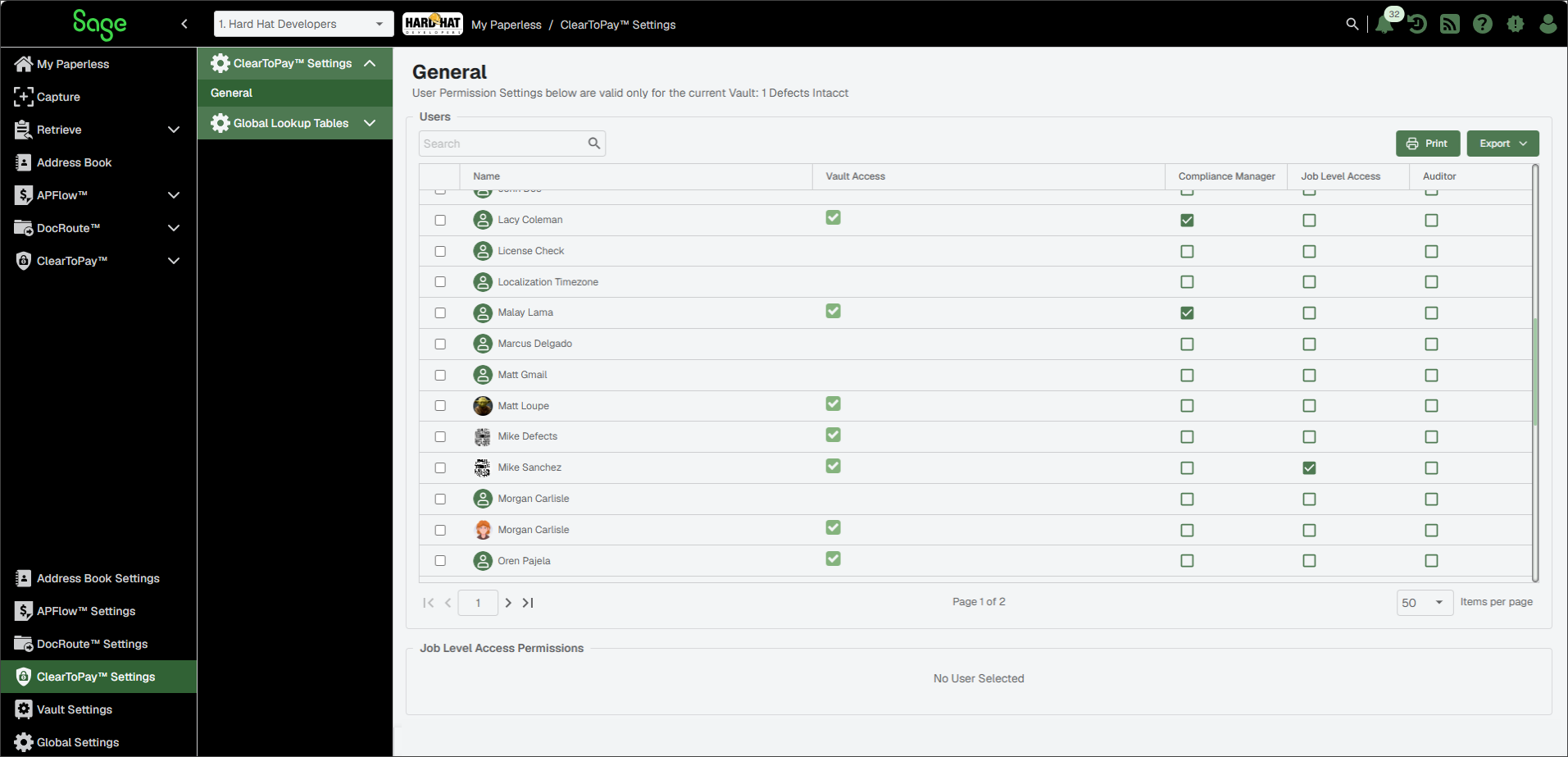
In the ClearToPay™ Settings navigation bar, click to expand its list of options.
Select one of the options below.
Note
You must set one of the insurance rating services and its ratings as the default for the company in . This is the service that displays at the company and job level within insurance templates and therefore what is tracked for vendor compliance.
The Insurance Ratings service determines which insurance rating services are available in your company. ClearToPay™ automatically includes the following standard insurance ratings services:
A.M. Best
DBRS
Fitch
Moody's
S&P
Weiss
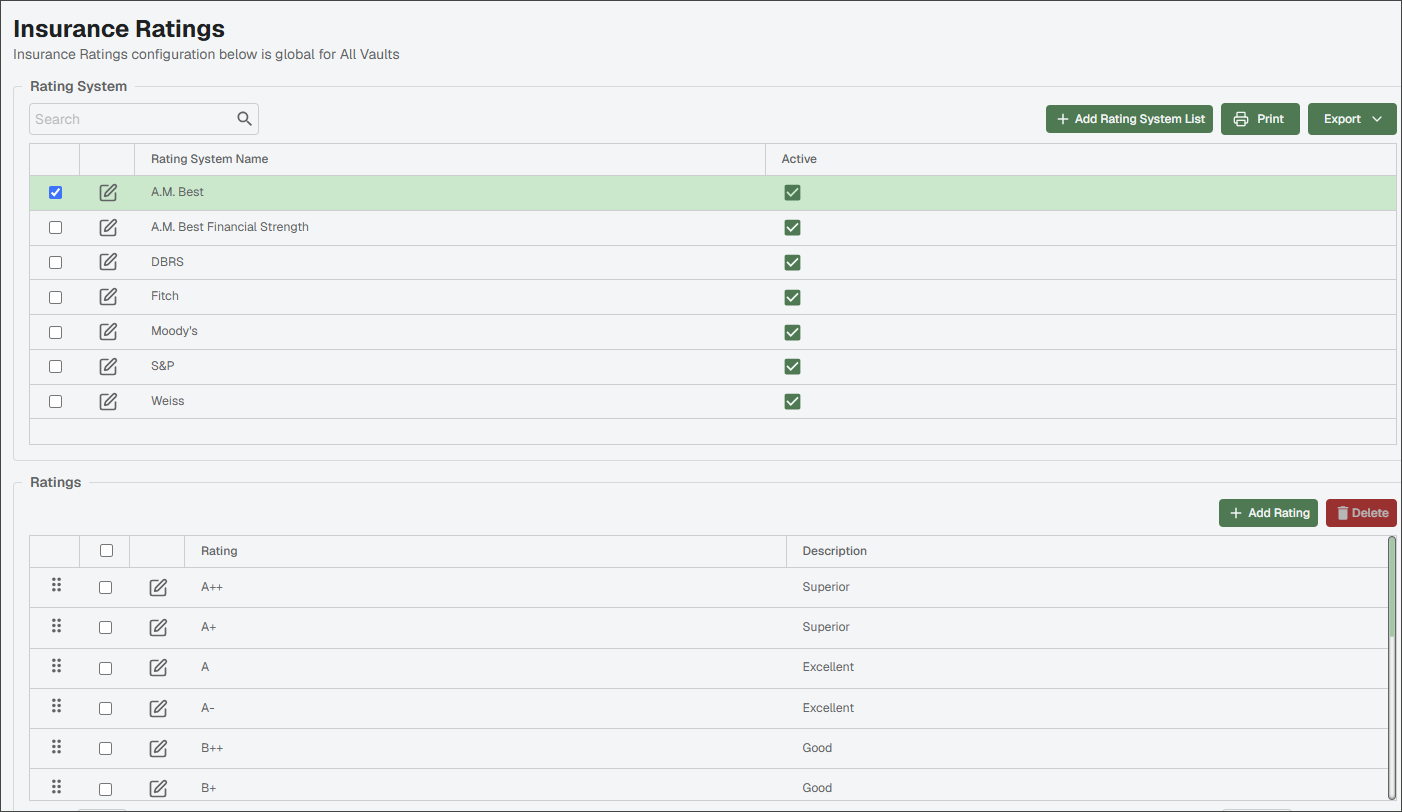
Selecting one of the rating systems in the top section automatically populates the grid within the Ratings section below.
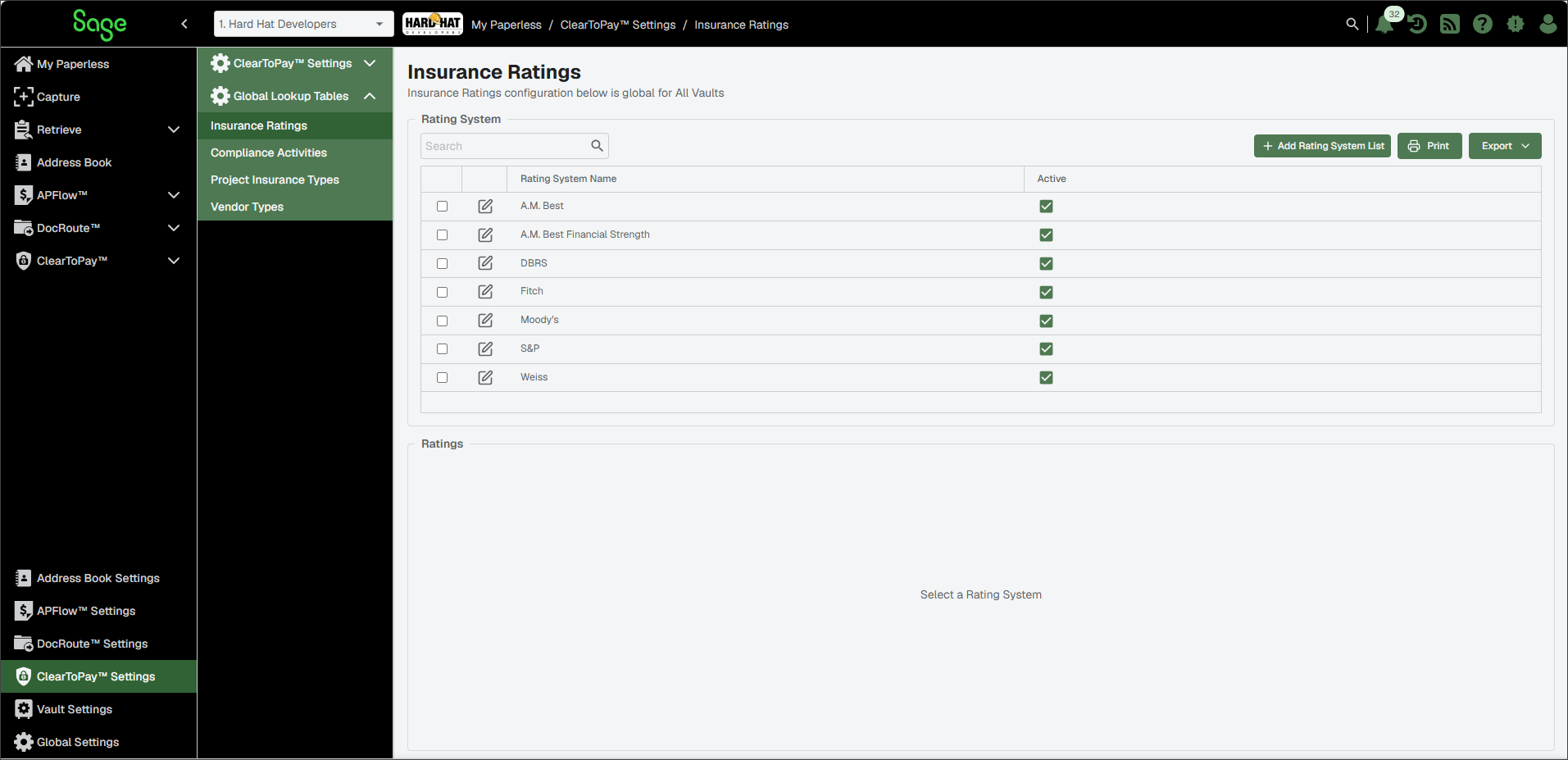
Use the Insurance Ratings page to perform the following tasks as needed:
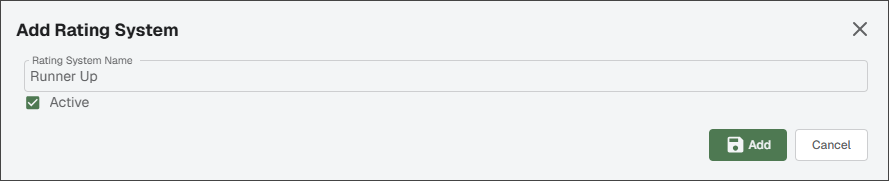
 | If your company uses a different Insurance Rating Service than the ones provided in ClearToPay, you can add it here. Click to access the Add Rating System dialog and enter the name for the insurance rating service your company uses. Select the check box if it is ready for use.
Click . | |
 | Click to print the Rating System grid. | |
 | Click to export the grid information to Excel, CSV or PDF. | |
Select a rating system to display the Ratings section | Select a particular rating system to view its list of ratings and their descriptions. From there, you can choose to add or delete ratings for that particular rating service. Use the Drag TipIt is recommended that the best rating displays at the top of the list and worse ratings display at the bottom.
| |
 | Two sections that contain edit options on the Insurance Ratings page:
|

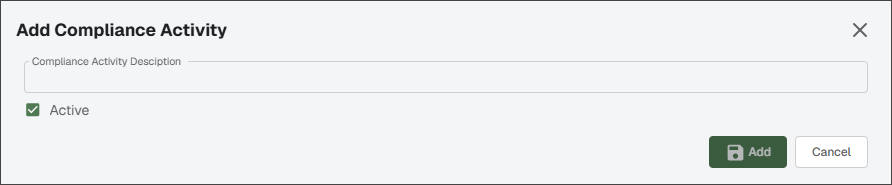
The Compliance Activities page allows you to define and manage compliance events that may occur while tracking vendors in ClearToPay™. The grid lists the compliance activities you can track to make sure vendors meet your company's business requirements (for example W-9 forms, SOC or NIST Compliance levels, bonding requirements and performance review requirements). Administrators can add additional activities that are used for the manual logging.
While tracking vendors in ClearToPay, some compliance activities are logged automatically when the event takes place, such as when an email is sent or a requirement is waived. Other compliance activities must be logged manually for the applicable vendor.
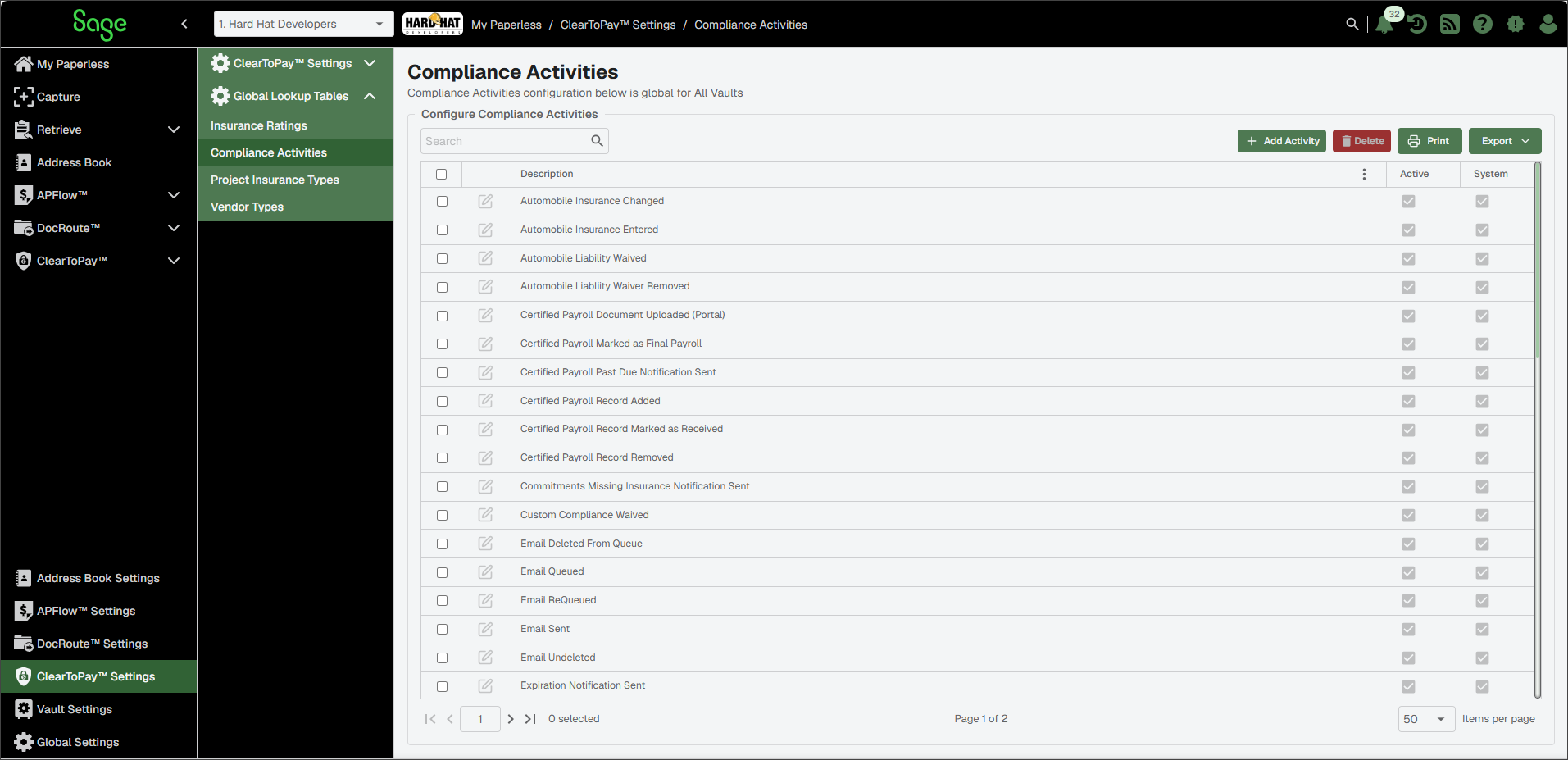
The Compliance Activities page lists all the configured compliance activities, with pre-loaded activities marked by a selected check box in the System column. System-generated activities are not editable and cannot be removed. The table below provides additional information about how each system-generated compliance activity is used within ClearToPay:
Description Field | Application |
Automobile Insurance Changed | Logs changes to critical components of an automobile insurance policy, such as the Policy Number, Effective Date, Expiration Date, or Insurance Company. These changes may indicate that a new policy is needed. |
Automobile Insurance Entered | Logs when information is initially entered for automobile insurance. |
Automobile Liability Waived | Records when an Automobile Insurance field is waived at the policy level. Waiver Notes remain viewable. |
Automobile Liability Waiver Removed | Records when an Automobile Insurance field has the waiver removed at the policy level. |
Certified Payroll Document Uploaded (Portal) | Logs when a Certified Payroll document is uploaded by a vendor via the portal. |
Certified Payroll Marked as Final Payroll | Logs when the Final Payroll check box has been checked on a vendor. |
Certified Payroll Record Added | Logs when a Certified Payroll record is added to a vendor. |
Certified Payroll Record Marked as Received | Logs when a Certified Payroll record is marked as received. |
Certified Payroll Record Removed | Logs when a Certified Payroll record is removed from a vendor. |
Custom Compliance Waived | Logs when a Custom Compliance Data field is marked as waived for a vendor. |
Email Deleted From Queue | Logs when an email designated from a vendor is deleted. Email message remains viewable. |
Email Queued | Logs when an email has been submitted for a vendor, but not yet sent. Email message is viewable. |
Email ReQueued | Logs when a previously queued email (Which was either sent, errored or deleted) is set for queueing again. Email message is viewable. |
Email Sent | Converts the previous Email Queued activity to Email Sent when an email which was submitted for a vendor is actually sent. Email message is viewable. |
Email Undeleted | Logs when an email that was marked for deletion is no longer marked for deletion/undeleted. Email message is viewable. |
Expiration Notification Sent | Logs when an automated Expiring Insurance or Expired Insurance Notification is sent to the vendor. Email message is viewable. |
General Liability Insurance Changed | Logs changes to critical components of a general liability insurance policy, such as the Policy Number, Effective Date, Expiration Date, or Insurance Company. These changes may indicate that a new policy is needed. |
General Liability Insurance Entered | Logs when information is initially entered for general liability insurance. |
General Liability Waived | Records when a General Liability Insurance field is waived at the policy level. Waiver Notes are viewable. |
General Liability Waiver Removed | Records when a General Liability Insurance field has the waiver removed at the policy level. |
Insurance Information Changed | Logs changes to critical components of an insurance policy, such as the Policy Number, Effective Date, Expiration Date, or Insurance Company. These changes may indicate that a new policy is needed. |
Insurance Information Entered | Logs when the insurance information is initially entered for each policy type. |
Lien Waiver Document Uploaded (Portal) | Logs when a Lien Waiver document is uploaded by a vendor via the portal. |
Lien Waiver Record Added | Logs when a Lien Waiver record has been added to a vendor. |
Lien Waiver Record Marked as Received | Records when a Lien Waiver record is marked as received. |
Lien Waiver Record Removed | Logs when a Lien Waiver record has been removed from a vendor. |
Lien Waiver Signed (Portal) | Records when a Lien Waiver record has been electronically signed in the portal. |
Pollution Control Waived | Records when a Pollution Control Insurance field is waived at the policy level. Waiver Notes remain viewable. |
Pollution Control Waiver Removed | Records when a Pollution Control Insurance field has the waiver removed at the policy level. |
Pollution Insurance Changed | Logs changes to critical components of a pollution insurance policy, such as the Policy Number, Effective Date, Expiration Date, or Insurance Company. These changes may indicate that a new policy is needed. |
Pollution Insurance Entered | Logs when information is initially entered for pollution insurance. |
Professional Liability Insurance Changed | Logs changes to critical components of a professional liability insurance policy, such as the Policy Number, Effective Date, Expiration Date, or Insurance Company. These changes may indicate that a new policy is needed. |
Professional Liability Insurance Entered | Logs when information is initially entered for professional liability insurance. |
Professional Liability Waived | Records when a Professional Liability Insurance field is waived at the policy level. Waiver Notes remain viewable. |
Professional Liability Waiver Removed | Records when a Professional Liability Insurance field has the waiver removed at the policy level. |
Received Cancellation Notice | Manually added by the user, if desired, to indicate that a cancellation notice was received for the insurance policy. |
Received Insurance Certificate | Manually added by the user, if desired, to indicate that a copy of the Certificate of Insurance was received for the insurance policy. |
Umbrella Insurance Changed | Logs changes to critical components of a umbrella insurance policy. These changes may indicate that a new policy is needed. |
Umbrella Insurance Entered | Logs when information is initially entered for umbrella insurance. |
Umbrella Liability Waived | Records when an Umbrella Insurance field is waived at the policy level. Waiver Notes remain viewable. |
Umbrella Liability Waiver Removed | Records when an Umbrella Insurance field has the waiver removed at the policy level. |
Unconditional Final Lien Waiver Received | Logs when the Unconditional Final Received checkbox is checked on a vendor. |
Vendor Note Added | Logs when a user adds a note to a vendor. The note is viewable. |
Workers Comp Insurance Changed | Logs changes to critical components of a workers comp insurance policy, such as the Policy Number, Effective Date, Expiration Date, or Insurance Company. These changes may indicate that a new policy is needed. |
Workers Comp Insurance Entered | Logs when information is initially entered for workers comp insurance. |
Workers Comp Liability Waived | Records when a Workers Comp Insurance field is waived at the policy level. Waiver Notes remain viewable. |
Workers Comp Liability Waiver Removed | Records when a Workers Comp Insurance field has the waiver removed at the policy level. |
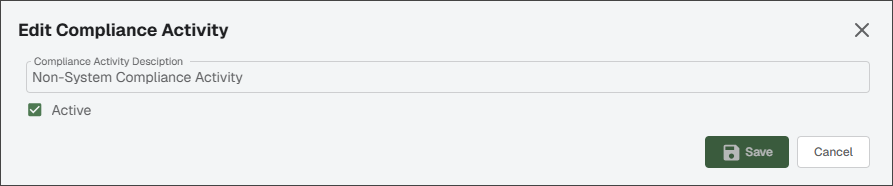
You can use the Compliance Activities page to do the following:
 |
| |
 |
| |
| Click to print the Compliance Activities grid. | |
| Click to export the grid information to Excel, CSV or PDF. | |
| NoteSystem-generated activities cannot be removed or edited.
|
The Project Insurance Types entered in this table display at the job level.
Standard Insurance | Insurance policies that provide coverage for general or normal risks within a particular field of insurance. |
OCIP (Owner-Controlled Insurance Program) | Single insurance plan designed to cover nearly all liability arising from a construction project. Through an OCIP, a project owner provides general liability insurance and workers' compensation for the duration of the project for all parties involved. |
CCIP (Contractor-Controlled Insurance Program) | A wrap policy purchased by the General Contractor to cover liability on a construction project or across multiple, ongoing projects. |
UCIP (University-Controlled Insurance Program | Single insurance program that insures the University of California, Enrolled Contractors and Enrolled Subcontractors for construction projects over $25 million. |
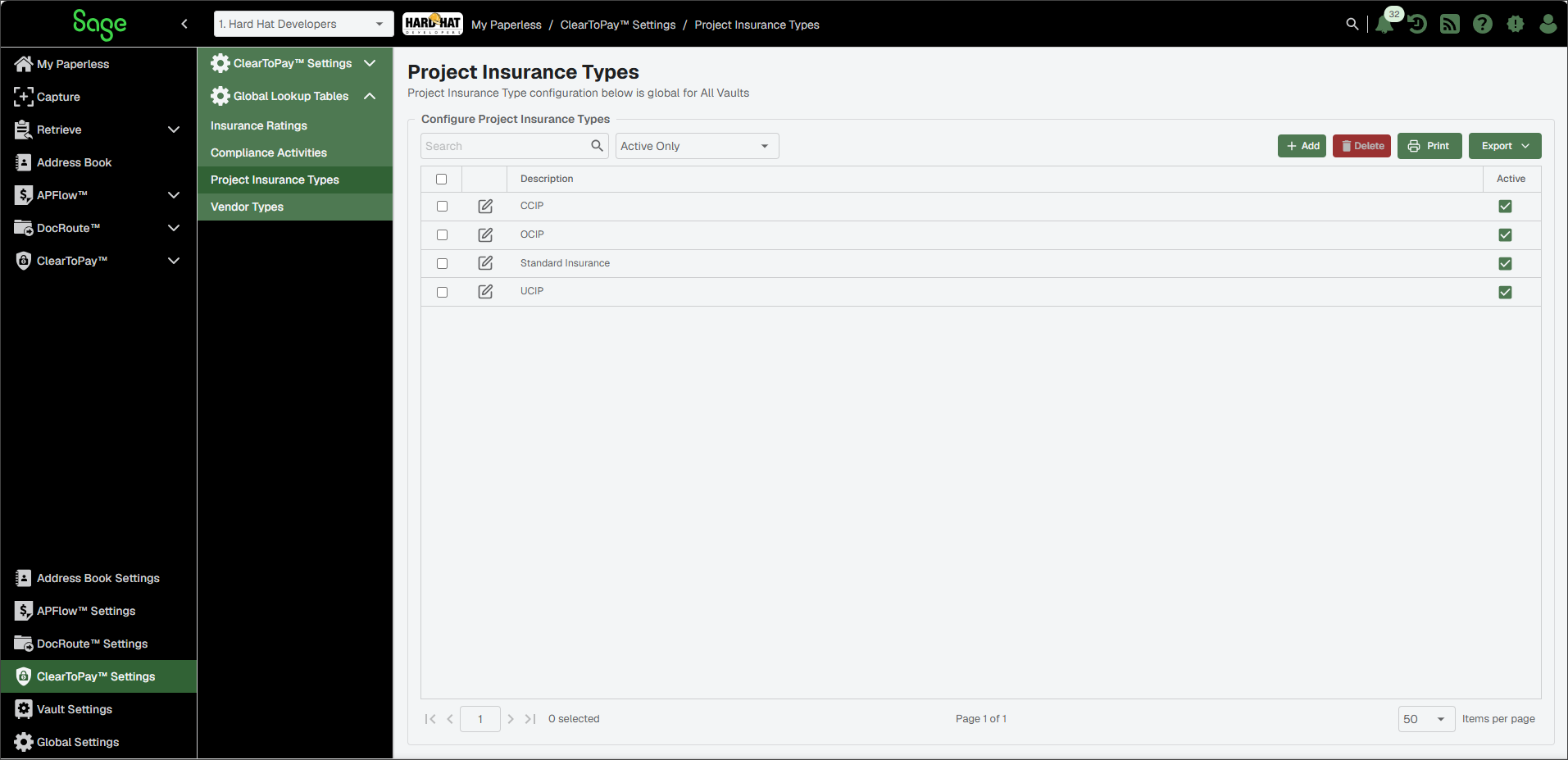
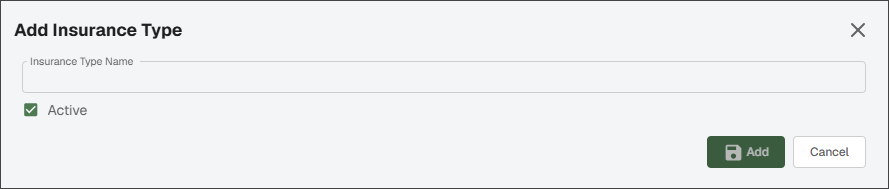
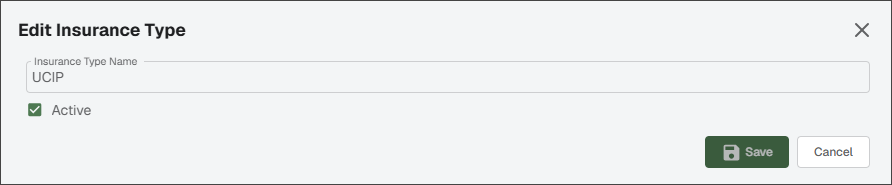
You can use the Project Insurance Types page to do the following:
|
| ||
|
| ||
| Click to print the Project Insurance Types grid. | ||
| Click to export the grid information to Excel, CSV or PDF. | ||
|
|

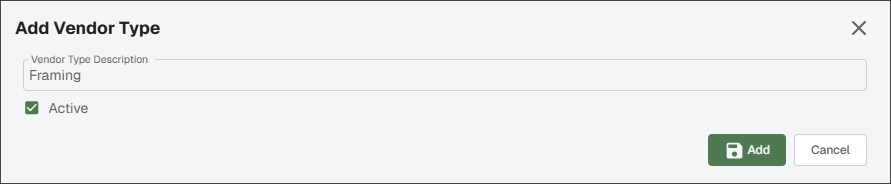
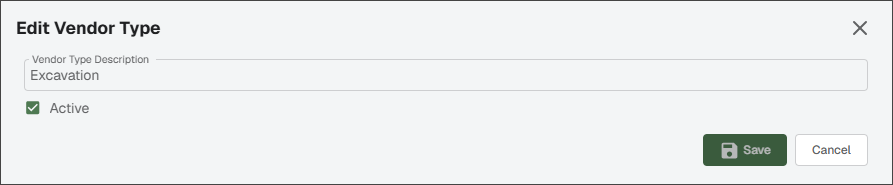
The Vendor Types tab within ClearToPay™ Settings supplies the data for the Vendor Type list on the Vendor Settings page.
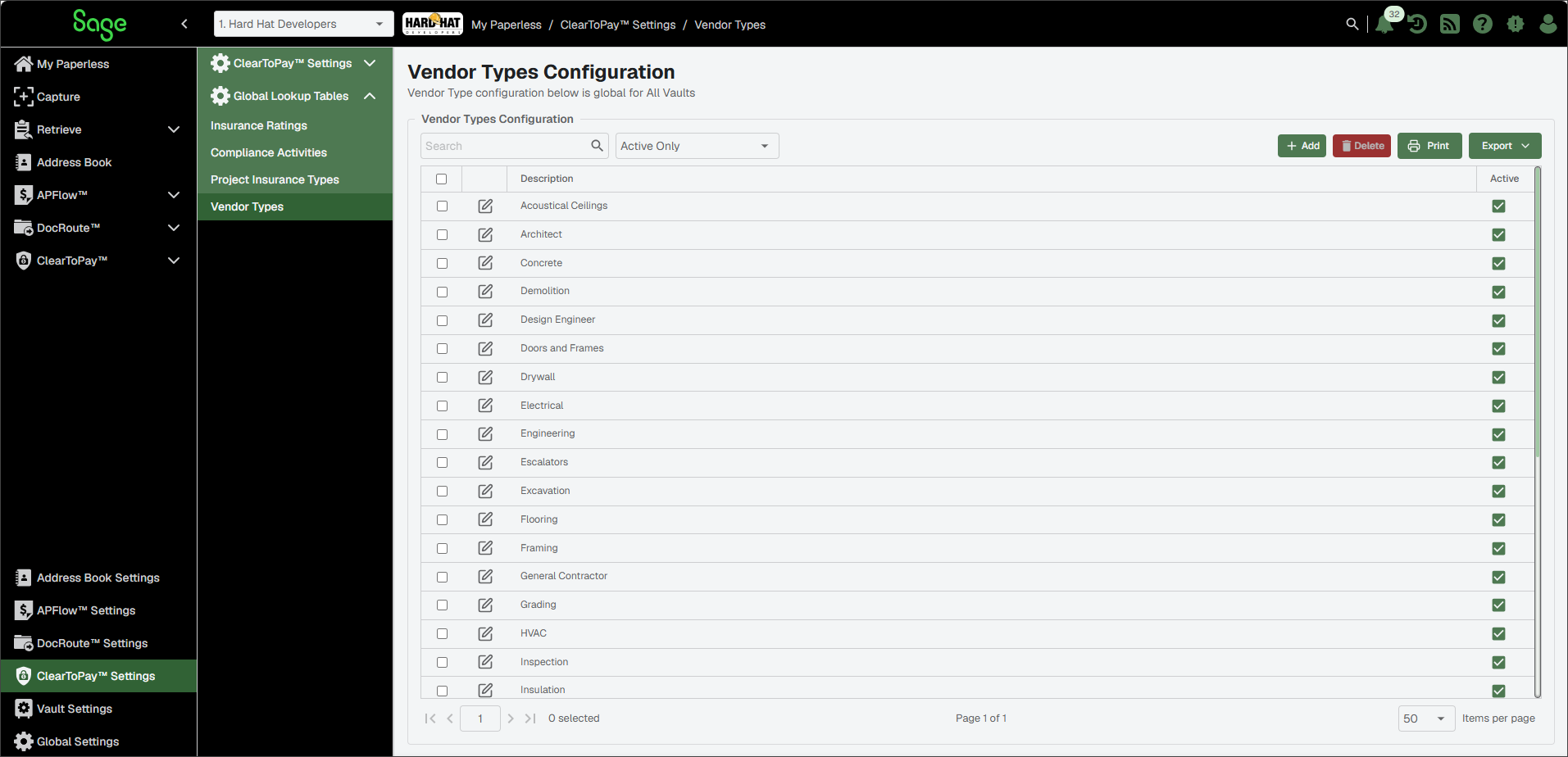
You can use the Vendor Types Configuration page to do the following:
 |
| |
|
| |
| Click to print the Vendor Types Configuration grid. | |
| Click to export the grid information to Excel, CSV or PDF. | |
|
|