Download and Use the eForms™ App
To use eForm, you must first download the application from the Apple App Store for iPhones and iPads, or from the Google Play store for Android phones and tablets. The app has the following icon:
 |
Once you have downloaded the app and your administrator has completed Assign eForms™ User Permissions, you can log in to eForms:
Open the Sage Paperless Const. eForms application and enter your email address.
Note
Screen size and layout may be different depending on whether you are using a phone or table, but the app's functionality is the same across devices.
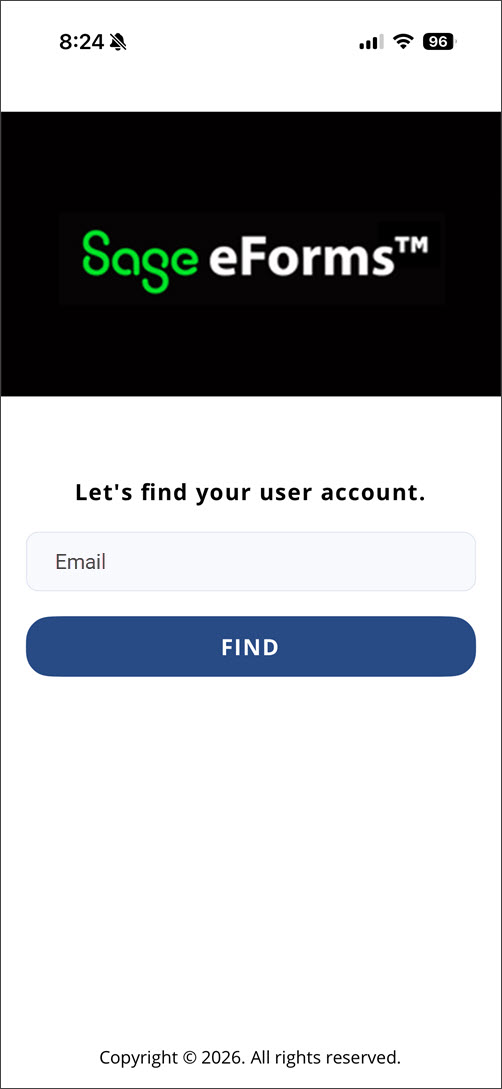
Click .
In the Password field, enter the associated password.
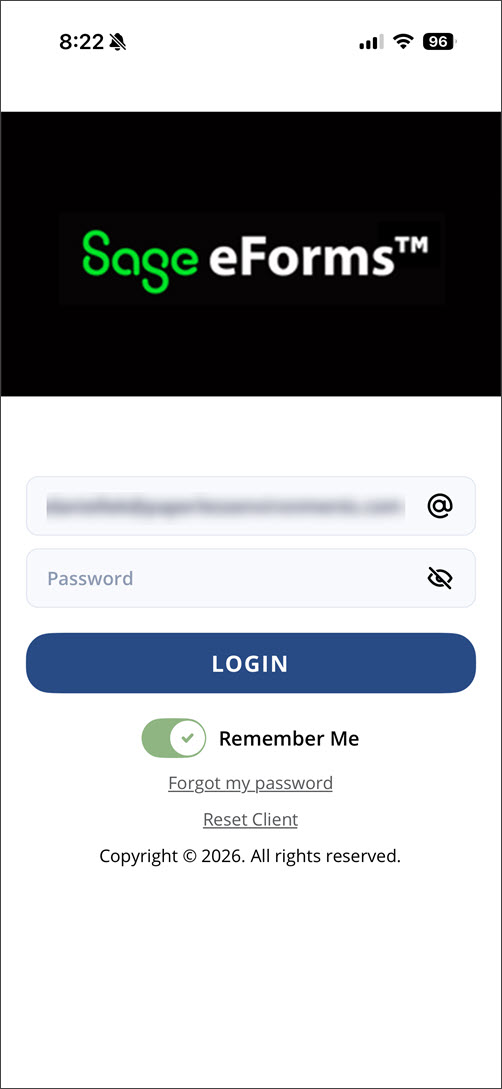
(Optional) Click to generate an email link for resetting a forgotten password.
Click .
If your company has multiple clients, select the applicable client from the CLIENT dropdown.
Click .
From the Vault dropdown, select the vault you want your eForm reports and files to sync to.
Click .
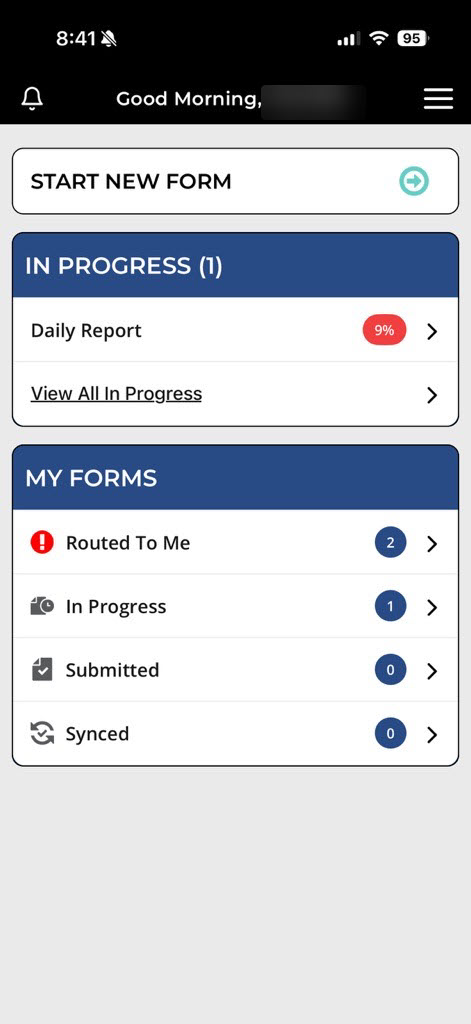
The Main Menu screen displays:
Navigate the eForms™ App
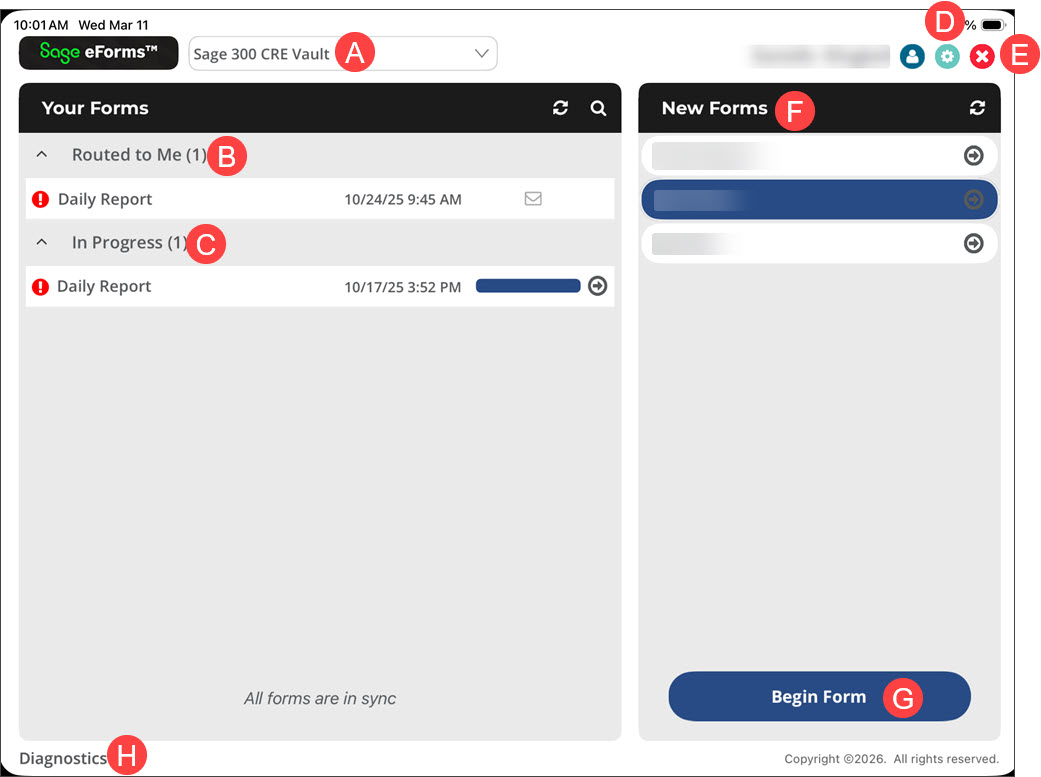
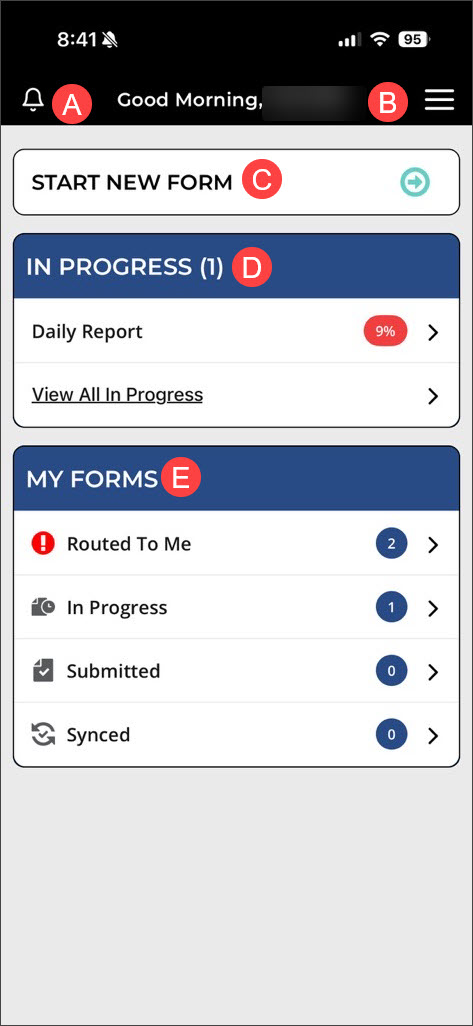
The main page provides an overview of what form templates are available for you to fill out, shows you the status of your existing forms (In Progress, Submitted, Synced) and if you have forms from others (Routed To Me).
Note
For more information on creating a new form, see Fill Out a New eForm.
Figure 3. eForms Tablet
| Figure 4. eForms Phone
|
Fill Out a New eForm
The following is an example of how to complete a new form based on a template that was assigned to you by your Administrator.
Do one of the following to start filling in an eForms™:
Tablet: Highlight the form in the NEW FORMS pane and click .
Phone: Click and select the form from the list. Then click .
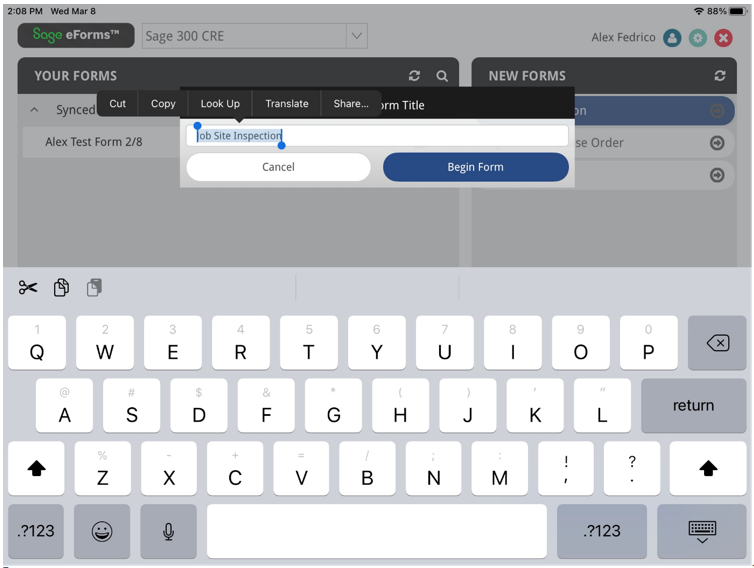
(Optional) If prompted, you can choose to rename the form or specific question categories.
Proceed through the questions and enter the requested information.
Note
Certain questions may display a Search
 icon, which indicates a lookup to populate selectable options from the system.
You may also be able to mark certain questions as Not Applicable or NA if they do not apply and your administrator has enabled that functionality.
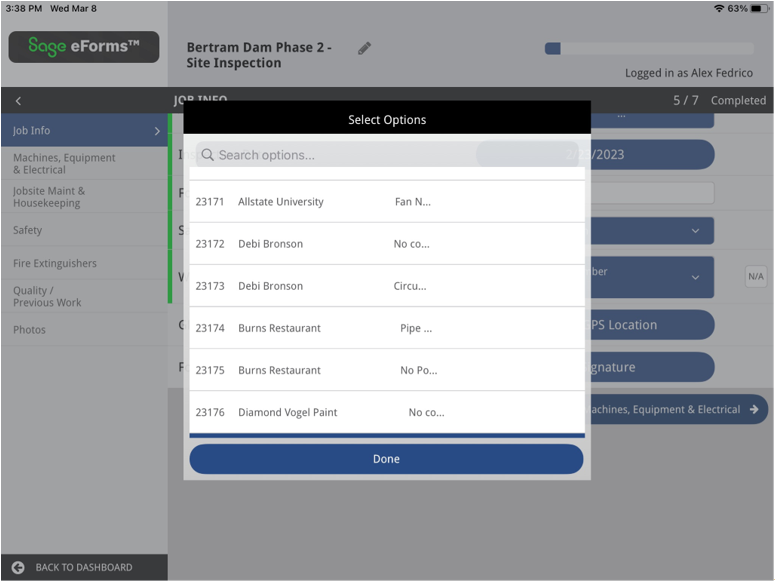
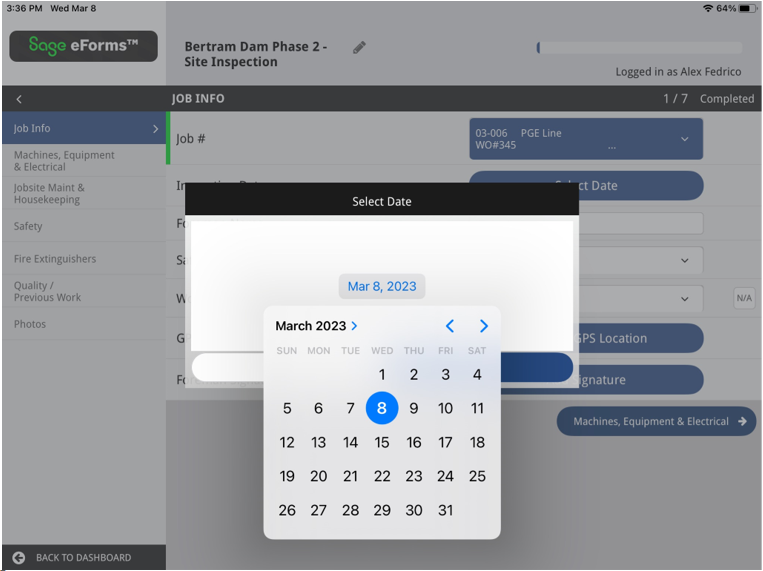
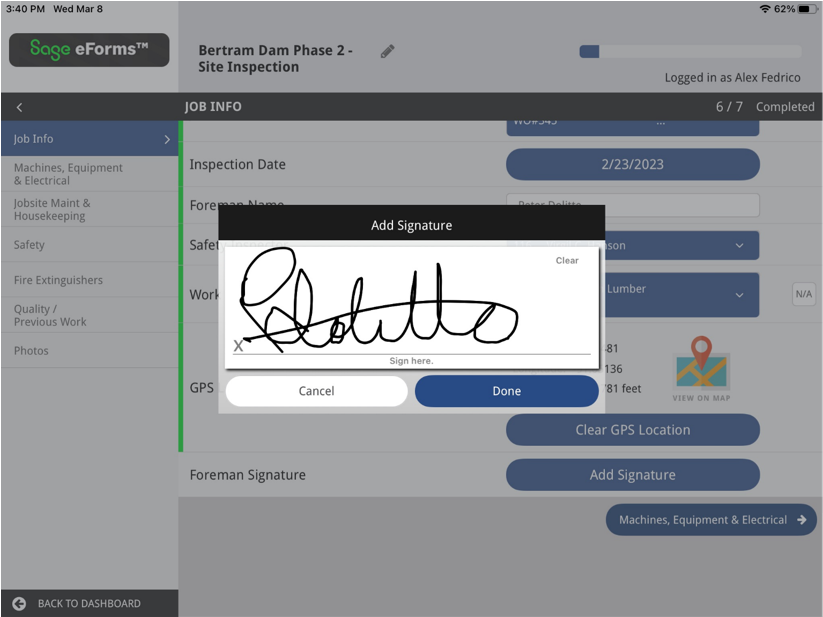
Some questions require information to be chosen from a list, typed into a field, or entered using a slider, calendar or time selector. You can even upload photos, add a signature or capture your current GPS location. See the examples below:
After you have completed the form, click .
If the device has access to the internet or cellular data, the completed form syncs with Sage Paperless Construction. If not, the report syncs once access is restored and displays in the Synced menu. You can now create a PDF of this form, send it via email or open a read-only version to review.
Note
The last page of the report file displays full-sized versions of the uploaded images included in the field report.