Manage Job Information in the ClearToPay™ Portal
The jobs page provides a listing of all the current jobs a vendor is performing work for. From the job listing page, you can select a particular job to view its dashboard.
You can use these pages to manage your own project-related compliance documents, without having to send them in the mail or monitor email threads.
From My Paperless, expand the ClearToPay™ dropdown and click .
A page similar to the following displays:
Note
From here, you can use search to narrow down the list of jobs you are working on. You can also export or print the grid.
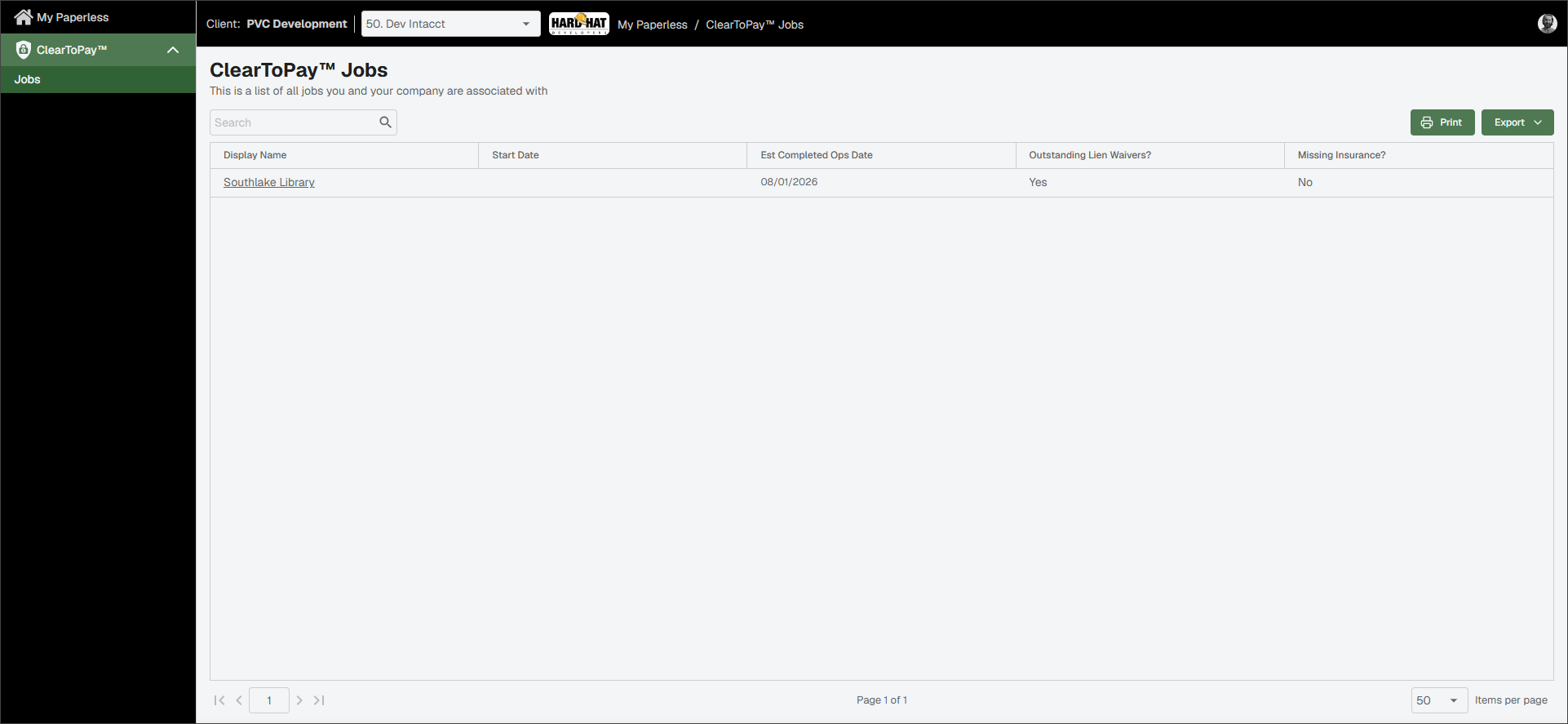
Select a job from the list and click on its name to review its information.
A dashboard similar to the following displays:
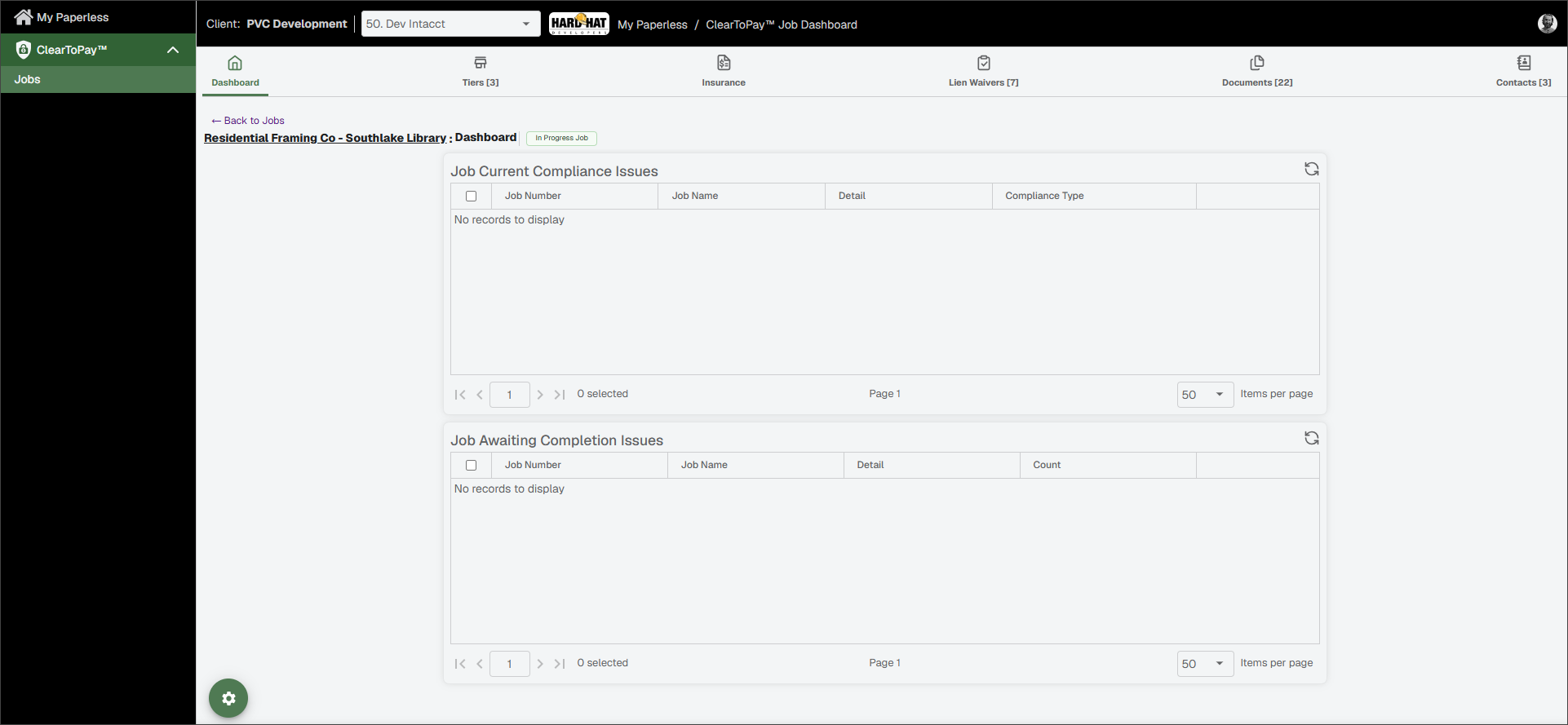
You can use the Job Dashboard to access important job features using the icons located at the top of the page, review and edit job information or check on compliance information using the dashboard widgets.
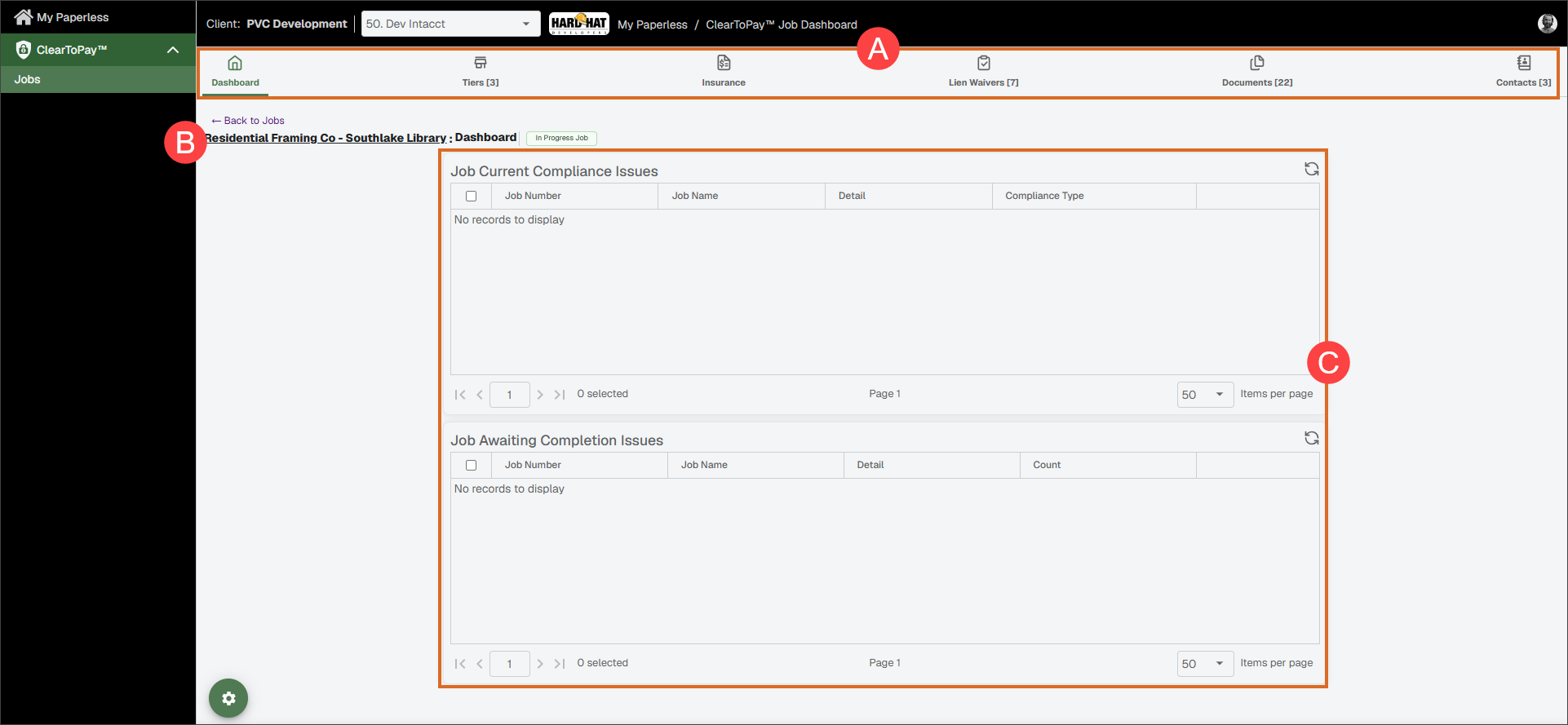
A: Quick links to access job and vendor compliance information, documents and contacts. B: Job name and status. C: Configurable grid widgets.
You can make modifications to the widgets that display on your various ClearToPay dashboards. ClearToPay provides various grid and mini widgets that help you quickly view and access relevant information like compliance issues, expiring policies, configuration issues and emails.
Just like other dashboards in Sage Paperless Construction, the system remembers your widget settings (by user, by widget, by vault).
To access the available widgets, click the Widget Configuration
 icon.
icon.The Select Widgets to Display dialog displays:
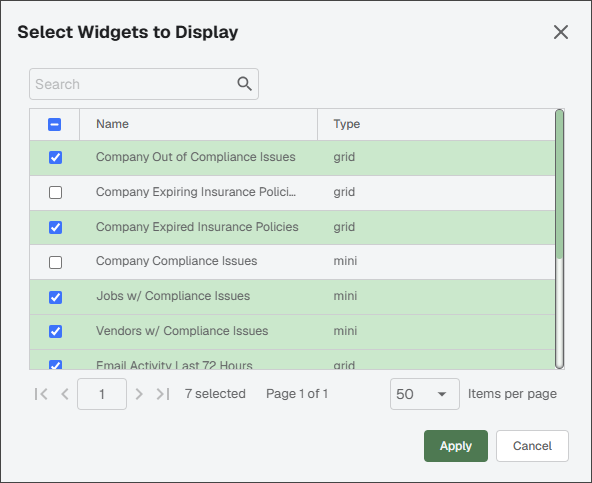
Select which widgets you want to display.
Note
The widgets that are available vary depending on if you are configuring widgets on the company, job or vendor dashboard.
Click .
Note
If you want to display all the listed widgets, click the check box in the header. This populates every check box with a checkmark.
To "unpin" a widget so that a particular widget does not display on your Dashboard page, remove the checkmark for that widget. Remember to click to save your changes.
For additional information on updating dashboard widgets in Sage Paperless Construction, see Use Widgets and Grids.
Click on any of the Refresh
 icons that display on each widget to refresh them individually.