Credit Card Importer
Why use Credit Card Importer?
The use of company purchases paid with a credit card adds a level of complexity to the Accounts Payable process.
Sage Paperless Construction has the ability, with the Credit Card Importer, to create invoices from an electronic credit card statement and match individual transactions to previously indexed credit card receipts. You can also create and manage secondary vendors.
Once your statement is imported into Credit Card Importer, the module keeps up with where you are. This means that if you need to stop without finishing, you can. The module remembers where you were in the file so you can continue without issue.
Invoices originally created in Credit Card Importer can be pushed to APFlow™ for further coding (or if all the coding is complete) export that invoice straight from Credit Card Importer.
Complete the following steps to access Credit Card Importer:
From My Paperless, click .
From the APFlow™ navigation bar dropdown, click .
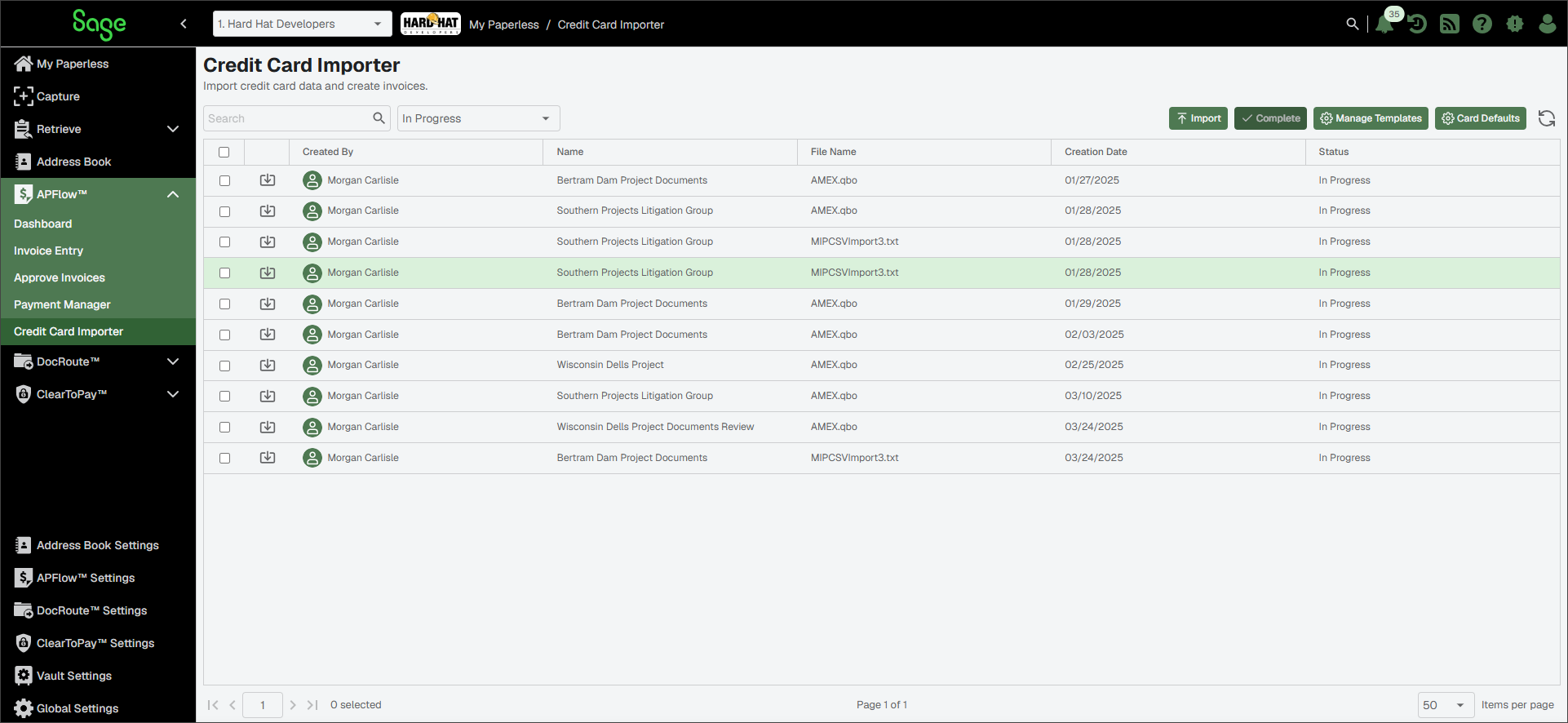
The Credit Card Importer main page displays:
Note
To prevent two users from successfully accessing the same record, and either overwriting data or deleting it, there is a record lock. While a record is currently being accessed, the Status column entry for that record changes from In Progress to identifying the individual who has that record open. If you attempt to edit the import while another user has it open, a prompt displays explaining that a specific individual has the record open and they must close it before you can open it.
Once the individual has gotten out of the record, click to update the Status column entry.
Use this page to perform the following tasks or open the import detail pages.
Import |
| ||
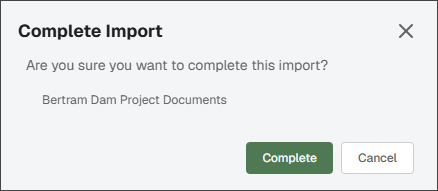
Complete | Click this button to move an entry off the Credit Card Importer main page. NoteThis could be because an entry is actually complete with no additional steps needing to be taken, or an entry just needs to be removed from the Credit Card Importer main page. When you click , a dialog similar to the following displays with a confirmation prompt:
To filter the list and view removed items, click the dropdown displaying In Progress (this is the default) and select or . This information is maintained for archive purposes. | ||
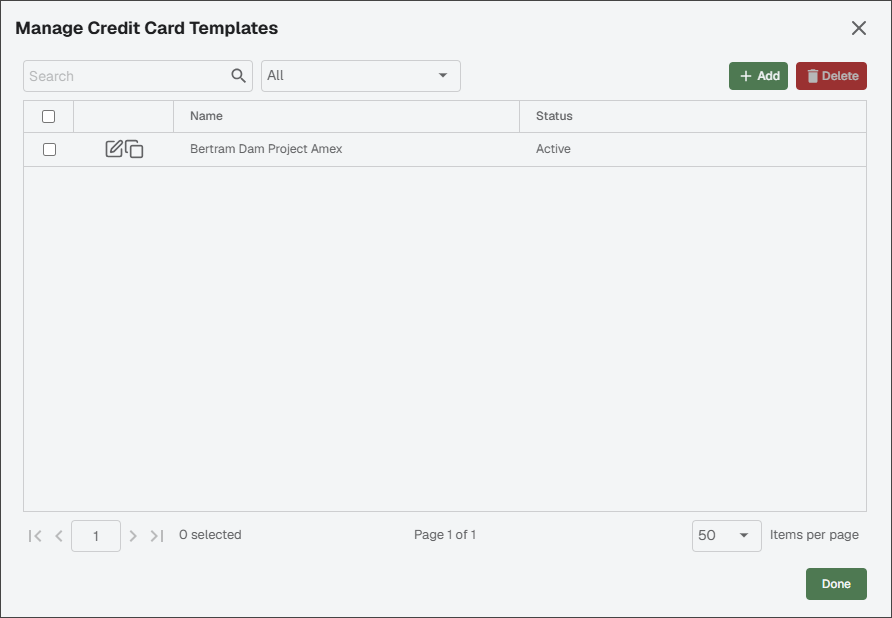
Manage Templates | Click to access the Manage Credit Card Templates dialog:
For more information, see Industry Standard File Import vs. Template-Based Import. | ||
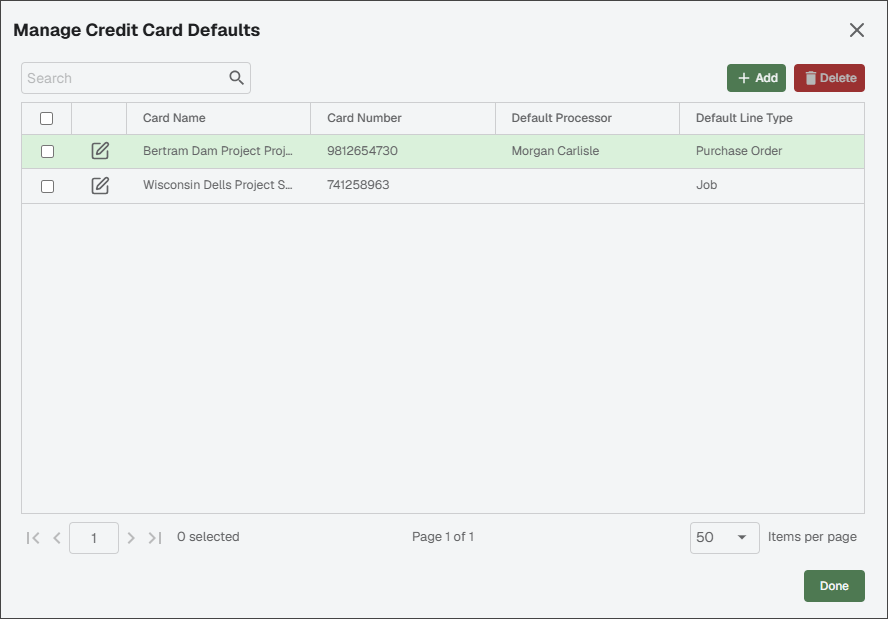
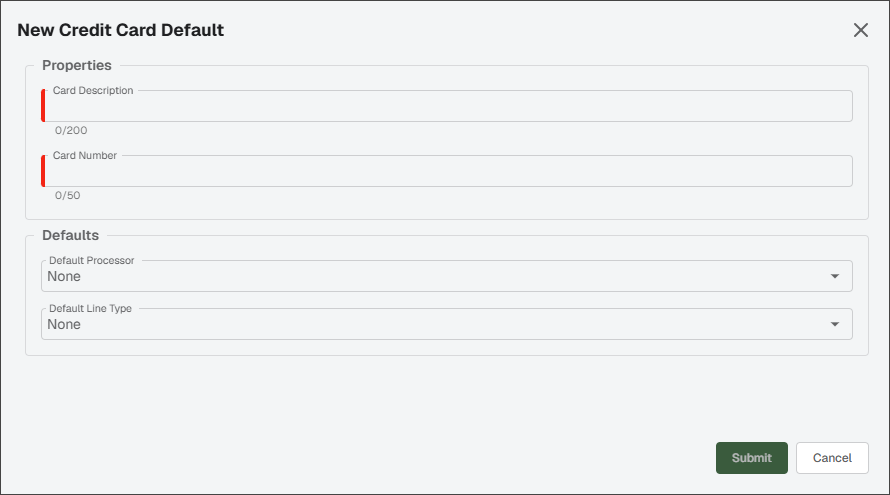
Card Defaults |
|