Statuses
An invoice can move through one or more statuses while in the Approve Invoices workflow.
From My Paperless, click APFlow™.
From the APFlow™ navigation bar, click .
A page similar to the following displays:
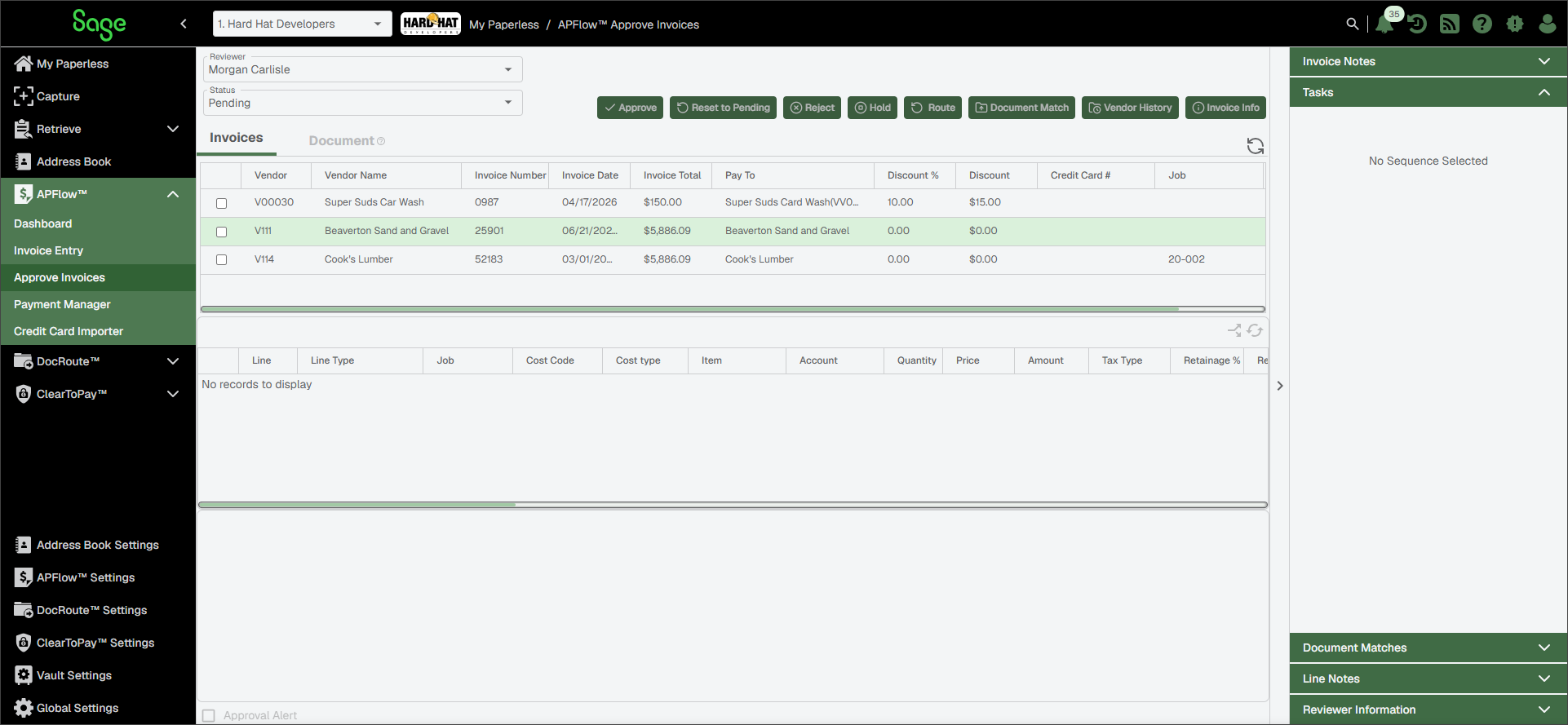
In the Reviewer field, use the dropdown to select the appropriate Reviewer.
In the Status field, use the dropdown to select the appropriate status.
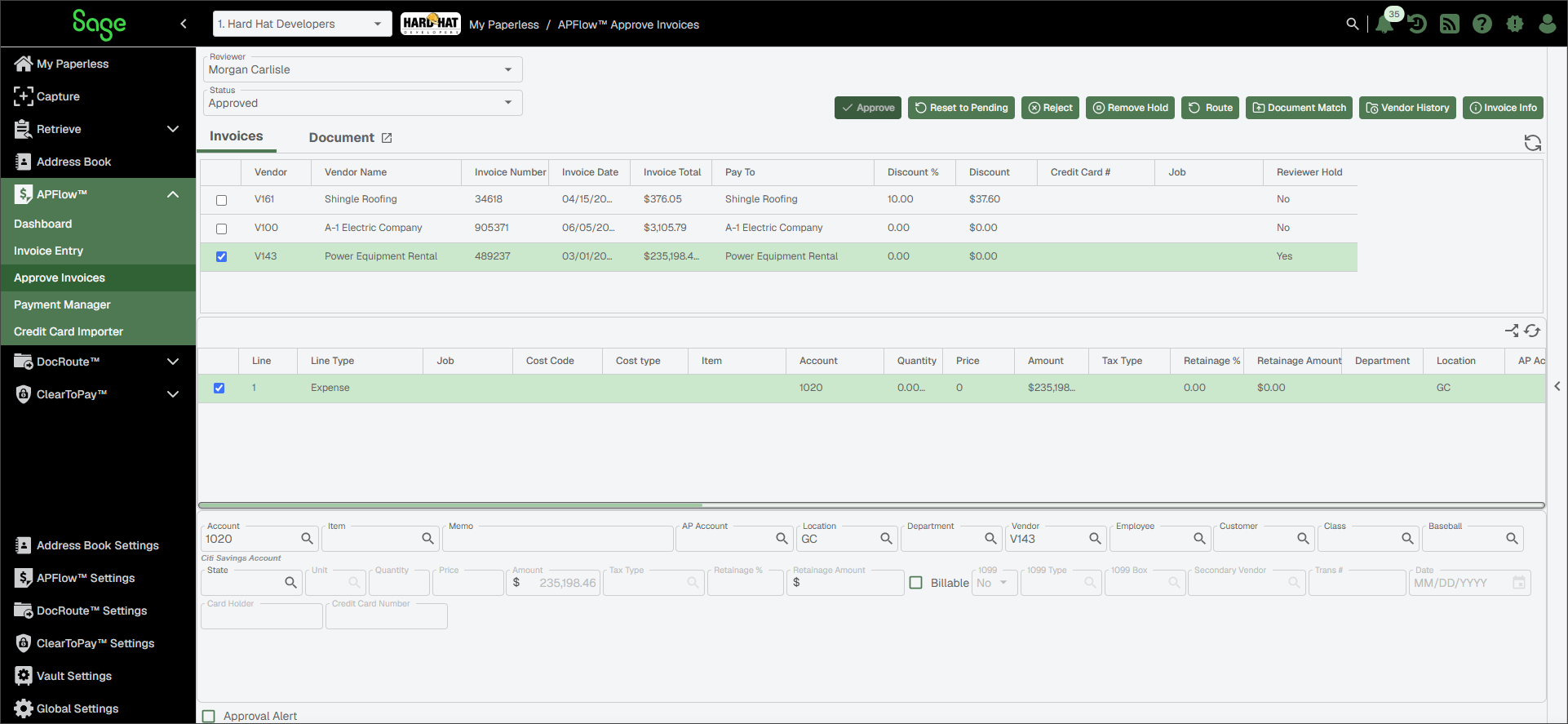
Invoices displaying in this status are also in the Approved status but not currently exported.
From the Approved Invoices page, click from the Status dropdown. The page that displays lists the invoices you have approved.
Note
To find invoices that have been fully approved by all Reviewers, go to the Invoice Entry page and select from the Invoice Status dropdown.
Complete the following steps to approve an invoice:
From the Status dropdown, select .
A page similar to the following displays:
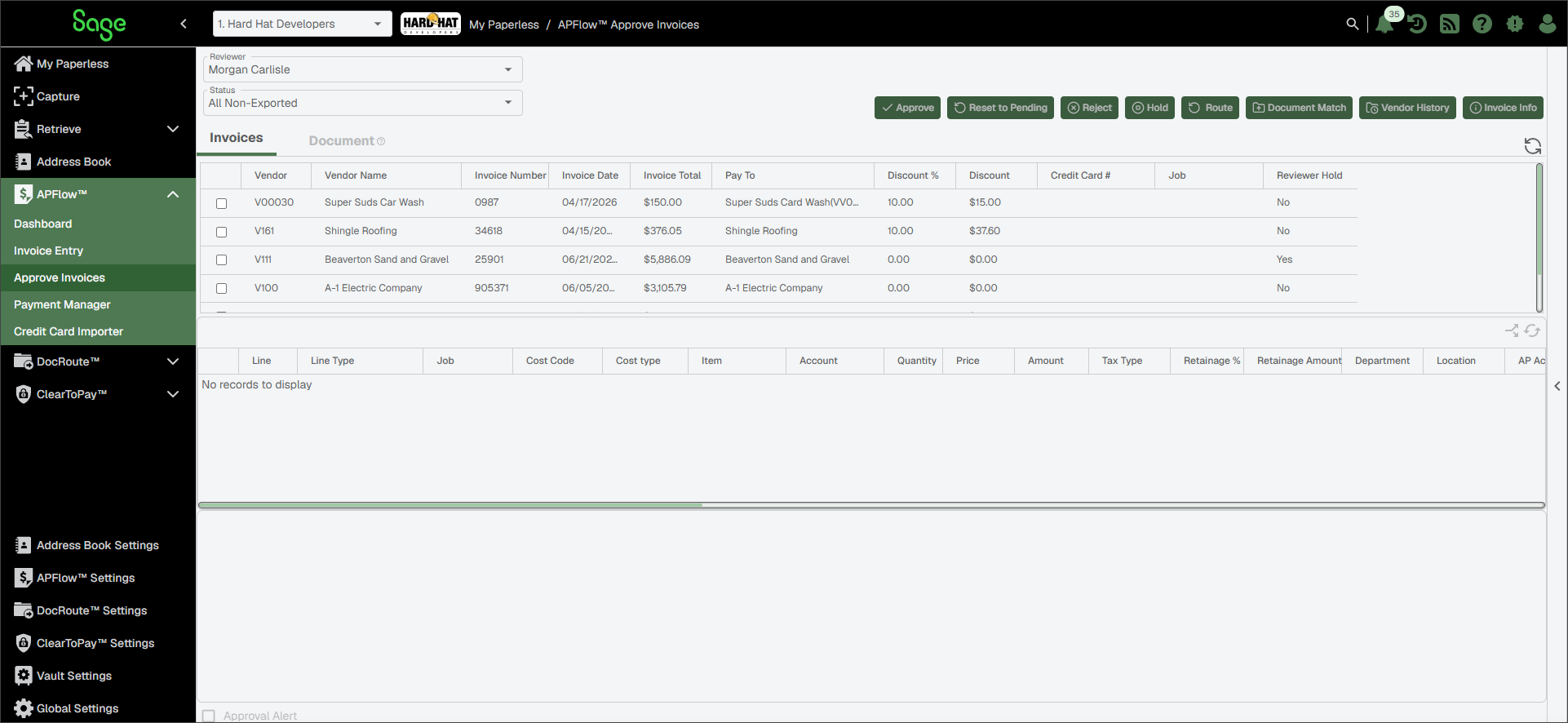
Highlight the invoice you want to approve.
Click .
The invoice is validated to make sure all required fields are filled out appropriately. If they are, the invoice displays in the Approved Status page.
(Optional) If there are validation issues that need to be resolved, make the necessary field changes and click again.
Note
Invoices can also be approved while still in Invoice Entry if:
The Processor has the proper permissions
The invoice is fully coded
The invoice does not need to be routed for approval
These are invoices that are fully approved by all reviewers, but the check box was checked by one or more Reviewers. These invoices must be opened by the Processor and the check box must be manually deselected before these invoices are eligible for export.
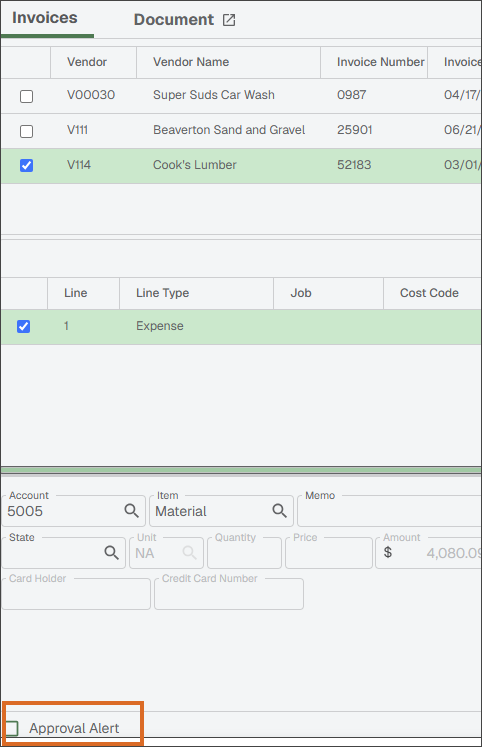 |
Click the check box at the bottom right of the page.
The following Approval Alert dialog displays:
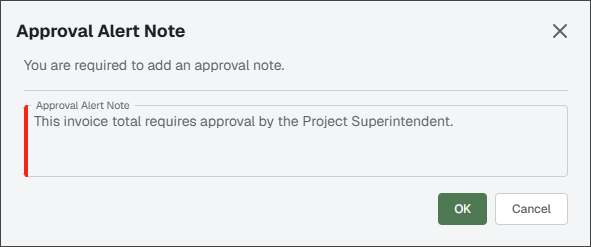
This required note allows the Reviewer to detail why the Processor must manually open the invoice to remove the Approval Alert.
In the text box, provide information why an Approval Alert was associated with this invoice. This helps the Processor know what appropriate action to take with this invoice.
Click to close the Approval Note dialog.
The Approve Note, similar to the following displays in the Invoice Notes section of the Approve Invoices sidebar.
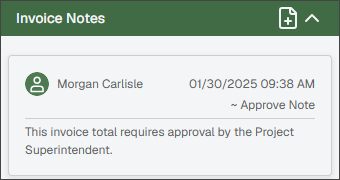
Use the Hold option to hold an invoice. As part of the hold invoice process, a hold reason is required. The information entered in the Hold Note dialog is archived along with this invoice, even if the invoice is later released and approved for payment.
From the Status dropdown, select .
The page resembles the following:
Highlight the invoice to place on hold.
Click .
The following Hold Note dialog displays
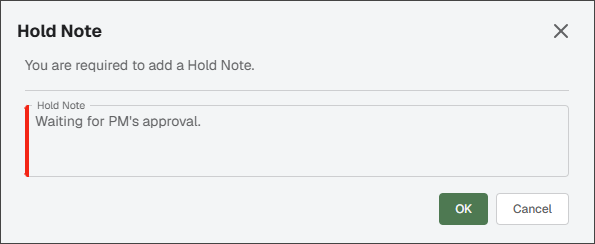
This required note allows the Reviewer to detail why the invoice was placed on hold.
In the text box, provide information why the invoice was placed on hold to help the Processor take appropriate action with the now held invoice.
Click to close the Hold Note dialog without approving the invoice.
The Hold Note, similar to the following, displays in the Invoice Notes section of the Approve Invoices sidebar:
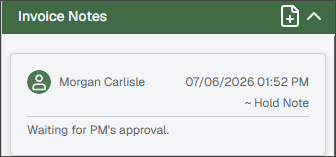
Once the invoice is placed on hold, the button text changes to as a visual cue that the invoice was placed on hold. Additionally, Yes displays in the Reviewer Hold column in the Approve Invoice grid for that invoice as another visual cue.
Routed invoices with the Processor waiting for the invoices to return display in the Pending status. These invoices are essentially pending review. This is the initial status of a routed invoice. These are invoices assigned to one or more reviewer who have not marked the invoices Approved.
Invoices listed are rejected by Reviewers or Supervisors and require additional action.
Use the Reject option to return an invoice back to the Processor assigned to the invoice. As part of the reject invoice process, a reject reason is required. The information entered in the Reject Reason dialog is archived along with this invoice, even if the invoice is later approved for payment.
From the Status dropdown, select All Non-Exported.
The page resembles the following:
Highlight the invoice to reject.
Click .
The following Reject Note dialog displays:
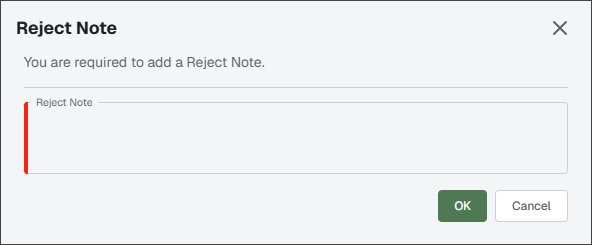
This required note allows the Reviewer to detail why the invoice was rejected.
In the text box, provide information why the invoice was rejected to help the Processor take appropriate action with the newly rejected invoice.
Click to close the Reject Note dialog without approving the invoice.
When an invoice, currently in the review process and displaying in the Approve Invoices, Pending status, is modified, the invoice is systematically recalled. It displays in the Recalled status pane. When the invoice is rerouted, for any of the assigned Reviewer(s) who have already approved the pre-modified version of the invoice, this revised version of the invoice displays in their Approve Invoices, Reapprove status as well as their Pending status. For assigned Reviewer(s) who had not yet reviewed this invoice, this invoice is visible in their Pending status as expected.
Note
APPROVE, REJECT and HOLD are enabled in the toolbar for an invoice in the Reapprove status.