Vault Queue Configuration
Sage Paperless Construction employs a special "listing" or "inbox" of non-indexed documents called a “Queue”. Queues can be assigned to individual users or to groups of users for gathering and routing documents for further processing.
Vault Settings is where you can add/remove a queue that was created in Global Settings to your current vault, as well as configure the queue for OCR.
Note
For more information on configuring queues to use OCR, see Configure OCR Queues.
Feature | Global Settings | Vault Settings |
|---|---|---|
Permissions Required | System Administrator | System or Vault Administrator |
Administrator Access | ||
Primary Goal | Create, name and manage the key properties of queues and their categories. | Set up an existing queue for use in one particular vault. |
Users Access | Assign which users can access and use the queue. | N/A |
OCR (if licensed) | Select check box to allow queue to be used for OCR. | Assign specific OCR Workflow and processor. NoteOnly available if queue is flagged for OCR within Global Settings. |
Scope | Organization-wide | Current vault only |
From My Paperless, click .
In the Vault Settings navigation bar, click .
The following page displays:
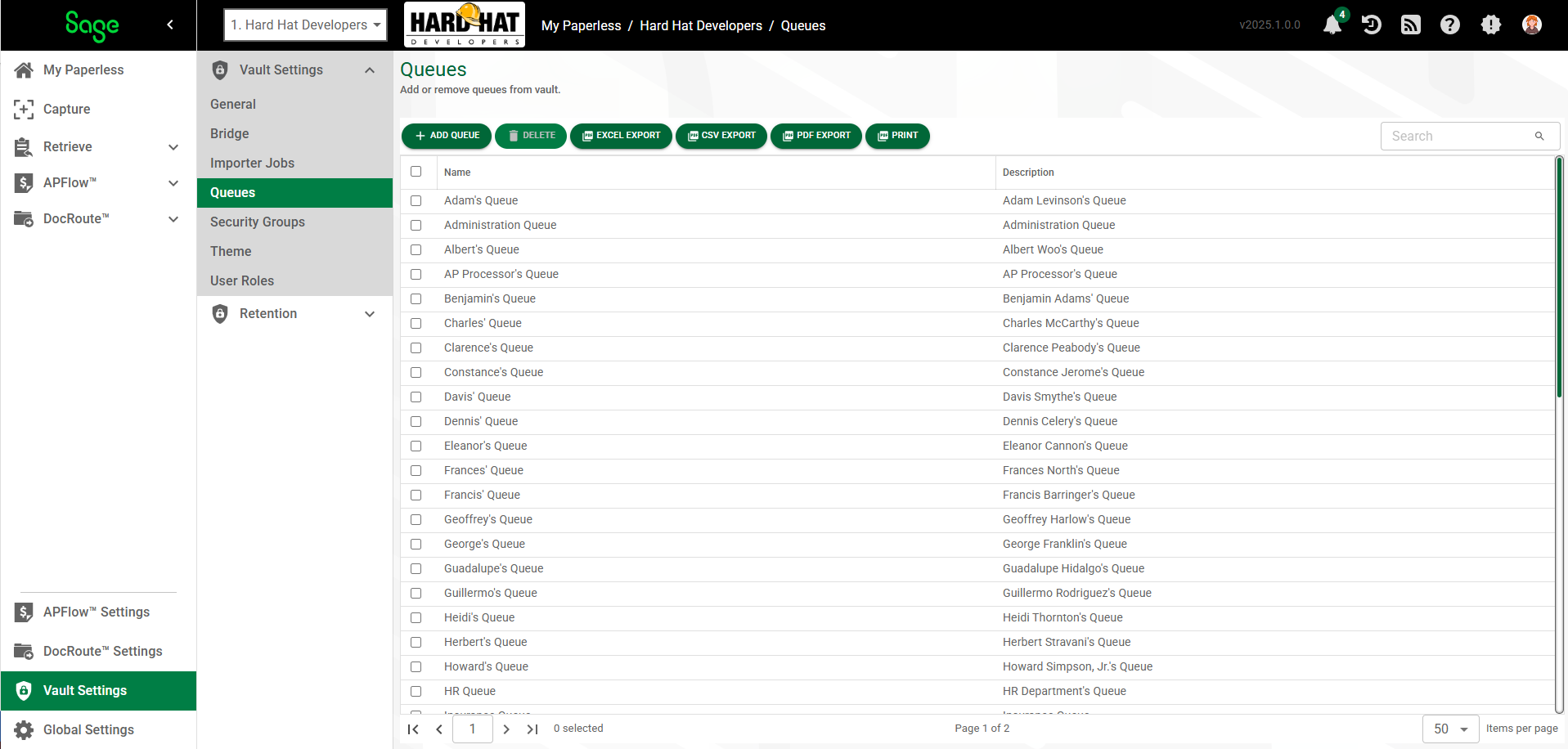
Click .
The Add Queues dialog displays and lists the queues that are not assigned to the current vault.
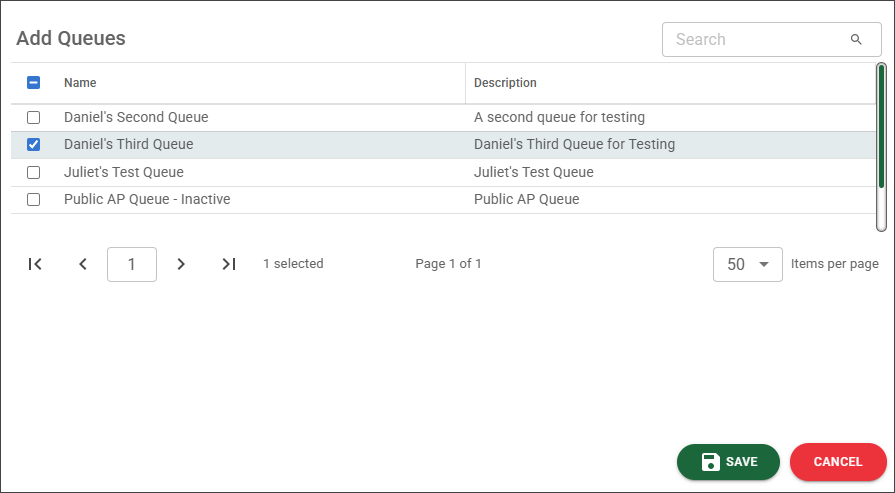
Select the check box of any queues that you need to assign to the current vault.
Click .