Archive Documents
Sage Paperless Construction includes the functionality to move older files to an “archived” state.
When documents are archived, they are marked as such. Physical document files may be moved to a new storage location and documents are no longer included in the “production” searches in Document Search.
The primary reason for archiving documents is because older files from previous years may “clog up” searches. Archiving older documents removes them from Production Only searches. Users can specifically choose when to search (and view) archived files.
Important
Archiving only impacts document data; it does not impact invoice data.
When the archive job runs, the files do not move but the document data is modified to indicate the document is "archived."
Document archiving can be run manually or on an automated schedule. (For more information, see Manual Archiving and Automatic Archiving). Complete the following steps to access the Archive Documents page and view any currently scheduled archive jobs.
From My Paperless, click .
In the Vault Settings navigation bar, click .
From the Retention dropdown, click .
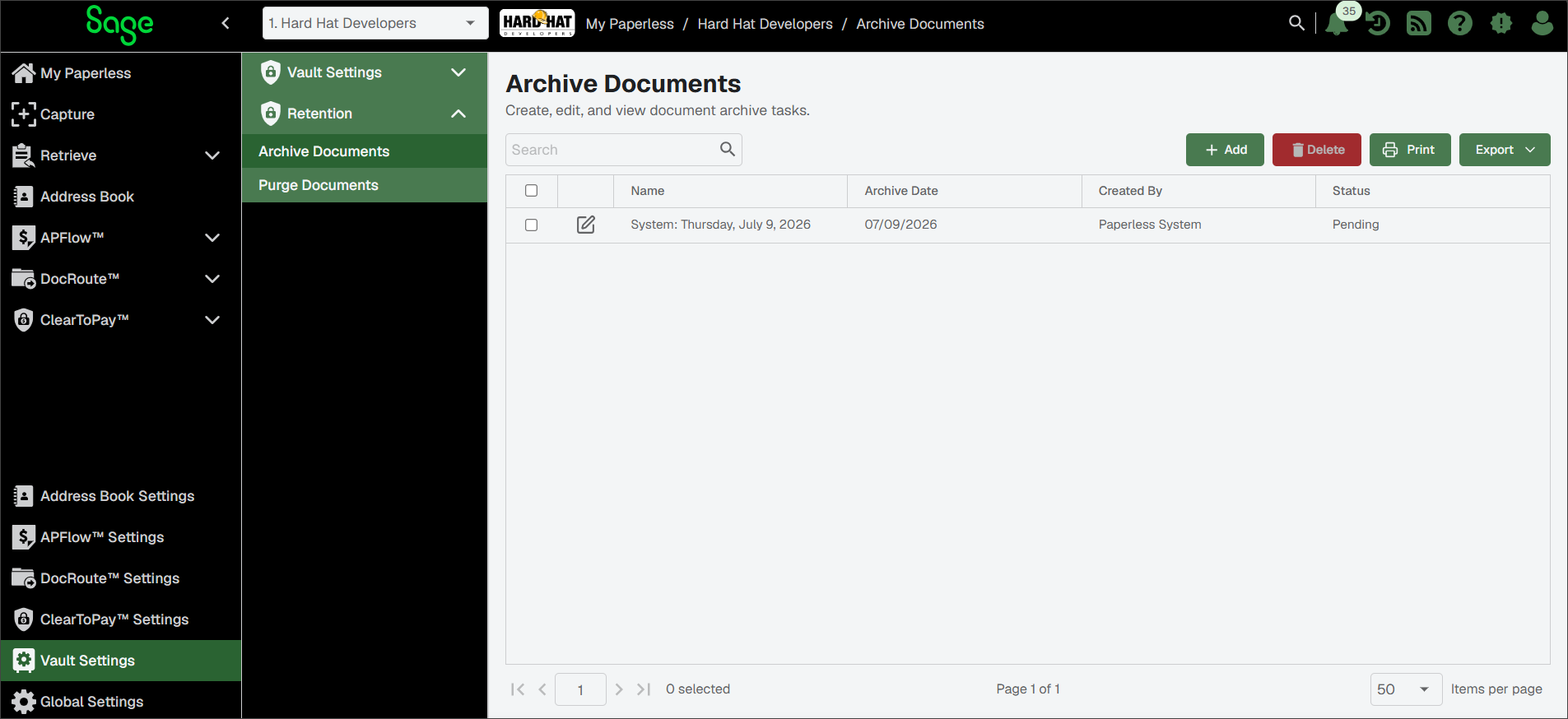
The Archive Documents page displays.
Proceed to the sections below to edit existing archive jobs or set up a new archive job.
Sage Paperless Construction performs an “automatic” archive function every night based on retention settings set on individual document types in . See Edit Document Types for more information on configuring automatic archive schedules.
The Archive Documents page lists the completed and upcoming document archives.
Note
Administrators can view the documents chosen for the upcoming automatic archive job by clicking the Edit  icon
icon
You can manually add a document archive job and manually select the documents they want to include in the job.
Note
You must be a System Administrator to add a document archive job.
From the Archive Documents page, click .
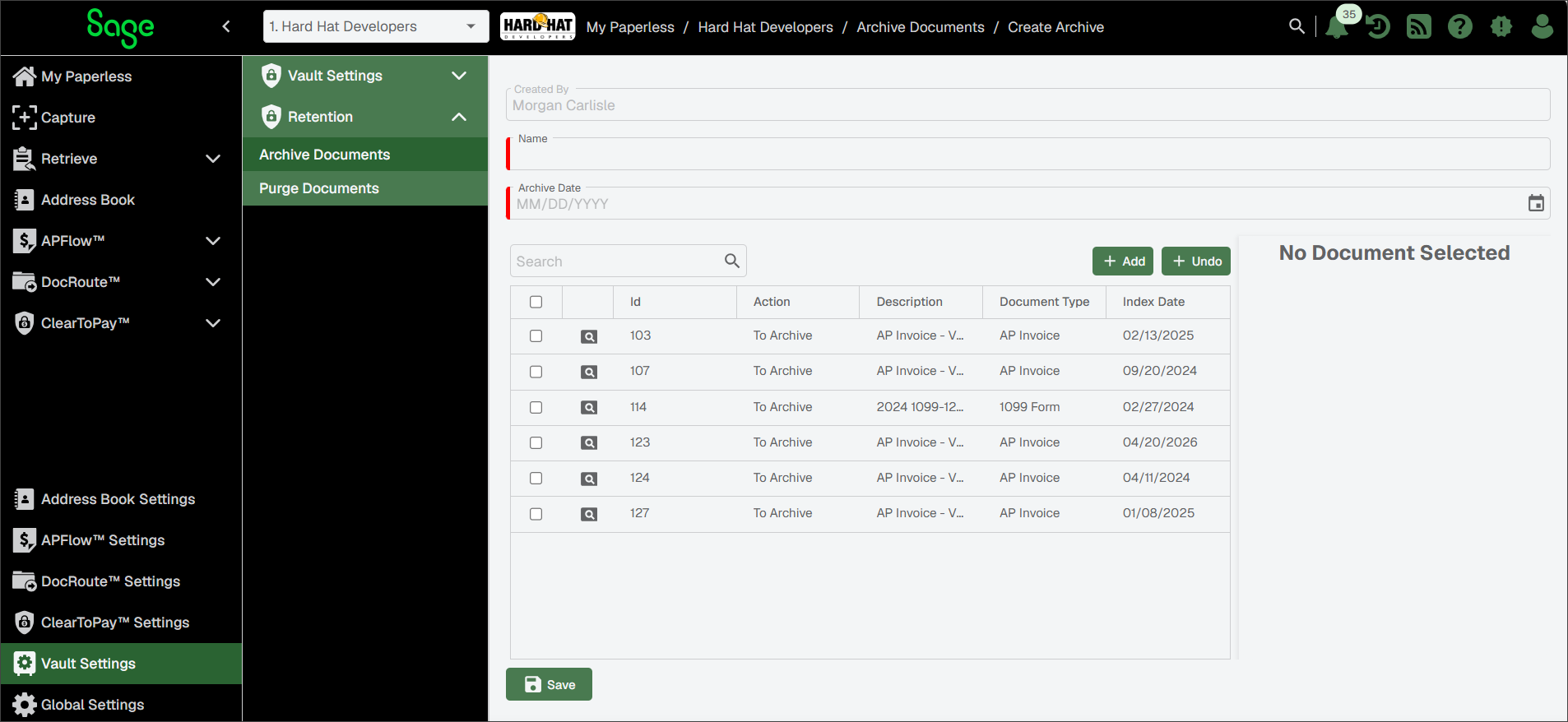
In the Create Archive page that displays, enter a name and archive date.
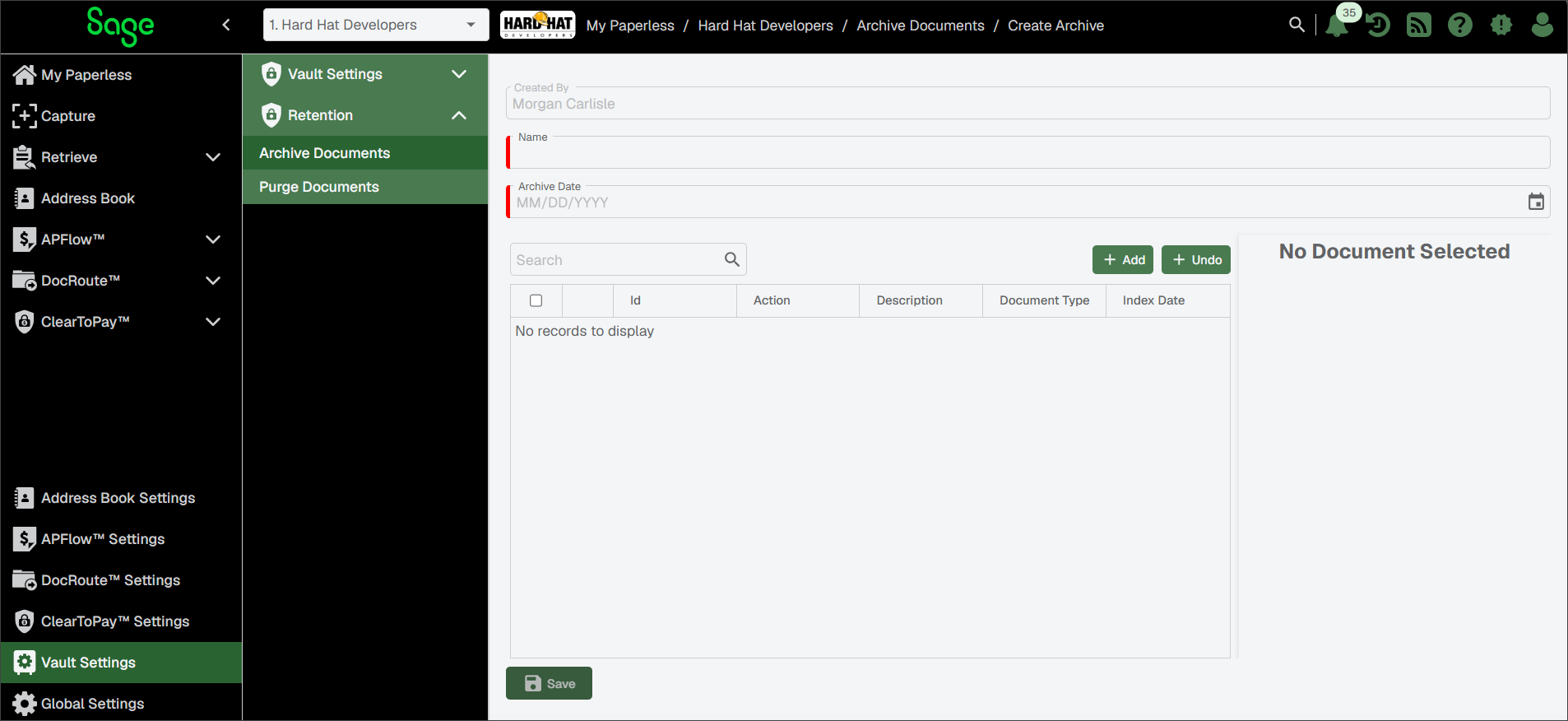
Click .
The following Add Documents to Archive dialog displays with the CRITERIA tab active:
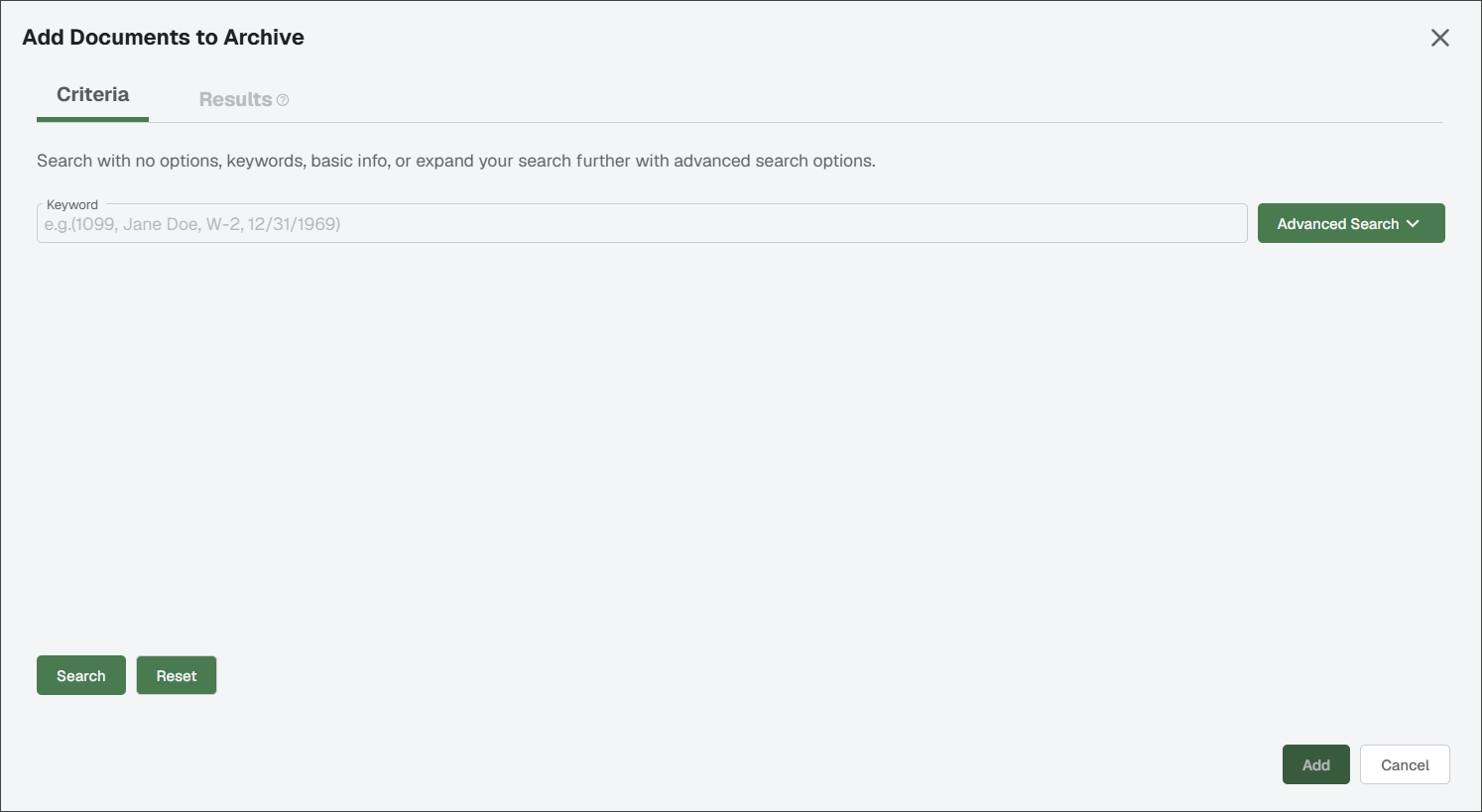
In the Keyword field, enter the appropriate search criteria to locate the documents you want to archive.
(Optional) Click the dropdown arrow to display additional fields to help narrow down your search.
The Criteria radio button within Search Options is selected by default. You can also select if you would like to narrow your search by document ID.
Note
If you select Specific Documents, your Advanced Search options are reduced to the Document IDs field. In this field you can enter specific identification numbers or leave the field blank to include all.
In the Document Type(s) field, use the dropdown to search for documents suitable for archiving. If using several index criteria in the search, an And / Or option is available. AND allows the combination of several index criteria in the search. All index criteria must be met to return a result. OR allows any one of the index criteria to return a result.

You can scroll through the Indexed by User(s) list or start typing a name to populate the field and select one or more users. If you do not know who indexed the document(s) you are searching for, leave this field blank.
In the Indexed fields, click the calendar icons to select the date range.
In the Types section, select either , or . The Production radio button is clicked by default.
When finished entering archive document criteria, click .
The Add Documents to Archive dialog re-displays with the RESULTS tab active:
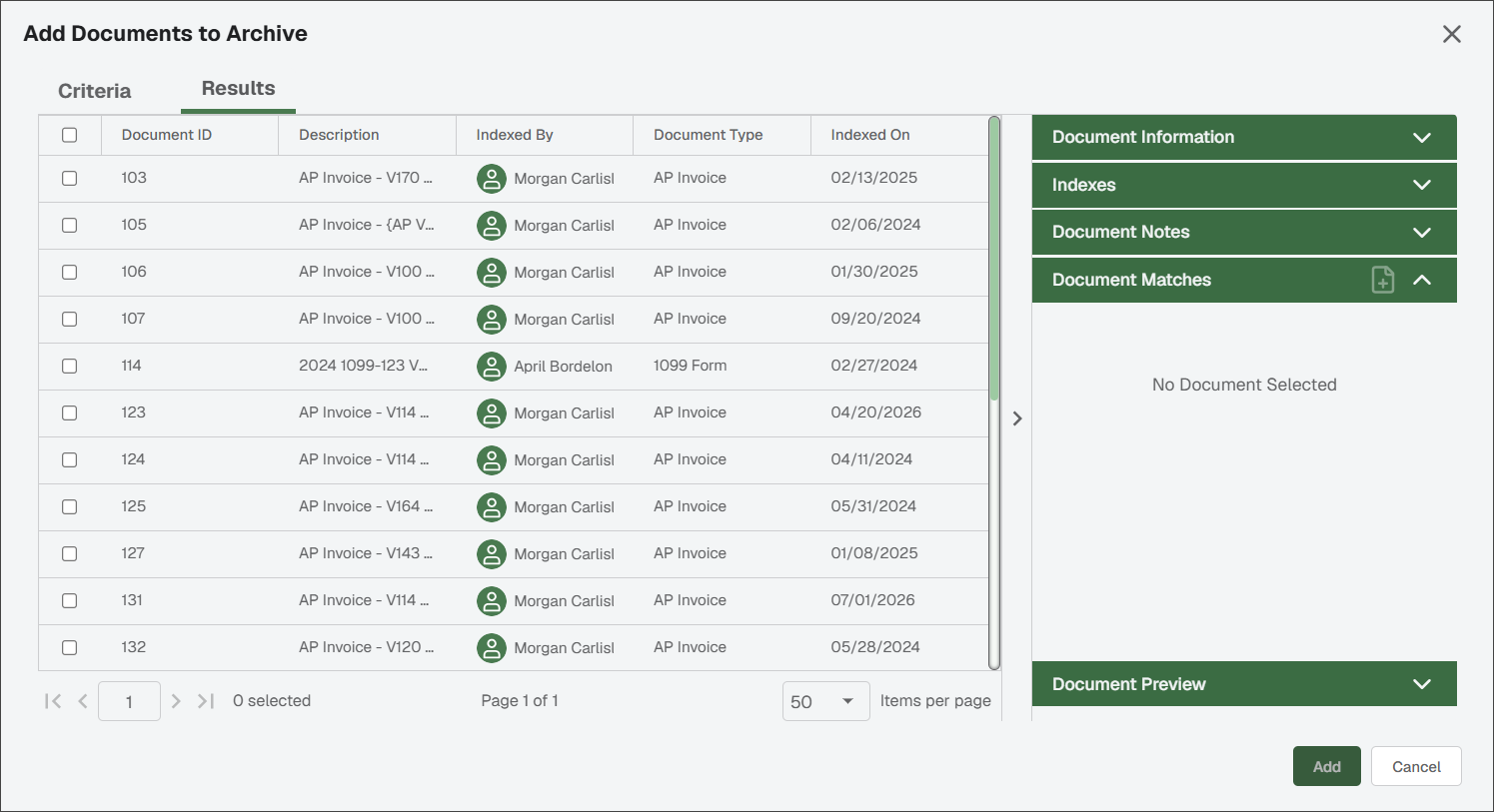
To further review your search results and determine if a document should be included in the archive, click the associated check box In the Document Information pane to view document information and a visual in the Preview section:
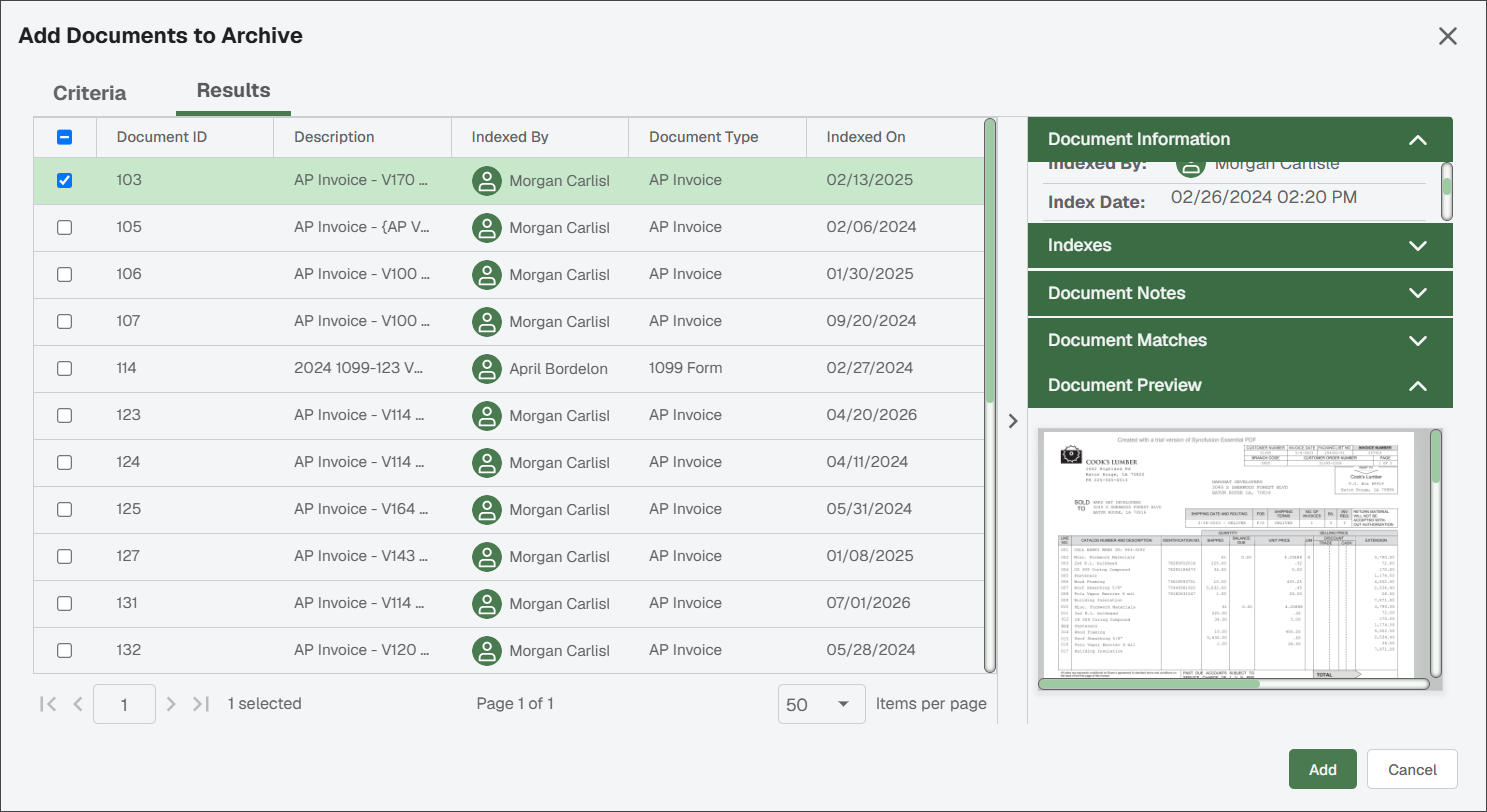
To select any of these identified documents for archiving, click the associated check box(es). If all displaying documents should be included, select the check box located in the header.
Once the documents to be archived list is complete, click .
The Create Archive page re-displays:
Note
More documents can be added (or removed) by clicking either or as appropriate.
Click .