ClearToPay™ Settings
For you and other users at your company to take advantage of ClearToPay's functionality, you need to set up roles for who can view and use the program within ClearToPay™ Settings. These roles are company and vault specific.
To see the ClearToPay™ Settings menu:
Your ClearToPay module must be licensed.
You must be a System Administrator, a Vault Administrator or a ClearToPay Administrator.
If you meet the requirements listed above, complete the following steps to access and grant user and access permissions:
From My Paperless, click .
ClearToPay Settings opens on the General tab.
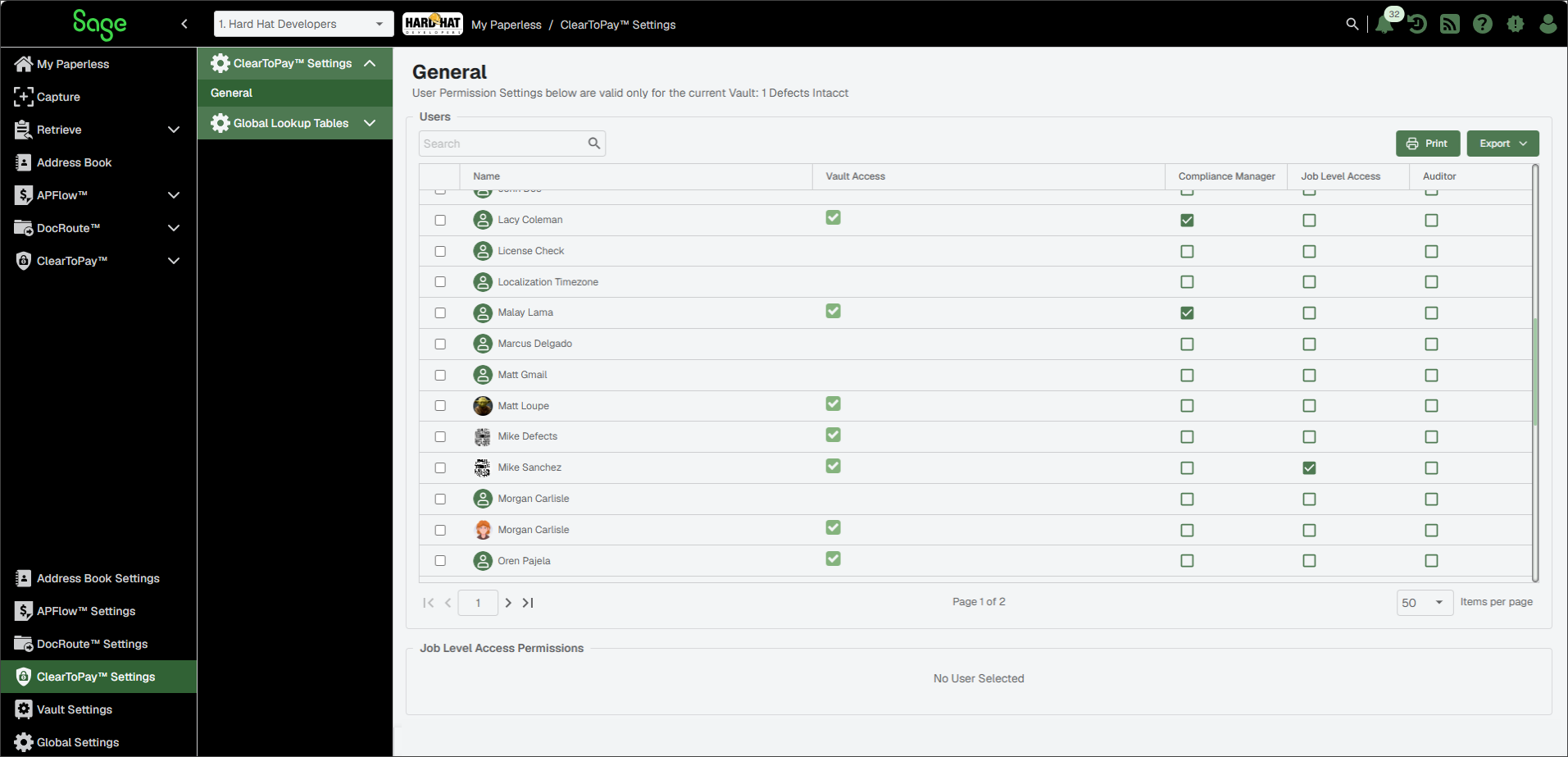
Locate the individual to whose permissions you need to update, and select either , or . See the table below for more information about each role.
Note
Each user can only be set up with one of these options, and if a user does not have a role selected, that user does not have access to ClearToPay in the active vault. Vault settings must be configured by a System Administrator within Vault Settings > Security Groups.
Name
The user to whom you are granting permissions. The user list is populated automatically from Sage Paperless Construction.
Vault Access
A check mark in this column is a status indicator that the user already belongs to a security group in the current vault. It cannot be updated from this page.
Note
If the user does not belong to a security group in the current vault, they cannot access the vault or any of its ClearToPay modules and functionality.
Compliance Manager
This role grants full access to all Company, Job and Vendor tracking within ClearToPay. However, users with this role do not have access to ClearToPay™ Settings. This allows the user to set up contacts at the company level, set up company insurance templates and track the internal company's insurance policies. The user assigned to this role also has full rights to send out communications, run reports, etc.
Note
If the Compliance Manager check box is selected, no other configuration is required and the remainder of the page is blank.
Job Level Access
This role grants the user with job-level access for the active vault on a job-by-job basis. See Configure Job-Level Access for more information.
Auditor
This role provides read-only access to all pages within a company. The user is able to view dashboards and run reports, but cannot change any data or send out communications.
Note
If the Auditor check box is selected, no other configuration is necessary and the remainder of the page should be blank.
For the selected user, assign their role within listed vault, if applicable.
Note
One of the roles must be assigned for the user to see ClearToPay or ClearToPay™ Settings in the left navigation menu.
Configure Job-Level Access
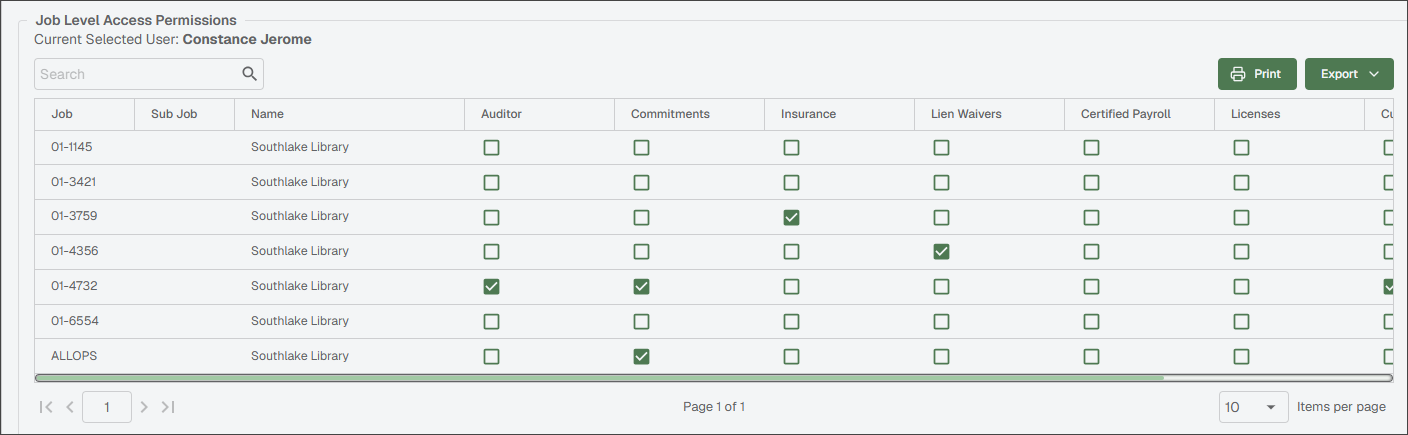
If you have granted a user Job Level Access on the ClearToPay™ Settings page, a Job Level Access Permissions section displays at the bottom of the page. Here, you can configure their access on a job-by-job basis for the active vault, along with selecting which compliance modules they can access.
The permissions at the job level correspond with the following compliance tracking modules:
Auditor (read-only access to the selected job)
Commitments
Insurance
Lien Waivers
Certified Payroll
Custom Compliance
 |
When you grant a user access to a specific compliance tracking module by selecting that check box, their access extends to all functionality (add, edit, delete information captured on those page(s) within the module(s) for the chosen job as well as to any vendors and tier vendors assigned to that job.