Vendor Activity
From the Vendor Activity page, ClearToPay users can manually review previous date and time stamped vendor activities, as well as manually add new activities or send them an email using your selected template.
From My Paperless, click .
In the ClearToPay™ navigation bar, click .
From the Jobs page, do one of the following:
Select a job from the list to access its vendors.
Click on (if enabled) to access those vendors.
Click .
Select the vendor whose activity you want to see.
Click .

A page similar to the following displays:
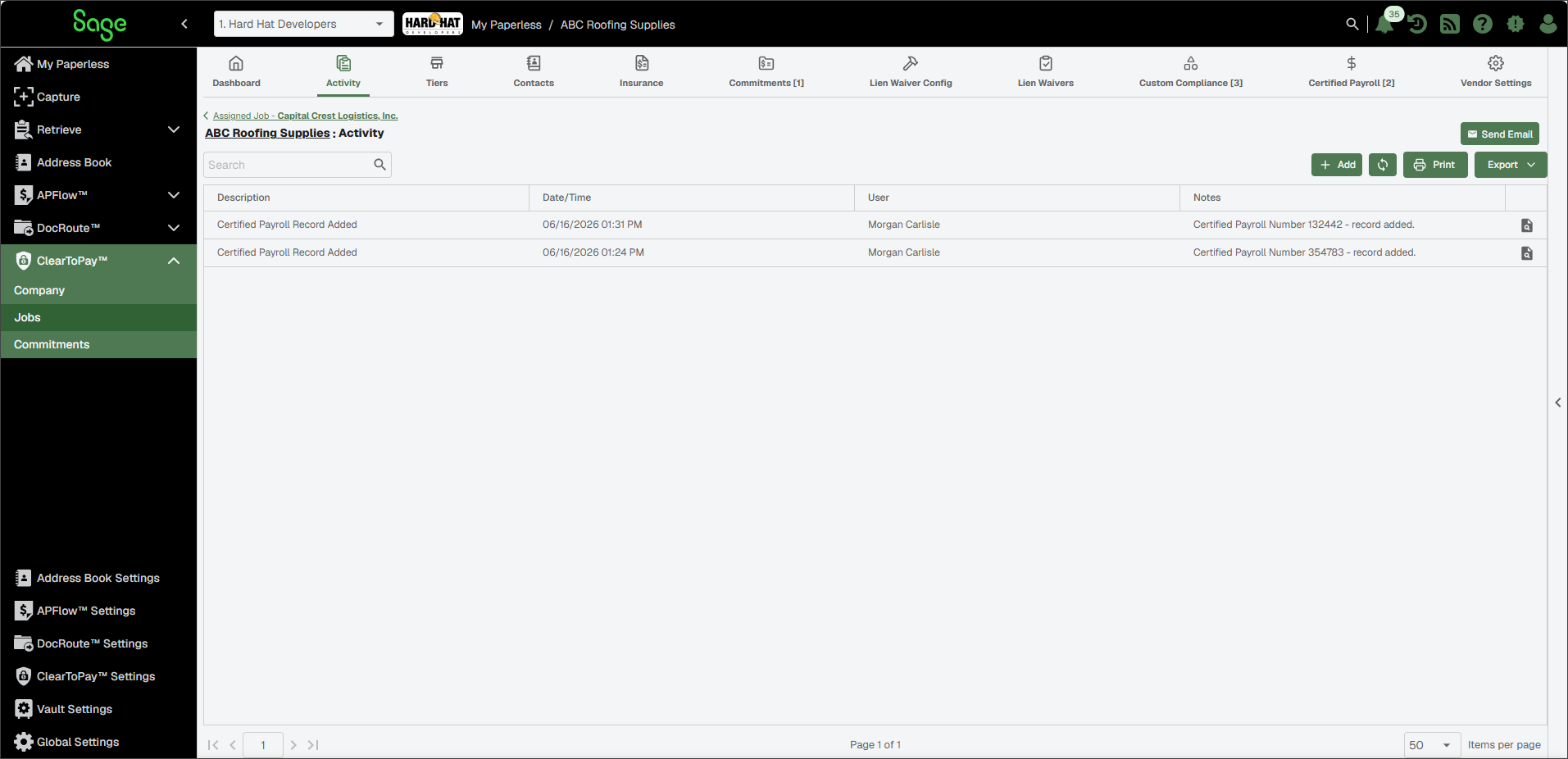
From the vendor's Activity page, you can do the following:
| Search for a specific activity. | |
 | Click to select an email template and send an email reminder. This could include an email to the vendor reminding them to return a lien release, letting them know insurance information is due, or attaching documents or reports. All email templates are created and managed within . | |
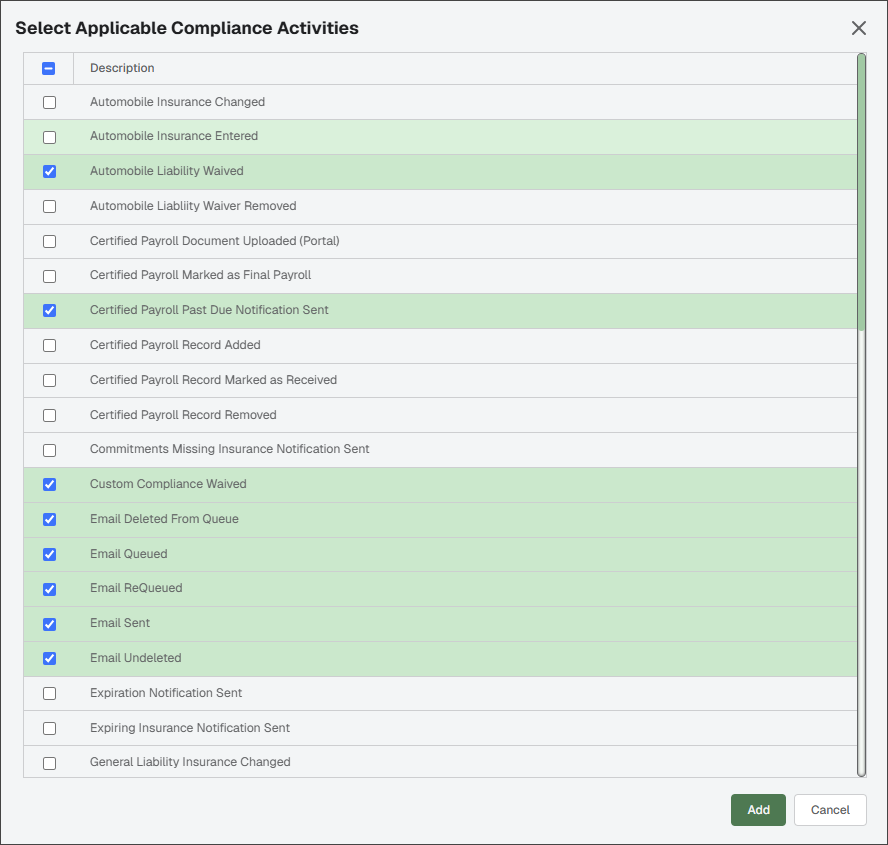
 | To add a tracked activity, click Add. In the Select Applicable Compliance Activities dialog that displays, select one or more compliance activities.
Click . | |
 | Click to update the Activity page manually to make sure any new compliance activity entries display. Entries include the date and time the compliance activity occurred, the name of the user that added the activity and any notes. | |
 | Click to print the Activities grid. | |
 | Click to export the grid information to Excel, CSV or PDF. |