Reports List
There are universal reports available for all vault bridge types as well as unique reports specific to the bridged accounting systems.
Note
If this icon is present, , you can click it to view a copy of the active document in the Document Viewer.
All Operations Vendor Insurance Detail ClearToPay Compliance
Use this report to view a list of all ClearToPay™ all ops vendors and their detailed insurance information.
Parameter | Permissible Value |
|---|---|
Company ID | This report runs for the selected company. |
Vendor ID | This report runs for the selected vendor(s). All CM Vendors is the default value. |
AP Approval Alert Invoices Report Accounts Payable
This report lists those invoices, per vendor, with approval alerts. The report includes the due date and invoice total and identifies the assigned processor.
Use this report to review invoices with approval alerts.
Parameter | Permissible Value |
|---|---|
Vault Number | This report runs for All Vaults or a specific vault based on your dropdown selection. |
Processor ID | This report runs for all processors or a specific processor based on your dropdown selection. |
Show Notes? | Select to include notes or to not include notes. |
AP Approved Invoice Detail Report Accounts Payable
This report lists the invoice details of each approved invoice that has not yet been exported. The single value you can select is the vault number. This report is by vault.
Use this report to identify approve invoices that are pending export.
Parameter | Permissible Value |
|---|---|
Vault Number | This report runs for all vaults or a specific vault based on your dropdown selection. |
Processor ID | This report runs for all processors or a specific processor based on your dropdown selection. |
AP Discount Status Report Accounts Payable
This report lists invoices with eligible discounts that are still available, based on the discount date. You can select specific reviewers; the default is All Reviewers.
Use the Calendar icon to select specific days for discount date expiration and as of dates. The Discount Expiring By Date default is the current date. You can choose to include (or not include) approved invoices in the report. This report is by vault.
Use this report to locate invoices where the discount is about the expire.
Parameter | Permissible Value |
|---|---|
Vault Number | This report runs for all vaults or a specific vault based on your dropdown selection. |
Reviewer ID | This report runs for all reviewers or a specific reviewer based on your dropdown selection. |
Discounts Expiring By | This report runs with the discount expiration date entered. You can also click the calendar icon to choose a specific date or click the , or buttons. |
As of Date | This report runs with the current date as the default. You can also click the calendar icon to choose a specific date or click the , or buttons. |
AP Do Not Pay Invoices Accounts Payable
This report lists those invoices that were marked as Do Not Pay. Per vendor, the report includes the invoice number, the date the invoice was placed on Do Not Pay status, the invoice due date, the date the invoice was entered in Sage Paperless Construction and the invoice total.
Use this report to review invoices with a Do Not Pay status.
Parameter | Permissible Value |
|---|---|
Vault Number | This report runs for All Vaults or a specific vault based on your dropdown selection. |
Begin Invoice Date | This report runs for the beginning invoice date entered. You can also click the calendar icon to choose a specific date or click the , or buttons. |
Ending Invoice Date | This report runs for the ending invoice date entered. You can also click the calendar icon to choose a specific date or click the , or buttons. |
Job Number | This report runs for the job number selected through the lookup or enter |
AP Export Detail Report Accounts Payable
This report lists, by vault, all the invoice headers and detail lines that were included in an export for a specific date. Exported batches have a date/time stamp instead of a calendar. Click F4 for the lookup of the export date/time stamps. Select the exported batch with the precise date/time stamp. Totals for the number of invoices and number of lines display, as well as total tax, freight, discount and retainage amounts. You can sort this report by Invoice ID; Vendor is the default sort. The Vault Number and Name display in the report header.
Use this report to identify all invoices that were exported in a particular batch.
Parameter | Permissible Value |
|---|---|
Export Batch ID | This report runs for the export Batch ID entered. |
AP Invoice Accrual Report Accounts Payable
This report lists invoices with dates on or before the chosen cutoff date. The Invoice Cut Off Date defaults to the current date.
Use this report to view invoices not approved or exported with journal entries in your company's accounting system not yet posted.
Parameter | Permissible Value |
|---|---|
Vault Number | This report runs for all vaults or a specific vault based on your dropdown selection. |
Invoice Cut Off Date | This report runs for the invoice cutoff date entered. The default is the current date. You can also click the calendar icon to choose a specific date or click the , or buttons. |
Invoice Amount Min | This report runs for the minimum invoice amount entered. The default is 0. |
Sort By (J=Job, G=GL Acct) | J = This report is sorted alphabetically by job name. G = This report is sorted numerically by general ledger account number. |
Include Rejected | Y = This report includes rejected invoices. N = This report does not include rejected invoices. |
AP Invoice Approval Activity Report Accounts Payable
This report tracks all approvals, those approvals by assigned reviewers or only proxy approvals. The report can be filtered by vault, reviewer or date range.
View invoices and the lines each reviewer approved and when, and when each invoice was exported. You can look at a single reviewer or activity for an entire vault based on a specific time range.
Use this report to determine whether reviewers are reviewing and approving or using proxies.
Parameter | Permissible Value |
|---|---|
Vault Number | This report runs for all vaults or a specific vault based on your dropdown selection. |
Begin Approval Date | This report runs for the beginning approval date entered. You can also click the calendar icon to choose a specific date or click the , or buttons. |
Ending Approval Date | This report runs for the ending approval date entered. You can also click the calendar icon to choose a specific date or click the , or buttons. |
Approved By | This report runs for all approvers or a specific reviewer based on your dropdown selection. |
AP Invoice Detail Report Accounts Payable
This report lists line and coding details for a specific invoice. This report includes a Document sub report for displaying matched documents.
Click the document icon in the 2nd tier to access a copy of the image. The Documents sub report displays matched documents on the report.
Use this report to view a specific invoice's line and coding details.
Parameter | Permissible Value |
|---|---|
Invoice ID | This report runs for the Invoice ID entered. Click here for information on Locate the Invoice ID. |
AP Invoice Drilldown Report Accounts Payable
This reports lists, in vendor order, all invoices matching the invoice date range. This report includes the number of invoices per vendor.
Use this report to see all invoices active in APFlow™ by vendor, to drill down to view images, coding and notes, and identify the reviewer. Use this report as a search tool.
Parameter | Permissible Value |
|---|---|
Vault Number | This report runs for all vaults or a specific vault based on your dropdown selection. |
Vendor | This report runs for the vendor ID selected through the lookup or enter |
Job Number | This report runs for the job number selected through the lookup or enter |
GL Code | This report runs for the GL code selected through the lookup or enter |
Invoices >$ | This report runs for all invoice amounts greater than the number entered. The currency symbol displaying in this parameter reflects the Currency selection in Vault Settings. See Configure Vault Currency for more information. |
Begin Invoice Date | This report runs for the beginning invoice date entered. You can also click the calendar icon to choose a specific date or click the Month Begin, Current Date or Month End buttons. |
Ending Invoice Date | This report runs for the ending invoice date entered. You can also click the calendar icon to choose a specific date or click the Month Begin, Current Date or Month End buttons. |
Processor | This report runs for all processors or a specific processor based on your dropdown selection. |
AP Invoice History by Job Report Accounts Payable
This report is for job tracking within a specific date range. This allows project managers to track what they have spent by job and by vendor.
Use this report to track job costs.
Parameter | Permissible Values |
|---|---|
Vault Number | This report runs for all vaults or a specific vault based on your dropdown selection. |
Job Number | This report runs for the job selected through the lookup or enter |
Begin Invoice Date | This report runs for the beginning invoice date entered. You can also click the calendar icon to choose a specific date or click the Month Begin, Current Date or Month End buttons. |
Ending Invoice Date | This report runs for the ending invoice date entered. You can also click the calendar icon to choose a specific date or click the Month Begin, Current Date or Month End buttons. |
AP Invoices Ready For Export Report Accounts Payable
This report lists by vault, each invoice (with header and line field details) that is ready for export.
Use this report to identify all approved invoices that have not been exported for a vault.
Parameter | Permissible Values |
|---|---|
Vault Number | This report runs for all vaults or a specific vault based on your dropdown selection. |
AP Invoices With Discounts Report Accounts Payable
This report lists all invoices, by vendor, that fall between the dates with discount amounts.
Use this report to identify those invoices with upcoming available discounts.
Parameters | Permissible Values |
|---|---|
Vault Number | This report runs for all vaults or a specific vault based on your dropdown selection. |
Begin Invoice Date | This report runs for the beginning invoice date entered. You can also click the calendar icon to choose a specific date or click the Month Begin, Current Date or Month End buttons. |
Ending Invoice Date | This report runs for the ending invoice date entered. You can also click the calendar icon to choose a specific date or click the Month Begin, Current Date or Month End buttons. |
AP Outstanding Invoice Aging By Processor Accounts Payable
This report lists invoice aging per processor. Double click the processor name to access invoice aging details. A By Status sub report for that processor generates.
Use this report to see how long invoices take to move through the process before they are approved and to see how many invoices are waiting to be approved.
Parameters | Permissible Values |
|---|---|
Vault Number | This report runs for all vaults or a specific vault based on your dropdown selection. |
Processor | This report runs for all processors or a specific processor based on your dropdown selection. |
AP Outstanding Invoice Aging By Reviewer Accounts Payable
This report lists invoice aging per reviewer. Double click the reviewer name to access invoice aging details. A By Status sub report for that processor generates.
Use this report to see how long invoices take to move through the process.
Parameters | Permissible Values |
|---|---|
Vault Number | This report runs for all vaults or a specific vault based on your dropdown selection. |
Reviewer ID | This report runs for all reviewers or a specific reviewer based on your dropdown selection. |
AP Outstanding Invoice Aging By Vendor Accounts Payable
This report lists invoice aging per vendor. Double click the vendor name to access an invoice aging details sub report.
Use this report to see what the cumulative dollar amount per vendor remains outstanding.
Parameters | Permissible Values |
|---|---|
Vault Number | This report runs for all vaults or a specific vault based on your dropdown selection. |
Vendor | This report runs for the vendor selected through the lookup or enter |
AP Outstanding Invoices By Job Accounts Payable
This report lists invoices, by job and then by vendor, all invoices that are outstanding by a specific date. Invoices for the vendor display even if the Job field is left blank. There is a grand total that includes all listed invoice totals.
Note
Invoices not coded to jobs are included in this report.
Use this report to see the invoices in the system by job.
Parameter | Permissible Values |
|---|---|
Vault Number | This report runs for all vaults or a specific vault based on your dropdown selection. |
Job Number | This report runs for the job selected through the lookup or enter |
AP Processor Daily Summary Report Accounts Payable
This report provides a per vault reminder to processors about their number of outstanding invoices and their statuses.
Use this report to help each processor see the invoices they are working and the status of those invoices.
Parameter | Permissible Values |
|---|---|
Vault Number | This report runs for all vaults or a specific vault based on your dropdown selection. |
Processor ID | This report runs for a specific processor based on your dropdown selection. |
AP Processor Entry Statistics Report Accounts Payable
This report lists processors, per vault, and the number of invoices they have entered and the number of lines per invoice. Click the date link to access an Invoices Entered by Processor on date sub report detailing the invoice and due dates, along with the invoice total.
Use this report as a visual of processor productivity.
Parameter | Permissible Values |
|---|---|
Vault Number | This report runs for all vaults or a specific vault based on your dropdown selection. |
Begin Entry Date | This report runs for the beginning entry date entered. You can also click the calendar icon to choose a specific date or click the , or buttons. |
Ending Entry Date | This report runs for the ending entry date entered. You can also click the calendar icon to choose a specific date or click the , or buttons. |
Processor | This report runs for all processors or a specific processor based on your dropdown selection. |
AP Processor Status Report Accounts Payable
This report lists, by vault and then by processor, the number of invoices assigned to each processor and each invoice's status.
Use this report to see how many invoices each processor is working and the status of those invoices.
Parameter | Permissible Value |
|---|---|
Vault Number | This report runs for all vaults or a specific vault based on your dropdown selection. |
AP Reviewer Daily Summary Report Accounts Payable
This report provides a per vault reminder to reviewers about their number of unapproved invoices
Use this report to help each reviewer see the invoices in their reviewer box, how many are past due or coming due, and how many have expiring discounts.
Parameter | Permissible Values |
|---|---|
Vault Number | This report runs for all vaults or a specific vault based on your dropdown selection. |
Reviewer ID | This report runs for a specific reviewer based on your dropdown selection. |
AP Secondary Vendor Drilldown Report Accounts Payable
This report lists, by vault and then by secondary vendor, the invoices where those secondary vendors are named. Click the link in the column to access the sub report with a specific vendor's invoice details. This sub report includes the invoice line number, the amount, the date and the status. The original date indexed and by whom is also listed.
Use this report to track secondary vendors paid through credit cards.
Parameter | Permissible Value |
|---|---|
Vault Number | This report runs for all vaults or a specific vault based on your dropdown selection. |
Secondary Vendor ID | This report runs for all secondary vendors or a specific secondary vendor based on your dropdown selection. |
Begin Invoice Date | This report runs for the beginning invoice date entered. You can also click the calendar icon to choose a specific date or click the , or buttons. |
Ending Invoice Date | This report runs for the ending invoice date entered. You can also click the calendar icon to choose a specific date or click the , or buttons. |
Invoices >$ | This report runs for all invoice amounts greater than the number entered. The currency symbol displaying in this parameter reflects the Currency field selection in Vault Settings. See Configure Vault Currency for more information. |
AP Top Vendor Report Accounts Payable
This report lists the top vendors, per vault and then by invoice total dollar amount. Each vendor in the list displays with the number of invoice and the number of invoice line details.
Use this report to identify your top vendors.
Parameter | Permissible Value |
|---|---|
Vault Number | This report runs for all vaults or a specific vault based on your dropdown selection. |
Top X Number | This report runs for the number of vendors entered. |
Report By |
The currency symbol displaying in this parameter reflects the Currency field selection in Vault Settings. See Configure Vault Currency for more information. |
Begin Invoice Date | This report runs for the beginning invoice date entered. You can also click the calendar icon to choose a specific date or click the , or buttons. |
Ending Invoice Date | This report runs for the ending invoice date entered. You can also click the calendar icon to choose a specific date or click the , or buttons. |
AP Unapproved Invoice Listing Accounts Payable
This report can be set to display reviewer information when the total invoices outstanding for that reviewer are greater than a specific dollar amount.
Use this report to track reviewers and their invoices waiting for approval.
Parameter | Permissible Value |
|---|---|
Vault Number | This report runs for All Vaults or a specific vault based on your dropdown selection. |
Vendor | This report runs for the vendor selected through the lookup or enter |
Processor | This report runs for all processors or a specific processor based on your dropdown selection. |
AP Unapproved Invoice Listing by Reviewer Accounts Payable
This report displays reviewer information and lists each reviewer's unapproved invoices.
Use this report to track reviewers and their invoices waiting for approval.
Parameter | Permissible Value |
|---|---|
Vault Number | This report runs for all vaults or a specific vault based on your dropdown selection. |
Reviewer ID | This report runs for all reviewers or a specific reviewer based on your dropdown selection. |
AP Unattached Receiving Tickets Accounts Payable
This report displays information about receiving tickets (based on the Receiving Ticket Lookup option in APFlow™) that are not yet attached to an invoice or vendor.
Parameter | Permissible Value |
|---|---|
Vault Number | This report runs for all vaults or a specific vault based on your dropdown selection. |
Beginning Invoice Date | This report runs for the beginning invoice date entered. You can also click the calendar icon to choose a specific date or click the , or buttons. |
Ending Invoice Date | This report runs for the ending invoice date entered. You can also click the calendar icon to choose a specific date or click the , or buttons. |
Vendor | This report runs for the vendor ID selected through the lookup or enter |
Job Number | This report runs for the job number selected through the lookup or enter |
APFlow™ Proxy Rights Audit Report Paperless Audit
This report lists all proxy rights given to system users. Each system user is listed identifying for whom they have rights and whether notifications are in place.
Use this report to determine who has proxy rights.
Parameter | Permissible Value |
|---|---|
Vault Number | This report runs for all vaults or a specific vault based on your dropdown selection. |
Proxy User ID | This report runs for all proxy users or a specific proxy user based on your dropdown selection. |
APFlow™ User Rights Report Paperless Audit
This report lists all proxy rights given to APFlow™ users. Each user is listed identifying for whom they have rights and whether notifications are in place.
Use this report to determine who has APFlow™ proxy rights.
Parameter | Permissible Value |
|---|---|
Vault Number | This report runs for all vaults or a specific vault based on your dropdown selection. |
User ID | This report runs for all users or a specific user based on your dropdown selection. |
CCI matched Receipts Report Paperless Audit
This report lists the credit card importer matched receipts for the selected vault. It includes the invoice number, date and total in the results.
Parameter | Permissible Value |
|---|---|
Vault Number | This report runs for all vaults or a specific vault based on your dropdown selection. |
CCImportID | This report runs based on their credit card import ID. |
Checked Out Documents Report Paperless Audit
This report lists, for the current vault, those documents that are Checked Out. Report details include the document description and ID, when the document was checked out (date and time), by whom, their client ID and IP Address.
Use this report to identify who has checked out a particular document.
Parameter | Permissible Value |
|---|---|
Vault Number | This report runs for all vaults or a specific vault based on your dropdown selection. |
User ID | This report runs for all users or a specific user based on your dropdown selection. |
COI - Expiring Policies ClearToPay Compliance
Use this report to identify which vendors have certificates of insurance expiring within a specified number of days.
Parameter | Permissible Value |
|---|---|
Company ID | This report runs for the selected company or all CM companies. |
Expiration Threshold | This report is based on the expiration threshold entered. Enter to use company or job defaults. |
Vendor Filter | Use the lookup |

COI Policy Hot List ClearToPay Compliance
Use this report to view a list of vendors that are non-compliant with expired insurance.
Parameter | Permissible Value |
|---|---|
Company ID | This report runs for the selected company or all CM companies. |
Enter Job ID | This report runs for the selected job or all jobs if 0 is entered. |
Company Configuration Issues ClearToPay Compliance
Use this report to view a list of all compliance issues impacting the company, including address issues, contact issues and issues relating to enabled modules.
Parameter | Permissible Value |
|---|---|
Company ID | This report runs for the selected company or all CM companies. |
Company Information ClearToPay Compliance
Use this report to review contact information and assigned insurance templates as well as additional pertinent details.
Parameter | Permissible Value |
|---|---|
Company ID | This report runs for the selected company or all CM companies. |
Completed Operations Jobs ClearToPay Compliance
Use this report to determine which projects that have a status of Completed Operations and their start dates.
Parameter | Permissible Value |
|---|---|
Company ID | This report runs for the selected company or all CM companies. |
Compliance Issues Summary ClearToPay Compliance
Use this report to view a summary of compliance issues for a specific job.
Parameter | Permissible Value |
|---|---|
Company ID | This report runs for the selected company or all CM companies. |
Enter Job ID | This report runs for the selected job(s). All CM Jobs is the default value. |
Vendor ID | This report runs for the selected vendor(s). All CM Vendors is the default value. |
Compliance ID | This report runs for the selected compliance ID(s). 0 (All) is the default value. |
Filter Options | Use the lookup |
Deleted Documents Report Paperless Audit
This report displays statistics on deleted documents by date range, vault, user id and document type. Filtering by user and vault is available.
Use this report to review the number of deleted documents within a certain time range, by a user and by vault.
Parameter | Permissible Value |
|---|---|
Vault Number | This report runs for all vaults or a specific vault based on your dropdown selection. |
Document Type | This report runs for all Document Types or a specific document type based on your dropdown selection. |
Begin Deletion Date | This report runs for the beginning deletion date entered. You can also click the calendar icon to choose a specific date or click the , or buttons. |
Ending Deletion Date | This report runs for the ending deletion date entered. You can also click the calendar icon to choose a specific date or click the , or buttons. |
Deleted By | This report runs for all users or a specific user based on your dropdown selection. |
DocRoute™ Proxy Rights Audit Report Paperless Audit
This report lists all proxy rights given to DocRoute users. Each DocRoute user is listed identifying for whom they have rights and whether notifications are in place.
Use this report to determine who has DocRoute proxy rights.
Parameter | Permissible Value |
|---|---|
Vault Number | This report runs for all vaults or a specific vault based on your dropdown selection. |
User ID | This report runs for all users or a specific user based on your dropdown selection. |
Document Audit Log Paperless Audit
This report tracks the activities performed against a specific document such as modifications, routing activities.
Use this report to identify what changes were made to a document or to its meta data.
Parameter | Permissible Value |
|---|---|
Document ID | This report runs for the Document ID number entered. See, Locate the Document ID for help of a document. |
Document Import Job History Report Paperless Audit
This report displays import job history information by date range and by vault. Filtering by vault is available.
Use this report to review when imports run and which documents were created from these imports, by vault. This report mirrors an import monitor dialog, but the report format allows the information to be printed.
Parameter | Permissible Value |
|---|---|
Vault Number | This report runs for all vaults or a specific vault based on your dropdown selection. |
Begin Date | This report runs for the beginning date entered. You can also click the calendar icon to choose a specific date or click the , or buttons. |
Ending Date | This report runs for the ending date entered. You can also click the calendar icon to choose a specific date or click the , or buttons. |
Document Index Statistics Report Paperless Statistics
This report displays indexing statistics by index date range, vault and user id. Filtering by user and vault is available.
Use this report to review the number of indexed documents within a certain time range, by a user and by vault.
Parameter | Permissible Value |
|---|---|
Vault Number | This report runs for all vaults or a specific vault based on your dropdown selection. |
User ID | This report runs for all users or a specific user based on your dropdown selection. |
Beginning Index Date | This report runs for the beginning index date entered. You can also click the calendar icon to choose a specific date or click the , or buttons. |
Ending Index Date | This report runs for the ending index date entered. You can also click the calendar icon to choose a specific date or click the , or buttons. |
Document Inventory Report Paperless Inventory
This report lists, for the current vault, the number of documents based on the document type.
Use this report to drill down for a list of documents with a specific document type.
Parameter | Permissible Value |
|---|---|
Vault ID | This report runs for all vaults or a specific vault based on your dropdown selection. |
Document Type | This report runs for all Document Types or a specific document type based on your dropdown selection. |
Category | This report runs for all Document Categories or a specific document category based on your dropdown selection. |
Begin Index Date | This report runs for the beginning index date entered. You can also click the calendar icon to choose a specific date or click the , or buttons. |
Ending Index Date | This report runs for the ending index date entered. You can also click the calendar icon to choose a specific date or click the , or buttons. |
Indexed By | This report runs for all users or a specific user based on your dropdown selection. |
Document Security Detail Report Paperless Audit
This report lists, per vault, document security around a specific document type. Access by role details what can or cannot be done; specifically, indexing, adding pages, deleting pages, distributing, deleting snapshots and manage read-only. The members of each role are listed. This report is available for every document type.
Use this report to see what role has what access based on the document type.
Parameter | Permissible Value |
|---|---|
Vault Number | This report runs for all vaults or a specific vault based on your dropdown selection. |
Document Type Detail Report Paperless Inventory
This report lists each document type and includes setup details such as the description, category and retention period as well as index details and security groups information, per vault.
Use this report to review document type setup details.
Parameter | Permissible Value |
|---|---|
Document Type | This report runs for All Document Types or a specific document type based on your dropdown selection. |
Category | This report runs for all Document Categories or a specific document category based on your dropdown selection. |
Endorsement Details ClearToPay Compliance
Use this report if you need endorsement detail text.
Parameter | Permissible Value |
|---|---|
Company ID | This report runs for the selected company or all CM companies. |
Job Configuration Issues ClearToPay Compliance
Use this report to view a list of all compliance issues impacting either a particular job or all jobs. The report includes address issues, contact issues and issues related to enabled modules, such as problems with the configuration of waivers, insurance or certified payroll.
Parameter | Permissible Value |
|---|---|
Company ID | This report runs for the selected company or all CM companies. |
Job ID | This report runs for the selected job or all CM jobs. |
Job Status Report ClearToPay Compliance
Use this report to view the job status of every job, the job locations, if they are in compliance and their estimated completion dates.
Parameter | Permissible Value |
|---|---|
Company ID | This report runs for the selected company or all CM companies. |
Enter Job ID | This report runs for the selected job or all CM jobs. |
Job Status | This report runs for the selected status. |
Job Vendor Insurance Detail ClearToPay Compliance
Use this report to view the vendors, per job, and their insurance tracking information.
Parameter | Permissible Value |
|---|---|
Company ID | This report runs for the selected company or all CM companies. |
Enter Job ID | This report runs for the selected job or all CM jobs. |
Enter Vendor ID | This report runs for the selected vendor(s). All CM Vendors is the default value. |
Job Vendor List ClearToPay Compliance
Use this report to view a list of vendors, per job, their vendor types, how they want to be notified and status. It identifies each vendor contact and includes that individual's phone number.
Parameter | Permissible Value |
|---|---|
Company ID | This report runs for the selected company or all CM companies. |
Enter Job ID | This report runs for the selected job or all CM jobs. |
Lien Waiver Detail ClearToPay Compliance
Use this report to view a list of all lien waiver details and values organized by job. You can choose to run the report to include all lien waivers or outstanding lien waivers only.
Parameter | Permissible Value |
|---|---|
Company ID | This report runs for the selected company or all CM companies. |
Enter Job ID | This report runs for the selected job(s). All CM Jobs is the default value. |
Enter Vendor ID | This report runs for the selected vendor(s). All CM Vendors is the default value. |
Enter Compliance ID | Use the lookup |
Outstanding Only | Select to show only outstanding lien waivers or to show all. |
New Commitments List ClearToPay Compliance
Use this report to view vendors and their associated commitment dates and types.
Parameter | Permissible Value |
|---|---|
Company ID | This report runs for the selected company or all CM companies. |
Begin Date | This report runs for the date range entered. You can also click the calendar icon to choose a specific date or click the , or buttons. |
Ending Date | This report runs for the date range entered. You can also click the calendar icon to choose a specific date or click the , or buttons. |
Outstanding Lien Waivers ClearToPay Compliance
This report lists all lien waivers for the company that are outstanding by a specific date. Lien waivers are organized by vendor.
Parameter | Permissible Value |
|---|---|
Company ID | This report runs for the selected company or all CM companies. |
Enter Job ID | This report runs for the selected job(s). All CM Jobs is the default value. |
Enter Vendor ID | This report runs for the selected vendor(s). All CM Vendors is the default value. |
Enter Compliance ID | This report runs for the selected compliance ID(s). 0 (All) is the default value. |
Outstanding Lien Waivers by Job ClearToPay Compliance
This report lists all lien waivers for a job that are outstanding.
Parameter | Permissible Value |
|---|---|
Company ID | This report runs for the selected company or all CM companies. |
Enter Job ID | This report runs for the selected job(s). All CM Jobs is the default value. |
Enter Vendor ID | This report runs for the selected vendor(s). All CM Vendors is the default value. |
Enter Compliance ID | This report runs for the selected compliance ID(s). 0 (All) is the default value. |
Purged Documents Report Paperless Audit
This report lists documents, by vault, that were purged within a specific date range. Details include a description of each purged document and who purged the document, and indicates the status of the document before it was purged.
Use this report to research purged documents.
Parameter | Permissible Value |
|---|---|
Vault Number | This report runs for All Vaults or a specific vault based on your dropdown selection. |
Begin Purge Date | This report runs for the beginning purge date entered. You can also click the calendar icon to choose a specific date or click the , or buttons. |
Ending Purge Date | This report runs for the ending purge date entered. You can also click the calendar icon to choose a specific date or click the , or buttons. |
Queue List By User Paperless Inventory
This report lists queues by user.
Use this report to view a list of queues by user.
Parameter | Permissible Value |
|---|---|
Vault Number | This report runs for All Vaults or a specific vault based on your dropdown selection. |
User ID | This report runs for All Users or a specific user based on your dropdown selection. |
System Audit Report
This report lists audit details on administration changes with details on changes; specifically, who did what and when.
Use this report to track changes made to the administrative configuration (Security Groups, Document Types). Check out old value vs. new value and determine what was done, when it was done and by whom.
Parameter | Permissible Value |
|---|---|
Begin Audit Date | This report runs for the beginning audit date entered. You can also click the calendar icon to choose a specific date or click the , or buttons. |
Ending Audit Date | This report runs for the ending audit date entered. You can also click the calendar icon to choose a specific date or click the , or buttons. |
User ID | This report runs for All Users or a specific user based on your dropdown selection. |
User Activity Audit Log Paperless Audit
This report lists every time a user logs in and logs out of Sage Paperless Construction within a specific date range. It also includes identifying what a user does, what documents are opened, etc.
Use this report to see user activity within the system.
Parameter | Permissible Value |
|---|---|
User ID | This report runs for All Users or a specific user based on your dropdown selection. |
Begin Audit Date | This report runs for the beginning audit date entered. You can also click the calendar icon to choose a specific date or click the , or buttons. |
Ending Audit Date | This report run for the ending audit date entered. You can also click the calendar icon to choose a specific date or click the , or buttons. |
User Login Audit Report Paperless Audit
This report lists system login detail for a specified report period. The report details the number of times the user logged in to Sage Paperless Construction. Drill down to view login time stamp and machine.
Use this report to determine when a user logs into the system and on what machine.
Parameter | Permissible Value |
|---|---|
User ID | This report runs for All Users or a specific user based on your dropdown selection. |
Begin Audit Date | This report runs for the beginning audit date entered. You can also click the calendar icon to choose a specific date or click the , or buttons. |
Ending Audit Date | This report run for the ending audit date entered. You can also click the calendar icon to choose a specific date or click the , or buttons. |
User Setup Detail Report Paperless Inventory
This report lists, by user, how each system user is set up. This report uses information entered in Global Settings.
Use this report to review how users are set up without having to access Global Settings and look at each user individually.
Parameter | Permissible Value |
|---|---|
Active Only? | Click the check box to include active users only. Leave the check box blank to include all users. |
User ID | This report runs for All Users or a specific user based on your dropdown selection. |
Vault Detail Report Paperless Inventory
This report displays, by current vault, the information that was entered in the Vault Settings. This report displays the vault logo, if one exists.
Use this report to review vault setup without having to access Vault Settings and look at each vault individually.
Parameter | Permissible Value |
|---|---|
Vault Number | This report can be run for all vaults or a specific vault based on your dropdown selection. |
Vendor Activity ClearToPay Compliance
Use this report to view vendor activities such as changes made to their insurance information or emails sent.
Parameter | Permissible Value |
|---|---|
Company ID | This report runs for the selected company or all CM companies. |
Enter Job ID | This report runs for the selected job(s). All CM Jobs is the default value. |
Enter Vendor ID | This report runs for the selected vendor(s). All CM Vendors is the default value. |
Enter Compliance ID | This report runs for the selected compliance ID(s). 0 (All) is the default value. |
Vendor Certified Payroll Compliance Report ClearToPay Compliance
Use this report to view a list of all vendors for your company that have certified payroll compliance issues.
Parameter | Permissible Value |
|---|---|
Company ID | This report runs for the selected company. |
Job ID | This report runs for the selected job(s). All CM Jobs is the default value. |
Vendor ID | This report runs for the selected vendor(s). All CM Vendors is the default value. |
Out of Compliance Only? | Enter 1 (True) to only run the report for those vendors that are out of compliance. Enter 0 (All) to include all vendors in the report. |
Vendor Compliance Commitment Issues ClearToPay Compliance
Use this report to view a list of all vendors for your company that have compliance commitment issues.
Parameter | Permissible Value |
|---|---|
Company ID | This report runs for the selected company. |
Enter Job ID | This report runs for the selected job(s). All CM Jobs is the default value. |
Enter Vendor ID | This report runs for the selected vendor(s). All CM Vendors is the default value. |
Enter Compliance ID | This report runs for the selected compliance ID(s). 0 (All) is the default value. |
Vendor Compliance Hot List ClearToPay Compliance
Use this report to view a list of all vendors for your company that been designated to be on the hot list.
Parameter | Permissible Value |
|---|---|
Company ID | This report runs for the selected company or all CM companies. |
Enter Job ID | This report runs for the selected job(s). All CM Jobs is the default value. |
Vendor Compliance Insurance Issues ClearToPay Compliance
Use this report to review a list of the job or vendor compliance issues relating to insurance.
Parameter | Permissible Value |
|---|---|
Company ID | This report runs for the selected company or all CM companies. |
Enter Job ID | This report runs for the selected job(s). All CM Jobs is the default value. |
Enter Vendor ID | This report runs for the selected vendor(s). All CM Vendors is the default value. |
Enter Compliance ID | This report runs for the selected compliance ID(s). 0 (All) is the default value. |
Vendor Compliance Issues ClearToPay Compliance
Use this report to review a list of all vendor compliance issues.
Parameter | Permissible Value |
|---|---|
Company ID | This report runs for the selected company or all CM companies. |
Enter Job ID | This report runs for the selected job(s). All CM Jobs is the default value. |
Enter Vendor ID | This report runs for the selected vendor(s). All CM Vendors is the default value. |
Enter Compliance ID | This report runs for the selected compliance ID(s). 0 (All) is the default value. |
Vendor Configuration Issues ClearToPay Compliance
Use this report to view a list of all compliance issues impacting either a particular vendor or all vendors across one or more jobs. The report includes address issues, contact issues and issues related to enabled modules, such as problems with the configuration of waivers, insurance or certified payroll.
Parameter | Permissible Value |
|---|---|
Company ID | This report runs for the selected company or all CM companies. |
Job ID | This report runs for the selected job(s). All CM Jobs is the default value. |
Vendor ID | This report runs for the selected vendor(s). All CM Vendors is the default value. |
Vendor Job List ClearToPay Compliance
Use this report to view all vendors and their subs or tiers and the jobs on which they are working.
Parameter | Permissible Value |
|---|---|
Company ID | This report runs for the selected company or all CM companies. |
Enter Vendor ID | This report runs for the selected vendor(s). All CM Vendors is the default value. |
Vendor List ClearToPay Compliance
Use this report to view a list of your company's vendors, including their address and phone numbers.
Parameter | Permissible Value |
|---|---|
Company ID | This report runs for the selected company or all CM companies. |
Vendor List with Contacts ClearToPay Compliance
Use this report to view a list of your company's vendors, their addresses and phone numbers, emails, their contacts and those individuals' email addresses.
Parameter | Permissible Value |
|---|---|
Company ID | This report runs for the selected company or all CM companies. |
Vendor Types ClearToPay Compliance
Use this report to view a list of available vendor types.
Parameter | Permissible Value |
|---|---|
Company ID | This report runs for the selected company or all CM companies. |
Locate the Document ID
There are two ways you can locate the system-generated Document ID in Sage Paperless Construction. If the document is already open, you can locate its ID in the Document Information sidebar:
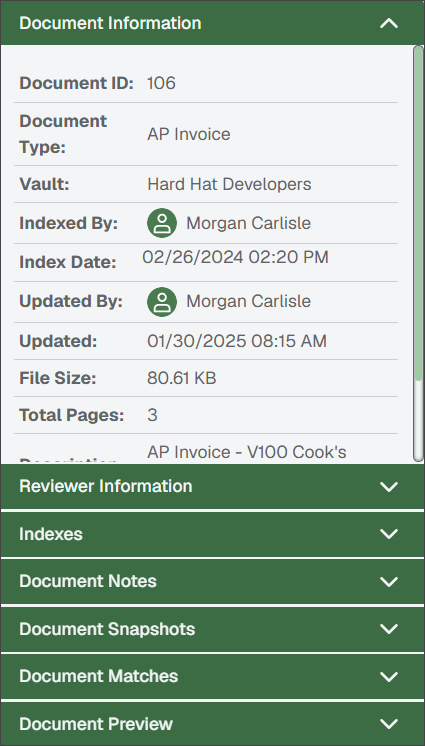
If the document is not already open, complete the following steps to find it using the Retrieve navigation bar:
From My Paperless, click .
In the Retrieve navigation bar, click .
A page similar to the following opens on the tab.
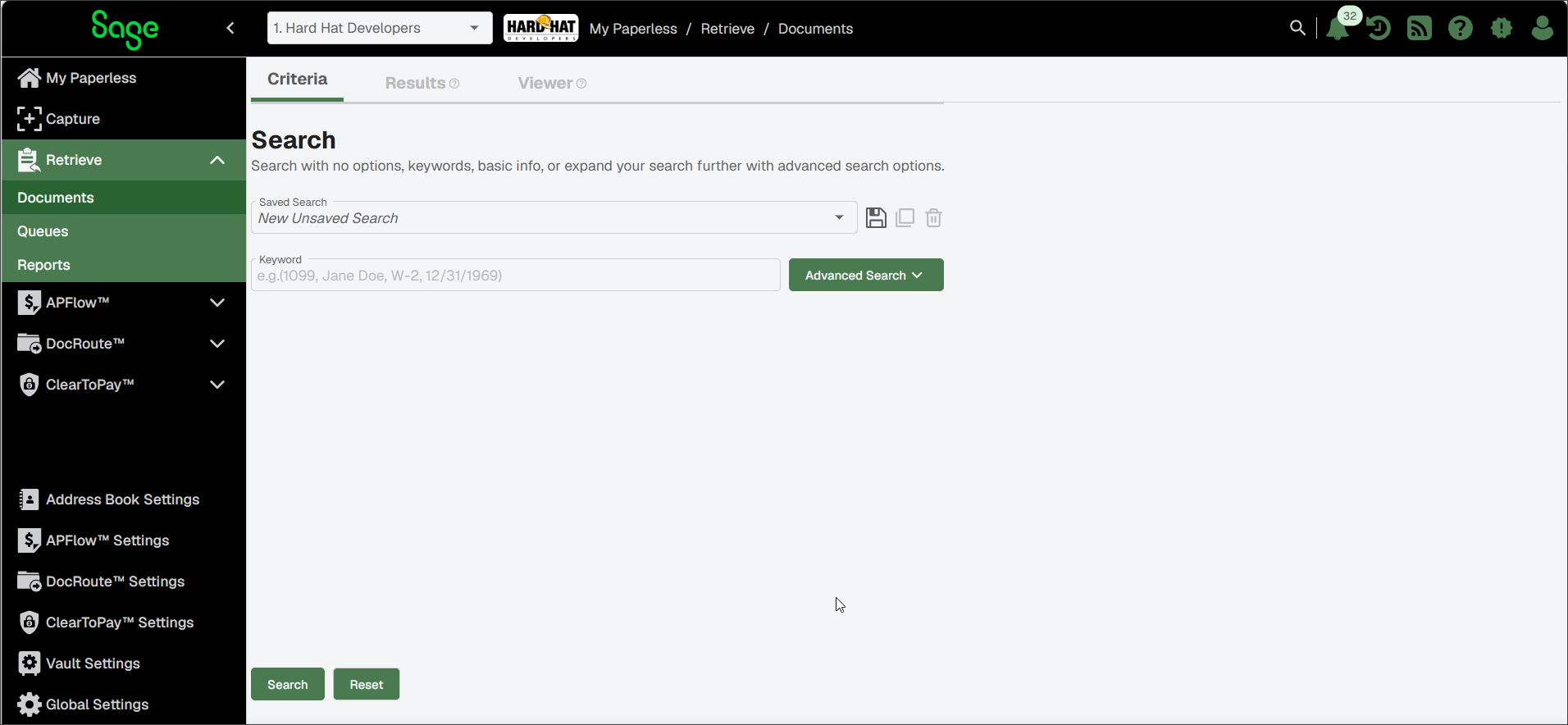
Click .
The Document ID column displays, listing each document's ID number:
Note
The Document ID also displays in the Document Information section in the sidebar for the highlighted document.
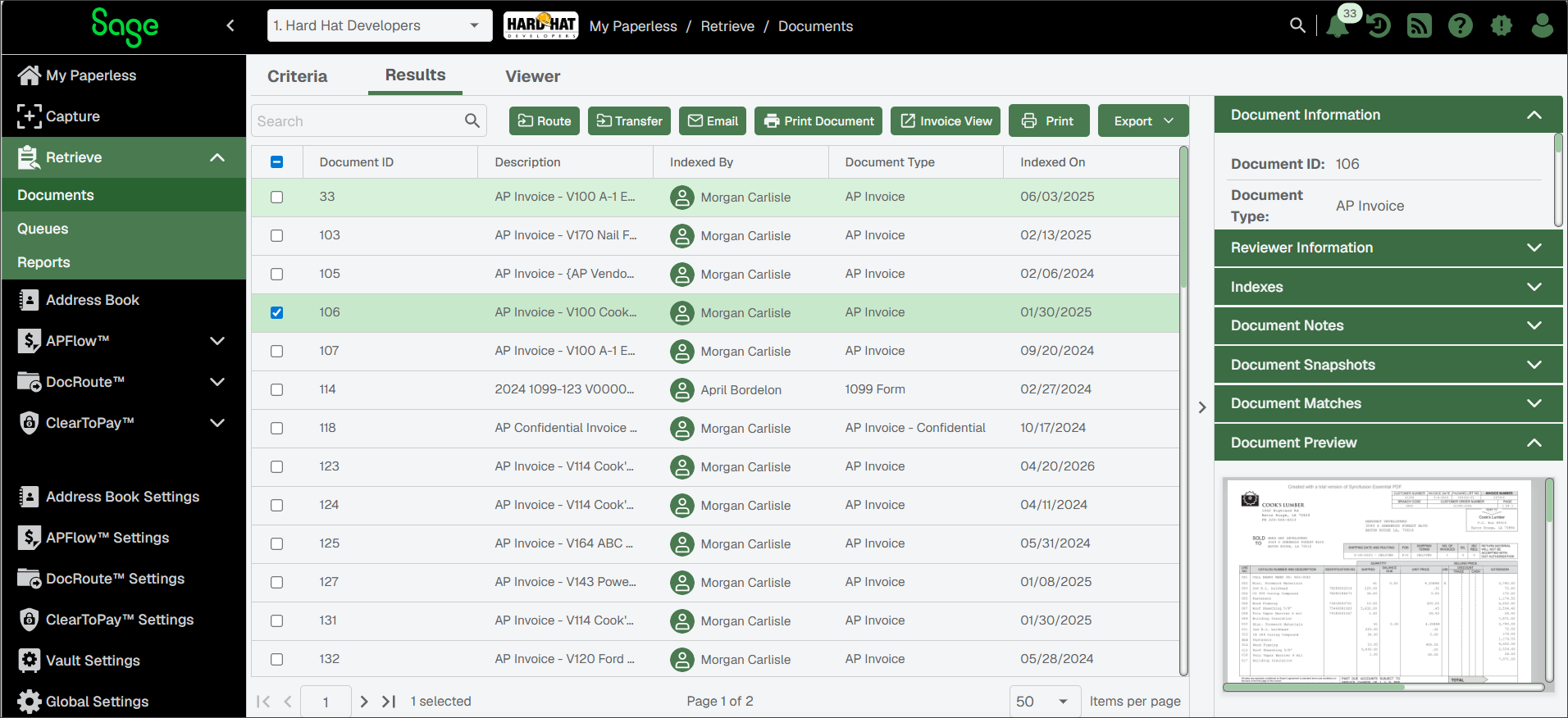
For more information about using the Viewer tab for your selected document, see Use the Sage Paperless Construction Viewer.
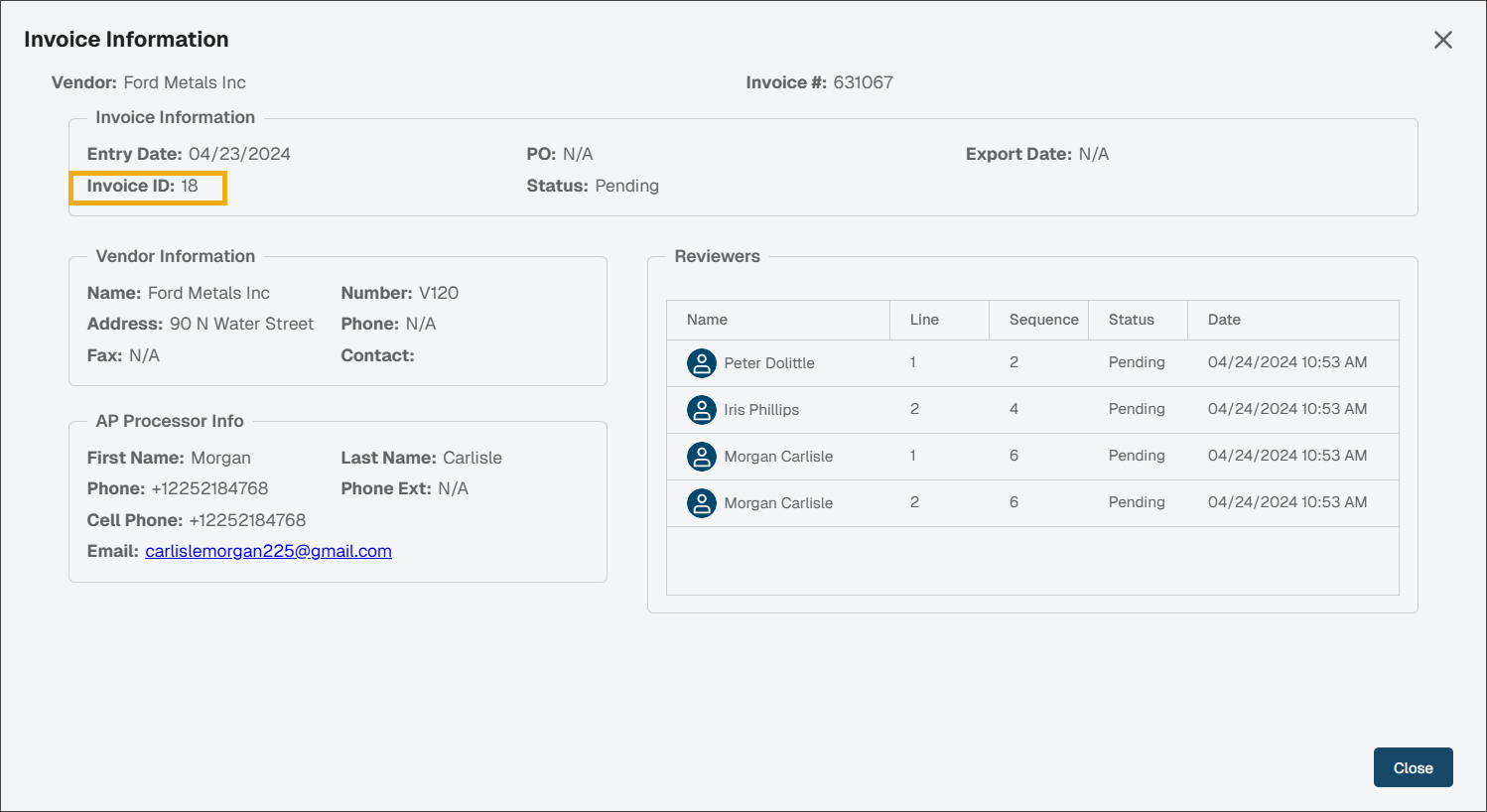
Locate the Invoice ID
To locate the Invoice ID, complete the following steps in Invoice Entry:
From My Paperless, click .
In the APFlow™ navigation bar, click .
In the APFlow™ Queues dropdown, select the appropriate queue.
Use the Document Status dropdown to select the proper status.
Select the appropriate invoice from the queue.
A page similar to the following displays:
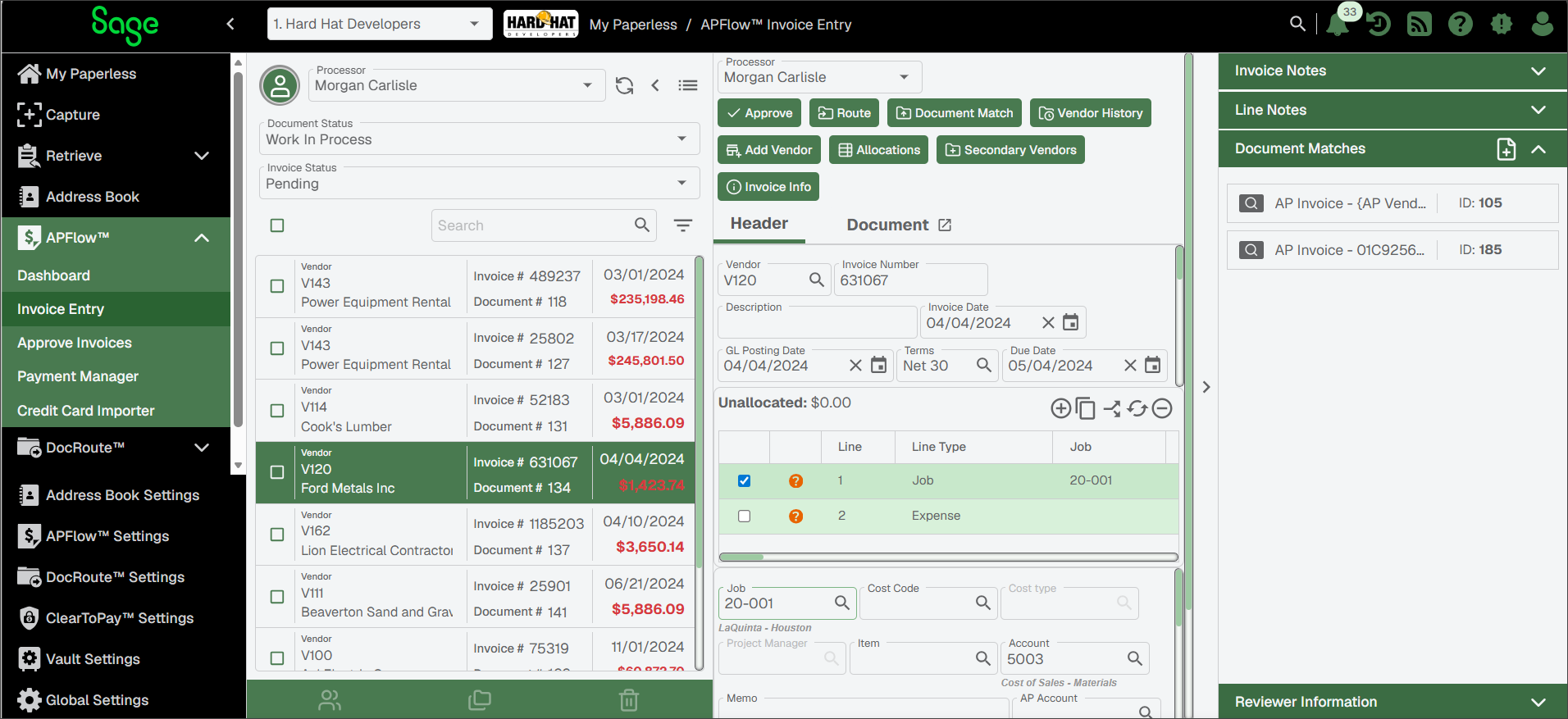
Click .
A page similar to the following displays and includes the system-generated Invoice ID number:
Click .