Job Certified Payroll
Construction Certified Payroll is a mandatory weekly report for federal or state-funded projects, proving workers get at least the prevailing wages and benefits. It requires tracking job classifications, fringe benefit contributions (health, retirement), and submitting accurate data to the government.
ClearToPay™ tracks certified payroll records (either automatically or manually) provided by vendors to ensure their compliance. Notifications can be sent to non-compliant vendors.
Note
ClearToPay does not provide the forms vendors need to generate their certified payroll documentation, but provides the ability to create and manage tracking records at the job and vendor level to ensure documentation is provided and received in a timely manner. When the certified payroll documentation is received prior to its due date, it must be marked as Received in ClearToPay for the vendor to be considered in compliance.
From My Paperless, click .
In the ClearToPay™ left navigation, click .
Choose the job from the list.
Click .
A page similar to the following displays:
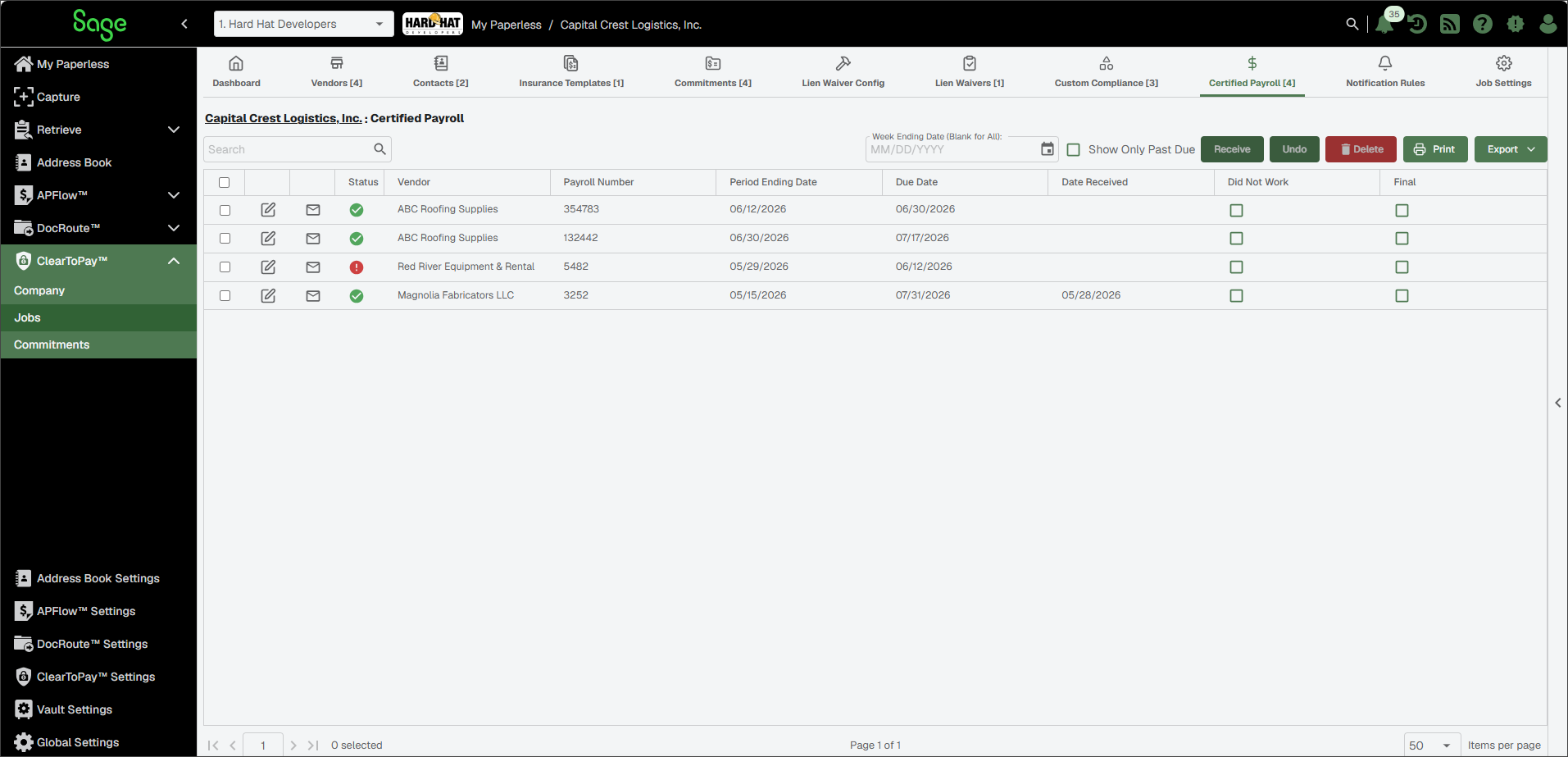
From a job's Certified Payroll page, you can do the following:
Note
If you need to manually add a new certified payroll record, you can do so from the vendor's Certified Payroll page. See Add Vendor Certified Payroll Record for more information.
| Search for a payroll record. | |
| Enter the week ending date to narrow down the list of records to those with the appropriate date. | |
Show Only Past Due | Select this check box to narrow down the list of records to those that are past due. | |
 | Select one or more payroll records from the list, then click to apply the current date to the Date Received field, marking it as received. | |
 | Select one or more payroll records, then click to clear the received date on the selected record(s). | |
 | Select one or more payroll records, then click to delete them from the system. | |
 | Click to print the Certified Payroll grid. | |
 | Click to export the grid information to Excel, CSV or PDF. | |
 | Click Edit to make necessary updates to an existing record. See Edit Vendor Certified Payroll Record for more information. | |
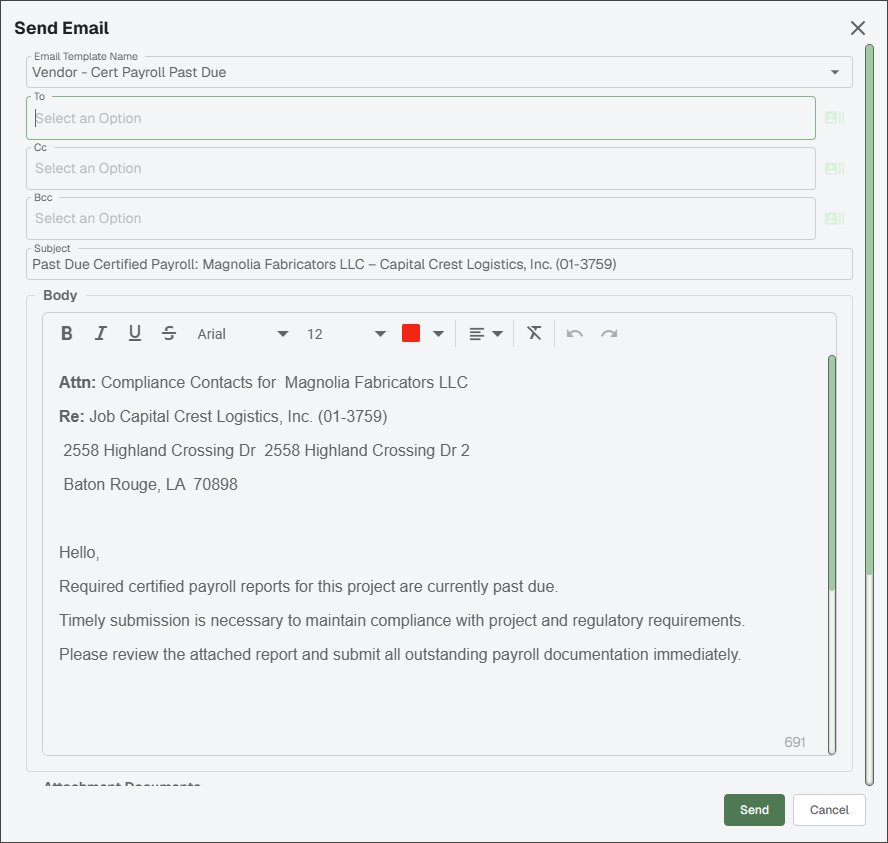
 | Click Email to select a template and send an email reminder. These templates are created and managed within .
| |
Did Not Work | Click Edit | |
Final | Click Edit NoteOnce a record has been marked as the Final Payroll, users can no longer manually add future certified payroll records and automatic certified payroll records are no longer generated. |


From the job's Certified Payroll page, find the record you want to edit.
Click the Edit
icon.In the Edit Payroll dialog, make any necessary updates.
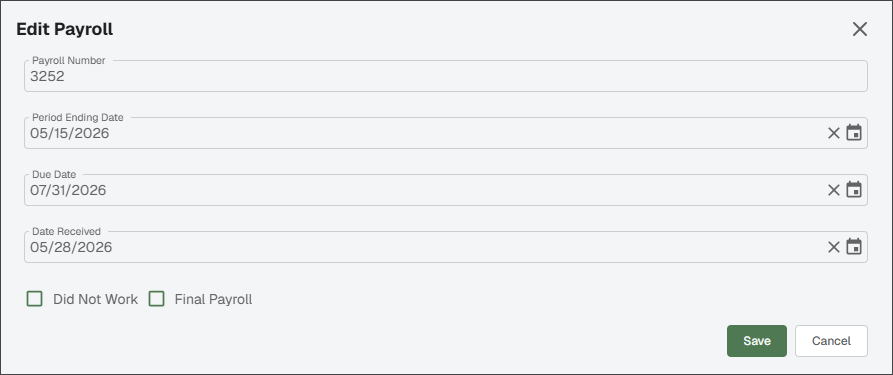
Click .