Match Documents in APFlow™
There is two-way matching to attach supporting documentation to the invoice.
If you index documents into Sage Paperless Construction and then enter an invoice with certain key values (such as vendor, invoice number) the indexed documents should be identified in Suggested Matches when looking at Document Match for supporting documents to the current invoice.
If you enter an invoice into Sage Paperless Construction and then index documents with certain key values (such as vendor, invoice number) those newly indexed documents should be identified in Suggested Matches when looking at Document Match for supporting documents to the current invoice.
The values entered on the Invoice Entry page contain invoice data. Sage Paperless Construction takes pieces of the invoice data to become document index data. Document matching is based on index data such as document indexes.
Suggested matches work for AP Invoices and Confidential Invoice documents.
If the Vendor Number index matches the Vendor Number on the invoice, Receiving Ticket documents systematically display in the Suggested Documents Match list.
If the Vendor and Purchase Order indexes on a PO document match the Vendor on the invoice header and the PO on either the header or the line level, the Purchase Order document systematically displays in the Suggested Documents Match list.
If the Vendor and Purchase Order indexes on a Field PO document match the Vendor on the invoice header and the Field PO value on the invoice header, the Field PO document systematically displays in the Suggested Documents Match list.
If the Vendor, Subcontract Number and Job Number Indexes on a Subcontract document match the Vendor on the invoice header and the Subcontract and Job on the line level, the Subcontract document systematically displays in the Suggested Documents Match list.
If the Vendor and Work Order Number on a Service Work Order document match the Vendor on the invoice header and the Work Order Number on the line level, the Service Work Order document systematically displays in the Suggested Documents Match list.
If the Vendor and Work Order Number on an Equipment Work Order document match the Vendor on the invoice header on the line level, the Equipment Work Order document systematically displays in the Suggested Documents Match list.
If the Vendor and AP Match Code on any document match the Vendor and the AP Match Code on the invoice header, the document systematically displays in the Suggested Documents Match list.
All systematic matching is done on the Vendor, or Vendor and Invoice Number index types on the underlying document.
From My Paperless, click .
From the APFlow™ navigation bar, click .
In the APFlow™ Queues field, use the dropdown to select the queue from which the Processor is entering invoices.
The dropdown lists any user queue to which the Processor has security rights.
Note
My Queue should display as the default.
In the Document Status dropdown, select .
Use the Invoice Status dropdown to select a status.
Note
The status you select determines which invoices display in the grid.
Click on a row in the grid.
The selected invoice displays.
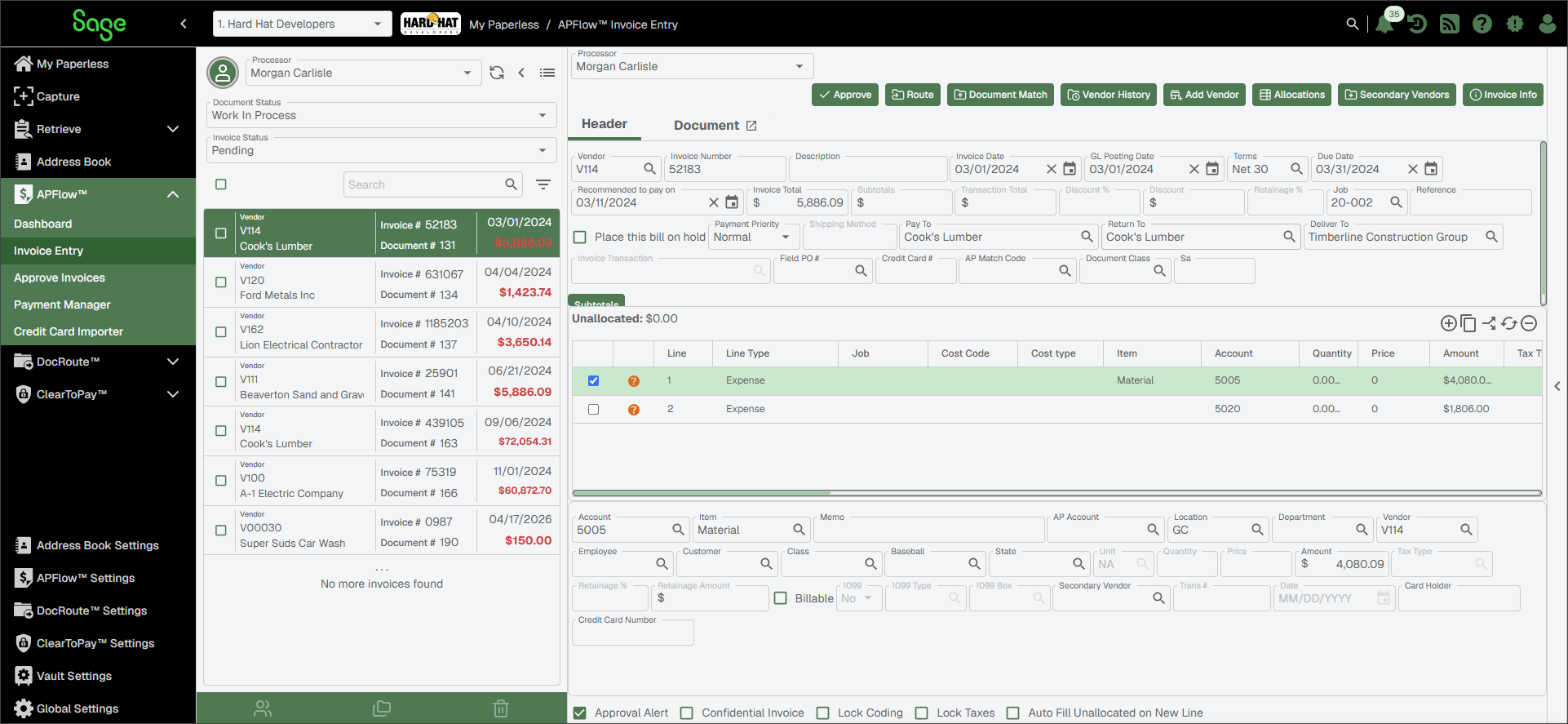
Click .
The following page displays:
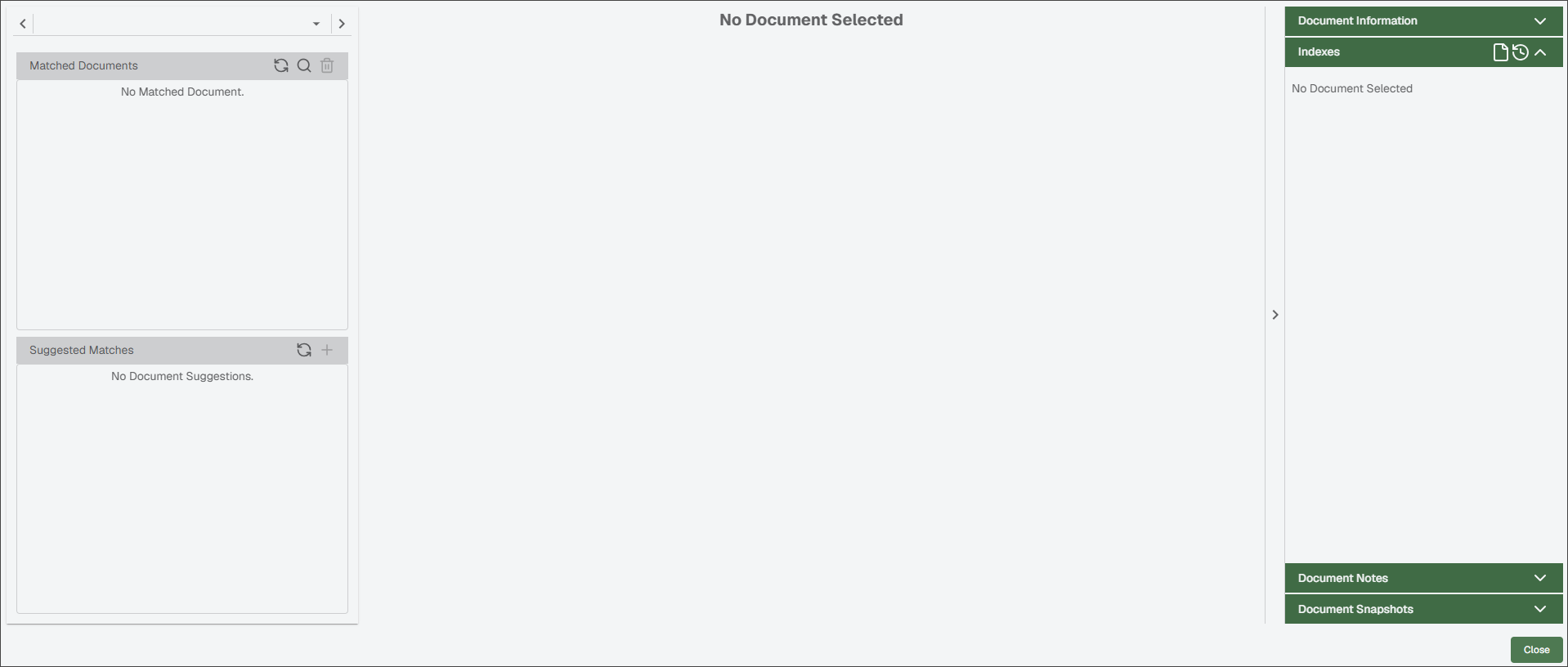
In the Matched Documents grid, click
 to generate a document search.
An Add Matched Document dialog displays where you can enter search criteria to locate the document.
The list of matched documents displays on the Results tab. At a minimum, the current invoice is included on the list.
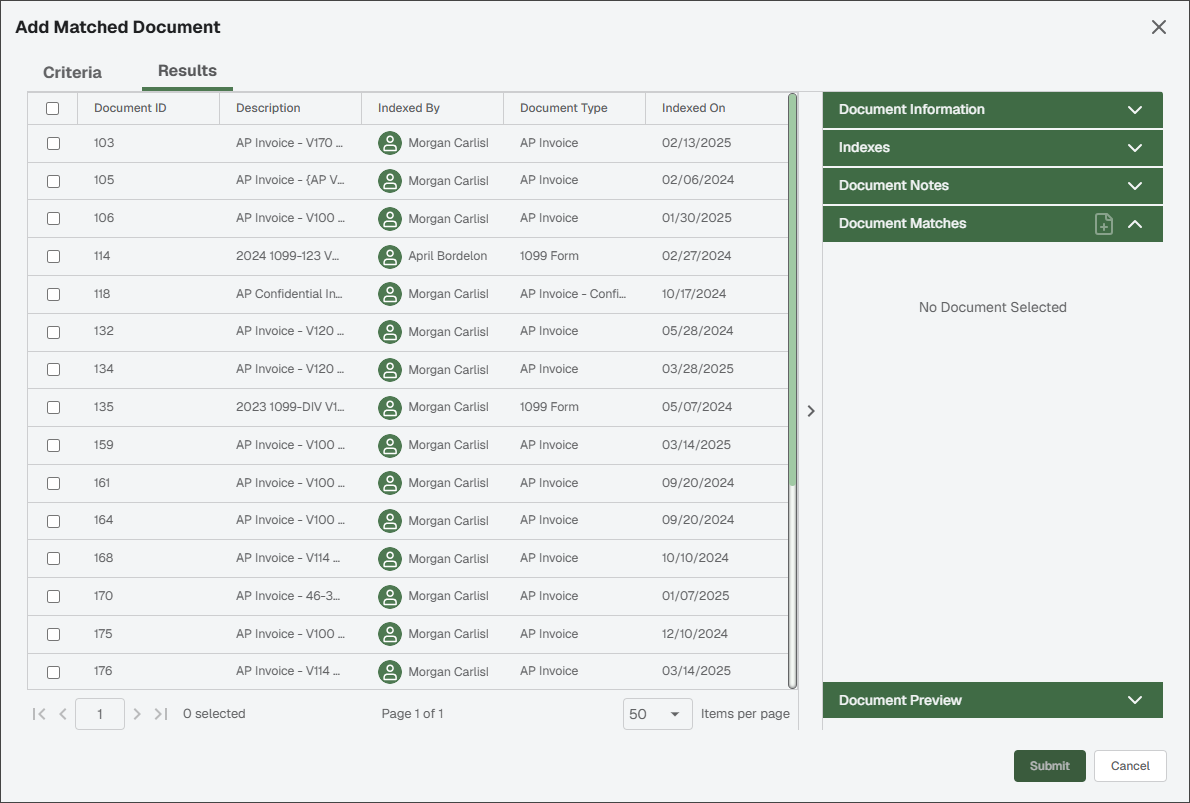
Select the check box(es) for the document(s) you identify as matching.
Click the in the sidebar to view the highlighted document.
Click .
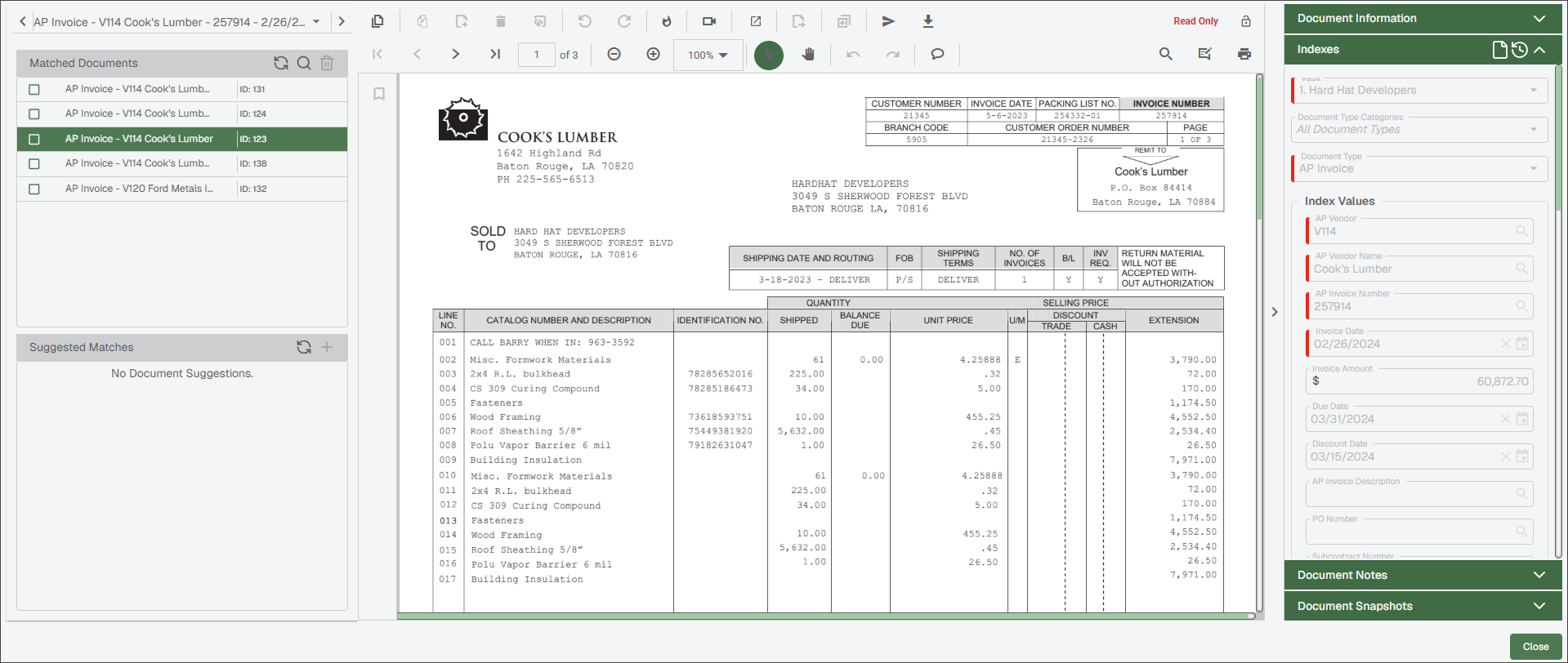
The Document Match page redisplays with the selected document(s) listed in the Matched Documents grid.
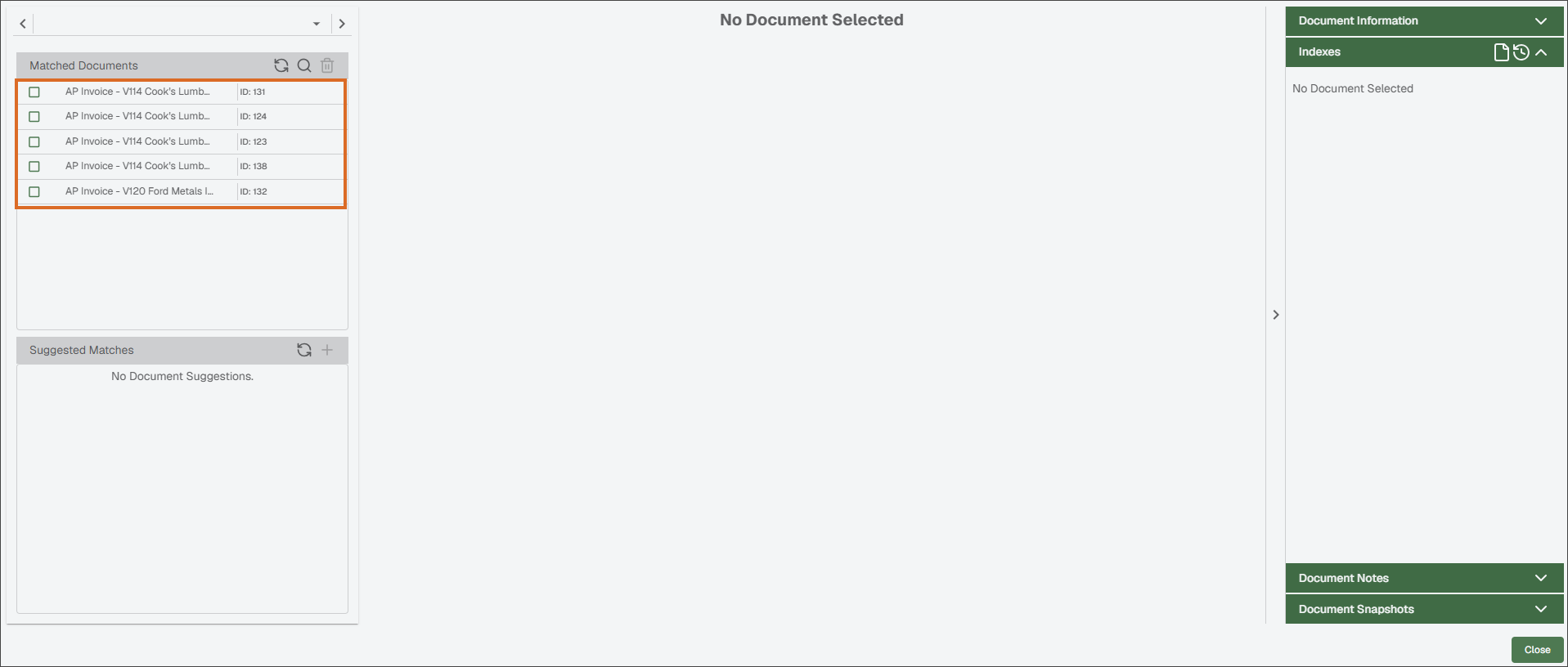
Any documents suggested as possible matches display in the Suggested Matches grid.
Highlight a matched document to view it in a Viewer pane:
Note
Much of the Viewer page functionality is available, such as Remove Read Only, Set Hot Document and Pop Out Document. See Working with Documents for more information.
Click .