Advanced Integrations
Sage Paperless Construction integrates with Sage 300 CRE and Sage 100 Contractor. These accounting systems have specific functionality that can be set up and used as described in the following sections.
Important
To use this integration, the Enable Credit Card Management Integration bridge setting must be enabled. See Sage 100 Contractor Bridge Settings for more information.
The integration with Credit Card Management (CCM) provides functionality to replicate entering credit card receipts and/or paid invoices through the Sage 100 Contractor 4-7-3 Credit Card Receipts screen.
When the Enable Credit Card Management Integration bridge setting is enabled, the APFlow™ header field that is typically labeled Credit Card is systematically relabeled to Card Issuer Account. This integration process allows invoices that are identified as credit card transactions to be exported from Sage Paperless Construction directly into Sage 100 Contractor's Credit Card Management module as credit card receipts instead of as regular invoices.
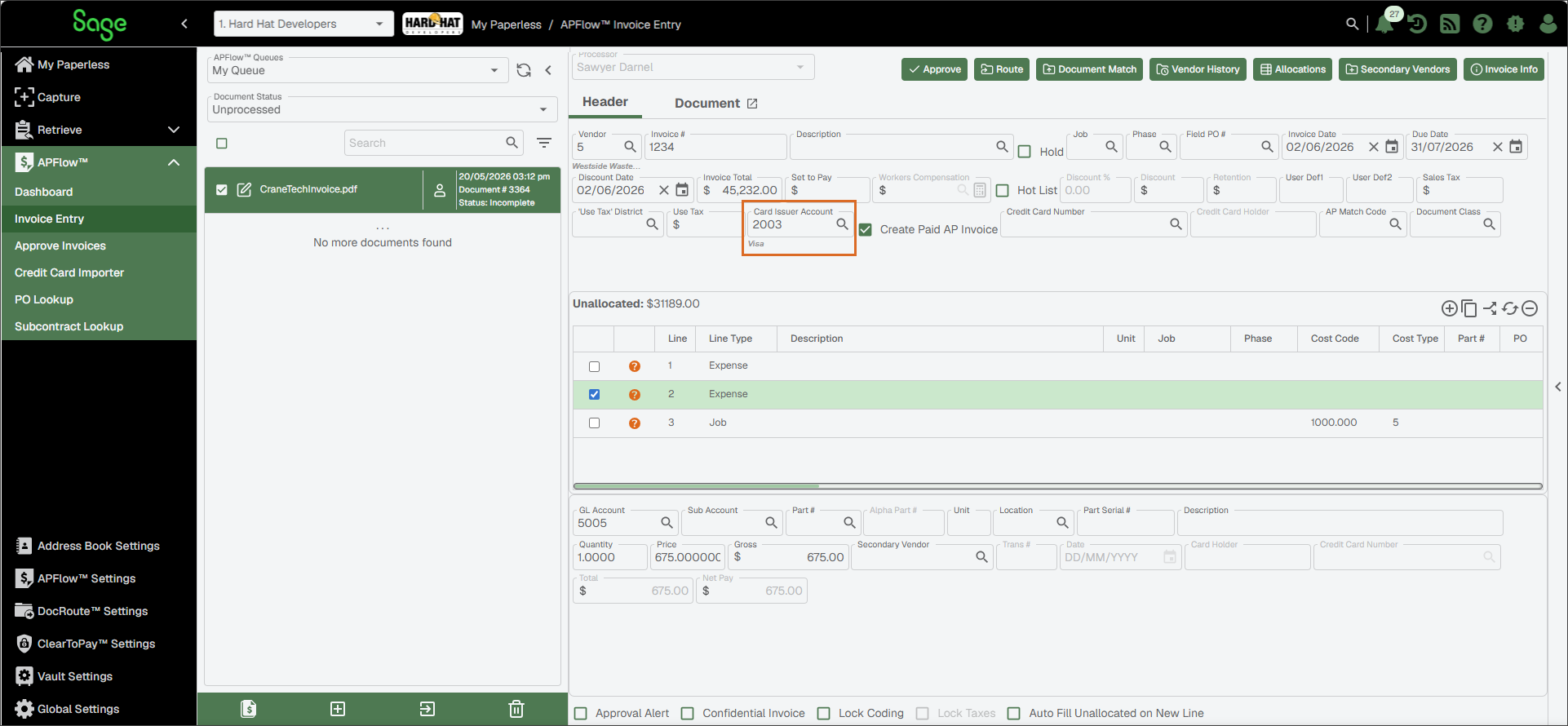
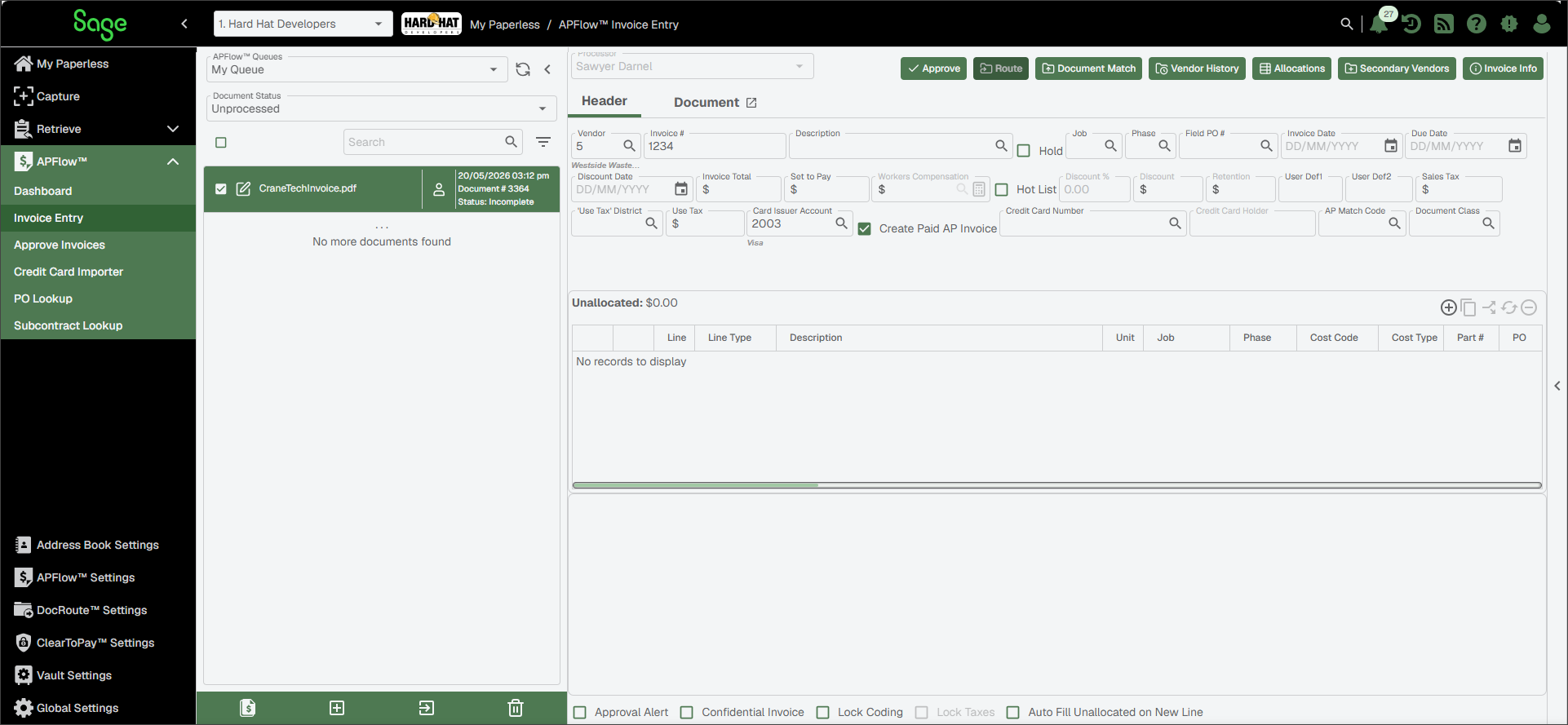
Populating the Card Issuer Account field on the invoice header determines that the invoice posts to Credit Card Management. Each line on the invoice posts as separate credit card receipt transactions and each lists individually in the Reconcile Credit Card Statement screen.
For more information about credit card management use cases, see the sections below:
You are entering an invoice that you have already paid by credit card. This is equivalent to entering the invoice on the Credit Card Receipt 4-7-3 screen in Sage 100 Contractor and populating the Vendor field. This creates a paid invoice in AP and the invoice posts as a single transaction in the Reconcile Credit Card Statement screen.
To designate an invoice as being paid by credit card:
Enter the account number in the Card Issuer Account field or select it using the lookup
 .
.Note
The following invoice header fields are disabled when a card issue account is selected, and any values previously entered are cleared:
Discount
Discount %
Retention
Workers' Compensation
Select the check box.
In the Credit Card Number field, enter the card used to pay the invoice.
When paying an invoice by credit card, the invoice is entered in AP as well as in Credit Card Management.
Note
When you are paying an invoice by credit card, you can add Purchase Order and Subcontract lines and export them into the Sage 100 Contractor Credit Card Management module.
Within Sage 100 Contractor
The numbered fields on this 4-7-3 Credit Card Receipts entry screen example below correspond with the following fields on the invoice in Sage Paperless Construction:
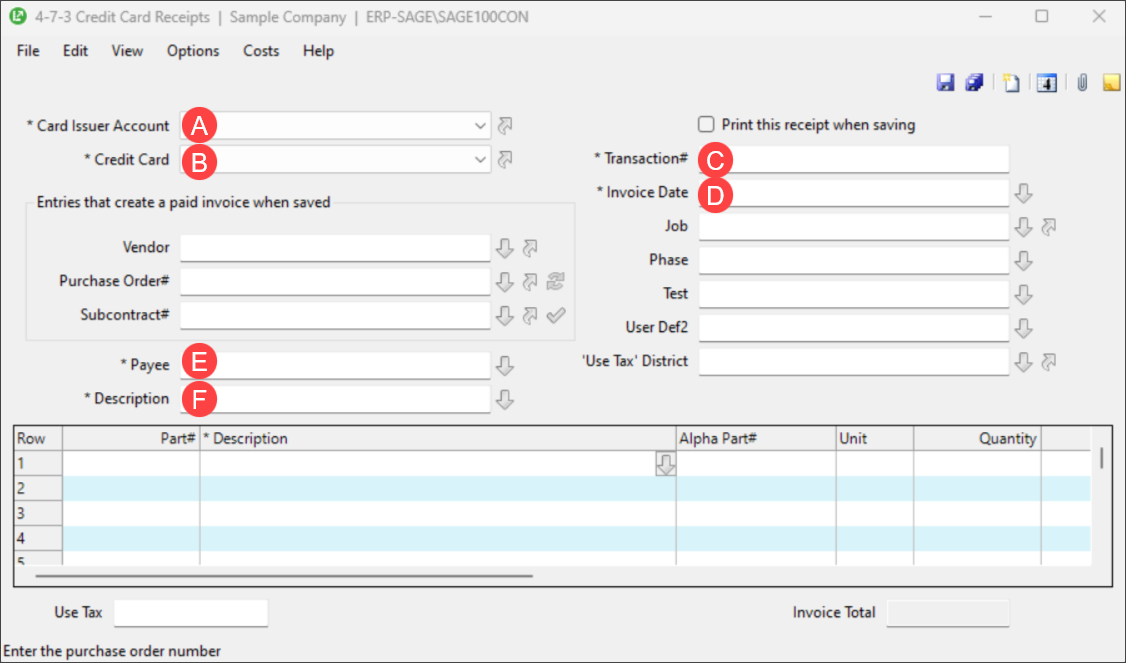
| A: Card Issuer Account |
| B: Credit Card Number |
| C: Invoice Number |
| D: Invoice Date |
| E: Vendor Name |
| F: Description |
When you reconcile your credit card statement from the Reconcile Credit Card Account 4-7-5 screen, the invoice displays as a single entry with:
The Vendor Name listed under the Payee column
The Invoice # listed under the Transaction # column
The Invoice Date listed under the Date column
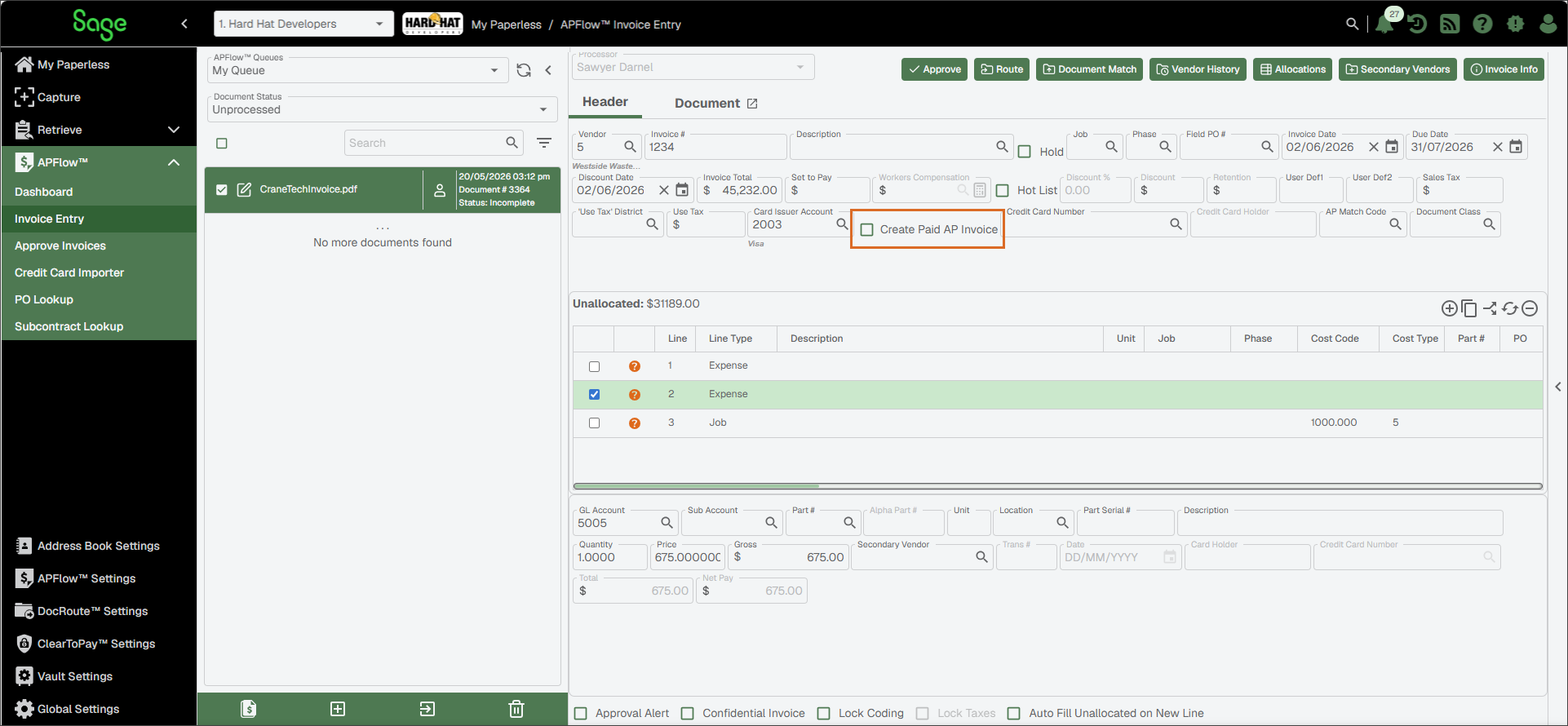
You are paying your credit card bill and the lines on the invoice represent the credit card receipts. In Sage Paperless Construction, populating the Card Issuer Account field on the invoice header determines that the invoice posts the transaction to Credit Card Management module in Sage 100 Contractor. Populating the Credit Card Number field on the invoice line identifies which credit card was used for the transaction. Make sure that the Create Paid AP Invoice check box is blank. Each line in the invoice posts as a separate transaction in the Credit Card Management module.
Note
Invoices posting to Credit Card Management in Sage 100 Contractor can only contain Job, Expense or Equipment line types.
Note
The following invoice header fields are disabled when a card issue account is selected, and any values previously entered are cleared:
Discount
Discount %
Retention
Workers' Compensation
In addition, the following invoice detail fields are disabled for the credit card transactions as coding to inventory is not supported for credit card receipts:
Alpha Part #
Location
Part #
Part Serial #
Each line of the invoice generates a credit card receipt which requires data in the following fields:
Note
Secondary Vendor is optional. If not supplied, the vendor's name is used as the Payee on the receipt.
Credit Card Holder (This field is systematically populated when the Credit Card Number field is selected.)
Credit Card Number
Description
Transaction Date
Transaction #
Split Coding for a Single Transaction
When you use Credit Card Importer, each credit card transaction populates as a separate invoice line (each line with their own unique Trans #) and post as separate credit card charges into Sage 100 Contractor. However, our integration also provides the ability to code a single credit card transaction across multiple expense accounts, jobs or equipment codes while still preserving the transaction as a single credit card charge in Sage 100 Contractor. The recommended process is to use the split or copy line functionality to maintain the same Trans # for each line. Any transactions on the same invoice that share the same Trans # and Credit Card Number remain consolidated as a single credit card charge. This allows for flexible coding while still maintaining integrity as a single transaction for easy reconciliation against your bank statement.
Within Sage 100 Contractor
The numbered fields on this 4-7-3 Credit Card Receipts entry screen example below correspond with the following fields on the invoice in Sage Paperless Construction:
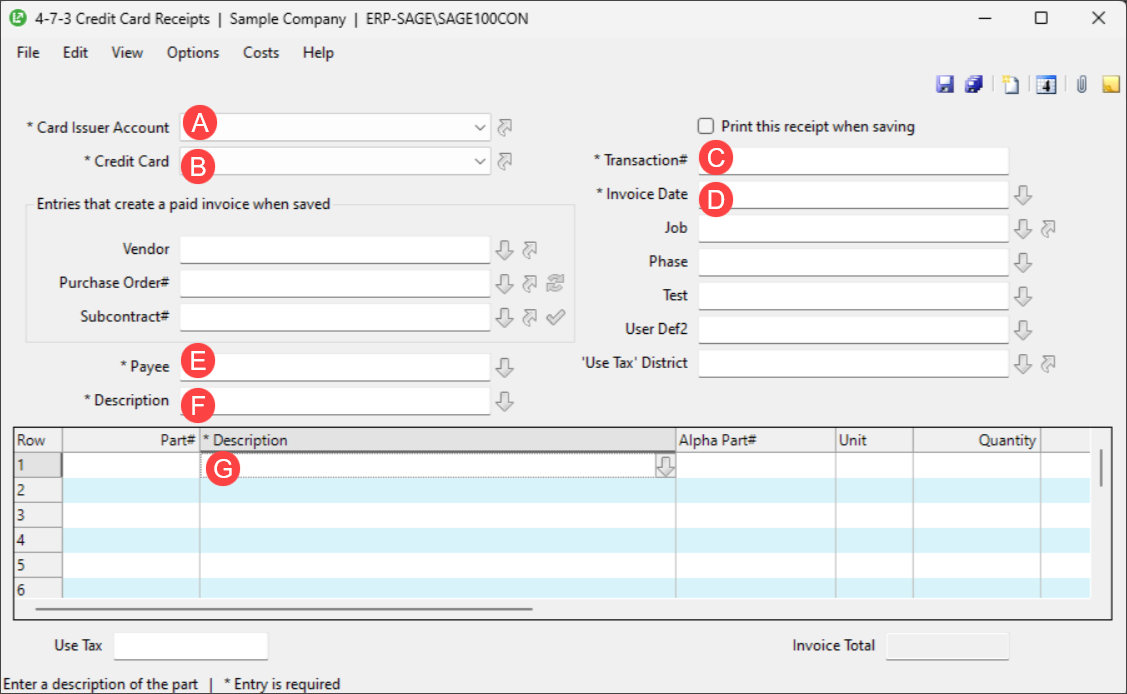
| A: Card Issuer Account |
| B: Credit Card Number |
| C: Trans # |
| D: Date |
| E: Secondary Vendor Name (If no secondary payee is entered, the Vendor Name is used.) |
| F: Description |
| G: Line Description* |
*With the CCM - Use Line Description advanced bridge setting enabled, you can use the line description instead of the invoice header description for the Journal Entry description. See Sage 100 Contractor Bridge Settings for more information.