Why Use APFlow™?
Time and money. Bridging your accounting software with Sage Paperless Construction's APFlow module can drastically improve invoice approval turnaround time and reduce the cost of invoice processing.
The APFlow module enables Sage Paperless Construction users to enter, route, approve and export accounts payable invoices into their accounting systems—all in a paperless environment. Invoices can be tracked throughout the workflow, ensuring no invoices are inadvertently overlooked. Create invoice routing rules here that systematically send invoices to specified reviewers for coding and approval, or route invoices manually. Rules can be assigned based on any field found on the invoice including vendor number, inventory location, dollar value, etc. Add notes—either in plain text or HTML—to further communicate with Processors and Approvers and to provide archival records. Important events during the workflow are tracked through alerts and audit logs.
Additionally, users can assign and complete issues with invoices. Supporting documents such as purchase orders, receiving tickets and receipts can be attached to invoices for easy retrieval using the Document Match functionality. Aging and drilldown reports can be run to give Processors an overall view of the status of invoices being routed through the system and audit trails so that each step of the process is well documented.
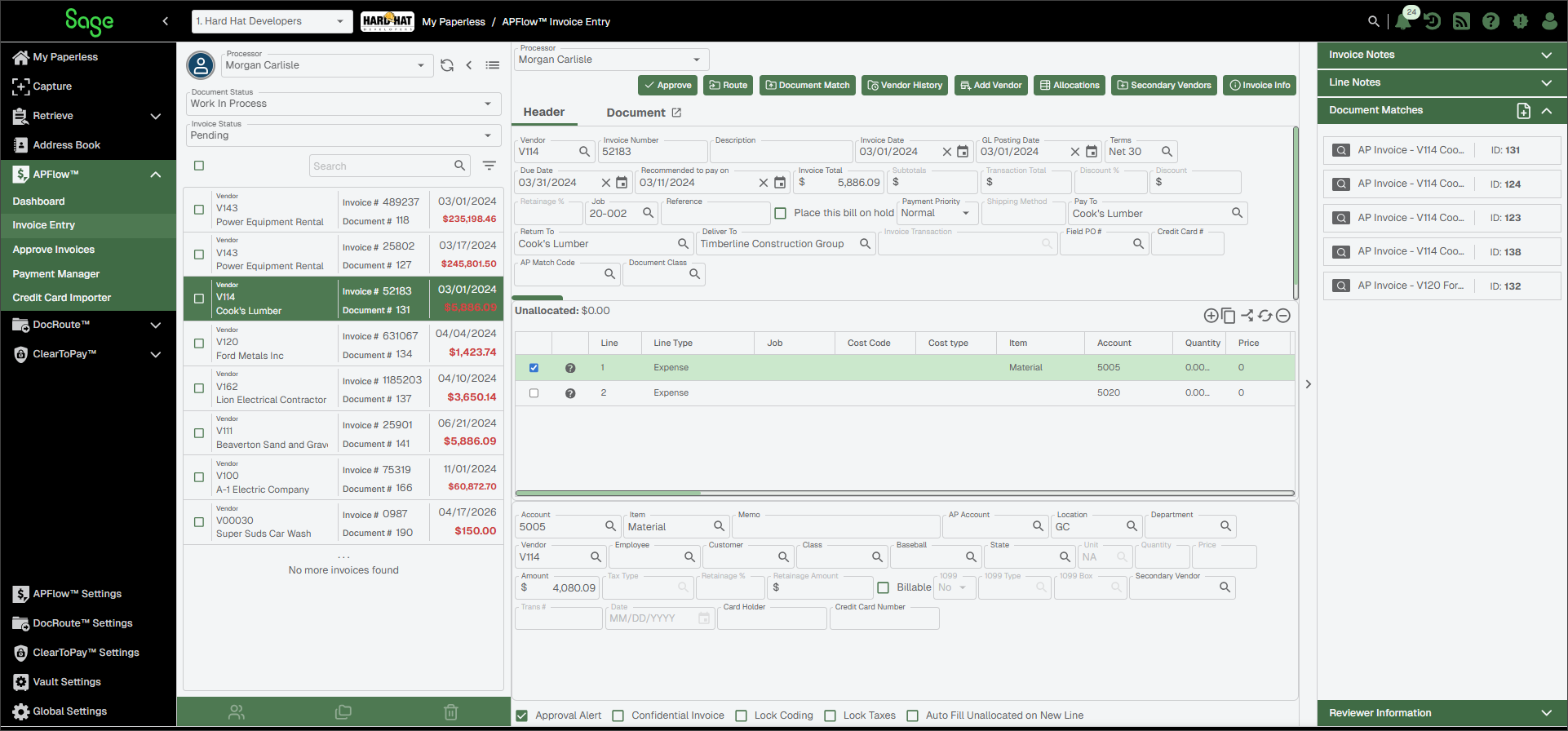
For more information, see APFlow™ Settings.
For more information, see New Invoice to access APFlow Invoice Entry information.
When you click on the Dashboard page for the first time and no configurations are in place, the Invoices By Vendor widget displays as the default:
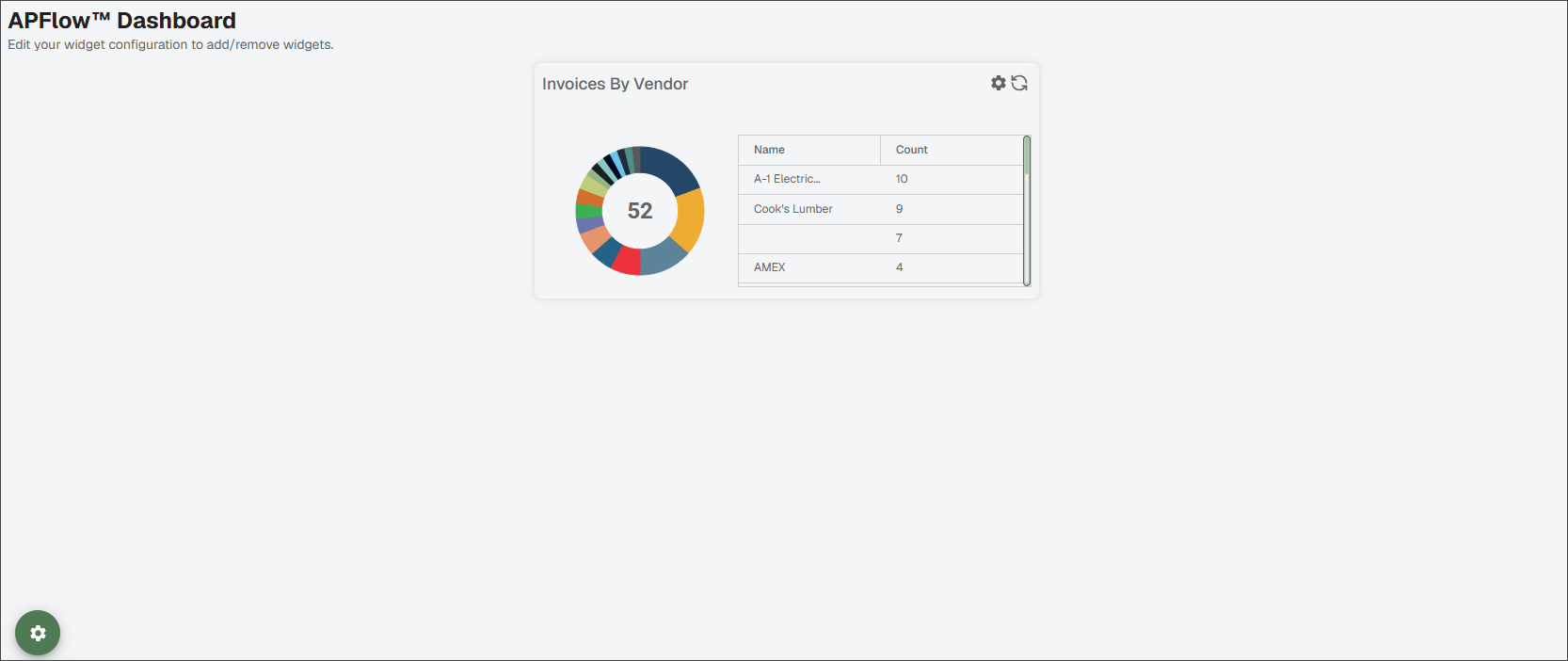
Make your widget modifications. For example, change the display from a pie chart to a line graph. Sage Paperless Construction remembers your widget settings (by user, by widget, by vault).
To access the available widgets, click the Widget Configuration
 icon.
icon.The follow grid displays:
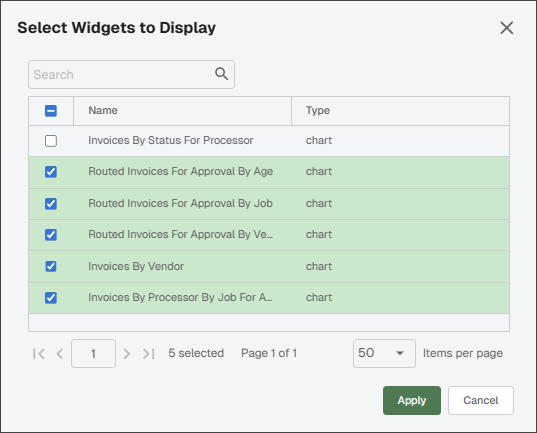
Select which widgets (charts) you want to display.
Click .
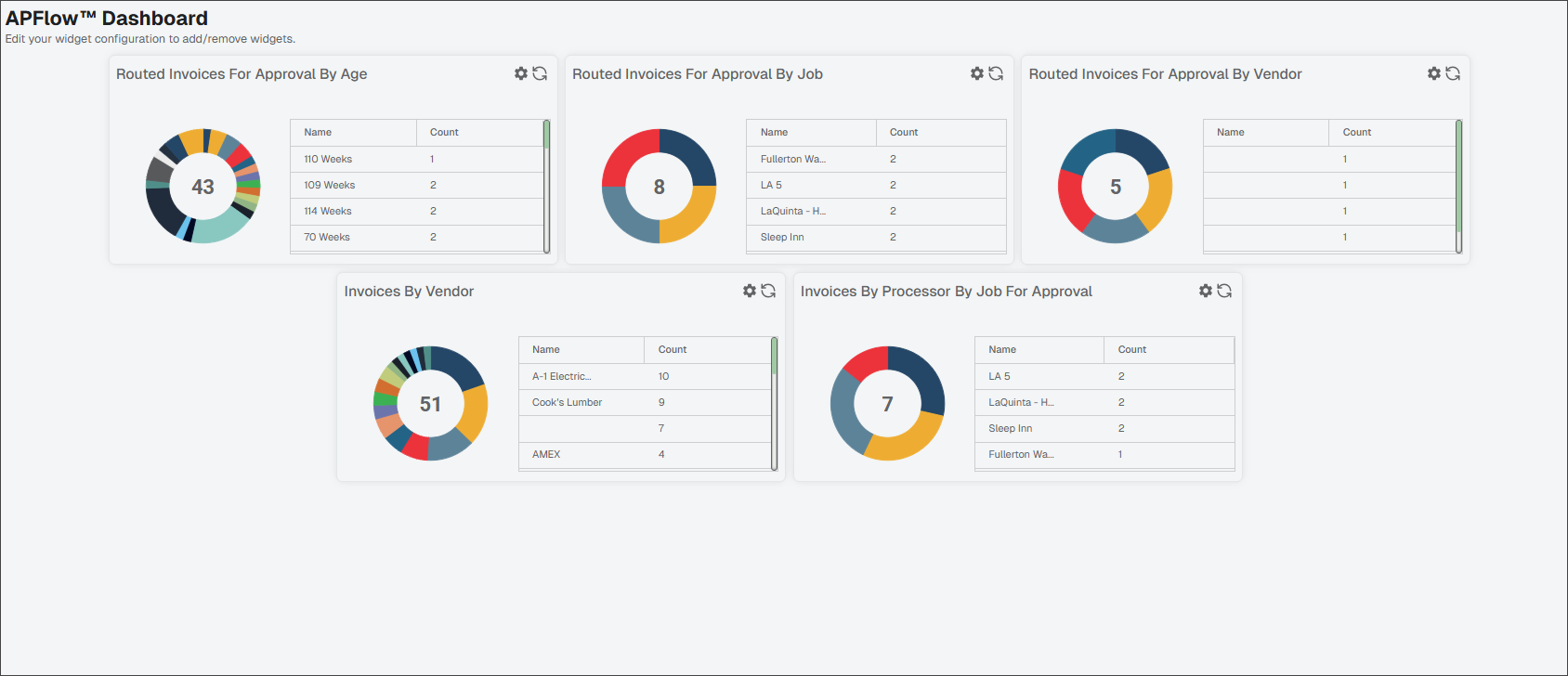
Note
If you want to display all the listed widgets, click the check box in the header. This populates every check box that displays with a checkmark.
To "unpin" a widget so that a particular widget does not display in your APFlow Dashboard page, remove the checkmark for that widget. Remember to click to save your changes.
The APFlow Dashboard column layouts mirror those displaying in the My Paperless page. For more information, see Use Widgets and Grids.
Click on any of the refresh icons,
 , that display on each widget to refresh each widget individually.