Vendor Settings
You can use the Vendor Settings page to manage the vendor's configuration and what compliance information is tracked for a particular vendor. Jobs can have job-specific vendors or a job may use an all operations vendor (if that functionality is enabled within company's configuration). For more information, see All Operations Vendors Overview.
Note
Insurance and custom compliance are the only ClearToPay compliance items that are tracked at the All Operations Vendor vendor level. Lien waivers, certified payroll and commitments are always job-specific and cannot be tracked for an All Operations Vendor unless they are added to a job. Add to note from Paul in meeting
Complete the following steps to access the Jobs list page:
From My Paperless, click .
In the ClearToPay™ navigation bar, click .
Choose whether you are configuring the settings for a job-specific vendor or for an All Operations Vendor:
From the Jobs page, select a job from the list.
Click .

Select the vendor whose settings you want to see.
Click .

A page similar to the following displays.
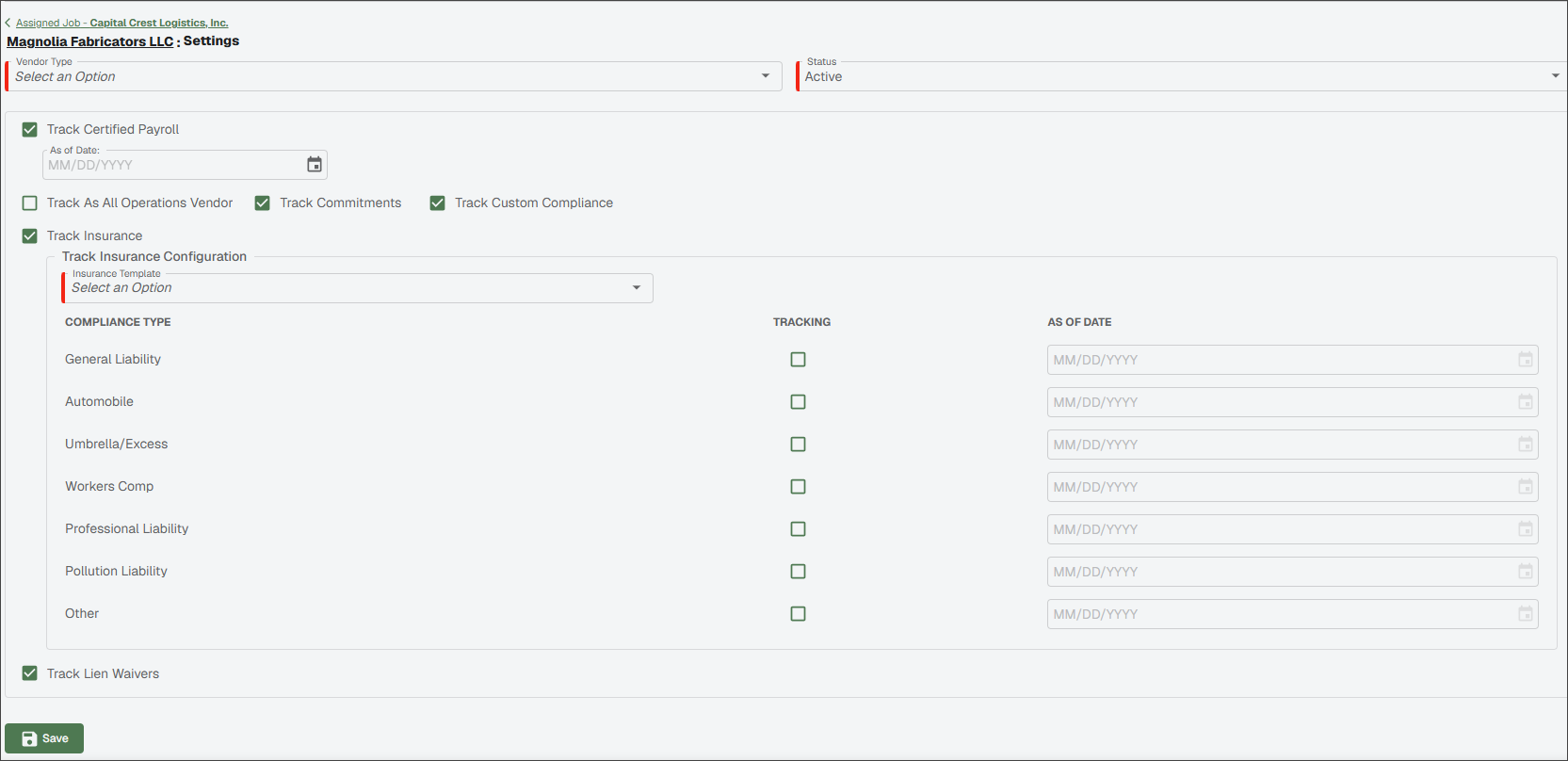
Review the information in the table below and perform configuration actions as needed:
Note
The check boxes and fields on this page vary based on which options are enabled on the Company Settings and Job Settings pages.
Vendor Type
Select this dropdown to choose the vendor type based on their services provided.
The list of custom vendor types is managed within by ClearToPay Administrators. See Configure Vendor Types for more information.
Status
Select this dropdown to choose the vendor's status from the list:
Pending: Further information gathering and planning is taking place. Vendors in this status do not report or generate compliance issues, emails or warnings.
Active: This vendor is assigned to one or more in-progress jobs. Compliance tracking and automated emails are active.
Inactive: This vendor is no longer required for a job. Vendors in this status do not report or generate compliance issues, emails or warnings.
Track Certified Payroll
If selected, tracking certified payroll records is enabled for this vendor. If you select this check box, you need to also need to establish when certified payroll tracking should begin for this vendor in the As of Date field that displays.
Track As All Operations Vendor
Insurance is tracked at the all ops vendor level if the check box on the job's Vendor Settings page is selected. If that check box is deselected, the Track Insurance check box displays along with a section where you can enter job-specific insurance information.
Track Commitments
If selected, commitments are tracked and the Commitments menu option displays for this vendor.
Track Custom Compliance
Select to allow for the creation and tracking of unique compliance requirements beyond the standard types. If this check box is selected, a Custom Compliance tab displays where you can view current custom compliance items. See Vendor Custom Compliance for more information.
Track Insurance
Select to allow for the tracking of insurance requirements for this vendor. If selected, the Track Insurance Configuration section displays.
Insurance Template
Select this dropdown to choose an insurance template from the list. These templates are created at the company level (where job defaults are also determined) and made available to job vendors at the job level.
Insurance Tracking Configuration
Select which template should be applied and which compliance types should be tracked for this vendor. The Compliance Type, Tracking and As of Date columns are populated by the information in the selected insurance template.
Track Lien Waivers
If selected, tracking lien waivers is enabled for this vendor. If you select this check box, an additional group of settings display for configuring. See Vendor Lien Waiver Config for more information.
Click .
From the Jobs page, click .
From the All Operations Vendors Dashboard, click .

From the All Operations Vendors list, select the vendor whose settings you want to see.
Click .
A page similar to the following displays:
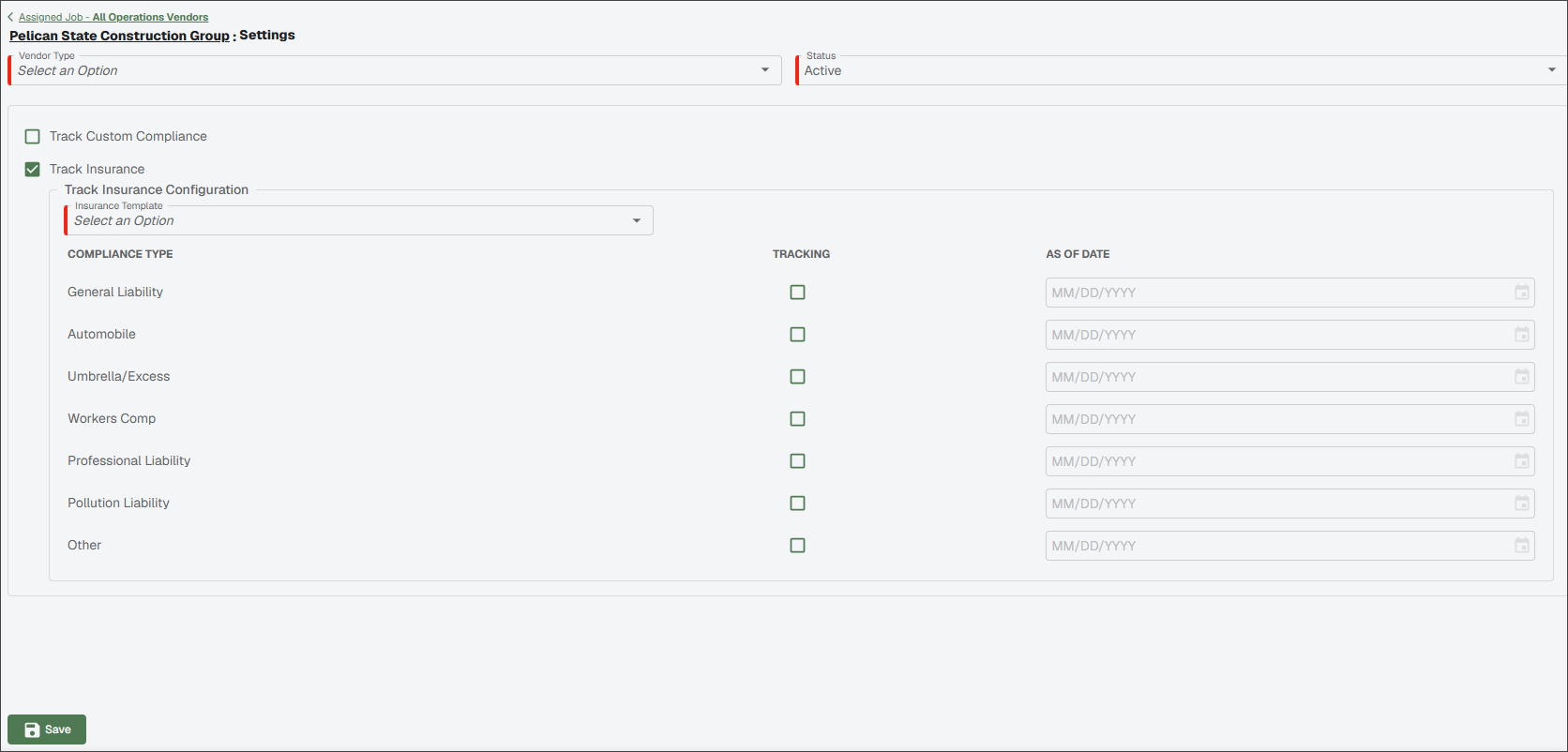
Review the information in the table below and perform configuration actions as needed:
Note
The check boxes and fields on this page vary based on which options are enabled on the Company Settings and Job Settings pages.
Note
Insurance and custom compliance are the only ClearToPay compliance items that are tracked at the All Operations Vendor vendor level. Lien waivers, certified payroll and commitments are always job-specific and cannot be tracked for an All Operations Vendor unless they are added to a job.
Vendor Type
Select this dropdown to choose the vendor type based on their services provided.
The list of custom vendor types is managed within by ClearToPay Administrators. See Configure Vendor Types for more information.
Status
Select this dropdown to choose the vendor's status from the list:
Pending: Further information gathering and planning is taking place. Vendors in this status do not report or generate compliance issues, emails or warnings.
Active: This vendor is assigned to one or more in-progress jobs. Compliance tracking and automated emails are active.
Inactive: This vendor is no longer required for a job. Vendors in this status do not report or generate compliance issues, emails or warnings.
Track Custom Compliance
Select to allow for the creation and tracking of unique compliance requirements beyond the standard types. If this check box is selected, a Custom Compliance tab displays where you can view current custom compliance items. See Vendor Custom Compliance for more information.
Track Insurance
Select to allow for the tracking of insurance requirements for this vendor. If selected, the Track Insurance Configuration section displays.
Insurance Template
Select this dropdown to choose an insurance template from the list. These templates are created at the company level (where job defaults are also determined) and made available to vendors.
Insurance Tracking Configuration
Select which compliance types should be tracked for this vendor. The date column defaults to the current date. If that date is incorrect, use the calendar icon to set when tracking for this compliance type should begin.
Click .