Routing Overview
Complete the following steps to access the Routing page:
From My Paperless, click .
In the DocRoute™ navigation bar, click .
A page similar to the following displays:
From the Routing page, you can perform the following tasks:
Route
Click to open the Create a Document Route page.
This creates an entirely new route system allowing the document to be routed to another person.
Approve
Prior to approving, you may need to review an attached document in the Documents tab and/or complete a task in the Route tab. Once the route task is complete, the Approve icon becomes active. Click to approve the route.
The following Approve Route dialog displays:
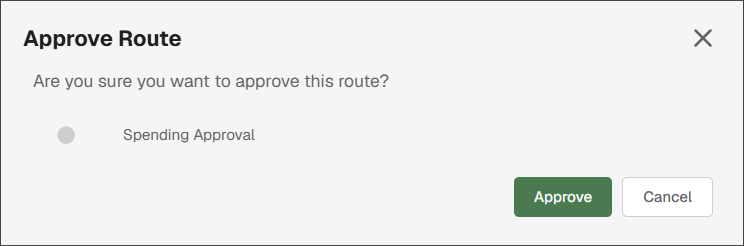
Click .
Reject
Click to reject the document or task assigned by the current route.
The following Reject Route dialog displays:
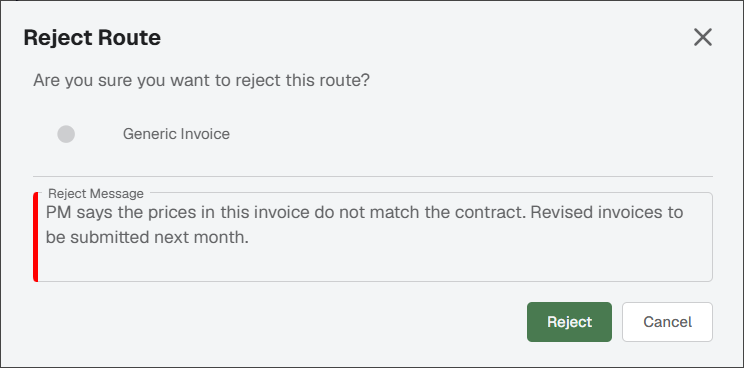
Enter the reason for the rejection in the Reject Message field and click . A
 becomes visible in the Route Queue pane.
The message also displays in the Route Messages sidebar. See How to Use the Sidebar in Sage Paperless Construction for more information.
If you route an invoice or a document that is rejected by a reviewer at any point in the route process, you (the route creator) are notified based on the Event Type that was configured for that route, either email, text message or system alert. The route also moves to Rejected status in the Route Queue.
Note
You can also check your queue for messages in the Sent status.
Recall
If you are the creator of a particular route, you can click to recall it so you can make changes to the route.
The following Recall Route dialog displays:
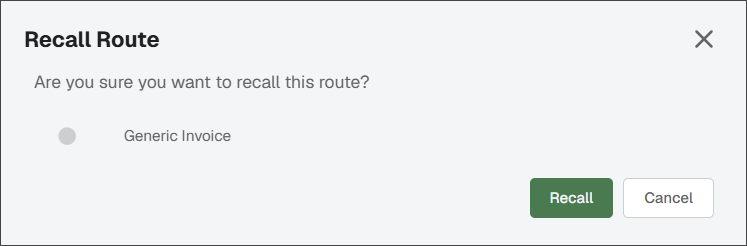
Click .
The recalled route the Recalled status in the Route Queue.
Once you have modified either the document(s) being routed or reviewers, you can release it as shown below.
Release
If you recalled a route, you can click to release it after you have made the appropriate changes.
The following Release Route dialog displays:
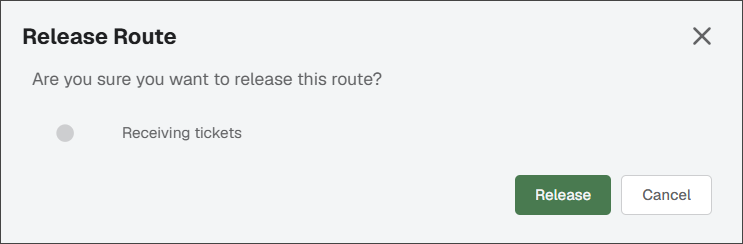
Click .
The route displays in the queues of those individuals to whom it was routed. The route follows its original sequence and all reviewers have an opportunity to review (and approve) the modified documents.
Reply
Click to send a message to users who are in a specific document sequence.
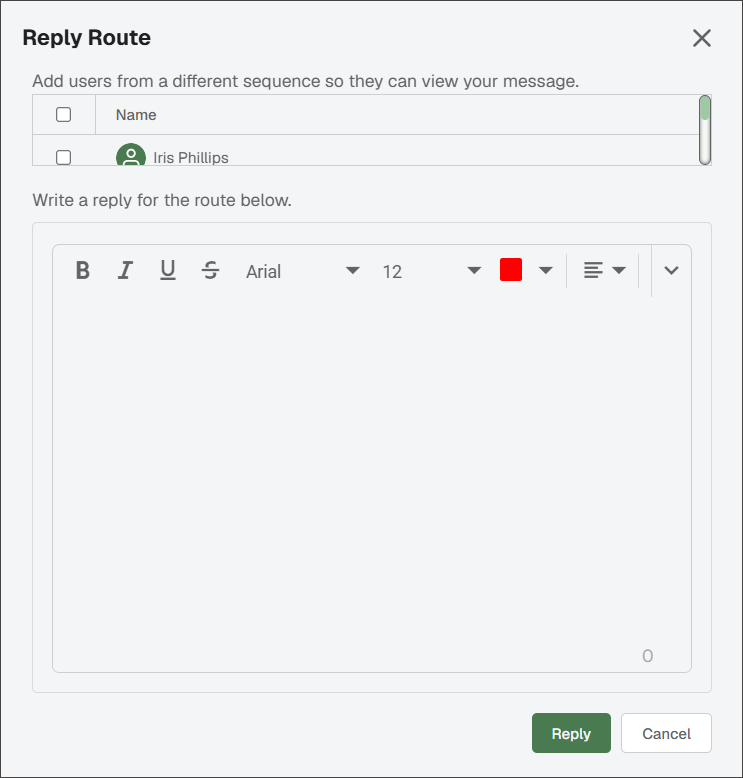
The message can be sent either to a single user or to every user in the sequence. Check the box next to the name of user(s) to identify who should receive a message.
Note
The message displays in the Route Messages pane in the sidebar. See How to Use the Sidebar in Sage Paperless Construction for more information.
Delete
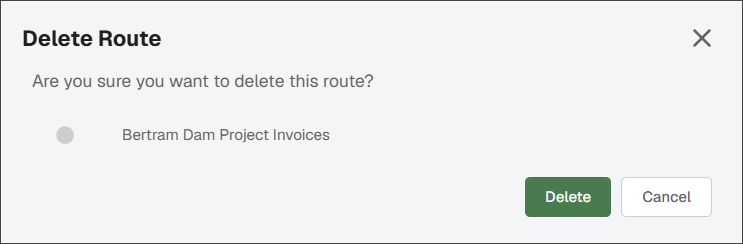
Click to delete a document from DocRoute™.
The following Delete Route dialog displays:
Route tab
The Route tab shown below is active. Here you can view the route description entered when the route was created, view tasks and view route progress. If you have permissions, you can click the route card and then click the associated task to manually complete it.
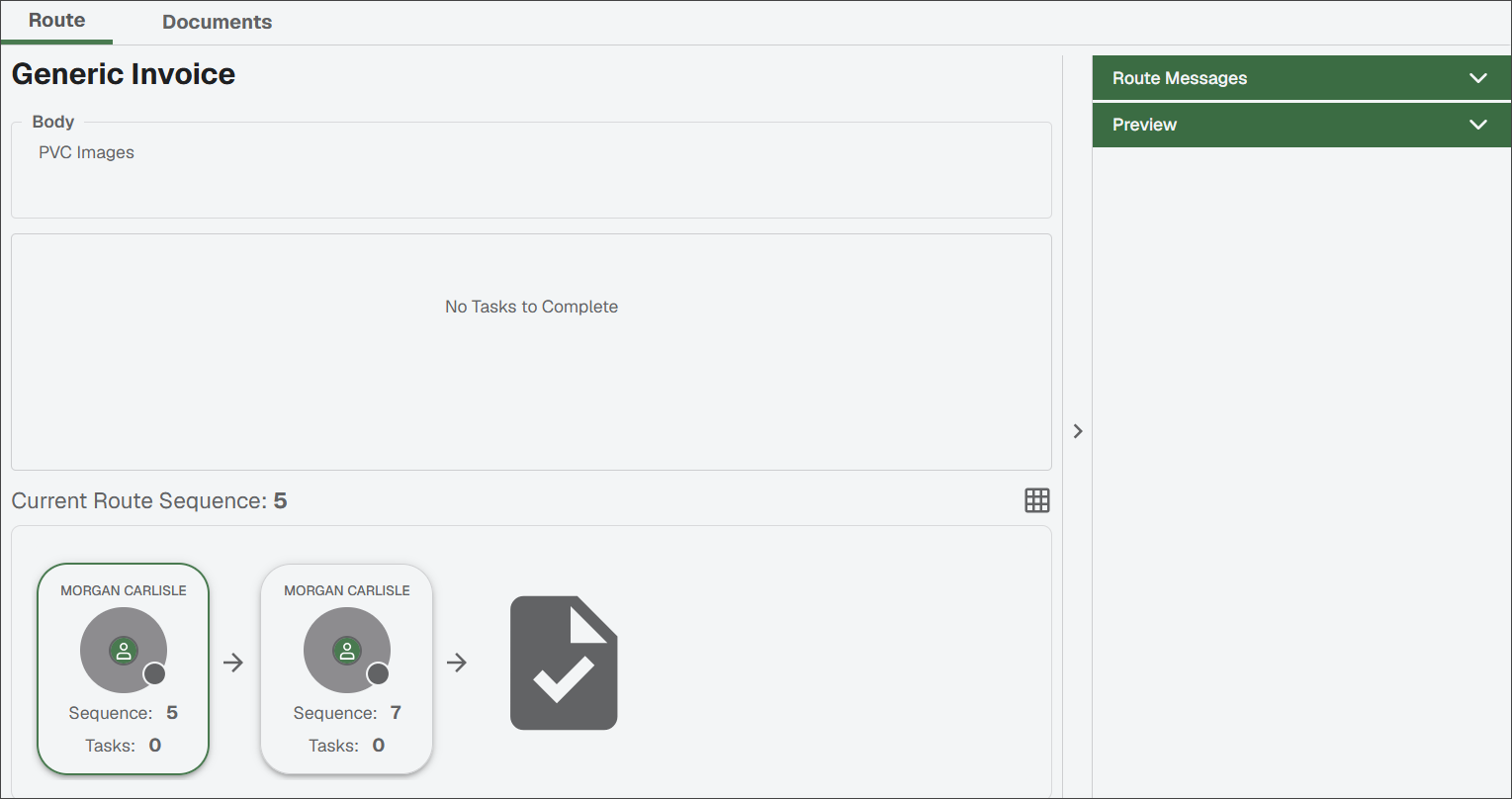
You can also click the Grid
 icon to see the route in grid view rather an card view.
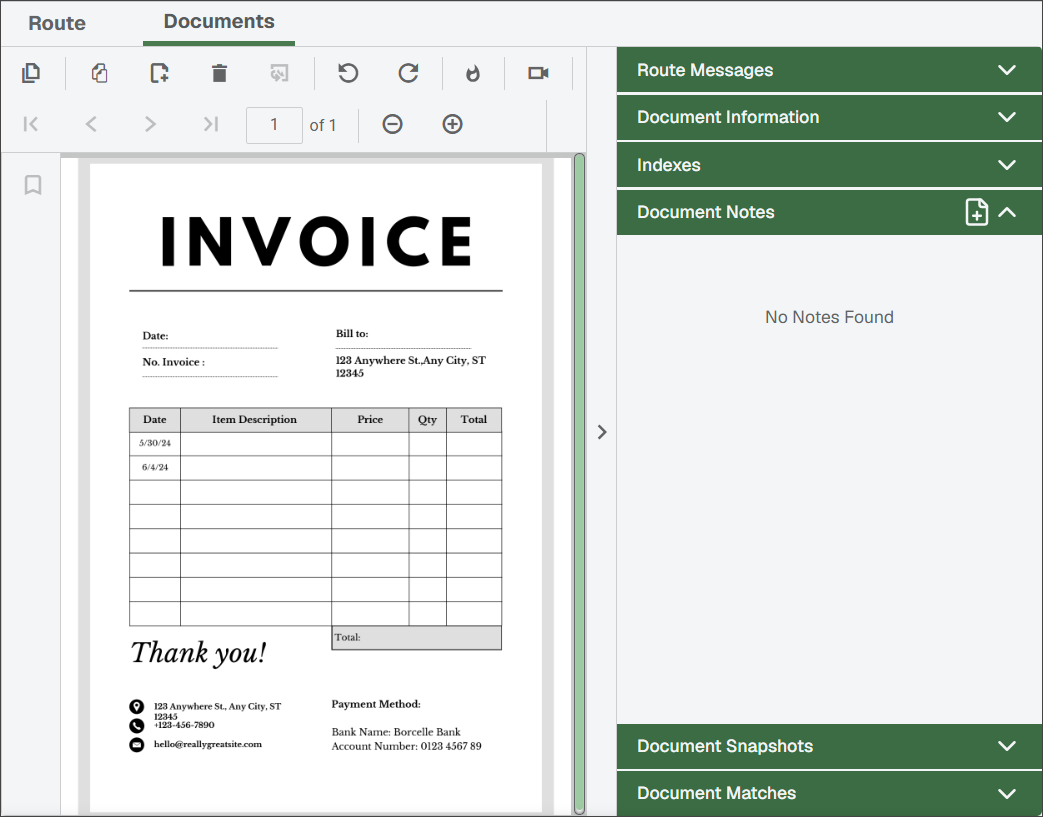
Documents tab
The Documents tab shown below is active. Here you can view the document(s) included in the route. The selected document displays in a viewer window, along with a document-specific sidebar.
You can view any route messages associated with this document as well as document information, indexes, document notes and document snapshots. See How to Use the Sidebar in Sage Paperless Construction for more information.