Configure Vault Currency
Complete the following steps to set the currency for the vault:
From My Paperless, click .
The Vault Settings opens on with the General tab selected:
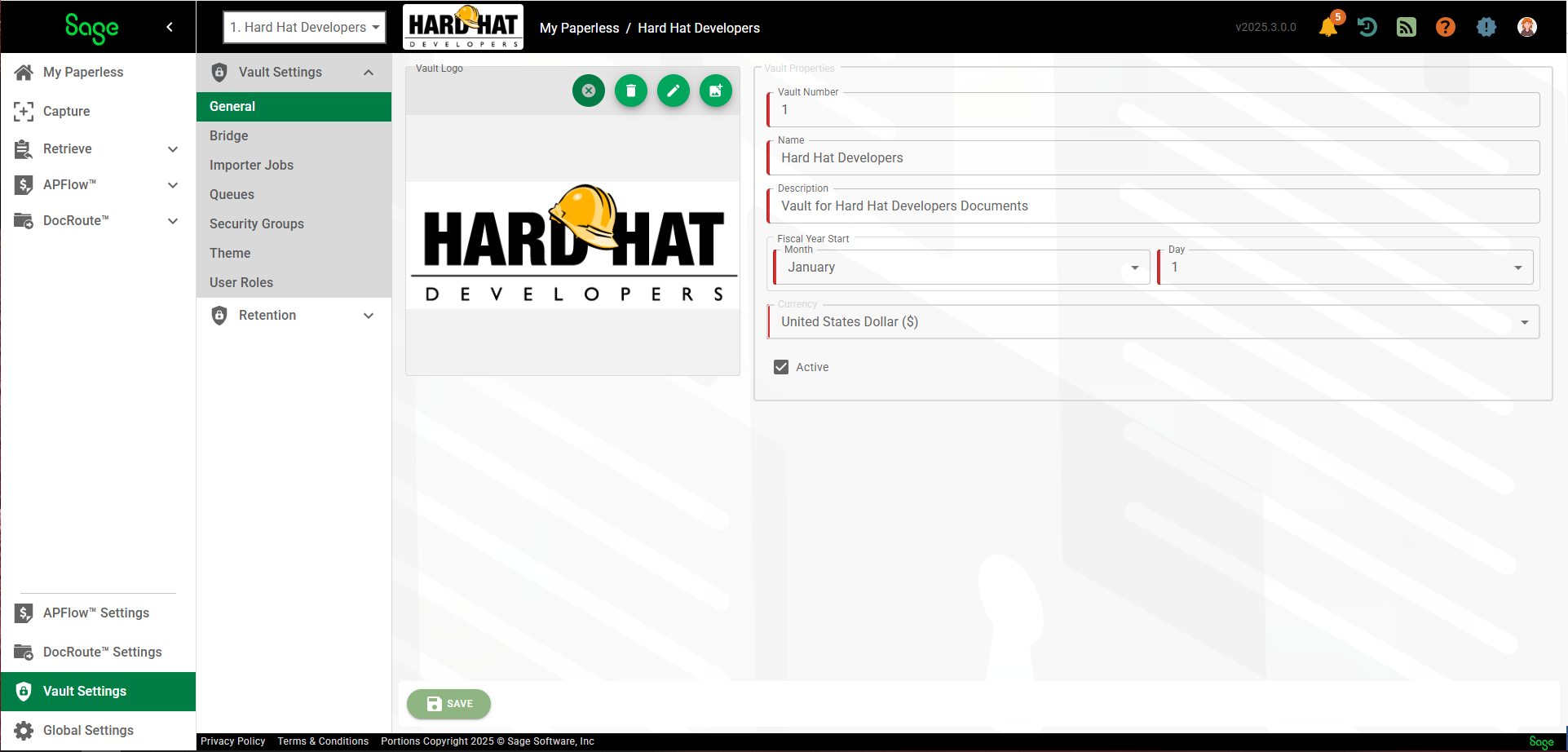
Use the Currency dropdown to select the currency type that display throughout your current vault.
Click .
Once you update the Currency field, the following currency-related fields throughout the system mirror this choice.
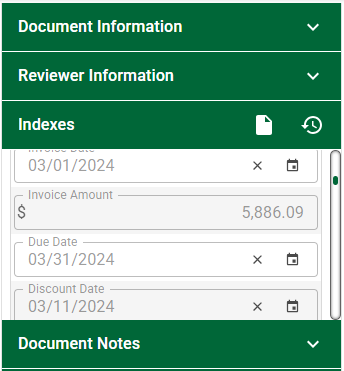
In the Results tab, the sidebar includes an Indexes section with an Invoice Amount field that includes the currency.
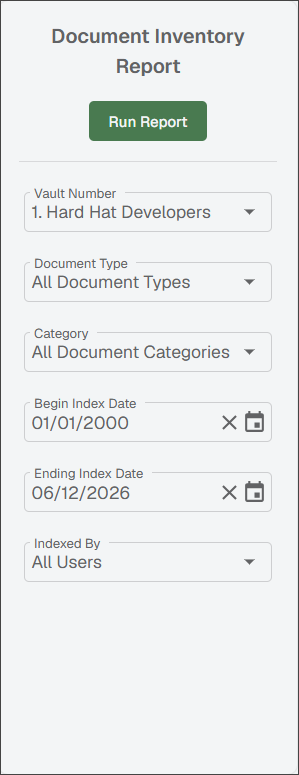
The following reports include a currency parameter:
AP Invoice Drilldown
AP Secondary Vendor Drilldown
AP Top Vendor Report
Within the Additional Permissions, Reviewer Approval Limit grid.

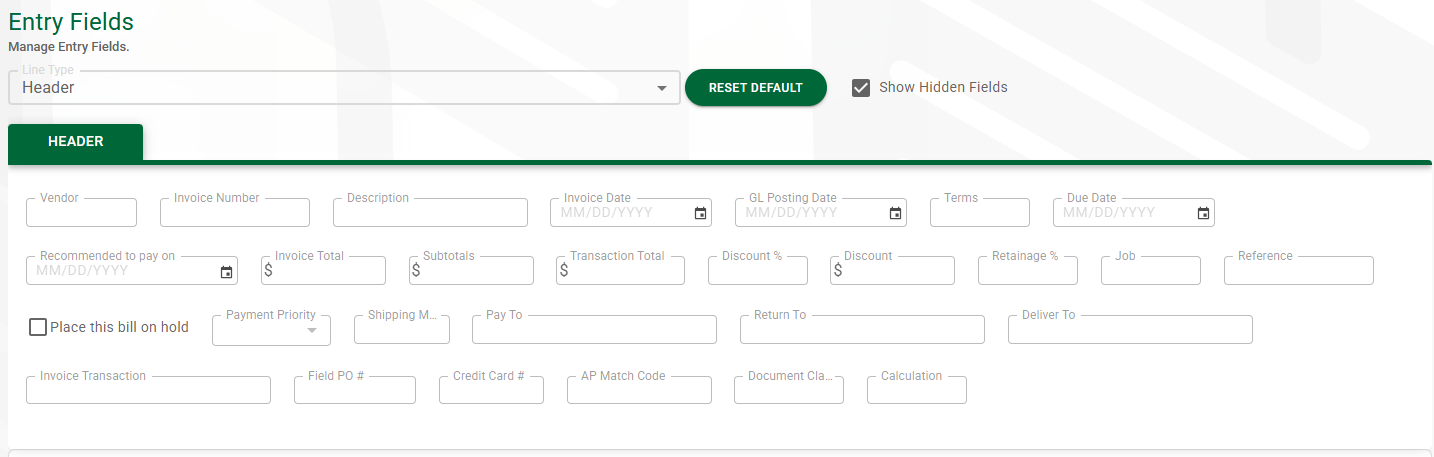
Within the Manage Entry Fields Header tab:
Invoice Total field
Subtotals field
Transaction Total field
Discount field
Within the Manage Entry Fields Detail dropdown selection:
Amount field
Retainage Amount field

Document Status:
Work In Process
Do Not Pay
Ready for Export
Exported
Reset for Edit
Invoice Statuses:
Incomplete
Pending
Rejected
Approved
Approval Alert
Recalled
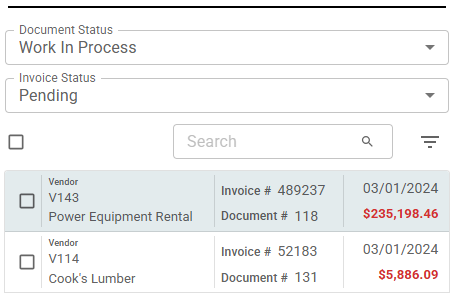
APFlow™
Invoice Total field
Subtotals field
Transaction Total field
Discount field
Unallocated value
Amount column
Amount field
Retainage Amount field
Invoice Amount field


Amount field
Retainage Amount field
Payment Manager
Amounts shown on Checks and Invoices panes
Credit Card Importer
Invoice Total field
Subtotals field
Transaction Total field
Discount field
Amount column
Amount field
Retainage Amount field
pane
Invoice Total field
Subtotals field
Transaction Total field
Discount field
grid
Amount column
Amount field
Retainage Amount field
pane
Invoice Total field
Subtotals field
Transaction Total field
Discount field
grid
Amount column
Amount field
Retainage Amount field