Manage Address Book Companies
From the main Address Book dashboard, click one of the links in the Companies row to access the Address Book Companies page.
The Address Book Companies page alphabetically lists company records, including each company's name, phone number, number of contacts associated with the company and a column indicating whether they are active.
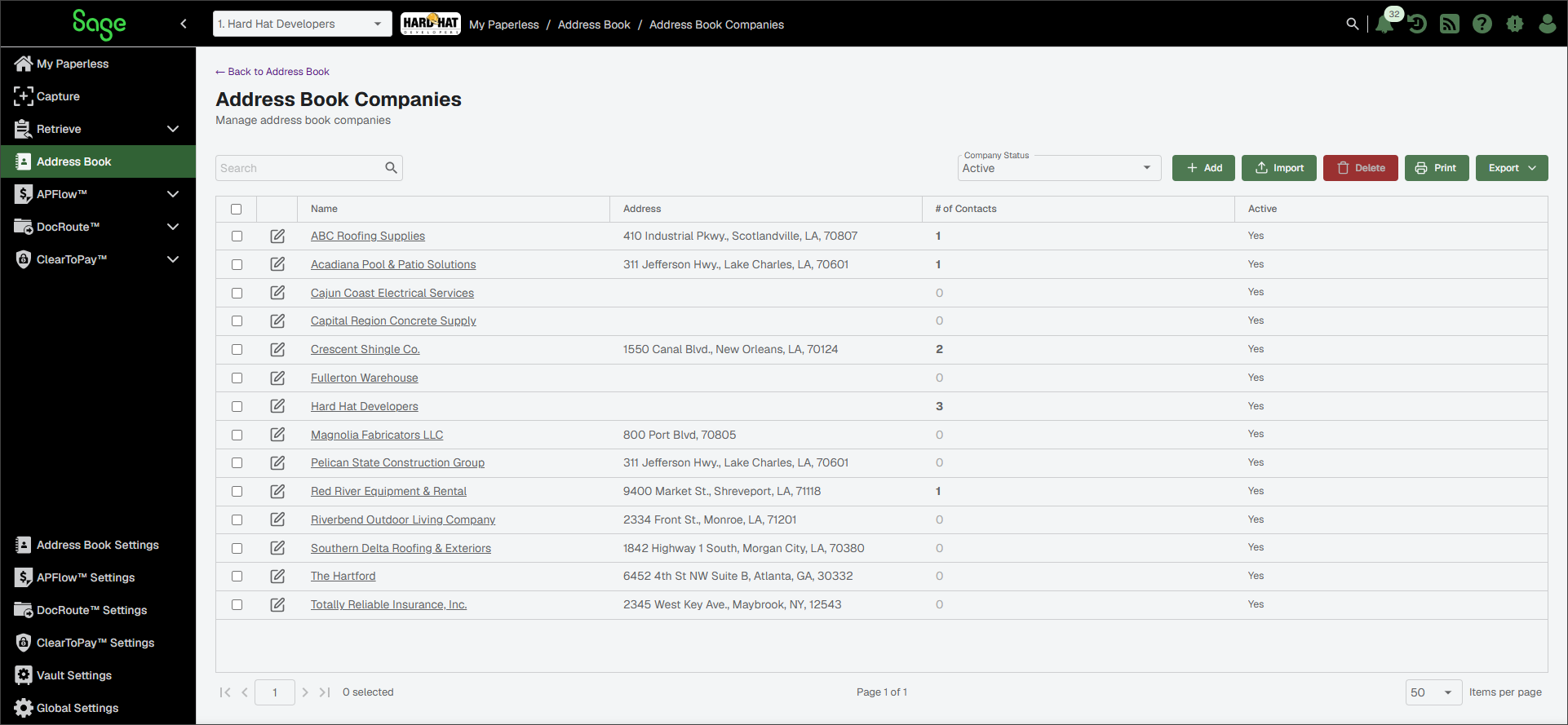
From this page, you can perform the following tasks:
| To search for a specific company, enter the company name or part of the name in the Search field. Then, press | |
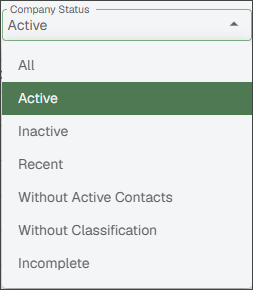
| To narrow the list of companies that display, click the dropdown to display the filter options shown. | |
 | Click to add a create a new company in the Address Book. See Add a Company to the Address Book for more information. | |
 | Click to import vendor or customer companies into the Address Book Company list via the bridge connection. From the Connection Source dropdown:
Select the check box(es) for the contacts from the list, then click . | |
 | Select the company's check box from the list and click to remove it from the Address Book. NoteYou cannot delete companies that are assigned to a job or linked to data within ClearToPay™. | |
 | Click to print the Address Book Companies grid. | |
 | Click to export the grid information to Excel, CSV or PDF. | |
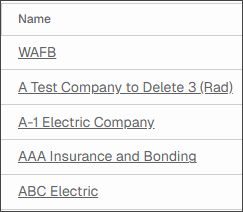
| The Name column provide links to each company. Click on the link to view the company details. See Review Company Details for more information. | |
 | Click the Edit icon next to the company you want to edit to open the Edit Company Information dialog. See Edit Company Details for more information. |


Review Company Details
The company detail page provides the following sections for the selected company:
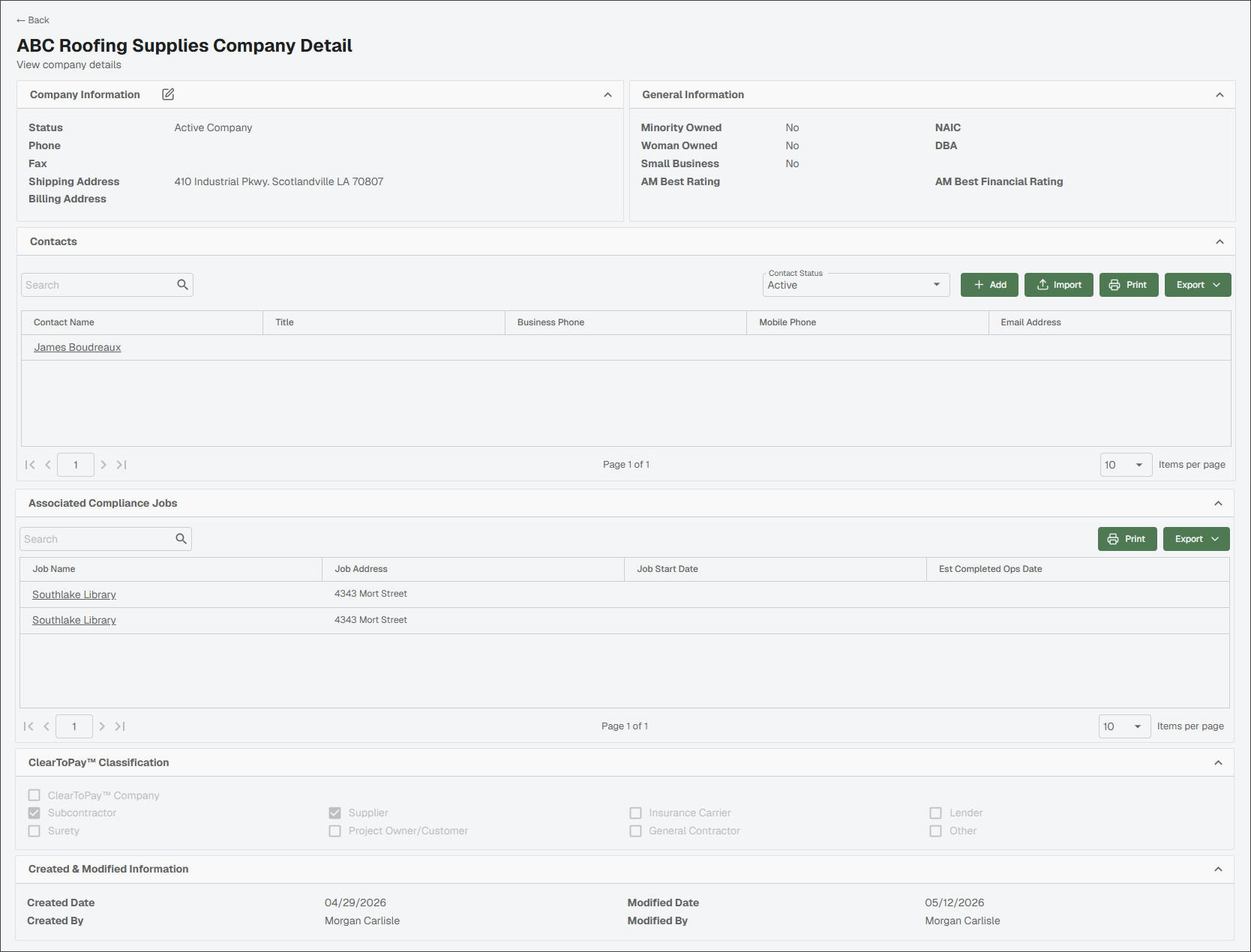
Company Information: Use this section to review (and update if needed) the company information and contact details. See Edit Company Details for more information.
General Information: Use this section to review specific information about the company and learn more about it.
Contacts: Use this section to view the company's contacts and sort them by their status. Select the contact's name to view more details.
See Add Address Book Contact for information on creating a new contact for this company.
See Import Contacts into a Company in the Address Book for information on importing contacts into the company via the bridge connection.
Associated Compliance Jobs: If ClearToPay™ is licensed, the Associated ClearToPay Jobs section lists and links to the job(s) that this company works on as a vendor. Click the link to access the vendor's page in ClearToPay.
ClearToPay™ Classification: Use this section to indicate if the company is a subcontractor, lender, general contractor, etc. This impacts how the company is identified in ClearToPay.
Created & Modified Information: This section provides tracking information and dates for the company.
To access the Edit Company Information dialog, do one of the following:
From the Address Book Companies page: Click the Edit
icon next to the company you want to update.From the Company Detail page: Click the Edit
icon next to Company Information.
In the Edit Company Information dialog, expand each section and make any necessary updates:
Note
If the company's name or address is updated in the Address Book, the updates are reflected on their respective company, job or vendor dashboard in ClearToPay.
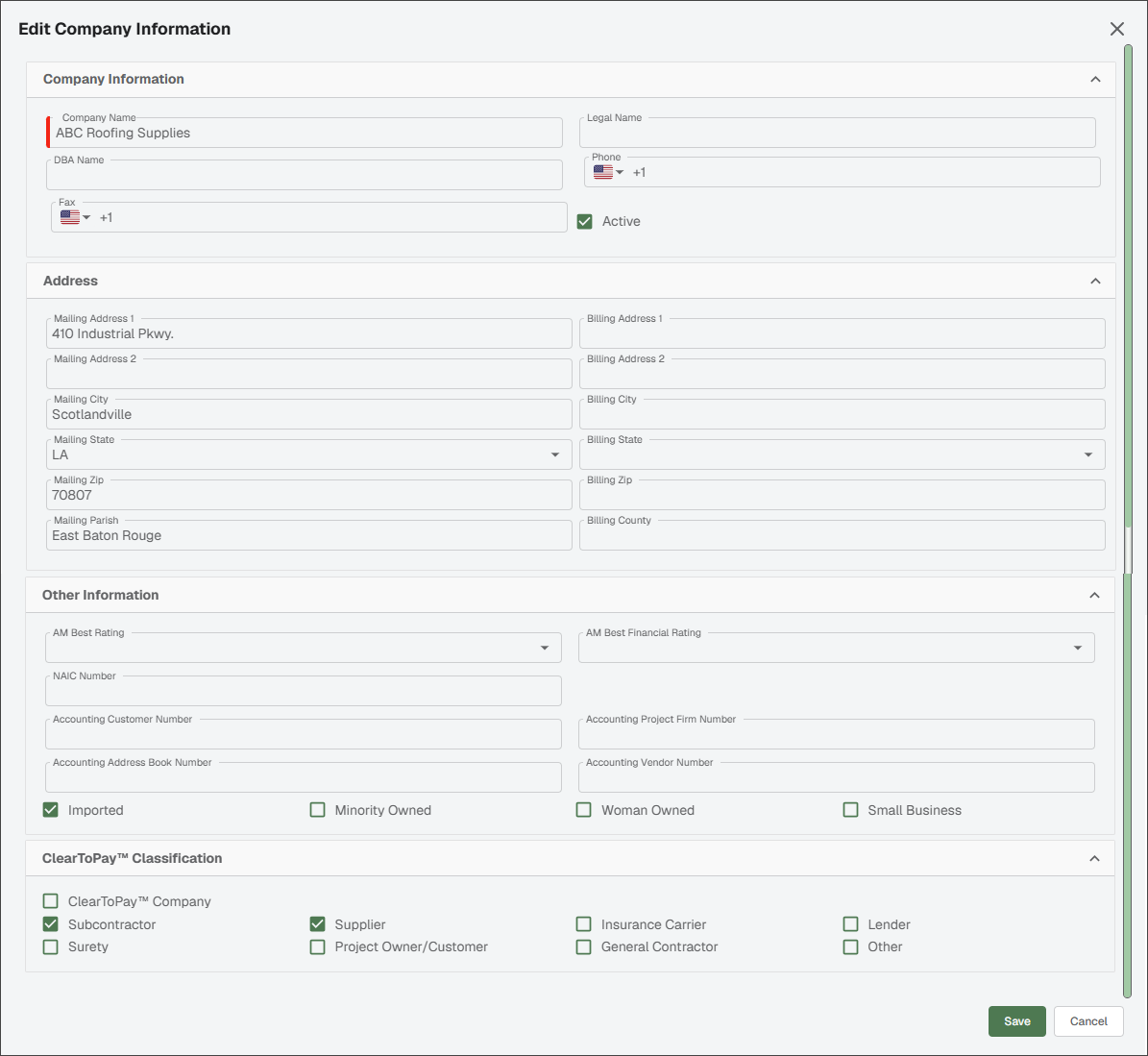
In the Company Information section, you can change the company's name(s), phone or fax numbers, and mark it as active or inactive.
In the Address section, you can change the company's mailing or billing addresses.
In the Other Information section, you can change the insurance rater information, NAIC number, update the accounting numbers or select/deselect the business entity designators.
In the ClearToPay Classification section, you can select/deselect criteria that indicates if the company is a subcontractor, lender, general contractor, etc.
Note
Changes made in the ClearToPay Classification section impact how the company is identified in the ClearToPay module.
Click .
Complete the following steps to add a company to the Address Book. Companies created within ClearToPay™ are added to the Address Book along with their contacts.
From the Address Book Companies page, click .
In the Edit Company Information dialog, expand each section and enter the information shown below:
Note
If the company's name or address is updated in the Address Book, the updates are reflected on their respective company, job or vendor dashboard in ClearToPay.
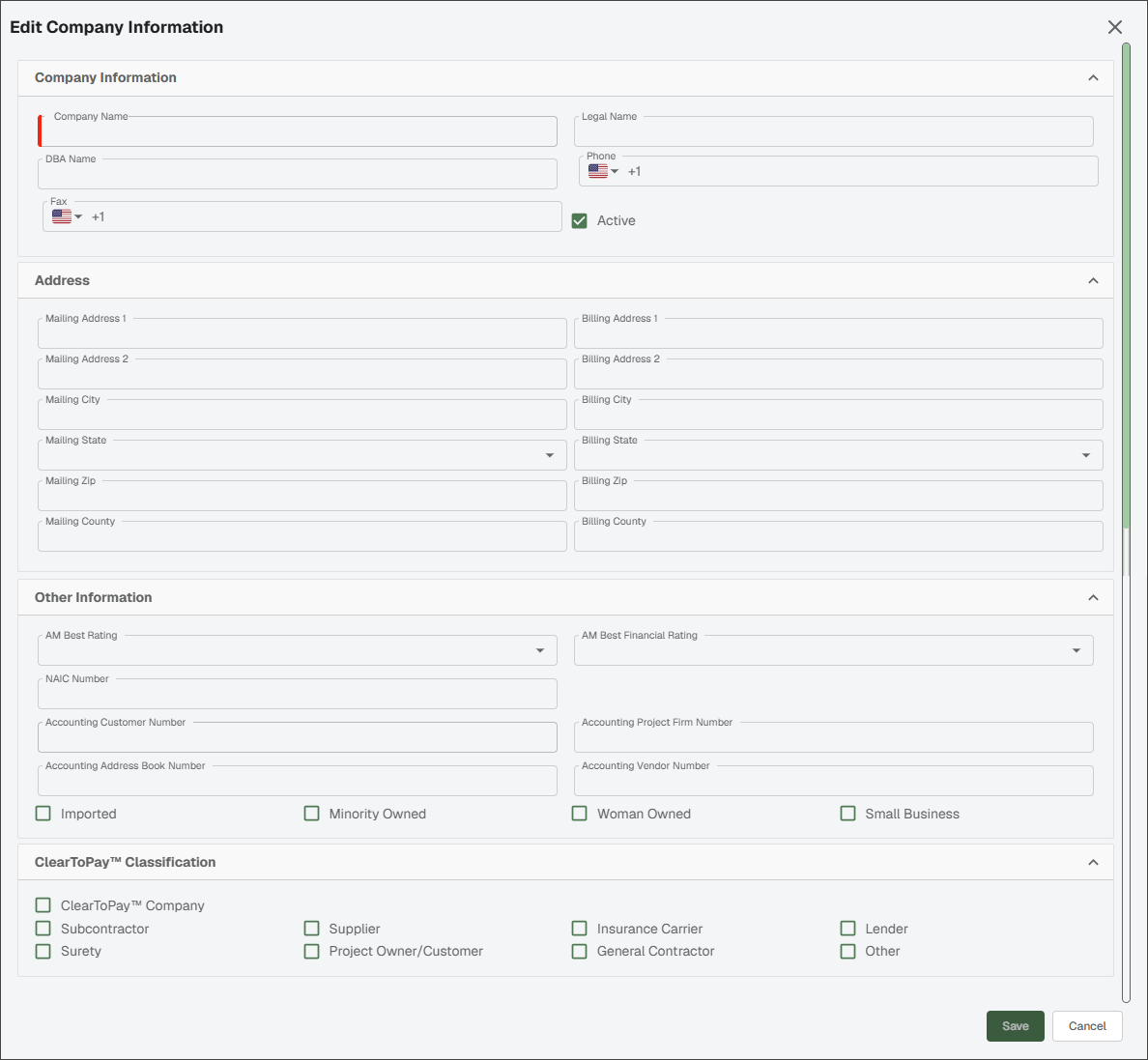
In the Company Information section, enter the company's name(s), phone or fax numbers, and mark it as active or inactive using the check box.
In the Address section, type the company's mailing or billing addresses.
In the Other Information section, you can enter the insurance rater information, NAIC number, update the accounting numbers or select/deselect the business entity designators.
In the ClearToPay Classification section, select/deselect criteria that indicates if the company is a subcontractor, lender, general contractor, etc.
Note
Changes made in the ClearToPay Classification section impact how the company is identified in the ClearToPay module.
Click Save.
From the Address Book Companies page, click .
The Import Address Book Companies dialog displays:
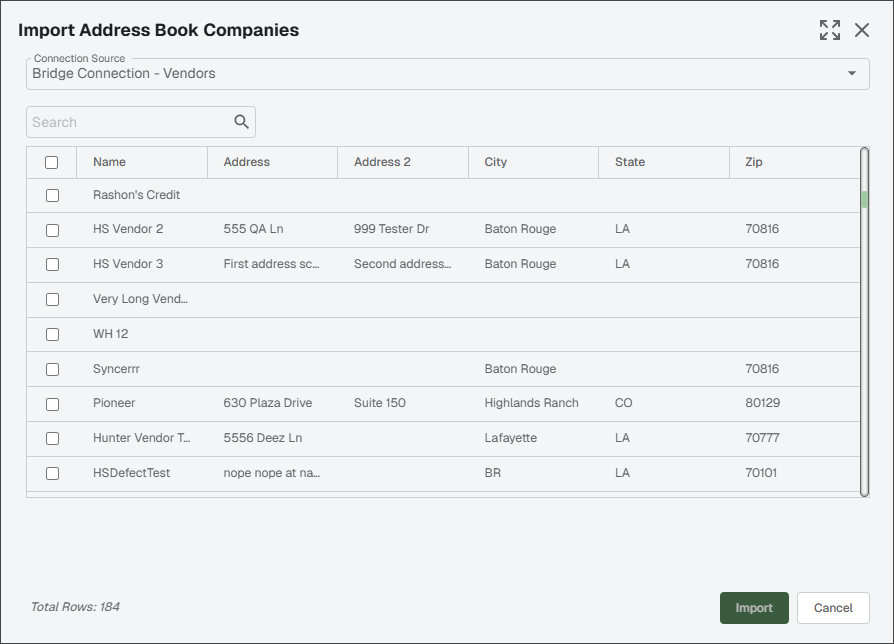
From the Connection Source dropdown, select one of the following:
To pull vendor company information from the accounting system.
To pull customer/owner information from the accounting system.
Select the check box(es) for the companies you want to import from the list, then click .
The companies are added to the address book.
From the Company Detail page, click .
The Import Address Book Contacts dialog displays:
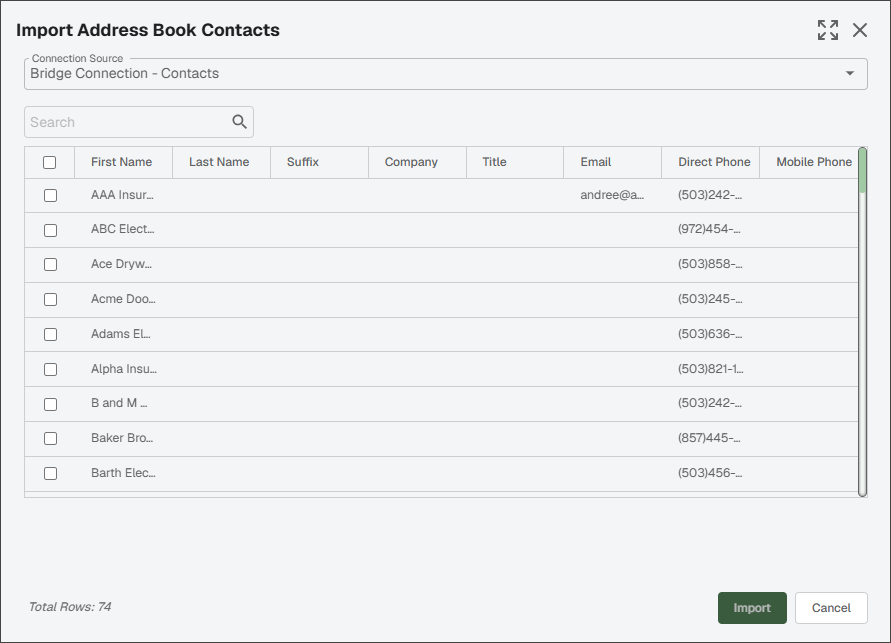
From the Connection Source dropdown, click .
Select the check box(es) for the contacts you want to import from the list, then click .
The contact(s) is added to the list for this company.