Certified Payroll
You can track and upload certified payroll documentation using the ClearToPay™ portal.
From one of the portal's job or vendor pages, click .
 |
A page similar to the following displays:
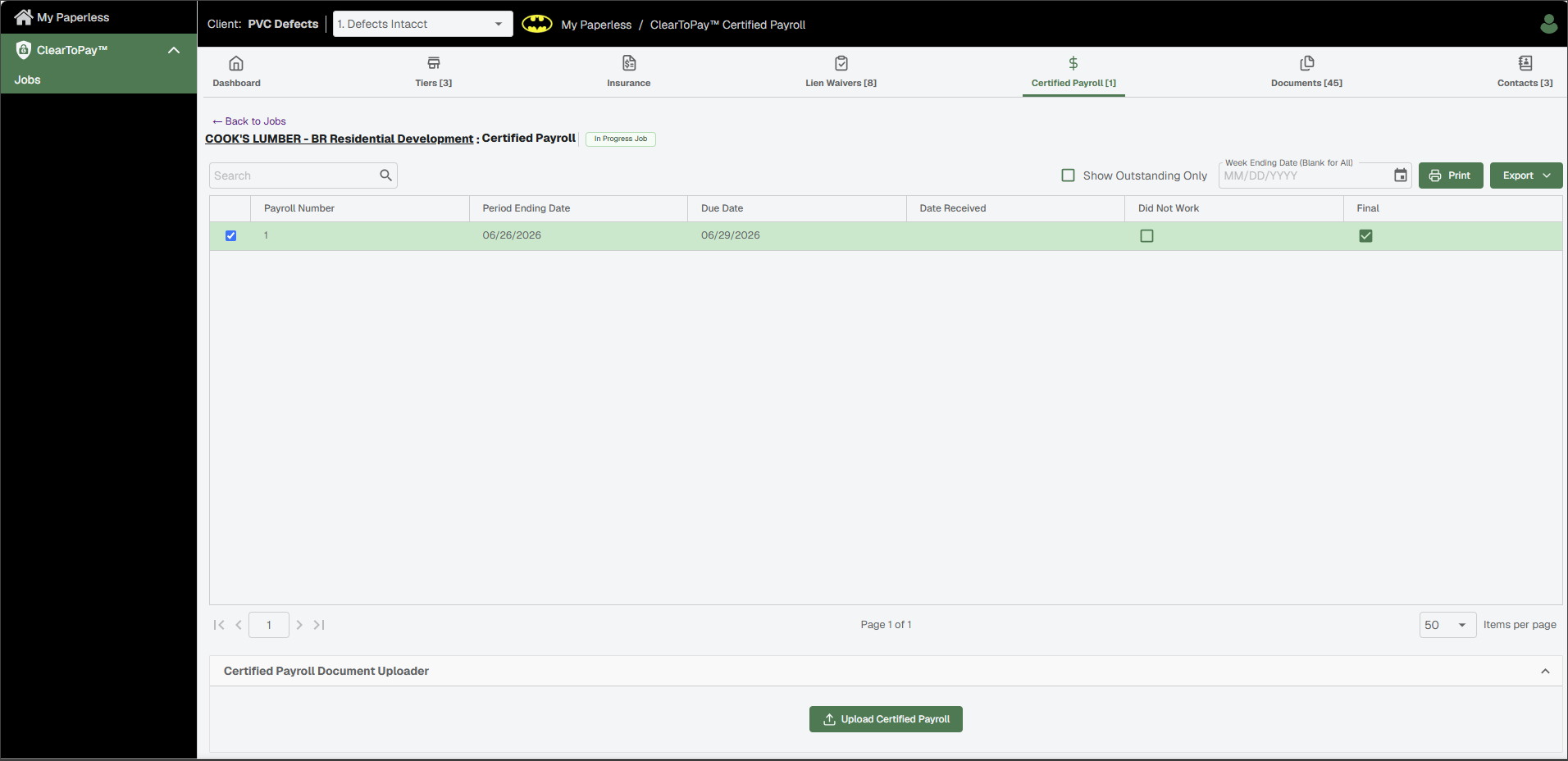
Use the Certified Payroll page to do the following:
| Search for a payroll record. | |
Show Only Past Due | Select this check box to narrow down the list of records to those that are past due. | |
| Enter the week ending date to narrow down the list of records to those with the appropriate date. | |
 | Click to print the Certified Payroll grid. | |
 | Click to export the grid information to Excel, CSV or PDF. | |
Did Not Work | Select this check box if you did not work on this job during this pay period. You are still required to submit the report. | |
Final | Select this check box to mark a payroll record as Final Payroll. This signals ClearToPay that you have submitted your last certified payroll record for this job. Once approved, this closes out the certified payroll submission obligation and its related notifications. | |
Certified Payroll Document Uploader | When a payroll record is selected from the list, the Certified Payroll Document Uploader section displays a button you can use to directly upload a record. See Upload Certified Payroll for more information. |


Complete the following steps to upload a certified payroll record into the Sage Paperless Construction system:
From the Certified Payroll page, click .
Drag and drop or click to locate the file on your computer or mobile device.
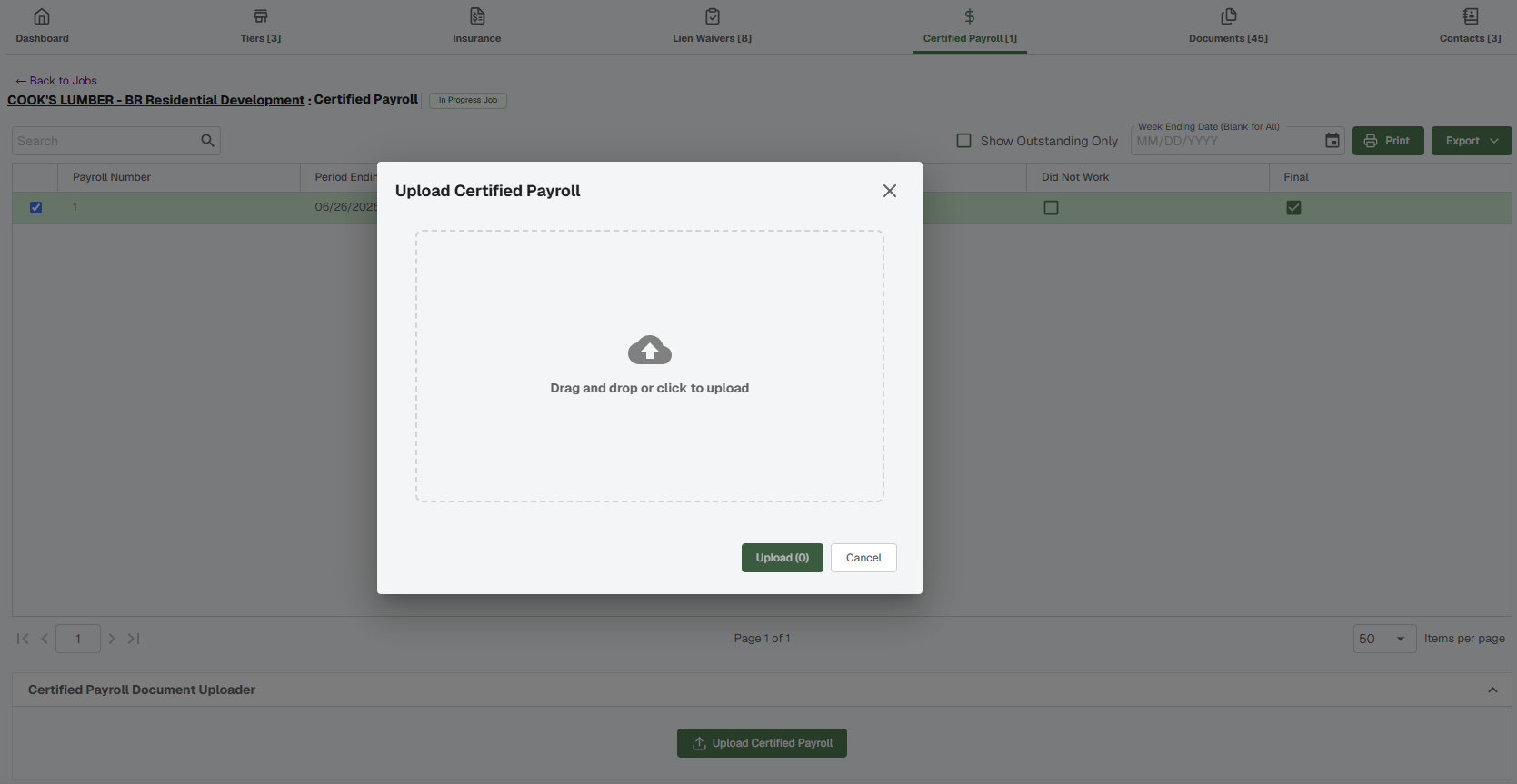
Click .
The document is uploaded into the system and routed to the correct individual for review and approval.