Locate Indexed Documents
After you have indexed a document, complete the following steps to find and open it within Sage Paperless Construction. You can search for documents by their document type and add index value criteria to help narrow the search:
Note
Sage Paperless Construction has the ability to use one or multiple vaults to store an organization's documents. If more than one vault was installed, use the Vault Selector dropdown to be sure you are searching for documents in the proper vault and to move from one vault to another.
 |
From My Paperless, click .
In the Retrieve navigation bar, click .
A page similar to the following opens on the tab.
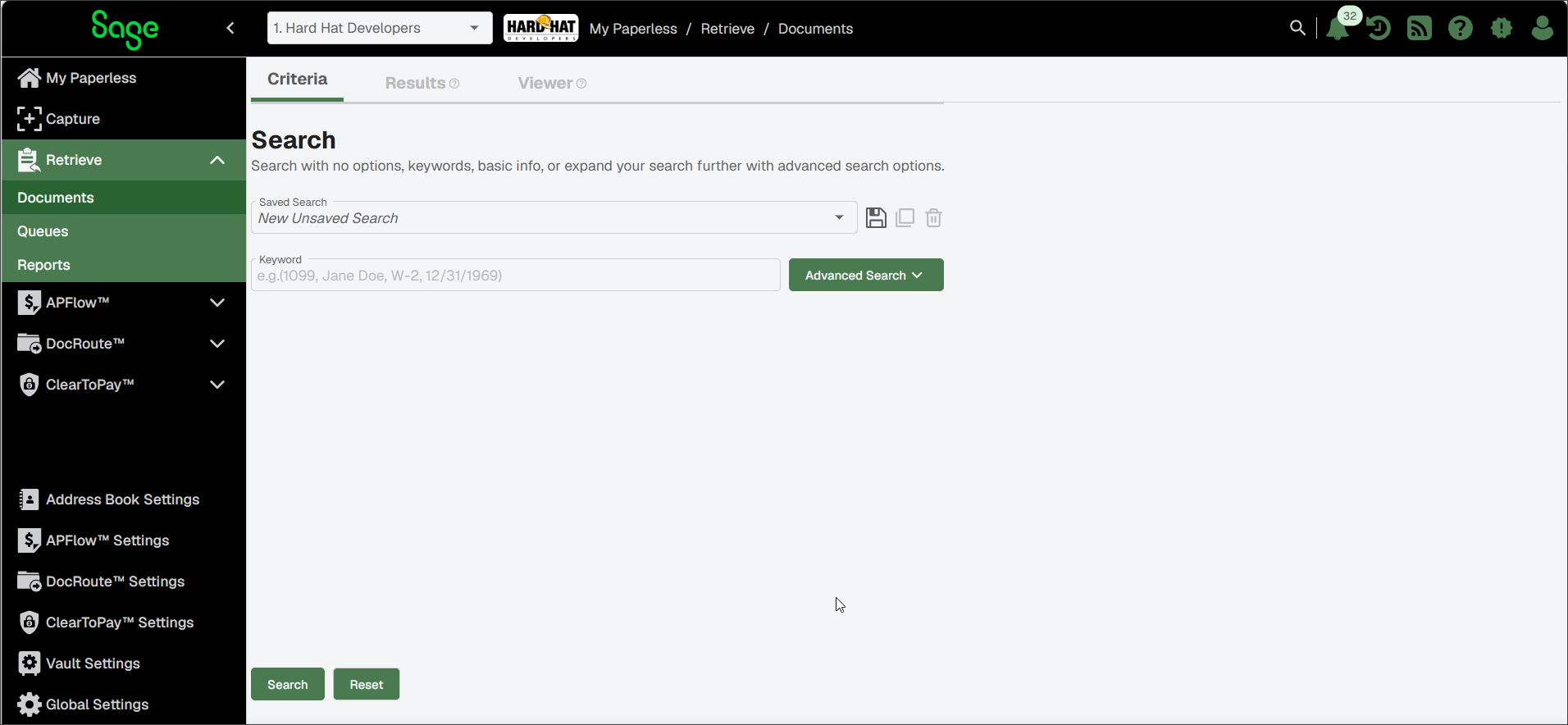
See the sections below for information on moving between and using each of the following tabs:
You can search for documents using a saved search, keyword or by entering advanced search criteria to narrow down your results.
Note
To complete a vault-wide search, leave the Saved Search and Keyword fields blank.
(Optional) If you previously saved a search you created and would like to use it to locate a document, click the Saved Search dropdown.
To start a new search, enter the appropriate keywords in the Keyword field.
To use the advanced search and further narrow down your results, click the dropdown to expand that section:
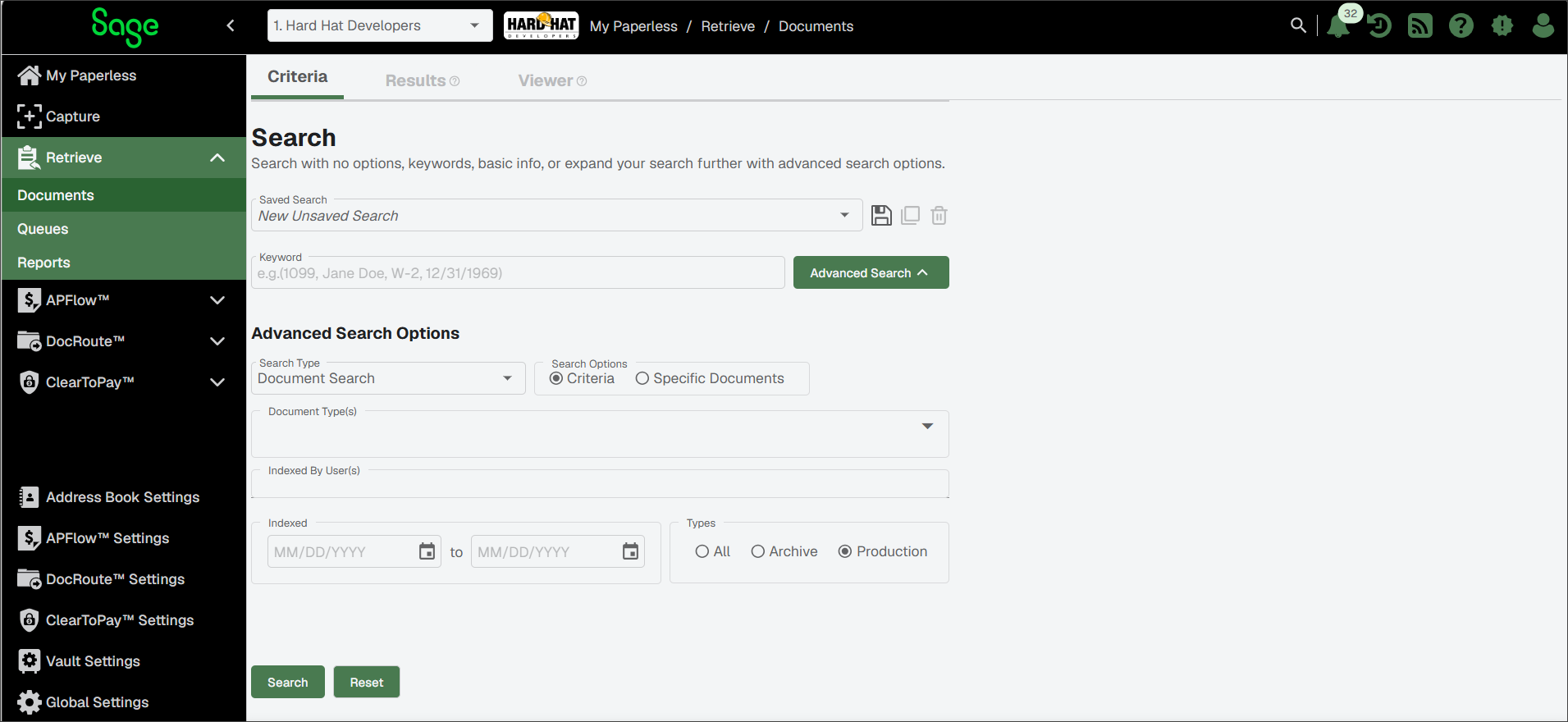
Enter the following criteria, as applicable:
Search Type: Select from the dropdown.
Search Options: The radio button is selected by default. Only select if you know the document ID.
Document Type(s): Use the dropdown to select one or more document types you want included from the list.
Note
If you are using multiple index criteria in the search, an AND/OR option is available.
AND allows the combination of several index criteria in the search. All index criteria must be met to return a result.
OR allows any of the index criteria to return a result.
Indexed by User(s): When you click in the Indexed by User(s) field, all users assigned to the current vault display in the dropdown. You can scroll through the list or start typing the user's name to populate the field. If you do not know which user indexed the document(s) you are searching for, leave this field blank.
Indexed Date Range: In the Indexed fields, click the calendar icons to select the to and from dates.
Types: For the types to be included in the search, select the , or radio button.
Click .
You progress automatically to the Results tab where you can review your search results.
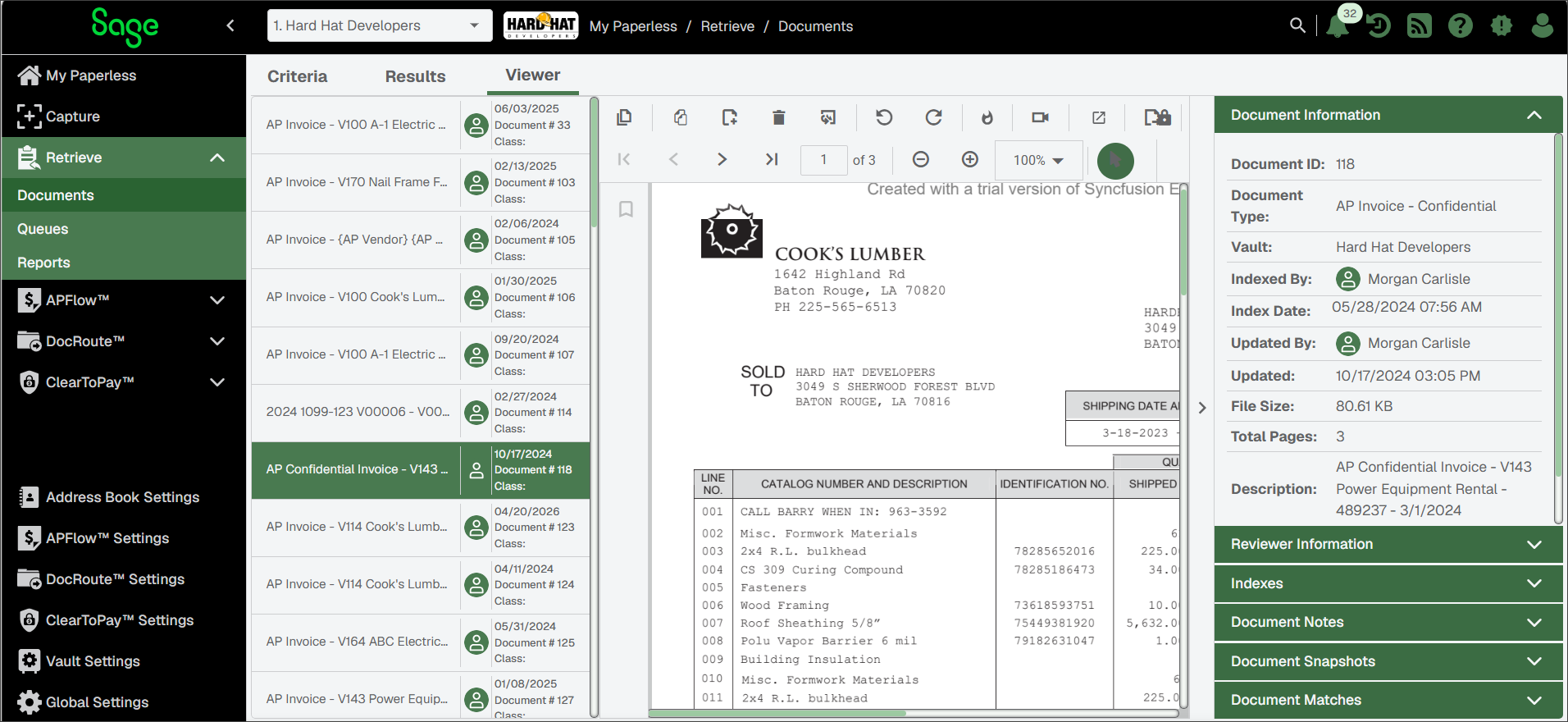
Click the tab to display the selected document/invoice in the Sage Paperless Construction Viewer. For more information, see Working with Documents.
Additional information about the selected documents, such as the Document ID, when the documents were indexed and by whom, displays in the Document Information sidebar to the right of the Viewer pane. For more information, see How to Use the Sidebar in Sage Paperless Construction.
All documents that meet the search criteria display in a grid to the left of the document, similar to the following: