PO Lookup
A PO line can be added without having to enter an invoice. POs can be opened for any vendors existing in the accounting system.
From My Paperless, click .
In the APFlow™ navigation bar, click .
The Purchase Order Quick List page displays:
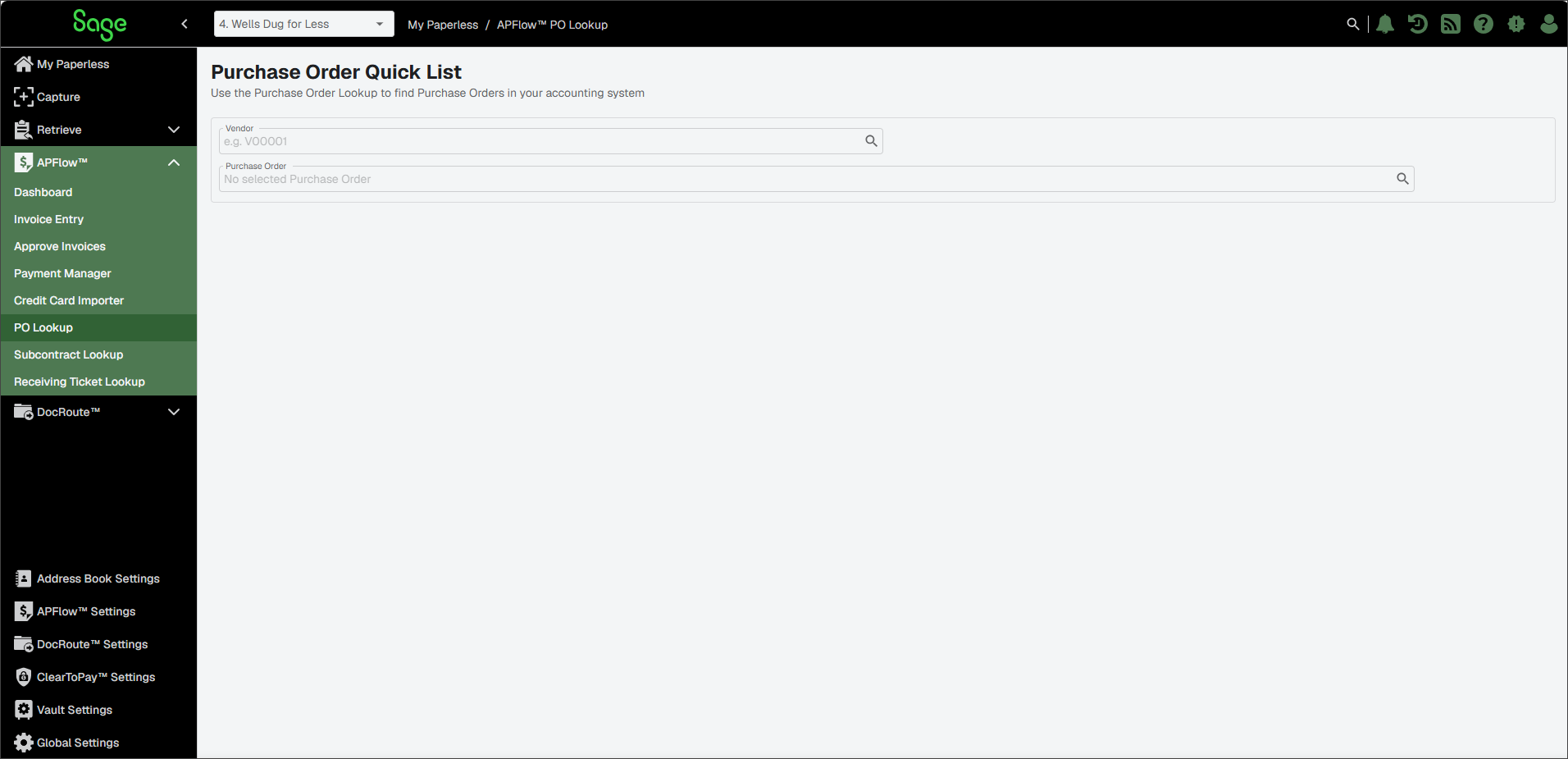
In the Vendor field, use the Lookup
 to select the appropriate vendor.
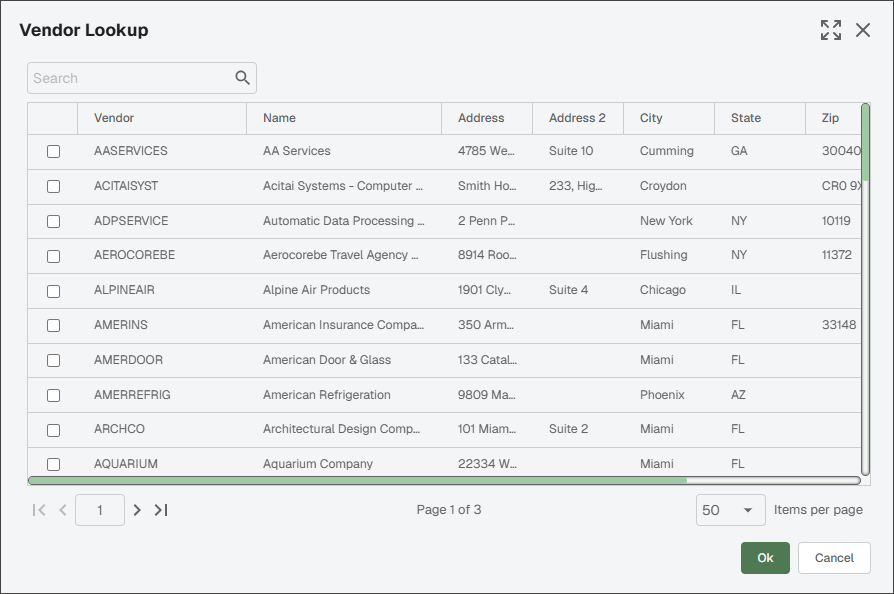
The Vendor Lookup dialog resembles the following::
Note
To view the entire dialog, click the Expand
 icon located in the upper right corner of the dialog.
If you expand this Vendor Lookup list, Sage Paperless Construction remembers. Every time you access this particular lookup dialog, it opens either as expanded or collapsed, depending on how you viewed it the last time.
Click the check box to select the vendor.
Click .
In the Purchase Order field, use the Lookup
to select the appropriate purchase order.The Purchase Order Lookup dialog resembles the following:
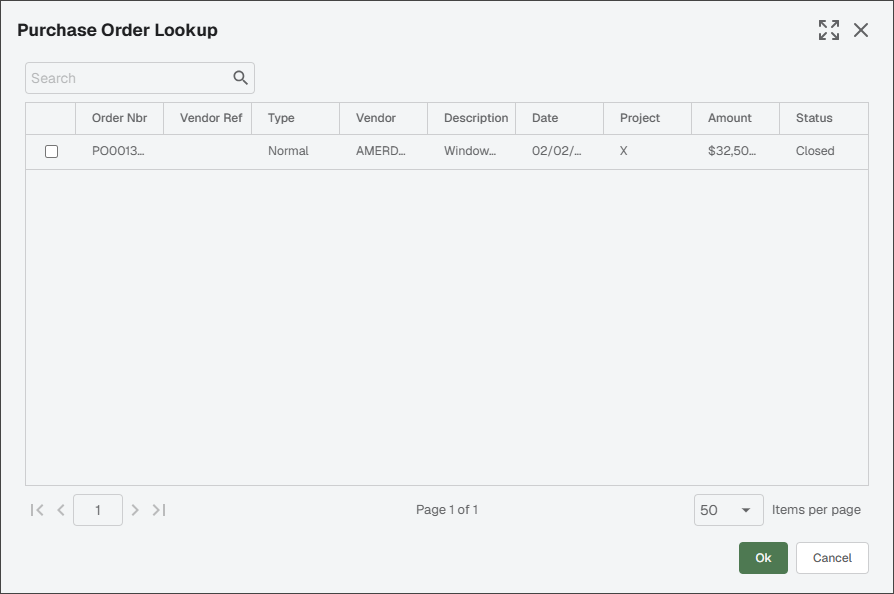
Select the check box for the purchase order.
Note
The columns that display can be widened or narrowed as necessary. Just click on any of the column separators.
To display a Columns / Filter dialog, click the ellipsis located in any column heading. From here you can hide any columns or filter on column headings.
Click .
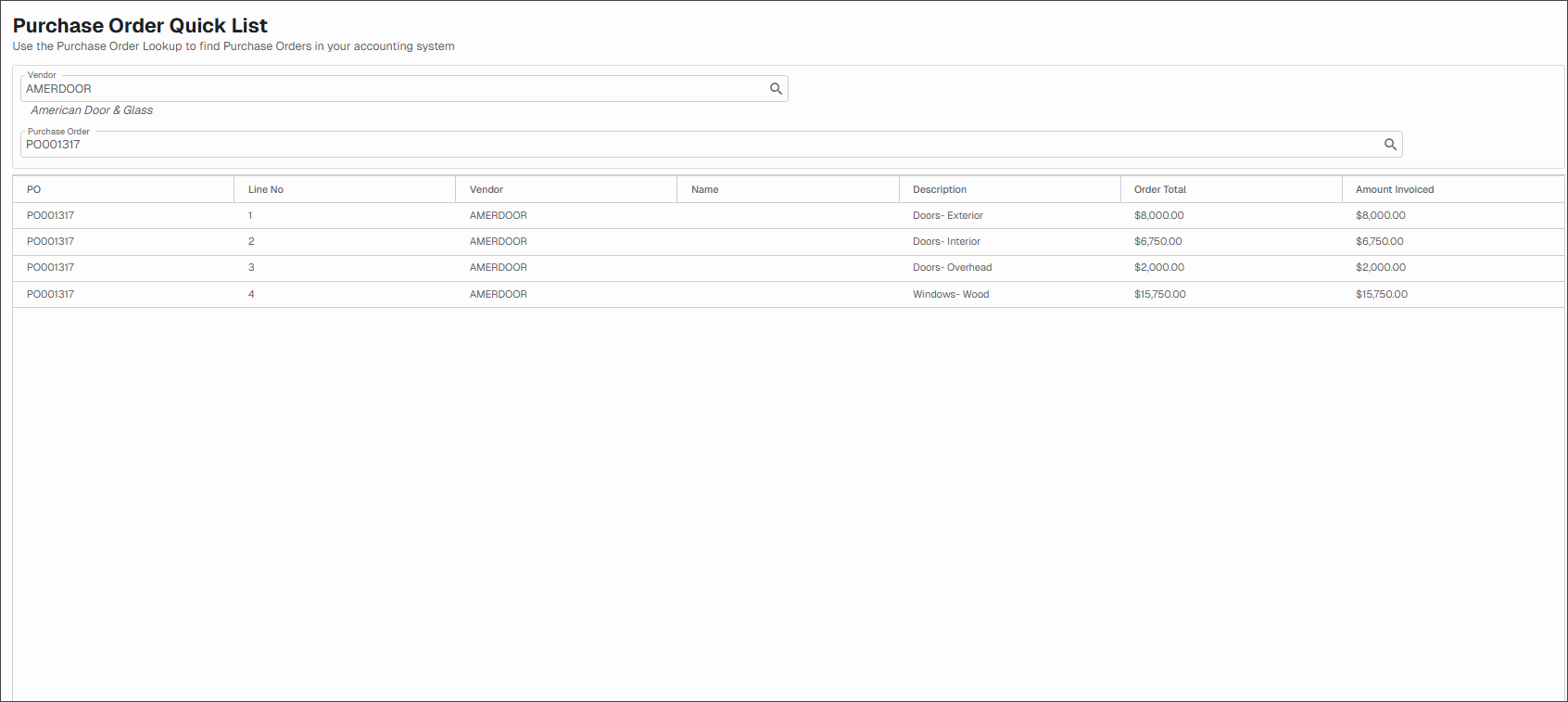
The Purchase Order Quick List page redisplays: