Sage Paperless Construction Navigation
ClearToPay provides a simple navigation structure involving the following
Left Navigation Bar: Use to access ClearToPay's settings pages and compliance manager.
Dashboards and Pages: The main information area in ClearToPay, use the center pane to access company, job, vendor and commitment details.
Sidebar: A collapsible bar on the right side of the screen, use the sidebar to access notes and matched documents.
Depending on your access permissions, you may see two ClearToPay options in the left navigation bar.
| Use this menu option to view and manage the company, jobs, vendors, tier vendors and their compliance. NoteYou must have Compliance Manager, Job Level or Auditor permissions to access this menu and its options. | |
| Use this menu option to manage the overarching settings for ClearToPay and its permissions. NoteYou must have System Administrator, Vault Administrator or ClearToPay Administrator permissions to access this menu and its options. |


Within many tracking levels in ClearToPay™ (for example, jobs, vendors, lien waivers, custom compliance and licensing pages), users are able to add notes and access matched documents in the sidebar. Notes and document matches are visible to all ClearToPay™ users.
The sidebar can also be collapsed and expanded by selecting the left or right arrow icon. As users access different pages within the system, the sidebar updates to show the notes, document matches and compliance issues associated with that page.
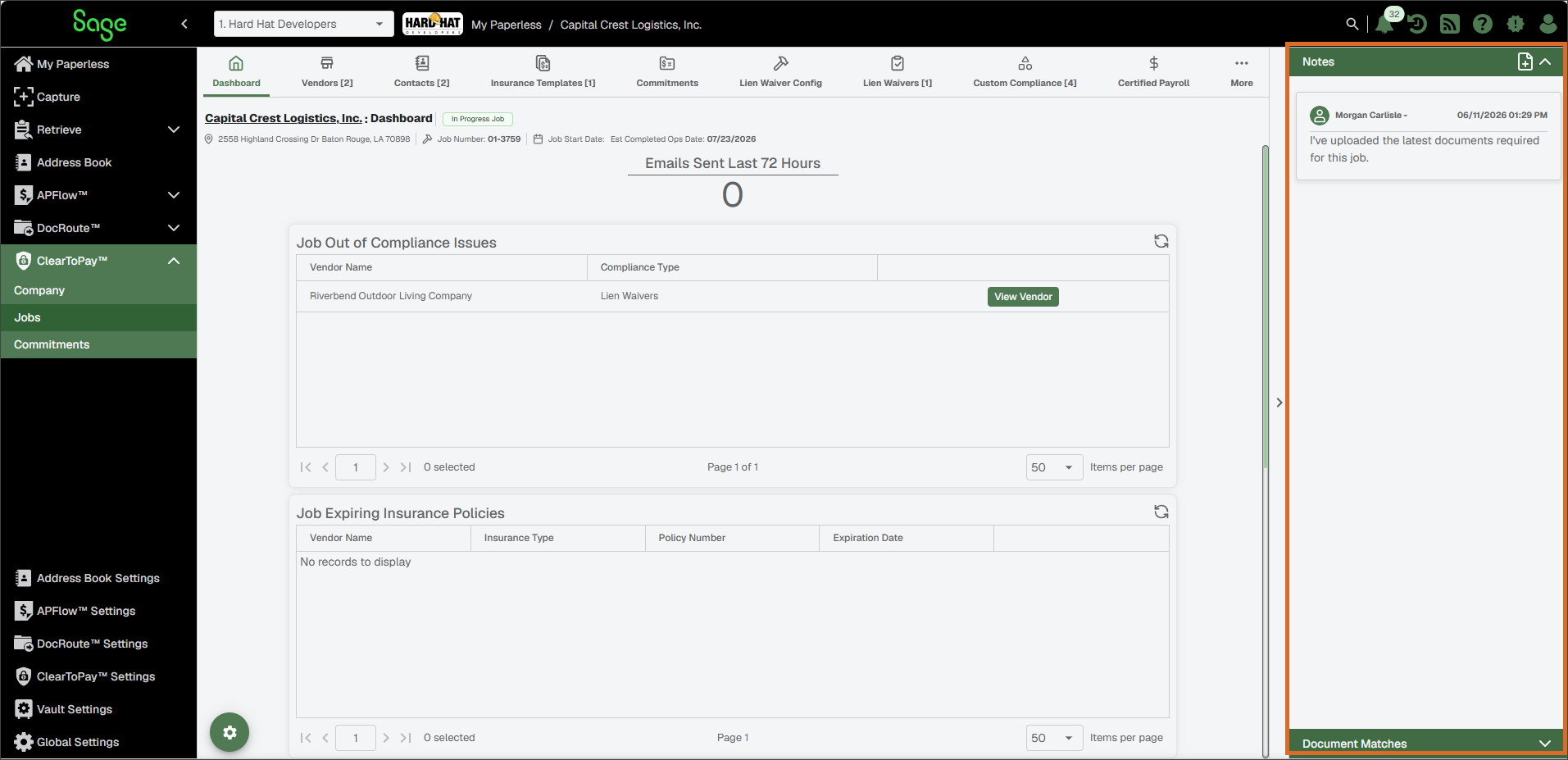
Notes
Notes pertinent to the active page display in the sidebar. They include the user who submitted the note, the date and time they were added to ClearToPay™. A short synopsis of the note's text displays, but may not include everything depending on the length of the note.
Review the entire text within an existing note, hover over the note and click to open it. For more information on viewing and adding notes within Sage Paperless Construction, see How to Use the Sidebar in Sage Paperless Construction.
Document Matches
ClearToPay™ has a Document Matches panel that displays documents pertinent to the active page in the sidebar. The Document Matches function in ClearToPay™ acts similarly to Document Matches used in other areas in Sage Paperless Construction.
Sage Paperless Construction is a powerful document repository and workflow engine, and can suggest relevant documents that have been indexed in other areas to ClearToPay based on their index values, such as Vendor Number, Job Number, Purchase Order Number, Work Order Number and so on. From there, suggested documents can be formally matched to the company, job, or vendor page. In some areas, ClearToPay allows you to highlight an individual record and match a document directly to it, rather than to the entire page.
The Document Matches panel is visible in the following areas within ClearToPay:
Company page
Company Insurance pages
Job pages
Vendor pages
Lien waivers
Commitments
Certified payroll
Custom compliance
Contractor licensing
Complete the following steps to launch Document Matches:
Access a Company, Job or Vendor page.
In the sidebar, click to expand the menu.
Note
If the sidebar is collapsed, use the arrow to expand the menu.
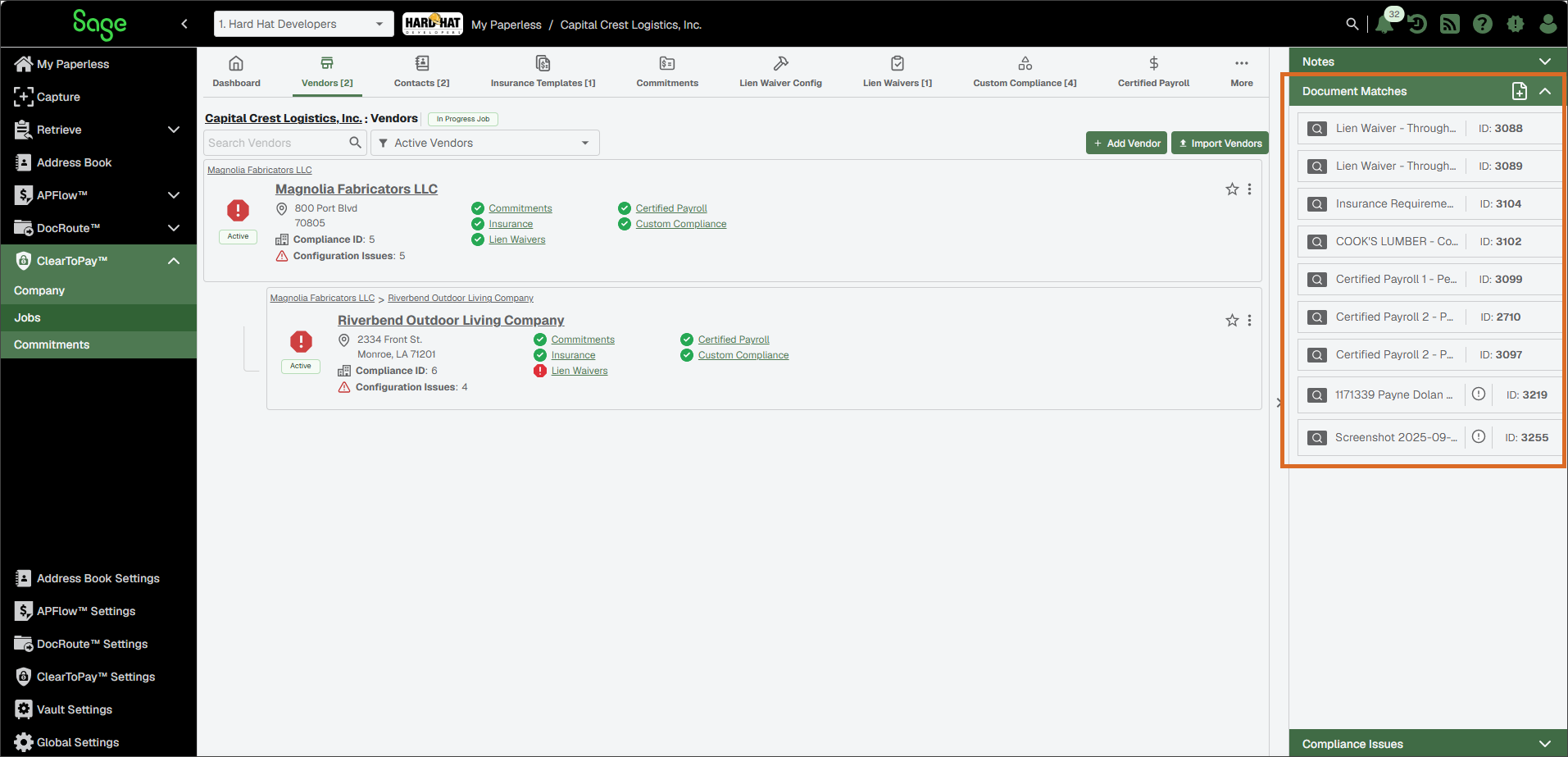
Click the
 icon to open the matched document viewer or click the
  icon to open an already matched document in its own page.
For instructions on matching the ClearToPay entity (i.e. the job, company, vendor or another page you opened the Document Match option from) to one or more documents, see Match a Document.
Compliance Issues
Note
The Compliance Issues sidebar dropdown is only available within the ClearToPay™ module.
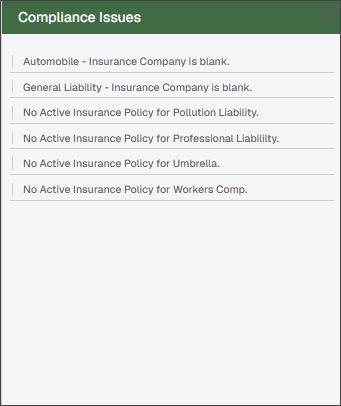
When viewing a vendor's dashboard or pages, the compliance issues for that particular vendor (or tier) display in the Compliance Issues sidebar. The list of compliance issues may filter based on the page or record you are viewing.
As you work through issues and make updates, you can see the running list and click the Refresh  icon to clear issues as they are addressed.
 |
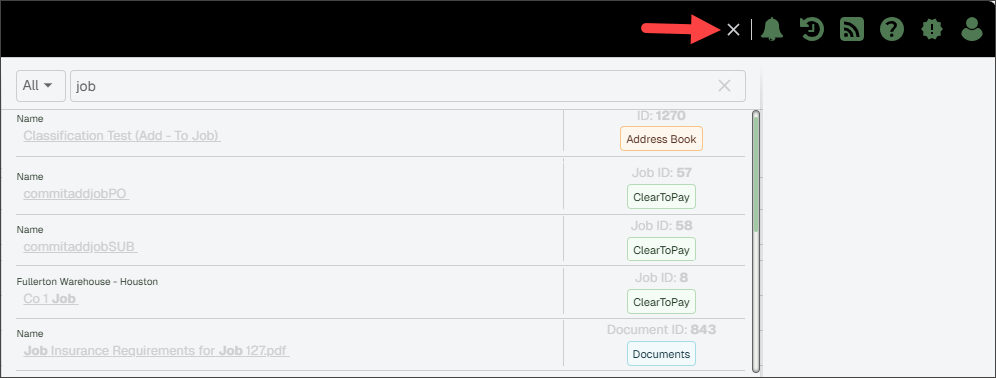
Global search makes it easy to quickly find information across the entire system from one place. By entering a full or partial search term into the global search field, you can search across invoices, documents, addresses, contacts, jobs and more.
Important
For data security, users only have access to the product modules, jobs and information they have permissions and licenses to access.
Complete the following steps to search for information across the system:
Click the Search
icon next to the notification icon at the top of the page.
(Optional) Leave All selected, or select a product module from the dropdown to narrow down your results to a particular area.
Begin typing a keyword or number identifier for the information you are looking for in the Search field.
Results populate as you type and are displayed in a single list. The type of item found along with details like ID numbers display to the right of each result.
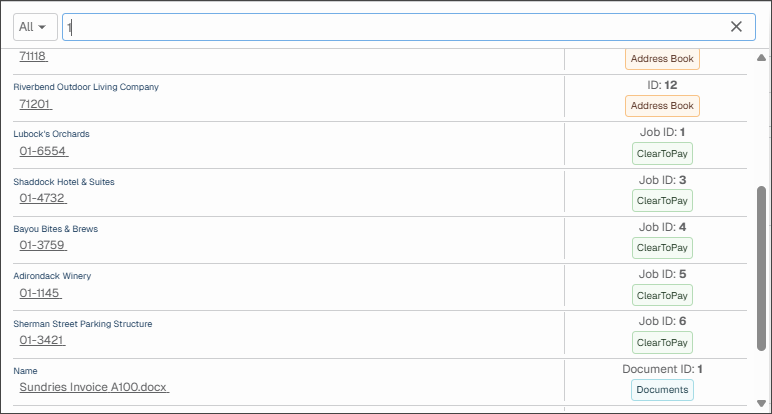
Select a result from the list.
You are taken to the relevant page, which could be a page within ClearToPay, an address book entry, an invoice or document viewer page, etc.
(Optional) To exit global search, click the Close
 icon
icon