My Paperless Dashboard
When you log in to Sage Paperless Construction, the following My Paperless dashboard page displays:
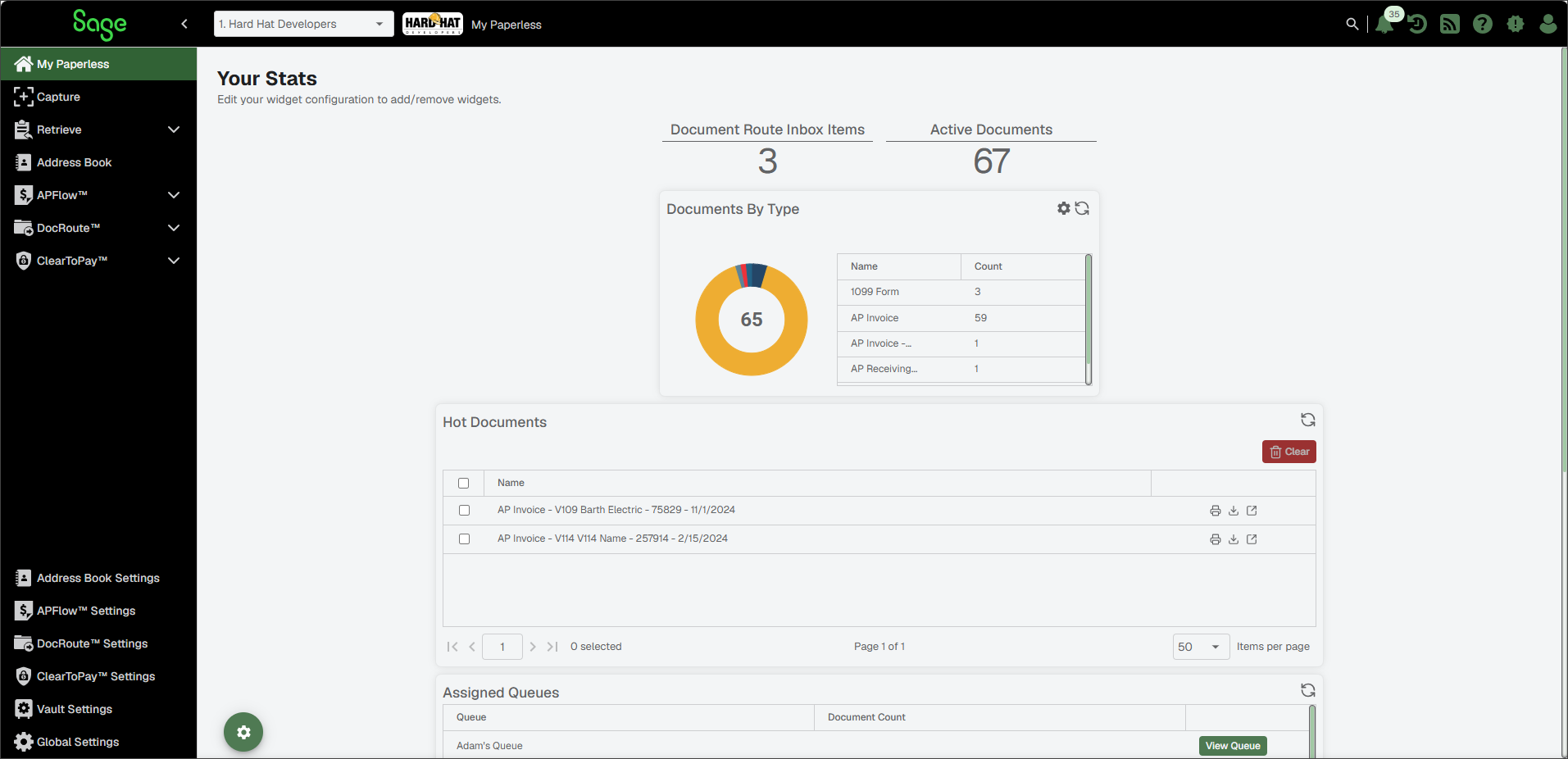
| Vault Identifier | This is your vault. If you have more than one vault, click the dropdown arrow to select from the list. | |
| Vault Image | If you have set up a vault logo image, that image should display to the right of the vault label. Vault logos are optional. | |
| Breadcrumbs | As you navigate through Sage Paperless Construction, the trail of breadcrumbs grows to let you know where you are, and what pages you accessed to get there. NoteYou can navigate back to previous pages by clicking within the breadcrumb trail. | |
| Notifications | System alerts display through the Notifications icon. See Review Notification Alerts for more information about reading new alerts. | |
| Recent Items | The Recent Items icon displays a dropdown list of recent documents for quick access. You can select the number of documents that display. | |
| Help | Click the Help icon to access resources and documentation to help you use Sage Paperless Construction. Online Help opens in a separate page. | |
| Release Notes | Click the Release Notes icon to view Sage Paperless Construction release notes. Once on the Release Notes page, you can narrow which release notes are visible by using the dropdown to select , or . If you are looking for a specific release note, enter key words in the Search field. | |
| My Account | Use the My Account icon to access and customize your User Settings. If you have uploaded a profile image, that image displays instead of the My Account icon. |





You can read new system alerts using the Alerts icon. The notification badge on the icon indicates how many unread alerts there are.
Click Alerts
 .
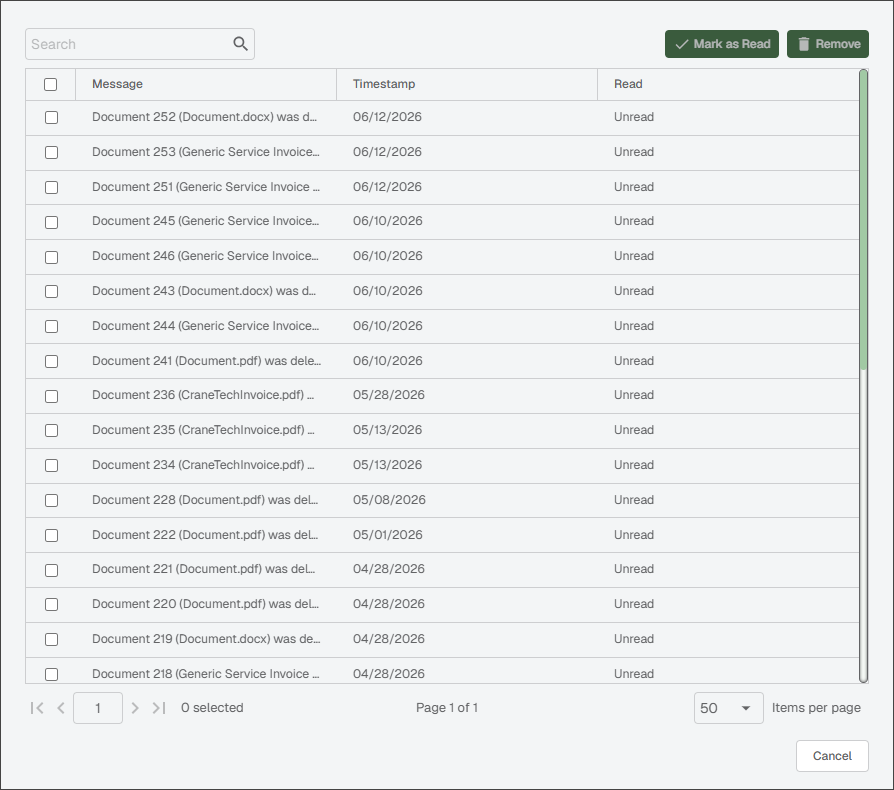
.Select the check box(es) of the alert message(s) to indicate that you have read it.
Note
Every alert message displays as Unread.
Click .
Note
For each alert message that you read, the number that displays on the Alert icon badge decreases. If all alert messages are marked as Read, no number displays on the Alert icon.
If you no longer need to see the alert message(s), click the check box(es) and then click to delete them.
Click to close the dialog.
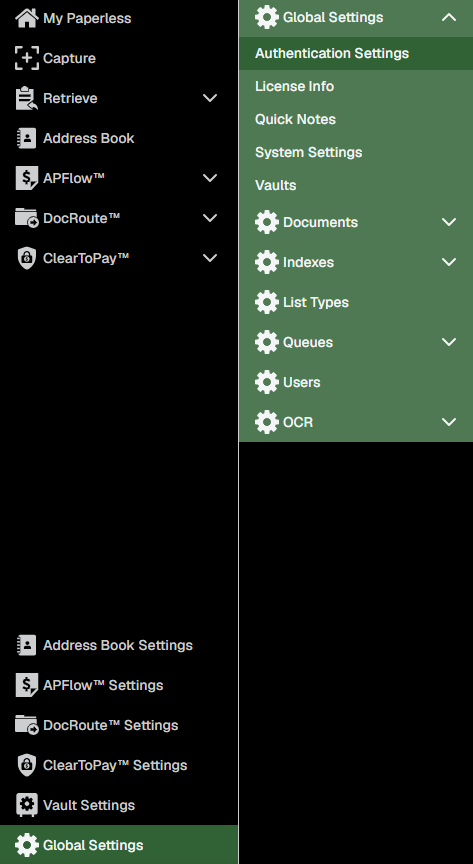
From the left navigation bar, you can access all the modules (with proper permissions and licensing), features and administrative setup pages.
When you click on the administrator settings options, a supplemental navigation bar displays to the right of the left navigation bar. | You can minimize and maximize the left (and supplemental) navigation bars by clicking the arrow at the top of the page. NoteWhen the left navigation bar is minimized, only the icons display. | ||
|
|

Complete the following steps to select which widgets display on your My Paperless dashboard and modify how they look. For example, you can change a widget from a pie chart to a line graph. You can also drag and drop dashboard widgets to adjust their location on the page.
Note
Widget settings are associated with each particular user in each individual vault.
To open the list of available widgets, click the Widget Configuration
 icon.
icon.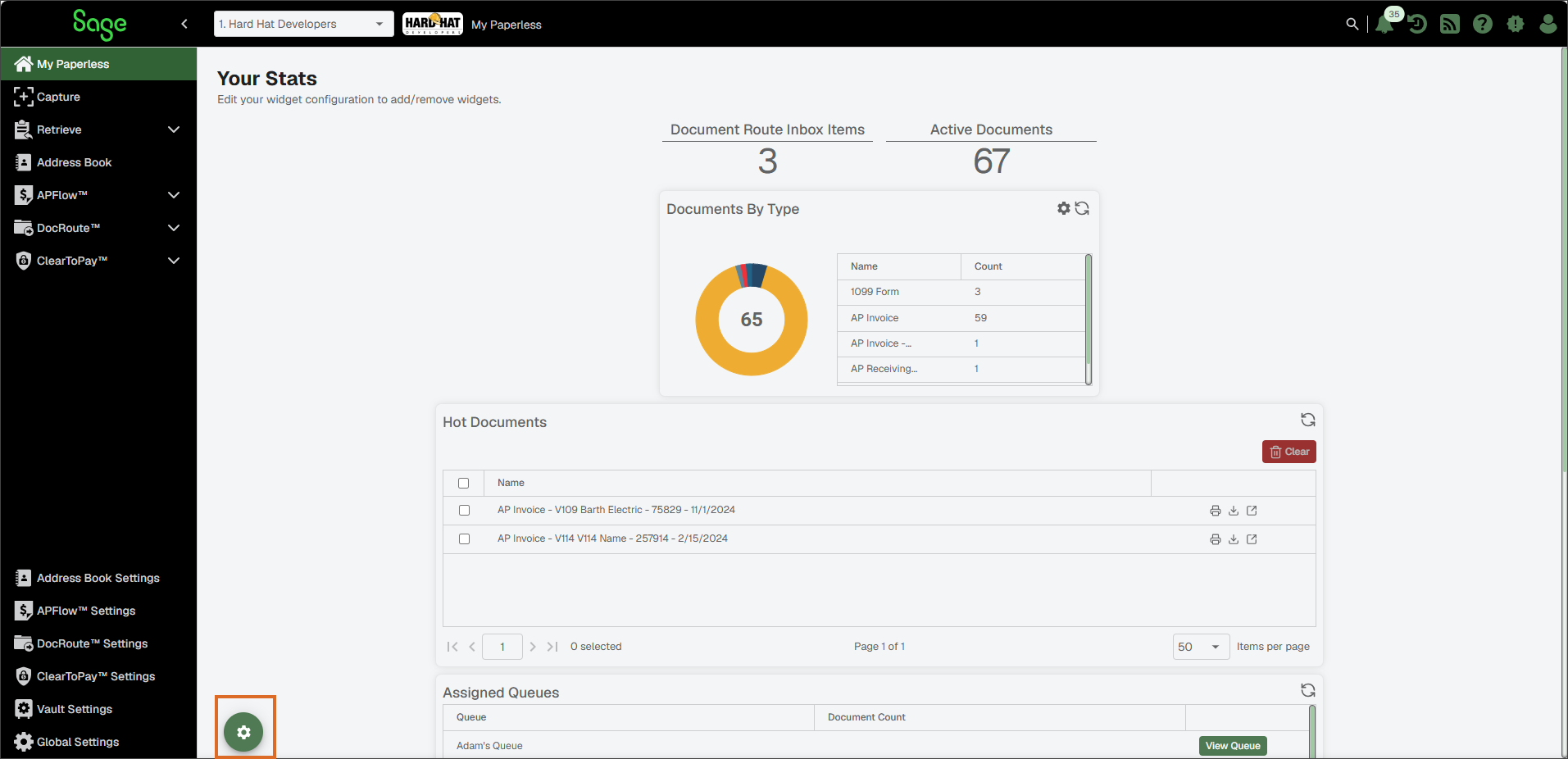
Choose which widgets you want to display on your My Paperless dashboard page.
Tip
To narrow down the list of widgets, click the Vertical Ellipsis
 icon in either the Name or Type header columns to access the options below: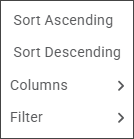
Tip
If you want to display all of the widgets, select the check box in the header of the Select Widgets to Display dialog.
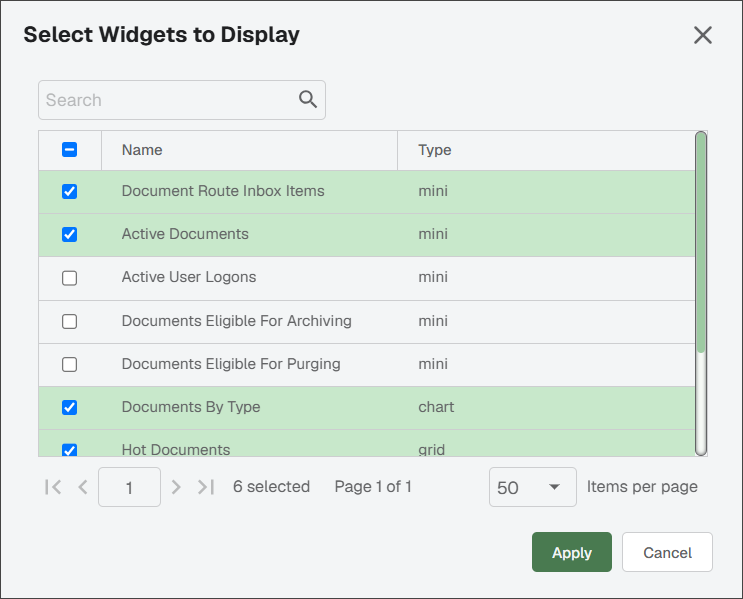
Click .
Selected mini and chart widget types display above the grid type.
(Optional) If you want to remove a widget so that it does not display in your My Paperless page, complete the steps above and deselect the check box for that widget. Click to save your changes.
Depending on which widgets you have selected to display on the My Paperless dashboard, there are a variety of options for how you can view and use the information provided in each.
| Some options, like the Documents by Type widget, allow you to select the Settings icon to change the way data is presented. For example, you could choose line, bar graph or pie chart. | |
| You can refresh each widget individually by clicking on their Refresh icons to sync and update the information shown. | |
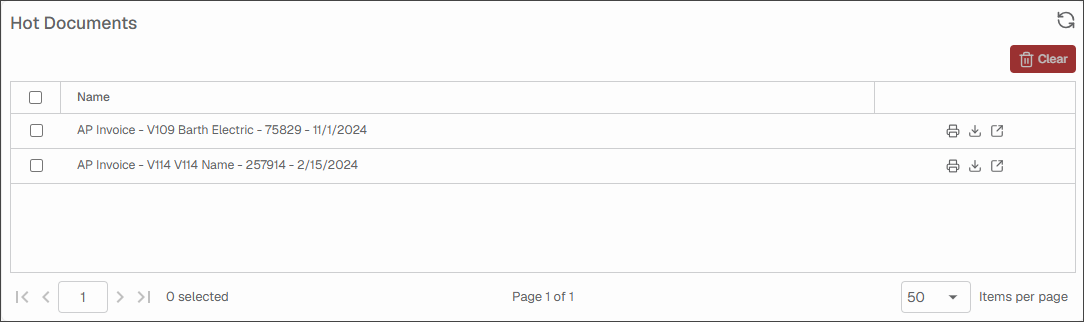
| Click the Print icon to print out the document listed in a grid. For example, you could print one of the documents in the Hot Documents widget. NoteThe Hot Documents widget contains documents you reference frequently or need to reference quickly. Any document can be marked as a Hot Document. Once a document is marked as a Hot Document, a link to that document displays in this grid. | |
| Click this icon to download a document to your computer. | |
| Click this icon to open the document in an external viewer. | |
 | Some options, like the Hot Documents widget, allow you to click to remove items from the grid.
| |
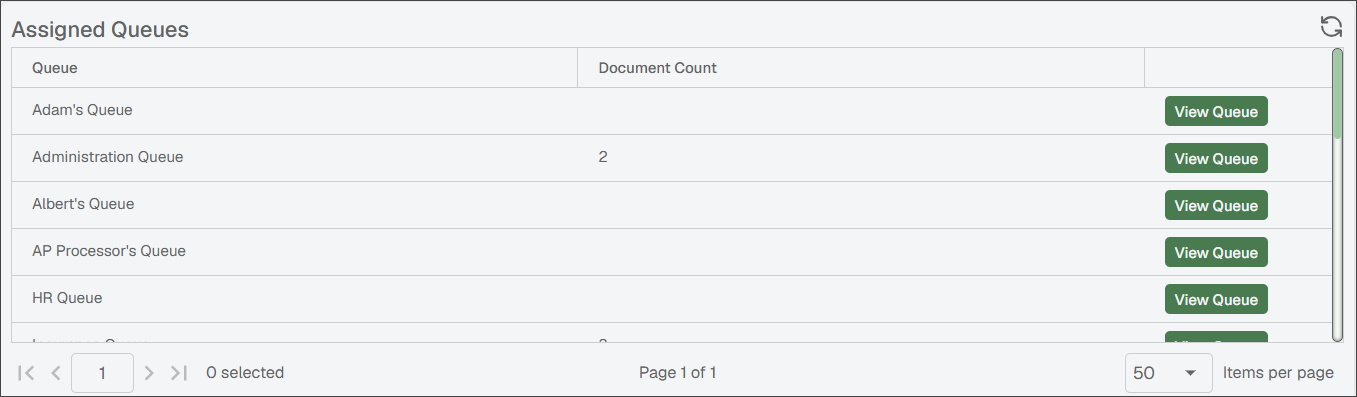
 | Some options, like the Assigned Queues widget, allow you to click to quickly access any of the queues listed.
|