DocRoute™ Settings
Important
Before using DocRoute™ for the first time:
Your DocRoute module must be licensed.
You must have system administrator or vault administrator permissions.
You need to configure role responsibilities for the individuals who are to use the DocRoute module in Vault Settings. See Vault Settings for more information.
After the necessary user permissions have been configured in Vault Settings, complete the following steps to assign Supervisor and Processor permissions within DocRoute™ Settings:
From My Paperless, click .
DocRoute™ Settings opens on the General tab.
Note
You can use the Search and Filter fields to narrow down your results. Displaying Active Only is the default.
Note
Checkmarks in the Vault Access column indicate individuals with access to the current vault.
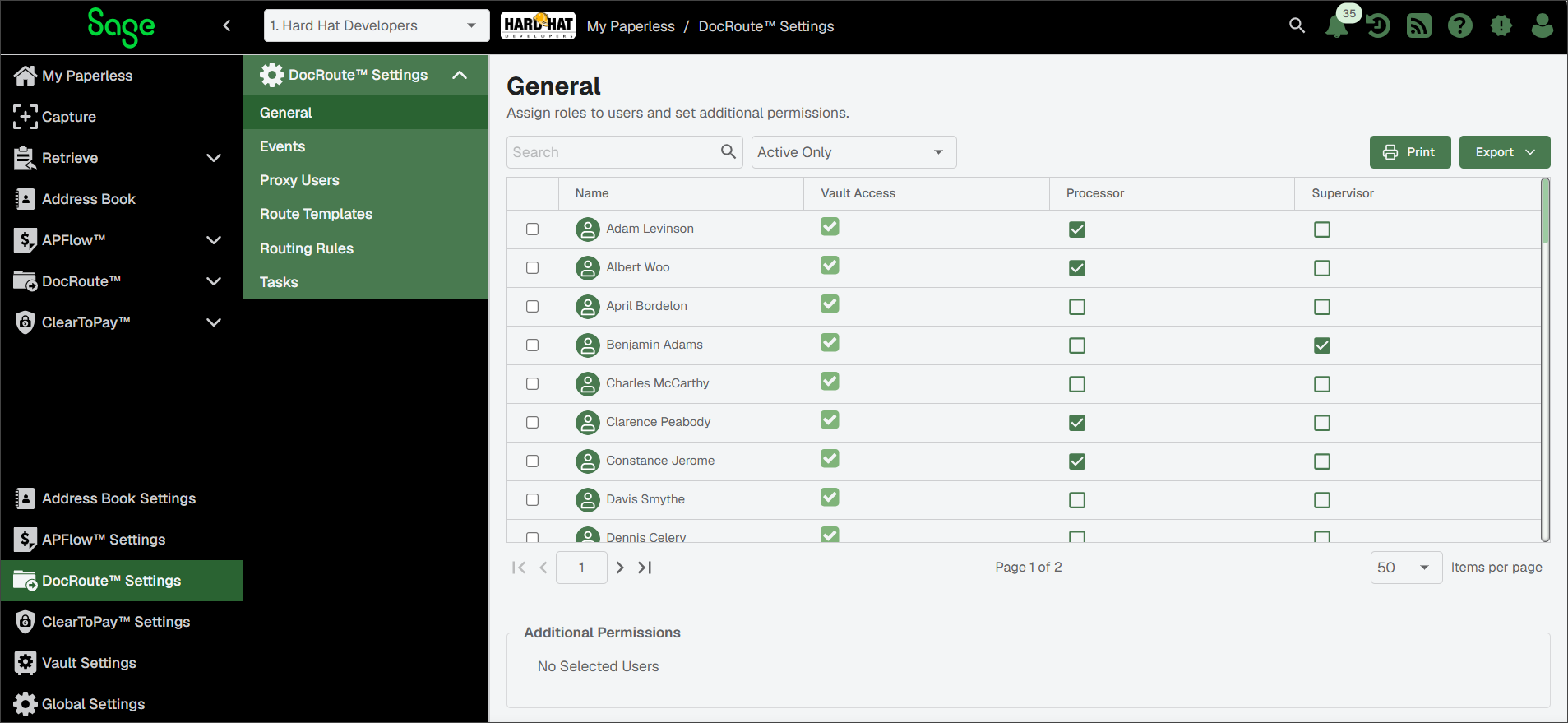
Review the users and select the appropriate permissions for that individual. Depending on the role you select ( or ) the Additional Permissions pane expands.
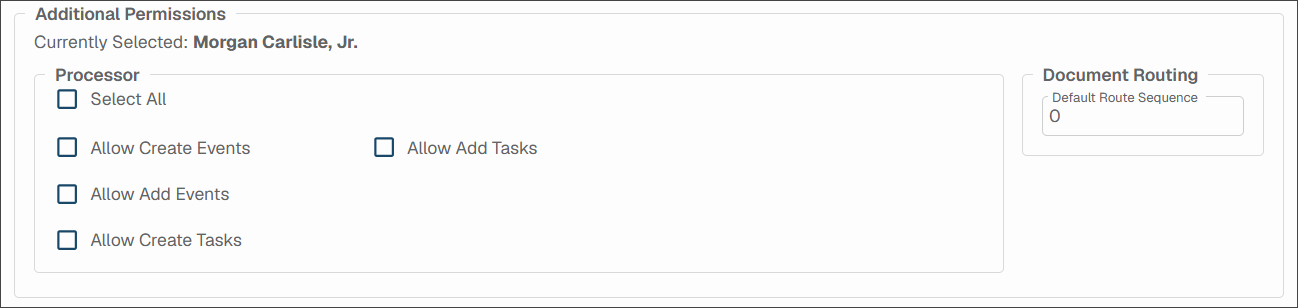
Allow Create Events/Allow Add Events: Select these check boxes to grant permission for the identified individual to create and/or add events to recipients added to route templates. See DocRoute™ Events for more information.
Allow Create Tasks/Allow Add Tasks: Select these check boxes grant permission for the identified individual to create and/or add tasks to recipients added to route templates. See Configure DocRoute™ Tasks for more information.
Default Sequence: Enter a number in the Default Route Sequence field to set where in the route an individual receives the routed document(s). Depending on the individual's role, you may want them to be the first person to review the routed document(s), after a specific person reviews or be the final person. The number entered here is the default sequence number. When you create a route template, you can change the sequence number based on the other criteria, including the types of documents being routed.