Vendor Tiers in the Portal
The Tiers page provides a hierarchical list of vendors and subs working on a particular job.
Important
If you are a vendors at the parent level, you can view and edit information for your tiers as if the tier contact was themselves logged in. This includes downloading and uploading insurance and lien waiver documents. However, you cannot electronically sign documents for any of the tier vendors working beneath you.
From one of the job or vendor pages, click .

A page similar to the following displays:
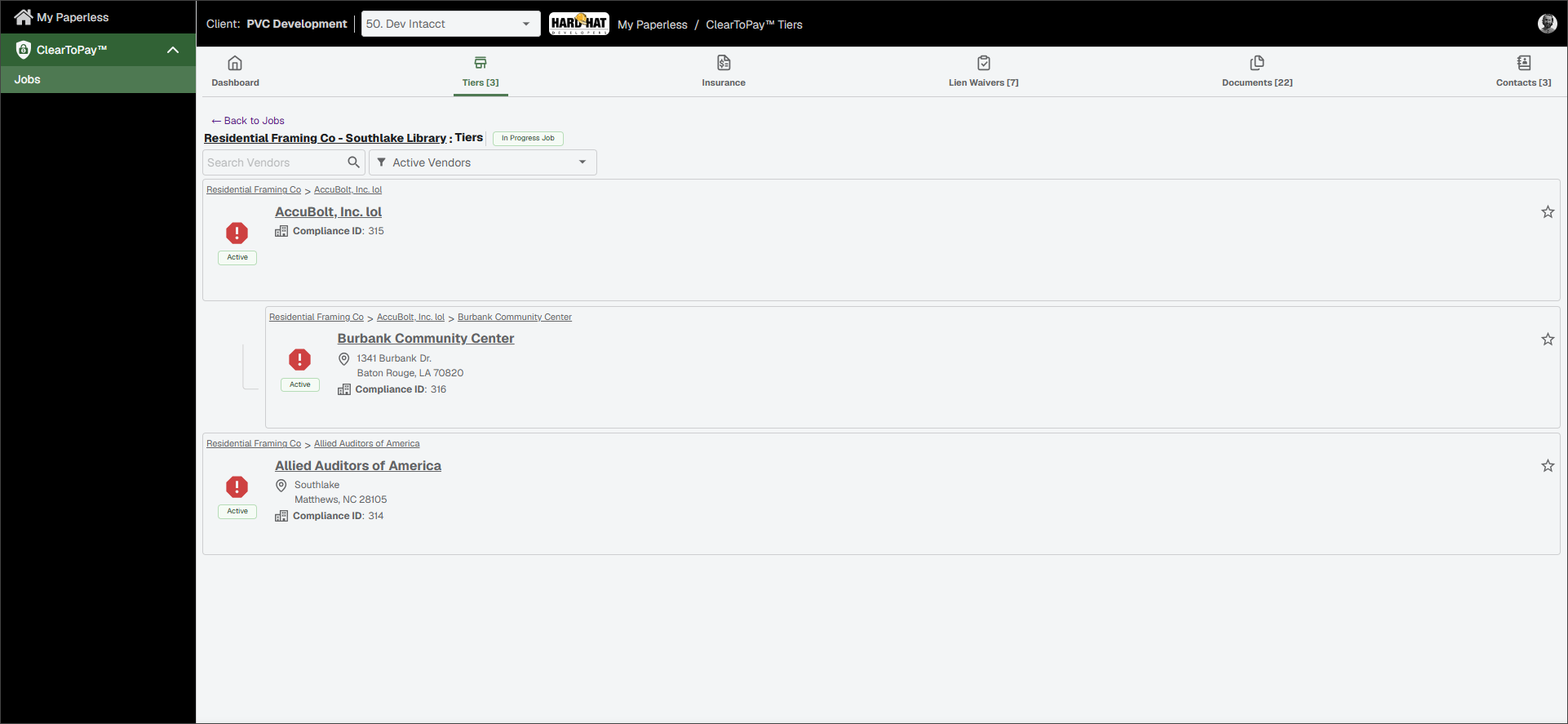
From the vendor Tiers page, you can drill down further to the next levels of vendors to view their dashboards and compliance information, or you can perform the following tasks:

To search for a specific vendor, enter the vendor name or number in the Search Vendors field. Then, press
Enteror click the Search icon.
icon.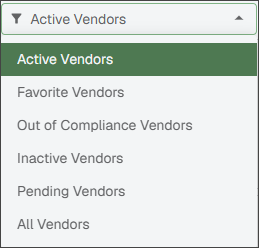
To narrow the list of vendors that display, click the dropdown to display filter options.


Each vendor entry includes a primary icon that indicates the vendor's overall compliance.
The green check icon indicates the vendor (and all the vendors beneath it) are in compliance.
The red warning icon indicates the vendor (and all the vendors beneath it) are not entirely in compliance.
Smaller icons are also present to indicate the compliance for each vendor's commitments, licenses, certified payroll, insurance, lien waivers and custom compliance. Not all of these criteria apply to every vendor, but the icons let you know at a glance where issues exist.
Vendor Name
Click the vendor name link within the grid to access that vendor's dashboard.
Status Indicators
Each tier vendor displays one of status icons shown to indicate the overall status of the job its associated with.
Active status means that the job is in-progress.
Closed status means that the job is complete.
Pending status means that the job has not yet started, but information is being assembled.
Completed Operations status means that the job is in the time frame when work has been completed but the job still needs to carry insurance to protect the customer from liability.


Click the Star icon for a vendor to indicate this vendor is a favorite. Vendors marked as favorite can be found using the Favorite Vendors filter.
To remove the favorite status, click the Star again.

The vendor breadcrumbs listed at the top of each vendor card indicate the hierarchy and where each vendor and tier falls for this particular job.