Activity
Important
You must be configured as with Compliance Manager or Auditor access permissions for the current vault to be able to view the Company pages within ClearToPay. Only a user with Compliance Manager permissions can resend emails on the Email Activity tab.
On the Activity page, ClearToPay™ provides tabs for tracking email activity and automation activity:
Email activity: A listing of emails sent through the system and their information (as well as the ability to review each individual email, resend it and check its status).
Automation activity: A listing of automated jobs that have run to monitor jobs and vendors to keep their various compliance statuses accurate and up-to-date.
Complete the following steps to access and view ClearToPay activity:
From My Paperless, click .
In the ClearToPay™ navigation bar, click .
Click .

A page similar to the following displays:
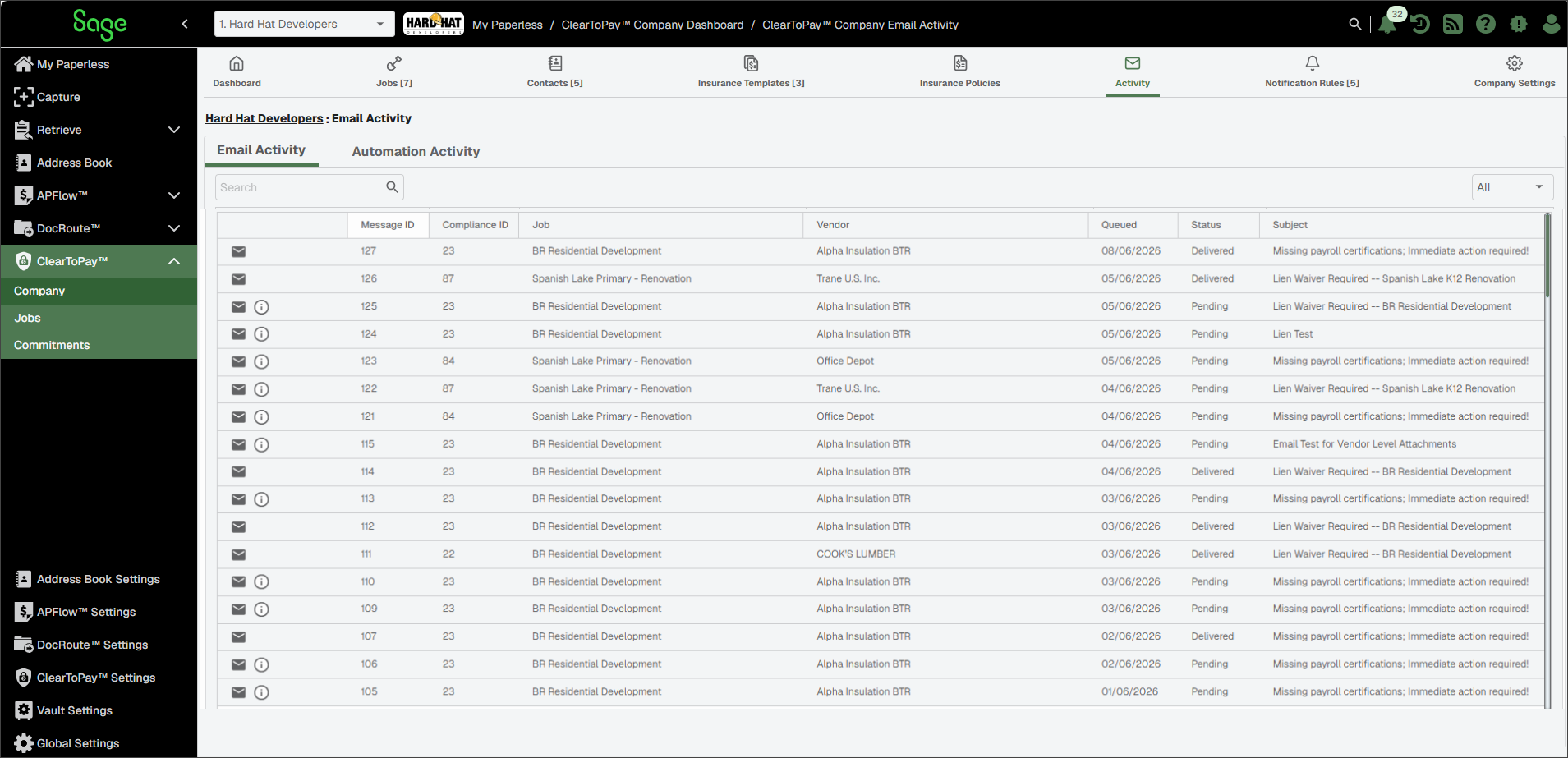
On the Email Activity tab:
Do one or more of the following to locate an email and review its information:
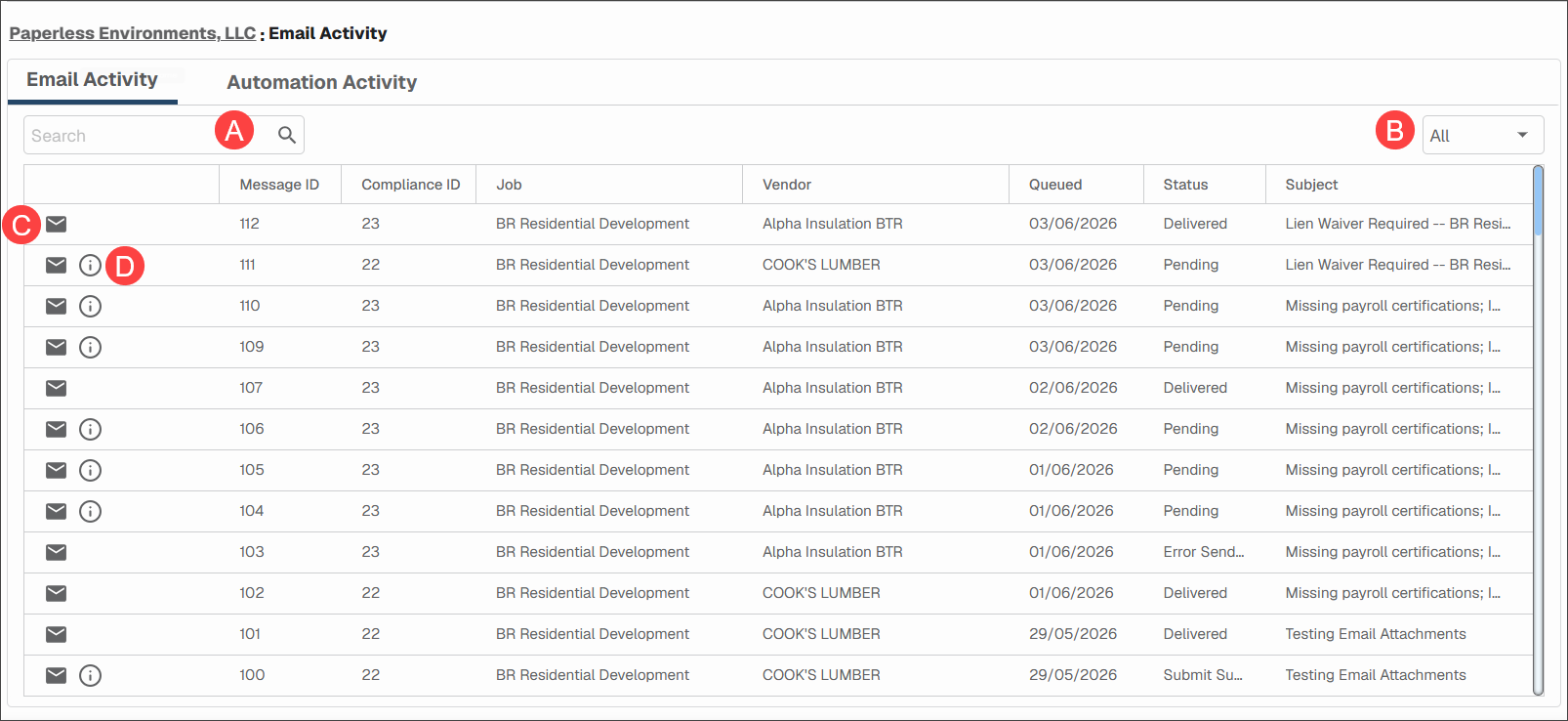
A: Enter a search term (such as email subject, vendor or send date) in the search bar, then click the Search icon to find sent emails. B: Select , , , or to filter sent emails by their status. C: Click the Email  icon to open the sent email and review its recipients, contents and any attachments. From there, you can resend the email if needed.
D: Click the Status  icon to manually check an email's status (and update it in the status column with the latest status). For example, a Pending email may update to Delivered.
On the Automation Activity tab:
Do one of more of the following to review the list of the automated compliance checks that the system has run:
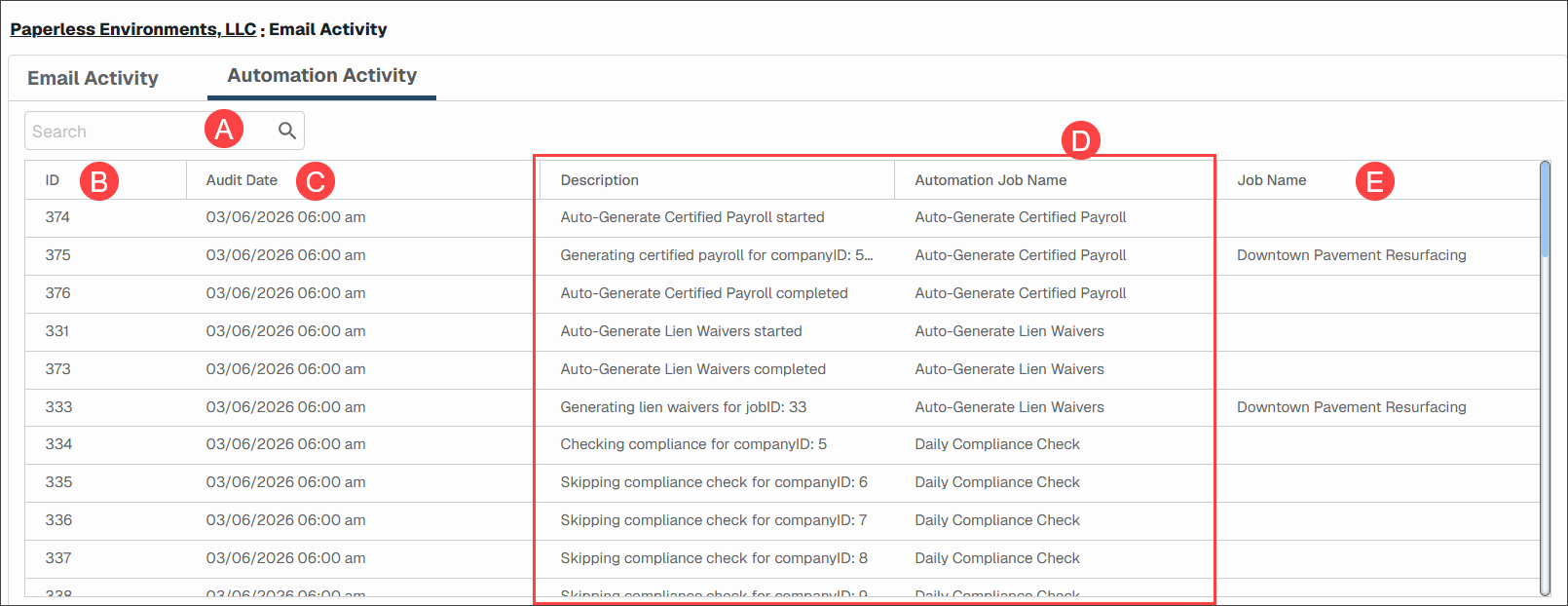
A: Enter a search term (such as automation job name or ID) in the search bar, then click the Search icon to find sent emails. B: ID number for a particular run; this value is primarily for tracking purposes. C: The date and time that a particular automation job ran. D: Description and names for each automation job. E: Impacted project, if not a system-wide automation job.