Vendor Commitments
In ClearToPay™, commitments are a fundamental aspect of compliance tracking, specifically in reference to subcontract and purchase order agreements. At the vendor level, a commitment could refer to either a subcontract or a purchase order agreement between the vendor and their tier vendor (subcontractor).
These types of agreements are often tracked within a company's accounting system and are used to ensure that vendors meet their contractual obligations. Within a commitment, the Signed Date field is what is tracked by ClearToPay. If the field is blank, the vendor or job are out of compliance. If the Signed Date field is populated, the vendor or job are compliant.
From My Paperless, click .
In the ClearToPay™ navigation bar, click .
From the Jobs page, select a job from the list to access its vendors.
Note
All operations vendors to do not track commitments.
Click .
Select the vendor whose commitments you want to see.
Click .
A page similar to the following displays:
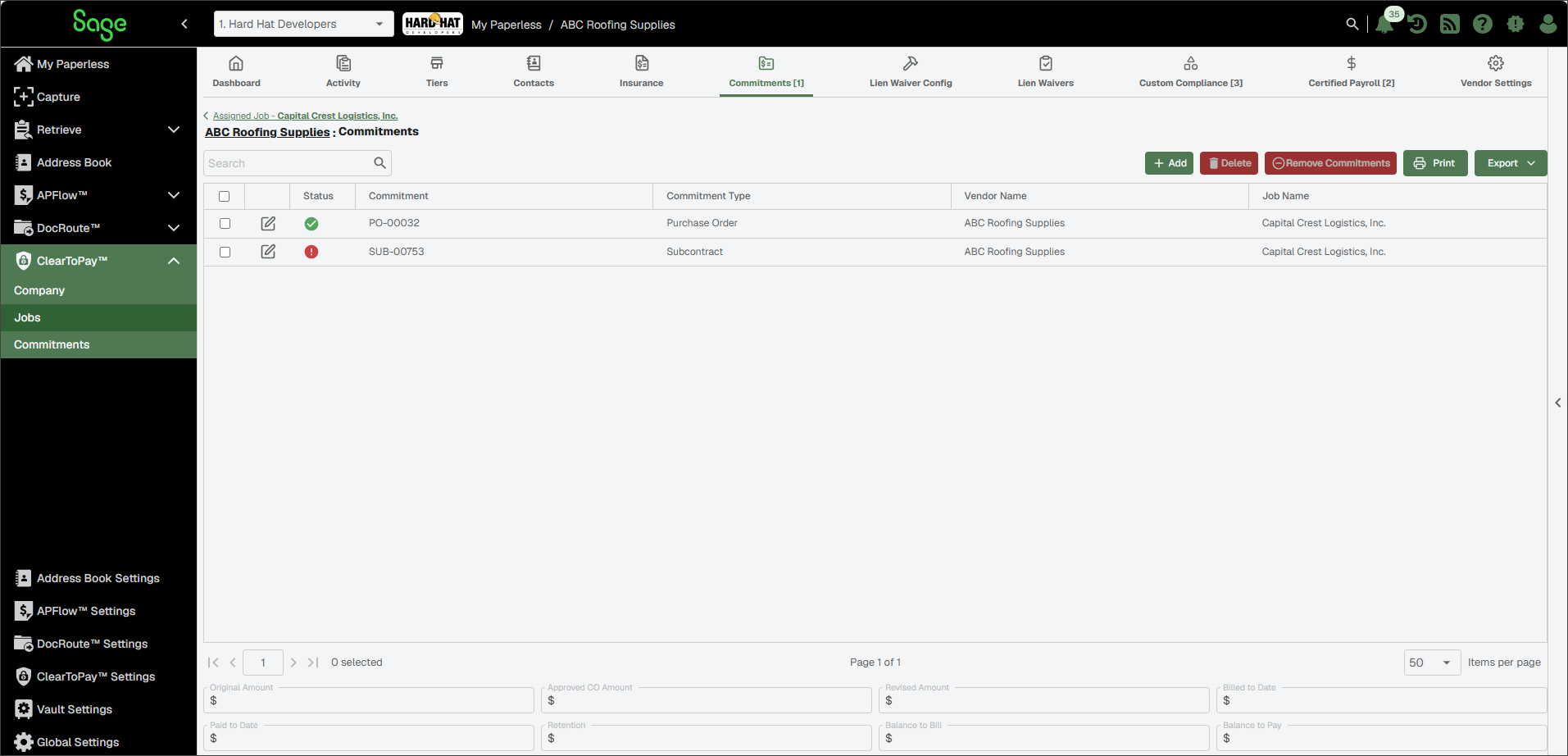
From the vendor's Commitments page, you can do the following:
 | Search for a specific commitment record by Commitment Number, Commitment Type, Vendor Name or Job Name. |
 | To add a new commitment for this vendor, click . For more information, see Add New Commitments. |
 | Select one or more commitments from the list, then click to remove them from Sage Paperless Construction. See Delete Commitments for more information. |
 | Select one or more commitments from the list, then click to remove them from this vendor. See Remove Commitments for more information. |
 | Click to print the Commitments grid. |
 | Click to export the grid information to Excel, CSV or PDF. |
| Click Edit to make necessary updates to an existing commitment record. See Edit Vendor Commitments for more information. |
Record Details | The fields at the bottom of the page populate based on lien waivers associated with a selected commitment.  |

From the vendor Commitments page, find the commitment you want to edit.
Click the Edit
 icon.
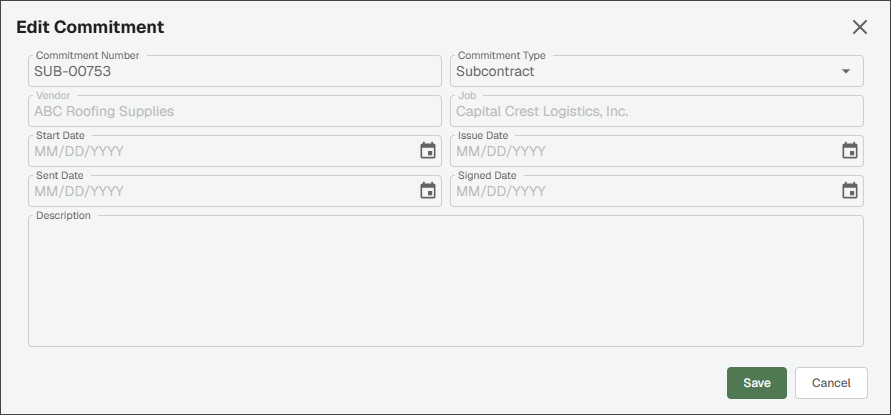
icon.In the Edit Commitment dialog, make any necessary updates.
Note
Many bridged accounting systems do not provide all the information that must be tracked by ClearToPay like the date fields or descriptions. However, for required fields, the accounting system is considered the "source of truth" and may override your edits when the record syncs.
Click .
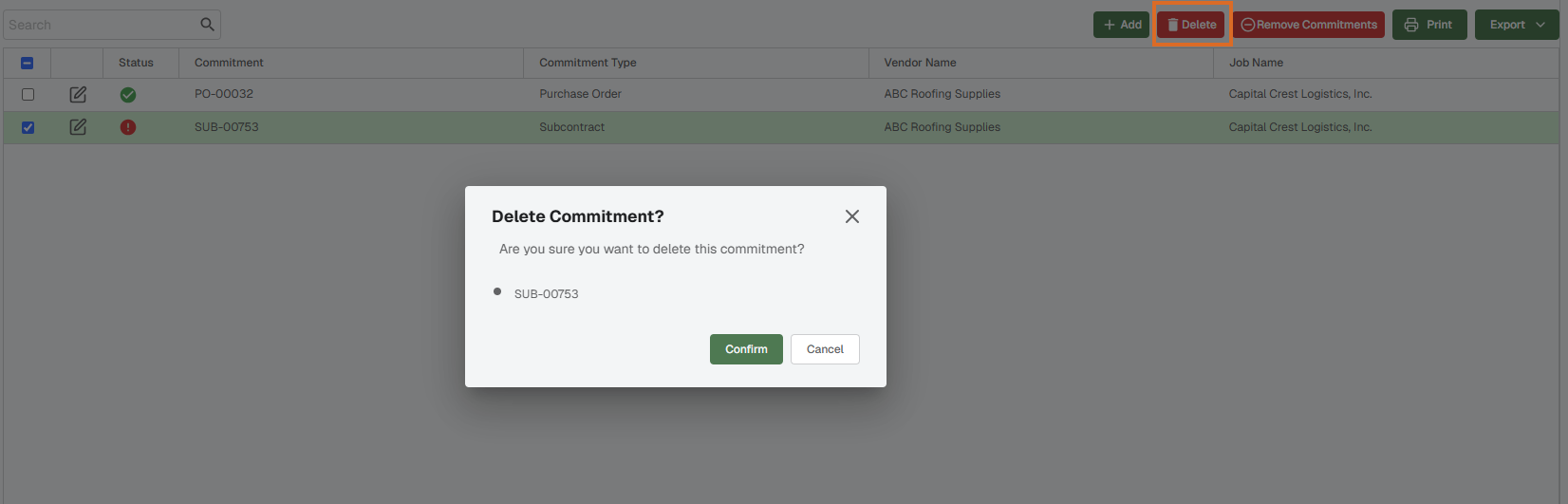
Deleting commitments removes them from ClearToPay™ entirely. When a commitment is deleted, it cannot be added to a different vendor or job.
However, when the accounting system syncs records with ClearToPay, commitments that you deleted may reappear if they are still present in the bridged accounting system. It is recommended that in addition to deleting the commitment, you also ignore it on the main Commitments page. See Match Commitments for more information.
From the vendor Commitments page, find the commitment you want to delete.
Select the commitment from the list.
Click , then click in the dialog that displays.
Removing commitments removes the commitment from the vendor it is associated with. Once it is removed, it can be reassigned to a different vendor or job. See Match Commitments for more information.
From the vendor Commitments page, find the commitment you want to remove.
Select the commitment from the list.
Click , then click in the dialog that displays.