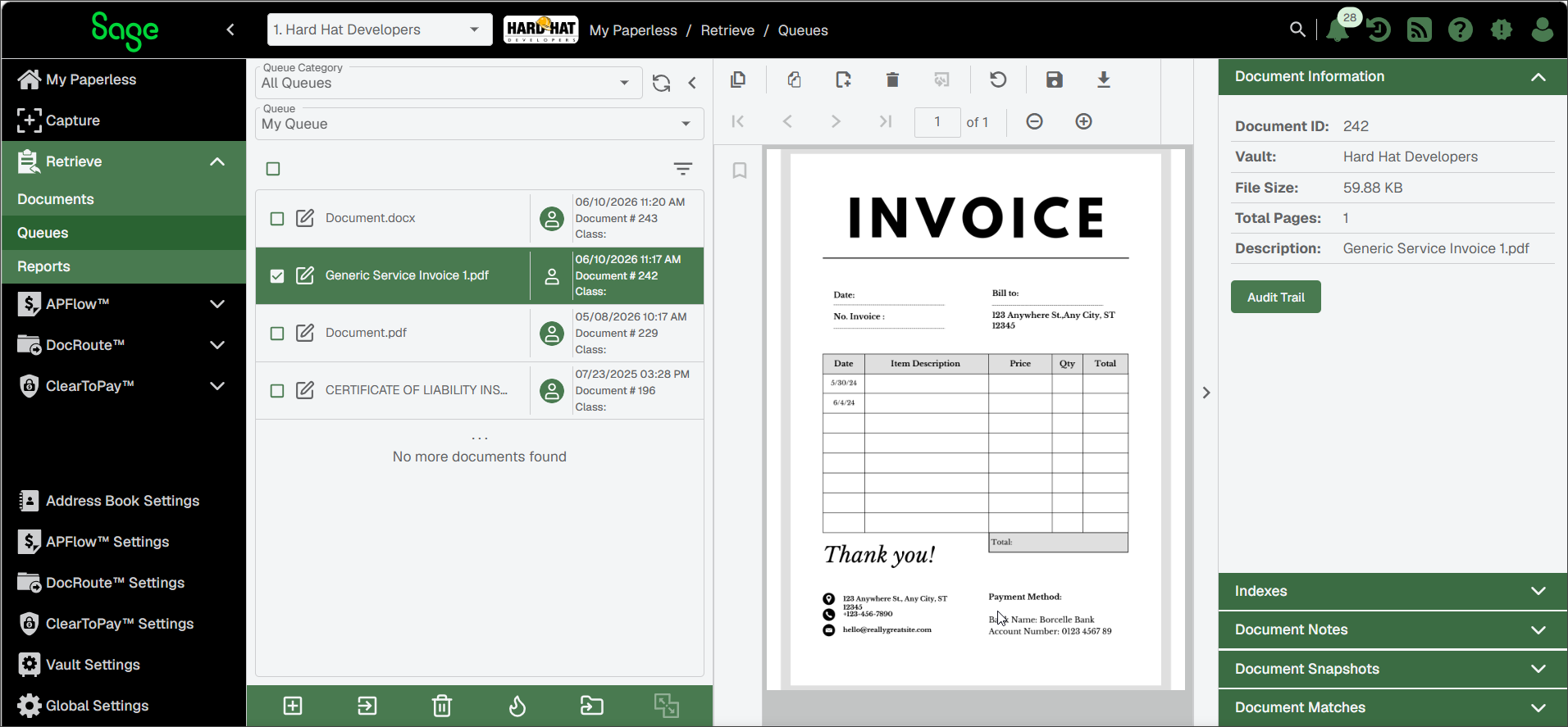
Convert a File to PDF
If the document image being captured in Sage Paperless Construction is a Microsoft® Word or Excel file, you can convert it to a PDF after it displays in the viewer.
With the image active, click the Convert to PDF
 icon.
icon.The following Convert to PDF? dialog displays.
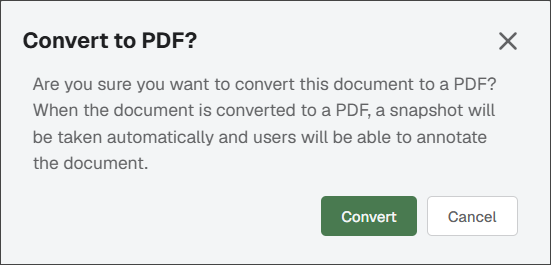
Click .
The document is converted to a PDF. Just before the conversion occurs, a snapshot is taken of the original document. All the available Sage Paperless Construction Viewer toolbar icons now display so you can perform other functions including annotations.
Note
All the available Sage Paperless Construction Viewer toolbar icons now display so you can perform other functions including annotations. See Working with Documents for more information.