Commitments
In ClearToPay™, commitments are a fundamental aspect of compliance tracking, specifically in reference to subcontract and purchase order agreements. These types of agreements are often tracked within a company's accounting system and are essential to ensure that contractors and subcontractors meet their contractual obligations. Within a commitment, the Signed Date field is what is tracked by ClearToPay. If the field is blank, the vendor or job are out of compliance. If the signed date field is populated, the vendor or job are considered compliant.
At the Job level, a commitment could refer to either a subcontract or a purchase order agreement between the job and a vendor (or subcontractor).
At the Vendor level, a commitment could refer to either a subcontract or a purchase order agreement between the primary vendor (or contractor) and their tier vendor (subcontractor).
The Commitments page lists all job and vendor level commitments associated with the current company vault. To see the Commitments menu option, the Track Commitments check box must be selected at the company level (see ClearToPay™ Configuration for more information), at the job level on the job's settings page (see Job Settings for more information) and at the vendor level on the vendor's settings page (see Vendor Settings for more information). During implementation, commitments are added (typically via the bridged accounting system) after jobs and vendors are added to ClearToPay.
Note
If the Track Commitments check box is blank at the company level, you are not able to select it at the job or vendor level.
Complete the following steps to access the main Commitments page:
From My Paperless, click .
In the ClearToPay™ navigation bar, click .
A page similar to the following displays:
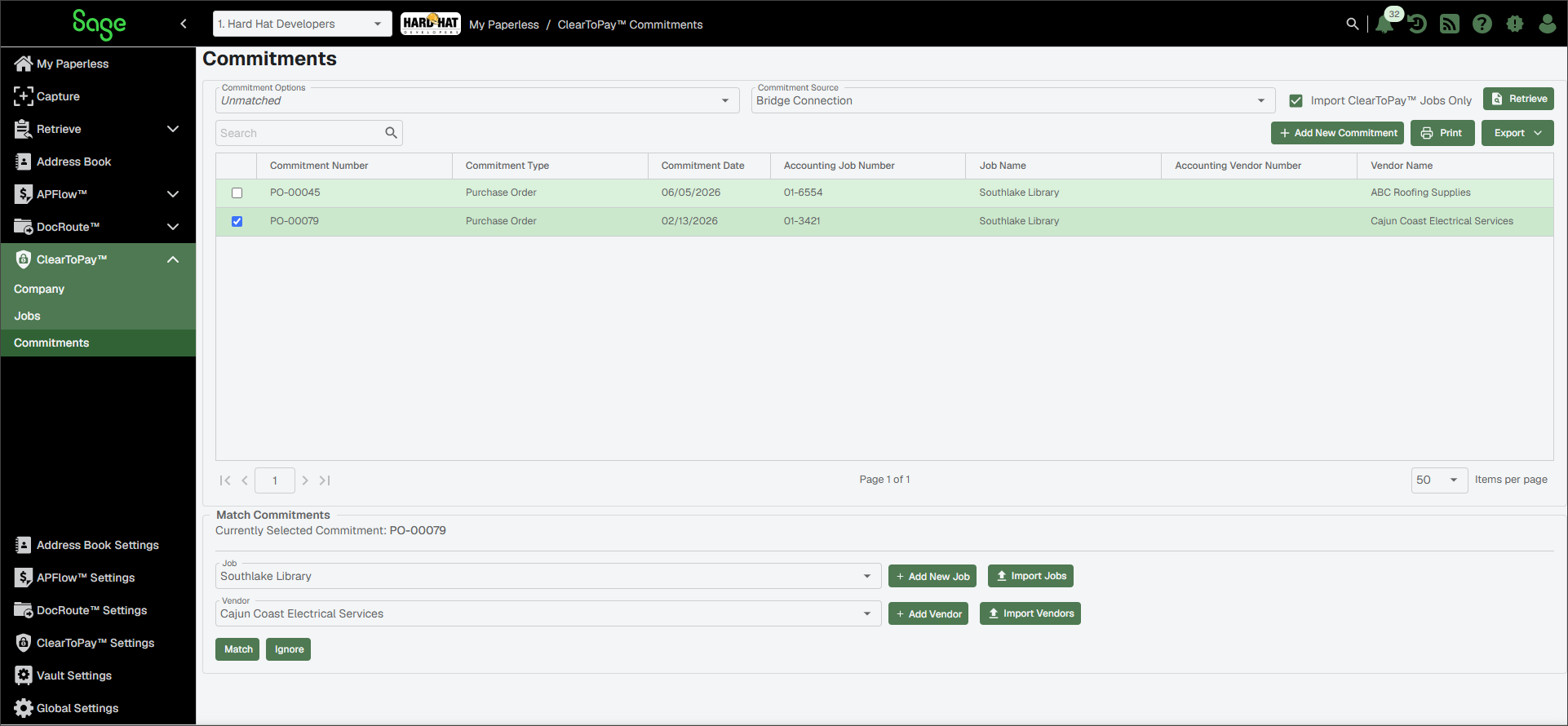
From this page, you can perform the following tasks:
Filter the list of commitments using the following criteria in the Commitment Options dropdown:
| |
Commitment Source | The commitment source is your bridged accounting system for this particular vault. |
Import ClearToPay Jobs Only check box | The Import ClearToPay Jobs Only check box ensures that only subcontracts and purchase orders that are associated with ClearToPay jobs are pulled from the bridged accounting system. Deselect if you want to pull commitments for jobs and vendors that are not set up in ClearToPay yet. |
 | Click to refresh the list and retrieve any added commitments from the bridged accounting system. |
 | Search the list of commitments by commitment number, type, job name or vendor name. Then, press Enter or click the Search |
 | Click to manually add new commitments. See Add New Commitments for more information. |
 | Click to print the Commitments grid. |
 | Click to export the grid information to Excel, CSV or PDF. |
Match Commitments Section | Match commitments to make sure the proper jobs, vendors and/or tier vendors are linked. See Match Commitments for more information. |

The Add Commitment dialog can be accessed from the main Commitments page, from a job page or from a vendor page.
If you are adding a commitment from the main Commitment page, you can select the job and/or vendor from the dropdown menus. If you are adding a commitment from either a job page or vendor page, that information is pre-filled in the dialog.
Complete the following steps to manually add a new commitment:
From My Paperless, click .
In the ClearToPay™ navigation bar, do one of the following:
To add a commitment on the Commitment tab: Click , then click the button.
To add a commitment on a specific job: Click , then find the job in the grid. Hover over the vertical ellipsis
 , then click . Click .
To add a commitment on a specific vendor: Click , then select the job from the grid. From the job's Dashboard, click . Find the vendor in the grid and hover over the vertical ellipsis
, then click . Click .
Enter the information in each of the following fields:
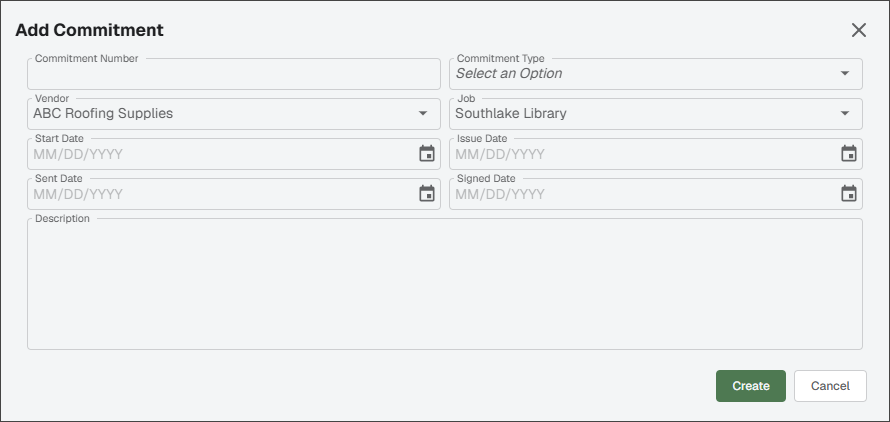
Enter the commitment number as displayed in the bridged accounting system in the field.
This information is required.
From the Commitment Type dropdown, select or .
This information is required.
If not pre-populated by the system, choose the vendor associated with the commitment from the Vendor dropdown.
If not pre-populated by the system, choose the job associated with the commitment from the Job dropdown.
In the Start Date field, enter the commitment's start date.
In the Issue Date field, enter the commitment's issue date.
In the Sent Date field, enter the commitment's sent date.
In the Signed Date field, enter the commitment's signed date.
Note
The Signed Date field is what is tracked by ClearToPay. If the field is blank, the vendor or job are considered out of compliance. If the signed date field is populated, the vendor or job are considered compliant.
In the Description field, enter relevant information for tracking the commitment.
Click .
Note
You can only retrieve commitments on the main Commitments page, not at the job or vendor level. It is important to regularly click the button and match commitment jobs and vendors to make sure compliance information is being tracked effectively.
Click the button to update the list with commitments from the bridged accounting system. The list refreshes.
Note
If the commitments you selected have already been brought into ClearToPay, they are not imported a second time.
During implementation, jobs, vendors and commitments are brought into the system. Once ClearToPay™ is in use, the bridged accounting system continually syncs information with Sage Paperless Construction. As a result, some commitments may be missing job information, vendor information, or both. This typically occurs if:
The Import ClearToPay Jobs Only check box on the main Commitments page is blank.
The accounting system imports commitments for jobs and vendors that have not yet been created in ClearToPay.
It is important to regularly click the button and match commitment jobs and vendors to make sure compliance information is being tracked effectively.
Complete the following steps to access the main Commitments page:
From My Paperless, click .
In the ClearToPay™ navigation bar, click .
Select from the Commitment Options dropdown.
Select a commitment from the list.
The commitment populates in the Match Commitments section.
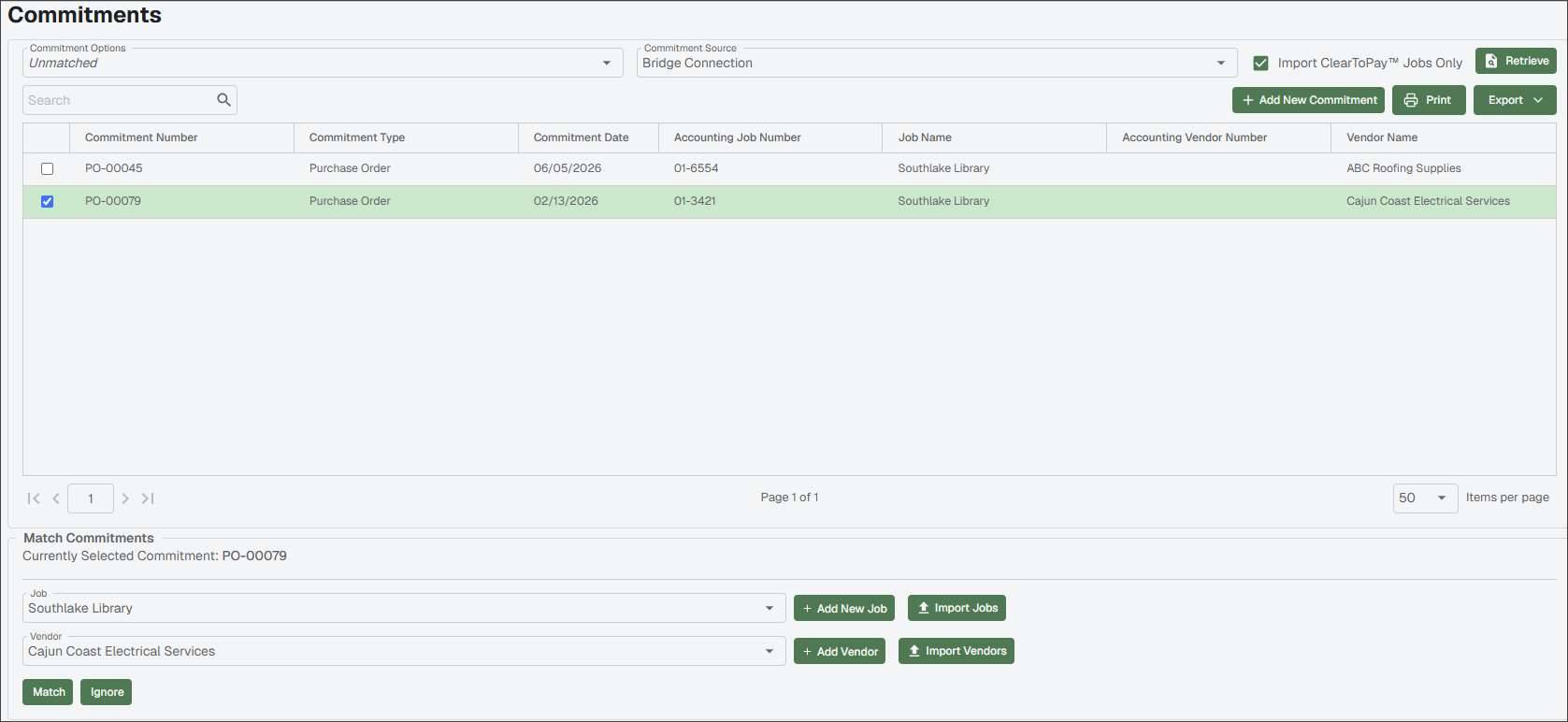
If Job field is value None, that means the job has not yet been entered in ClearToPay or an information mismatch exists.
Note
Either (to enter the job's information manually) or (to sync the information from the bridged accounting system). The commitment is now associated with the correct job, and the commitment is visible from the job's Commitments page.
If Vendor field value is None, that means the vendor has not yet been entered in ClearToPay or an information mismatch exists.
Note
Select either (to enter the job's information manually) or (to sync the information from the bridged accounting system). The commitment is now associated with the correct vendor, and the commitment is visible from the vendor and job's Commitments pages. This process also links the vendor with the correct job.
Click .
Continue this process until all commitments that are able to be matched are matched with the appropriate job and vendor.
(Optional) If a commitment is no longer relevant or not associated with a job or vendor in ClearToPay, click .
The commitment is not deleted and can be found by selecting in the Commitment Options dropdown.