Job Insurance Templates
The insurance templates that are available to be used by jobs and vendors in ClearToPay™ are configured at the company level. You can use the Insurance Templates page to view the available list of templates that can be applied to the job's primary and tier vendors.
Complete the following steps:
From My Paperless, click .
In the ClearToPay™ left navigation, click .
Choose the job from the list.
Click .
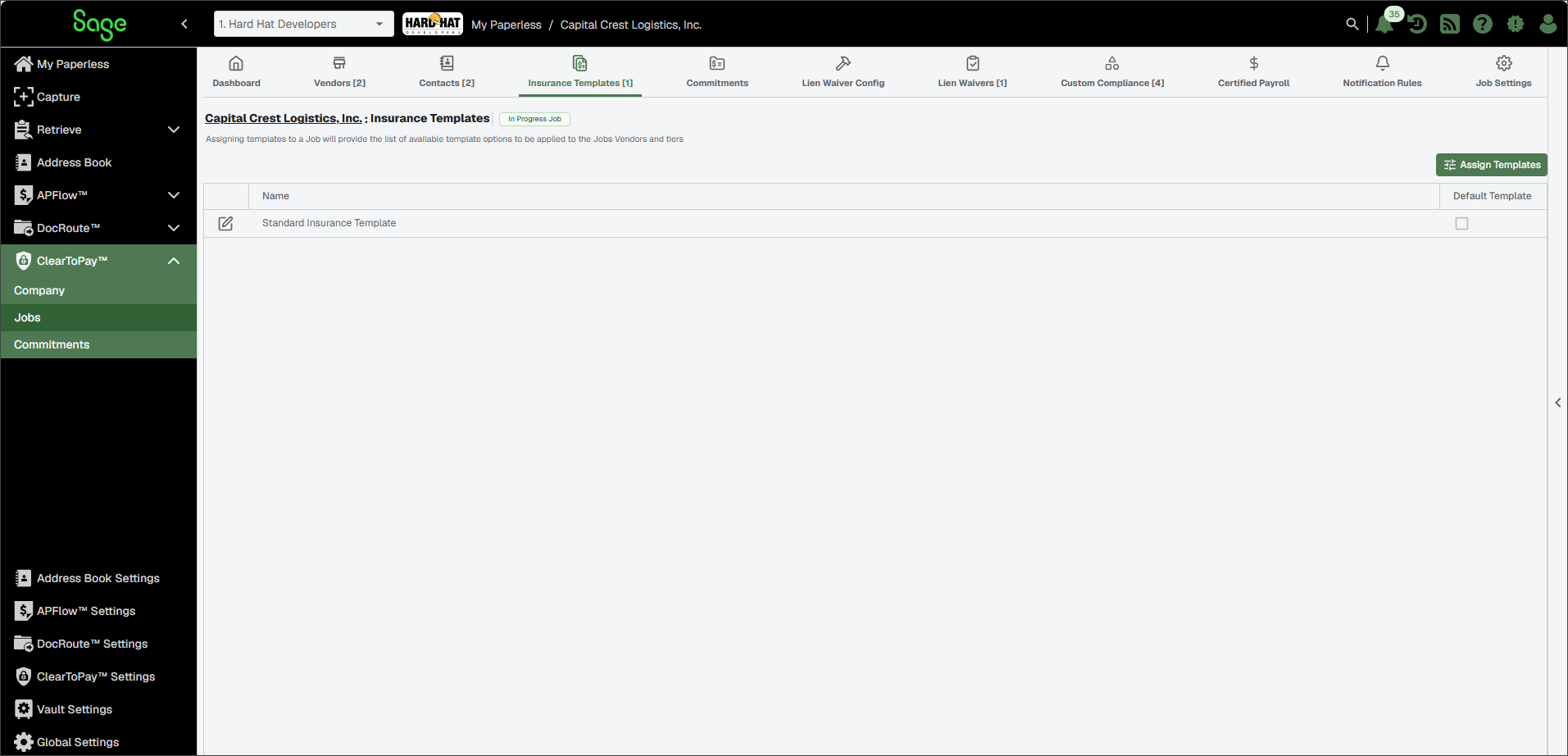
The Insurance Templates page opens and displays a list of pre-configured templates.
Important
You must have Compliance Manager or Job Level access permissions to assign insurance templates to a specific job.
Click .
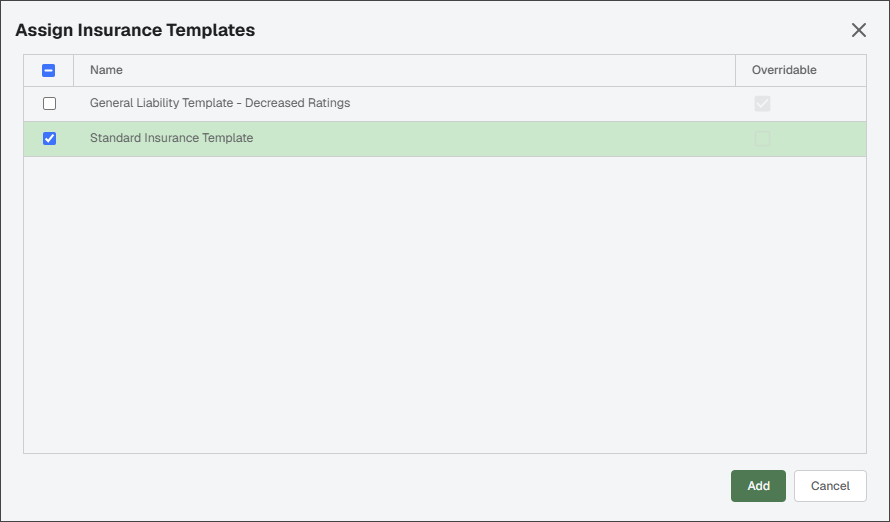
In the Assign Insurance Templates dialog, select the check box(es) for each insurance template you want to make available to be used for vendors on this job.
Note
The Assign Insurance Templates dialog provides a listing of company insurance templates. If the job is not designated as an All Operations job, all non-All Operations templates display in the list. If the job is designated as an All Operations job, only company templates for all operations jobs display in the list. Any templates that are already assigned to this job have their check box selected. You can choose to remove Company Templates from this job by deselecting that check box.
Click .
Note
When a template is assigned to a vendor or applied to a vendor as the default, if N/A is selected for any of the insurance dropdowns, that insurance type is not tracked.
(Optional) Select the check box to make this insurance template the default option for vendors working on this job.
Note
Insurance templates can only be edited at the job level if the Allow Override check box is selected on the Insurance Template configuration at the company level. See Company Insurance Templates for more information.
Click the Edit
 icon next to the template you want to update.
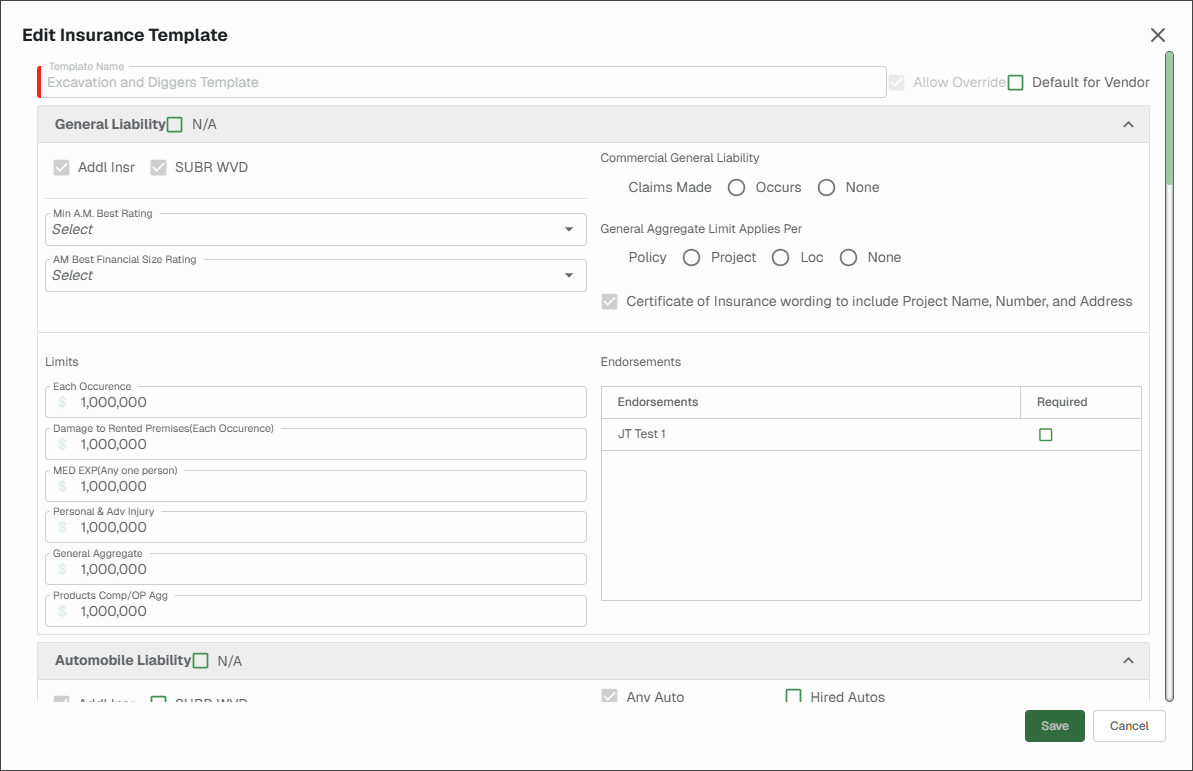
In the Edit Insurance Template dialog, expand each dropdown and make the necessary changes.
Note
Depending on the template configuration at the company level, you may also be able to select the check box to make this template the default assigned to all vendors on this job.
Click .