Access and Run Compliance Reports
Sage Paperless Construction contains many reports that can be used to gather information about how the module is set up as well as details about documents and information tracked in ClearToPay. This is a useful feature for distributing information to individuals (like those in accounts payable departments) who may not have access to ClearToPay but need to determine if a vendor should be paid.
For a list of all available system reports, see Reports List for more information.
Important
System Administrators, ClearToPay Administrators, Compliance Managers, Auditors and users with job-level access all have access to reports, but which reports they see are governed by their Sage Paperless Construction security groups.
Complete the following steps to access and run a ClearToPay report on demand:
From My Paperless, click .
From the Retrieve navigation bar, click .
A page similar to the following displays:
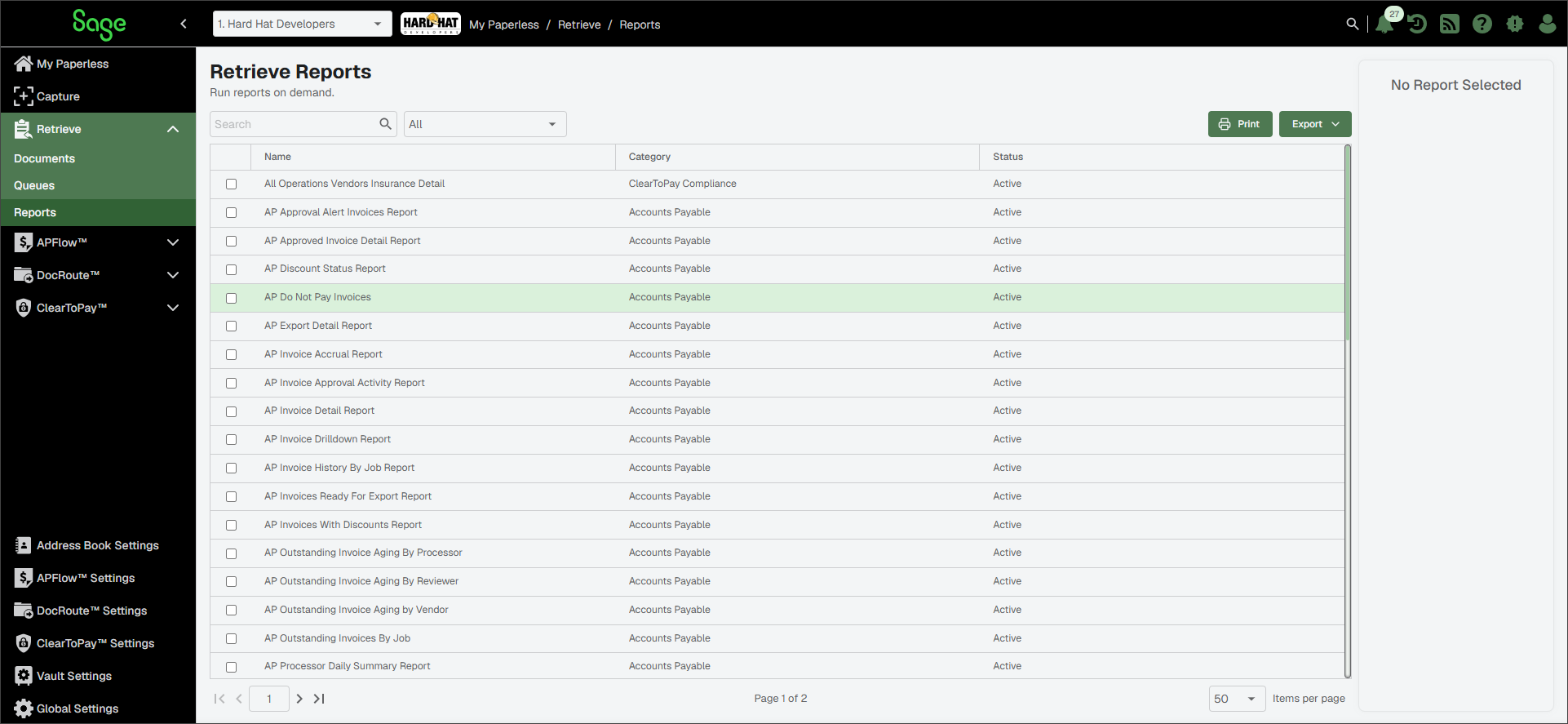
In the Search field, type
Compliance. Then, press or click the Search icon.
icon.Only reports with a Category of ClearToPay Compliance display.
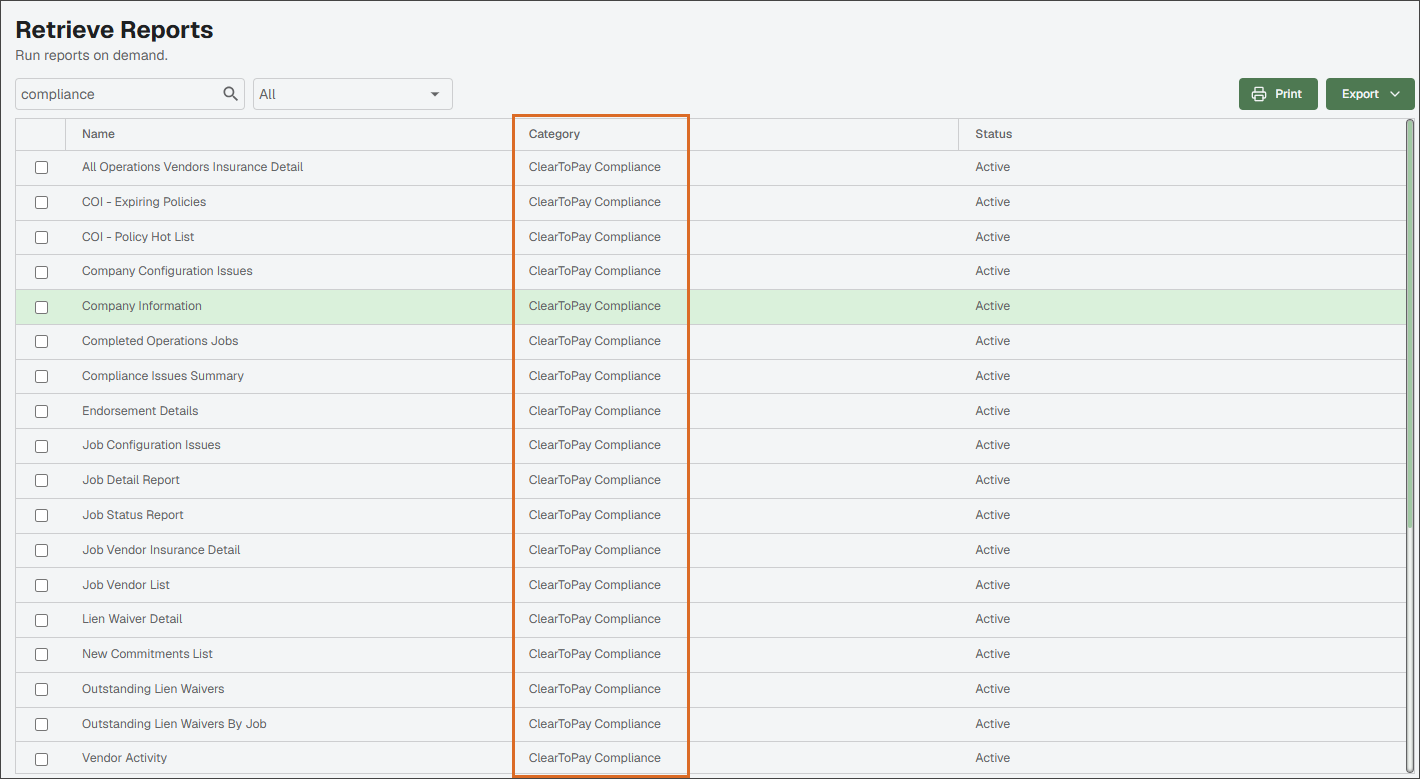
Select the report from the list that you want to run.
Its name displays along with that particular report's parameters in the sidebar:
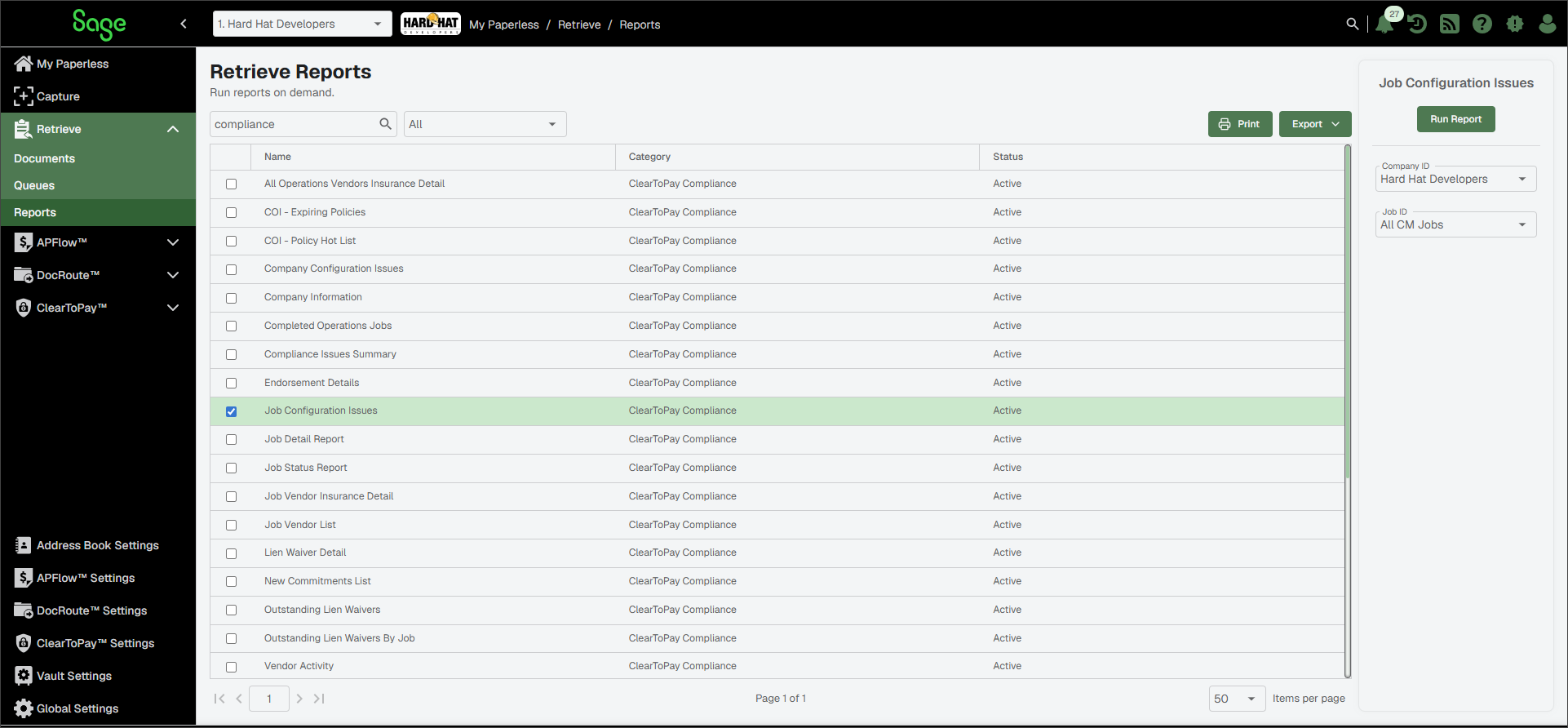
In the sidebar, choose your report parameters. The options vary by report.
Note
If reports include currency symbols or time zones, these are controlled within the current vault in Sage Paperless Construction and can be modified:
To modify the time zone displaying on your reports, select .
To modify the currency symbol displaying on your reports, select .
Click .
The report opens in a new tab, where it can be viewed, printed, exported or emailed.