Configure Attachment Sync (Sage 300 CRE)
Sage Paperless Construction has the ability to open files linked from the Sage 300 CRE accounting system. When Attachment Sync is enabled in Sage Paperless Construction, users can click the Paperclip  icon in the accounting system to open the attached file(s) directly in Sage Paperless Construction in .
Complete the following steps to configure Attachment Sync:
From My Paperless, click .
In the APFlow™ Settings navigation bar, click .
A page similar to the following displays:
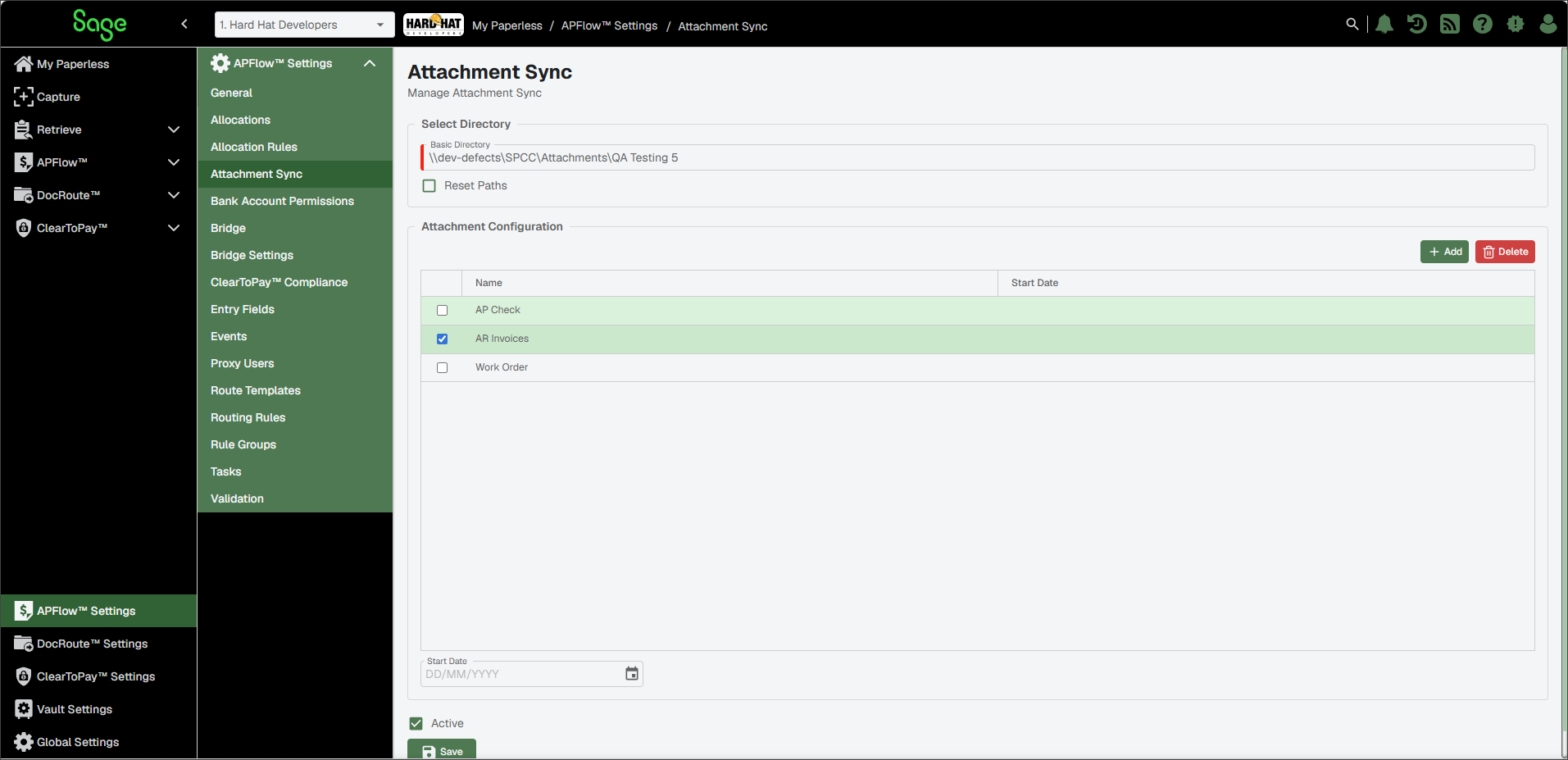
Upload your documents (or attachments) to the Basic Directory path to sync. The system automatically places URLs on these attachments to access them.
Note
If you select the check box and save a change on this page, the system clears anything that differs from the previously set configuration and starts fresh—this includes files that no longer match the current parameters, a different directory or a restructured URL string. Use this option any time you do not want to build on your existing configuration and instead want to pull the latest configuration from scratch.
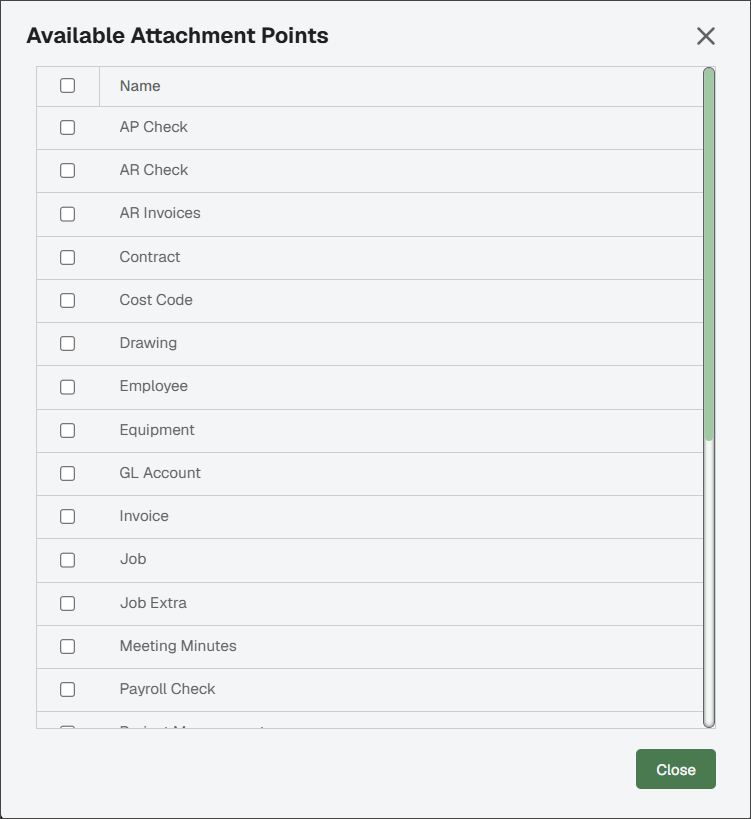
(Optional) Review the items in the Attachment Configuration list. If you need to add additional attachments points, click .
The Available Attachment Points dialog displays:
For date-specific records such as AP Invoices, Purchase Orders, etc., add a date in the Start Date field to only include records in the accounting database that are equal to—or greater than—the entered starting date. Make sure that the record is selected before entering the Start Date for each record. This process may need to be repeated for each record in this area.
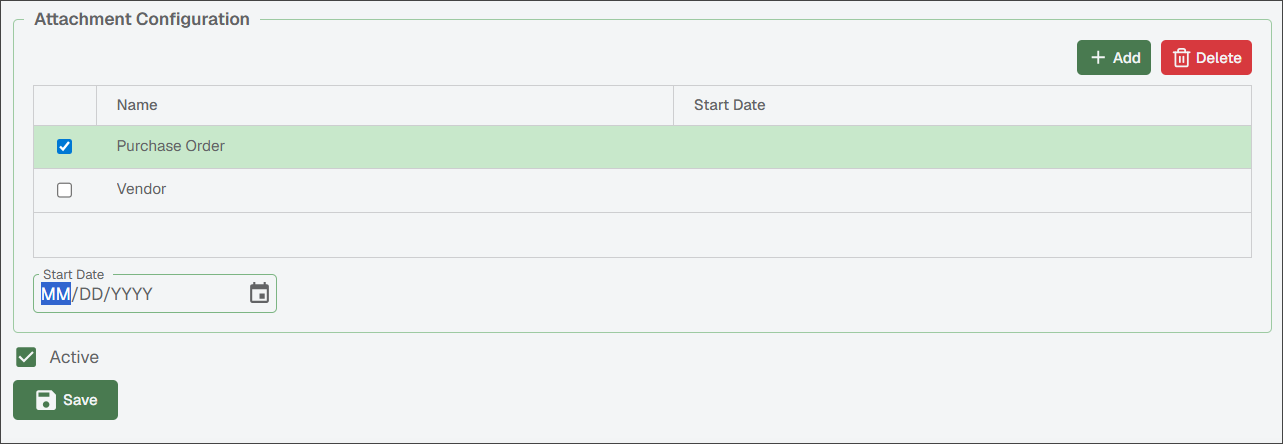
If this attachment sync functionality should be available for use, select the check box.
Click
For configured attachment points, clicking the Paperclip
icon now opens the attached files within Sage Paperless Construction.