Index Documents in Sage Paperless Construction
After you have captured the document, that document is temporarily stored in a queue. This is where you index it.
From My Paperless, click .
In the Retrieve navigation bar, click .
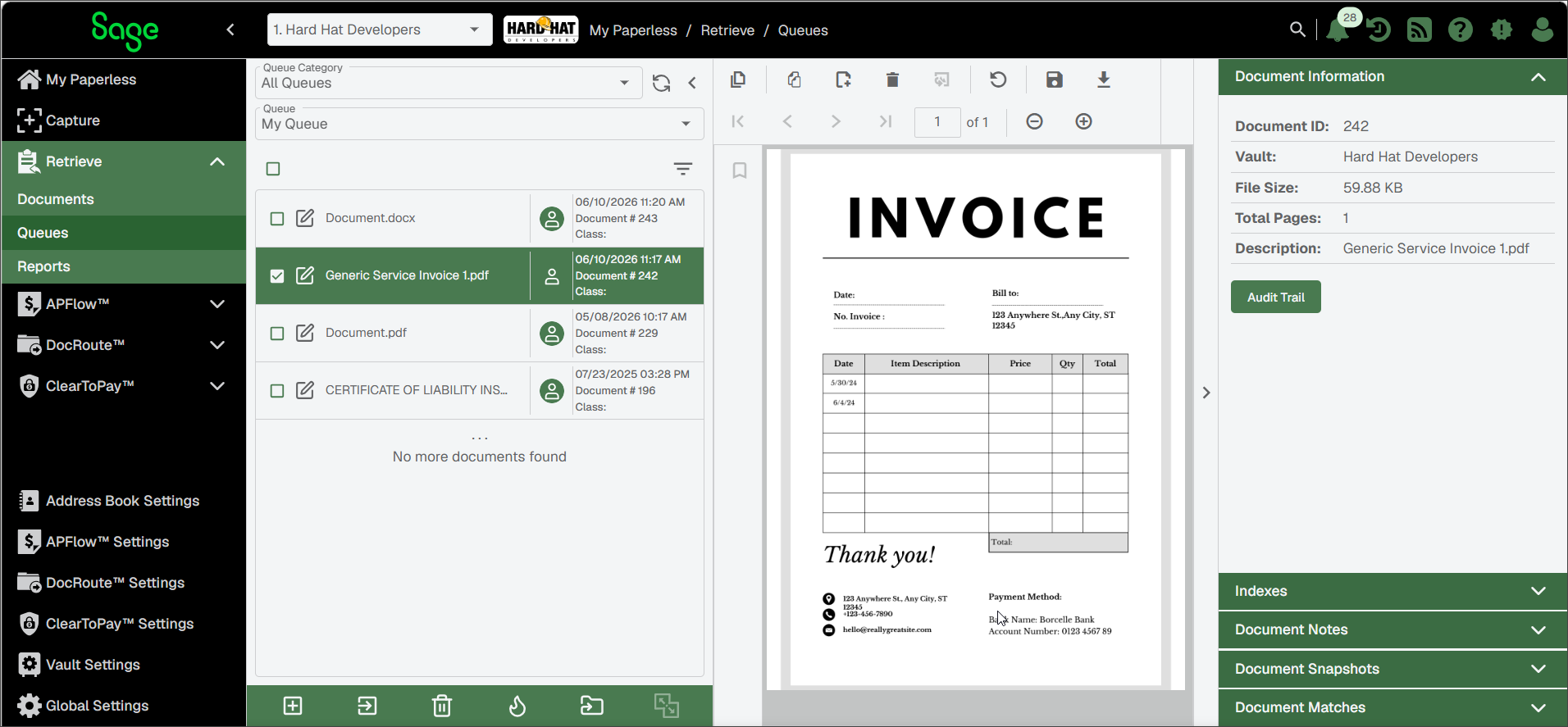
In the sidebar at right, click to expand it.
Note
For more information about the sidebar, see How to Use the Sidebar in Sage Paperless Construction.
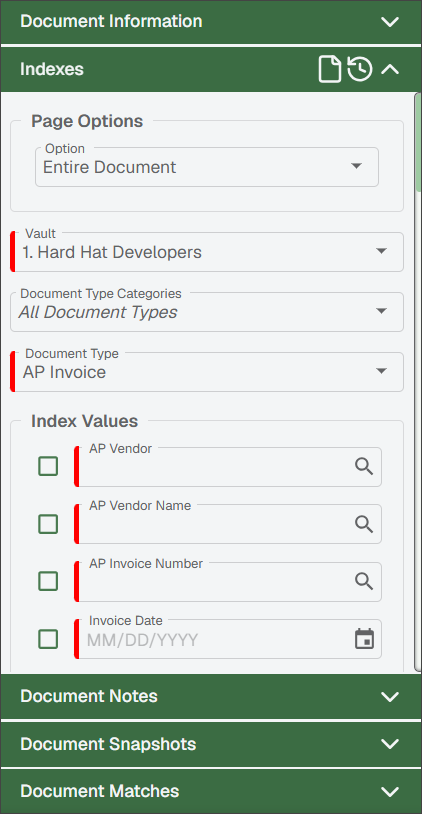
Configure the following information in the Page Options section:
Option: Entire Document is the default. If you only need to index a single page of a multi-page document, click the dropdown and select the page.
Vault: The Vault field defaults to the current vault. If applicable, click the dropdown to change vaults.
Document Type Categories: All Document Types is the default. If you need to change the document type click the dropdown and select a new category.
Document Type: The options available in the Document Type dropdown updates based on the category selected in the dropdown above.
Note
To add or modify document categories and their associated document types, go to . For more information see Document Categories.
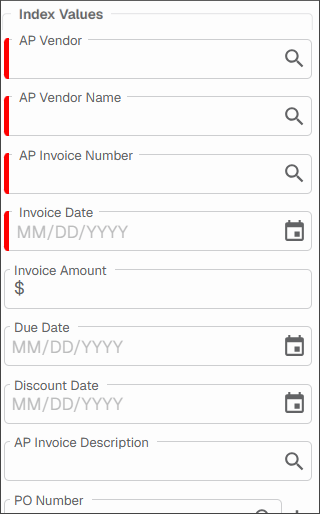
Set the document's index parameters in the Index Values section. The Document Type Categories and Document Type dropdowns influence the fields that display in the Index Values grid:
Note
This is the information you search for when you want to view the document once it is stored.
Important
The blank check boxes in front of each Index Values field are there to speed up your data entry. This series of check boxes is where you can set up session defaults. For example, if you have a series of documents from the same vendor (or company name) that you need to index, enter the company name as you index the first document. Click the associated check box. When you bring up the next document to index, the Company Name field is system-populated with the company name you entered previously. These session defaults stay in place until you deselect the check box or log out of Sage Paperless Construction.
In the Notes text box, enter helpful information concerning the document being indexed.
Note
You can select the Keep These Notes check box to maintain the notes you entered.
At the top of the Index section, click the Index
 icon to index the document.