APFlow™ Settings
Configure APFlow settings to optimize APFlow functionality by replacing manual invoice approval and coding systems within Sage Paperless Construction. Before using the APFlow module for the first time, you need to create or set up user roles for individuals who are going to use APFlow, connect your accounting system, configure routing settings, tasks, and more.
To see the APFlow™ Settings option:
Your APFlow module must be licensed.
You must be a System Administrator or Vault Administrator.
If you meet the requirements listed above, complete the following steps to access and grant user permissions:
From My Paperless, click .
APFlow™ Settings opens on the General tab.
Note
You can use the Search and Filter fields to narrow down your results. Displaying Active Only is the default.
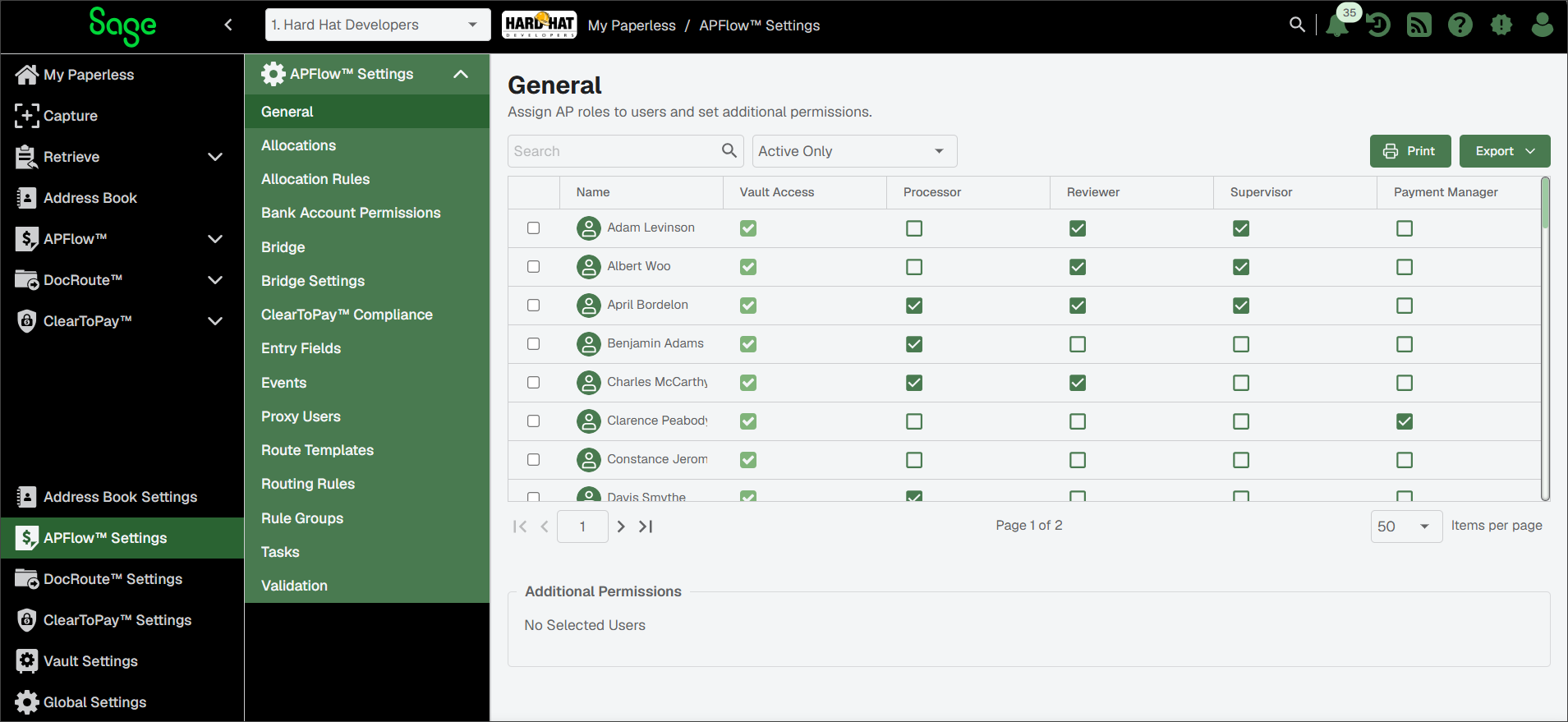
Review the users and select the appropriate permissions for that individual. Depending on the role you select (Processor, Reviewer, or Supervisor) the Additional Permissions pane may expand.
Note
Checkmarks in the Vault Access column indicate individuals with access to the current vault.
Important
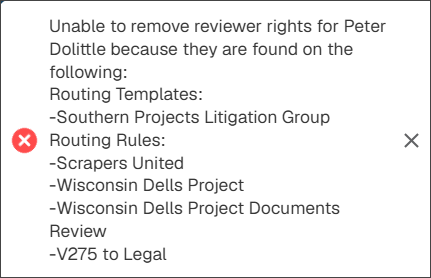
If you try to remove Reviewer permissions from a user who is already associated with existing routing rules, approval limits and/or routing templates, the check box in the Reviewer column remains checked and an error message similar to the following displays:
General
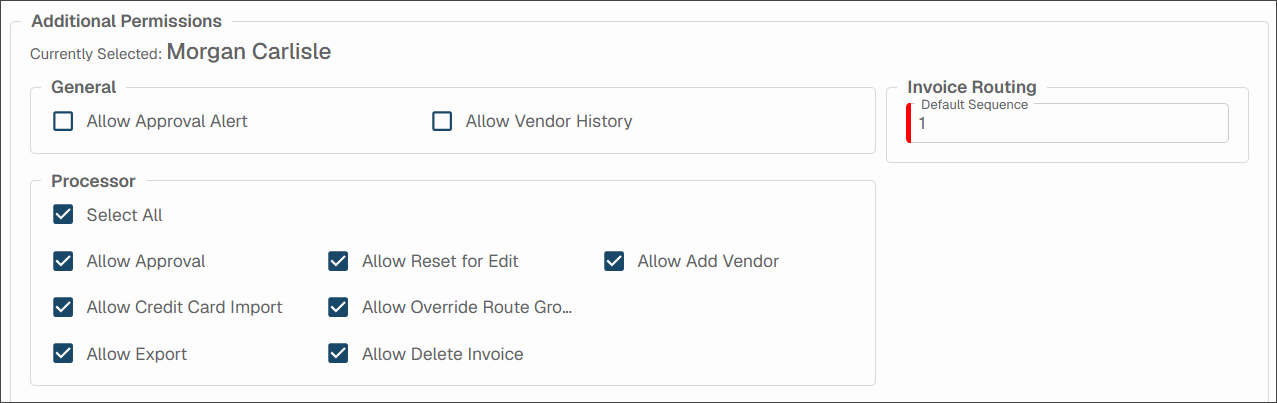
Allow Approval Alert
Enables user to add an Approval Alert to an invoice.
Allow Vendor History
Allows user to view all documents in Vendor History for this vault.
This permission is user-specific and vault-specific. It is not vendor-specific or APFlow™ role-specific.
Processor
Allow Approval
Gives a Processor the permission to approve an invoice without routing it to Reviewers. If Reviewers are assigned to the invoice, the invoice is marked Approved for each Reviewer. An audit note is systematically added to indicate the invoice was "approved for (name) reviewer by (name) processor".
If a Processor does not have this access, all invoices must be routed to the appropriate Reviewer(s) for approval.
Allow Credit Card Import
Gives a Processor or Supervisor access to the Credit Card Importer.
Only Processors with this security right can import credit card transaction files; to add the line items to an invoice that can then be coded and routed for approval and finally exported to their respective accounting system.
Allow Export
Gives a Processor access to the Ready for Export status in the Document Status field on the APFlow Invoice Entry page. With this status selected, all invoices ready to be exported are listed. Click to perform the actual export of the visible invoice.
Only Processors with this security permission can export approved invoices to their bridged accounting system.
Note
If a Processor does not have this permission, the Ready for Export status does not display in the Document Status field dro.
Allow Reset for Edit
If an exported invoice is modified in your accounting system, you can make the same modifications in Sage Paperless Construction so the data is identical. As a Processor, you must have Allow Reset for Edit permissions (granted on this page).
See Exported for more information. With this permission, Processors can also access the Export queue.
Allow Override Route Group
Gives a Processor the ability to choose an alternative routing group or to turn off the default routing rules and route an invoice manually.
Allow Delete Invoice
Gives a Processor the ability to delete an invoice that is still in the system and not yet exported.
Allow Add Vendor
This allows Processors to add a vendor into their accounting system from the Invoice Entry page. Not all accounting systems support this functionality.
Users assigned to this role enter and route accounts payable invoices to Reviewers for approval. Each Processor is considered the "owner" of the invoice with work queues that track invoice status until invoices are exported to the bridged accounting system.
If the user is assigned a Processor role, their Additional Permissions include the General grid options as well as any (or all) of the Processor grid options.
Click if all the Processor permissions should be selected.
Reviewer
Allow Change Line Type
Allows a Reviewer to change the line type of an invoice in Approve Invoices.
In Approve Invoices, Reviewers can click the icon located on the invoice line needing to be changed. This feature enables a Reviewer to change any line type to any other available line type.
Allow Invoice Hold
Gives the Reviewer the ability to place an invoice on hold through the Hold button located on the Approve Invoices page.
This is based on the bridged accounting system.
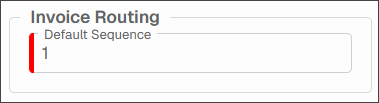
Invoice Routing - Default Sequence
The number entered here identifies the document's default review sequence.
The individual assigned the lowest review sequence number receives the invoice first.
Note
See User Roles (Vault Settings > User Roles) for more information on setting the Invoice Routing Default Sequence. This setting is vault specific.
Allow Route Invoice
Gives the Reviewer the ability to add recipients to a route an invoice and then initiate the route.
This functionality allows Reviewers to move invoices through their workflows more quickly without having to involve Processors.
Reviewers have access to the Approve Invoices page where they view and approve the invoices routed to them by Processors. When a user is assigned a Reviewer role, their Additional Permissions section includes the options show below. Review the options and select the check boxes for the permissions Reviewers should have.
Click if all the Reviewer permissions should be selected.
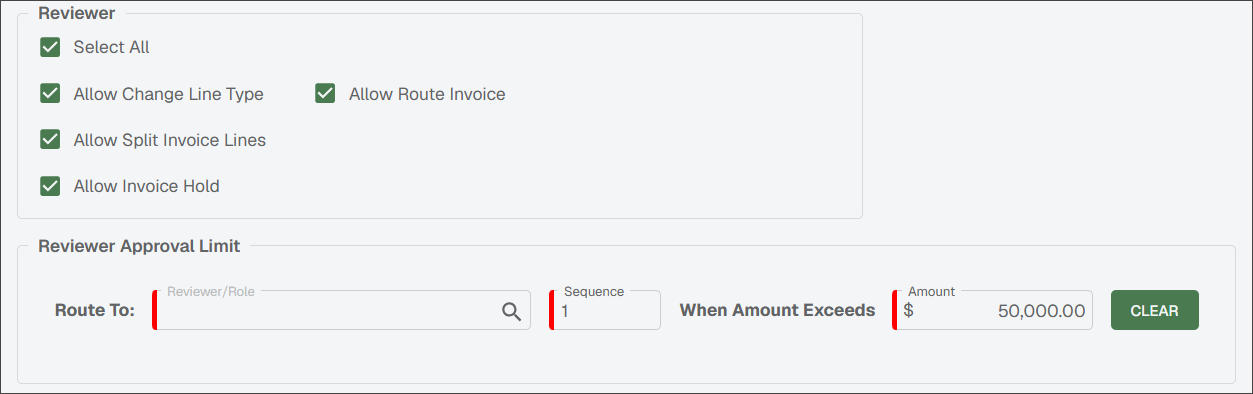
Reviewer Approval Limit
The Reviewer Approval Limit section identifies a specific Reviewer selected in the associated Reviewer / Role Lookup dialog, which can be opened by clicking the Lookup
 icon.
icon.
You can also select a role instead of an individual. Roles are indicated by bold in the Reviewer / Role Lookup dialog. This way, you do not need to update this field if the individual moves to a different position within your company. The next individual in the identified role would systematically be routed any invoices that meet the established criteria.
Note
Roles are vault specific.
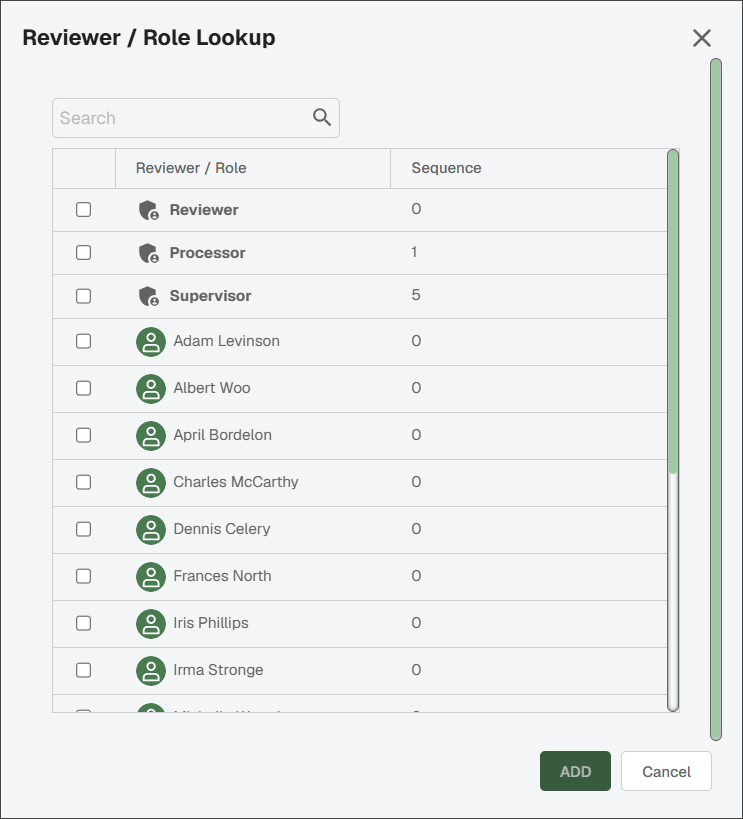
The number in the Sequence column (5 in the example) indicates the order in which the user or role sees the invoices. You can change the sequence number as appropriate. Any invoice with a total exceeding the entered dollar amount ($50,000.00 in the example) are systematically routed to the identified Reviewer.
Supervisor
Supervisors have access to all Processor queues. However, Supervisors do not have access to APFlow™ Settings.
Note
Only System Administrators and Vault Administrators can access APFlow™ Settings.
If a user is assigned a Supervisor role, their Additional Permissions section includes the General grid options as well as any (or all) of both the Processor grid options and the Supervisor grid options.
Click if all the Processor permissions should be assigned. Click if all the Reviewer permissions should be assigned.
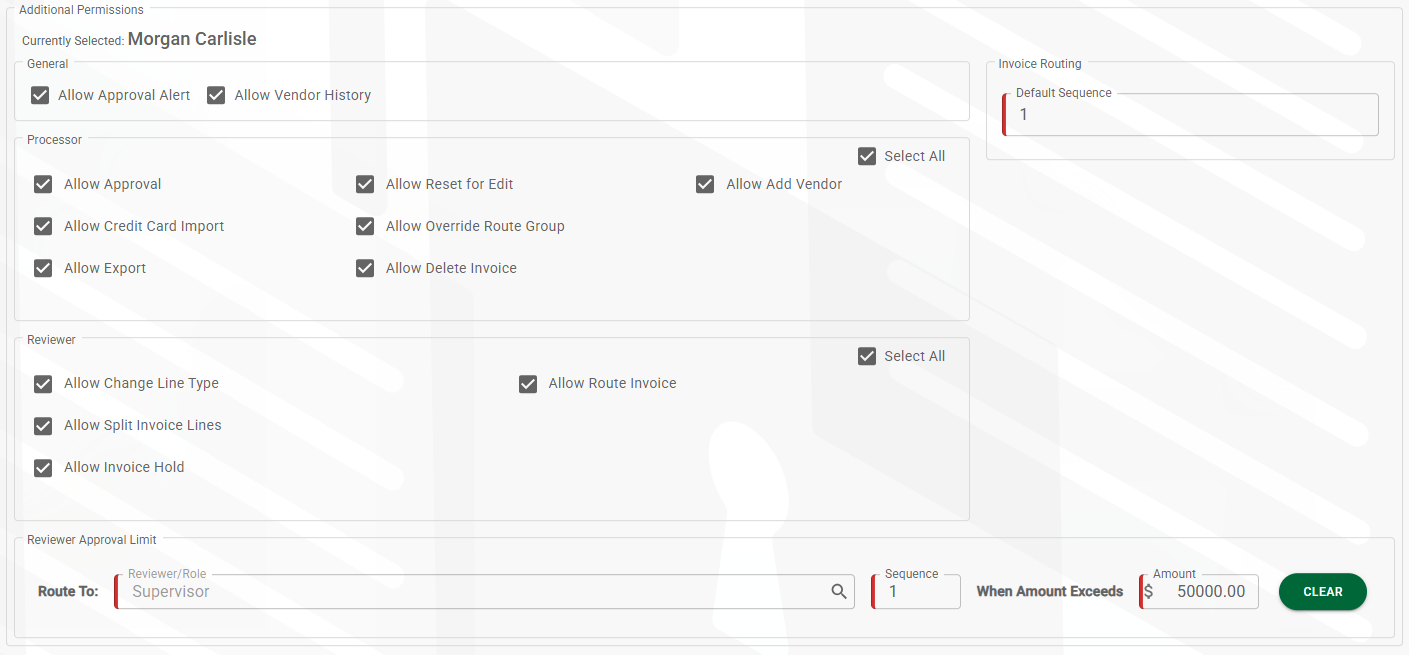
For users assigned a Supervisor role, the Reviewer Approval Limit section also displays, where you can:
Determine exactly where in the review order (sequence) a specific reviewer role is when routing documents for review and approval.
Note
The number entered here is the default sequence number. You can change the sequence number based on the other criteria, including the documents being routed for review and approval.
Identify a dollar amount where an individual must review a document if that specific dollar amount is exceeded.
Payment Manager
This role gives a user rights to the Payment Manager module where checks and associated invoice information can be reviewed. Users assigned to the Payment Manager role must also be assigned to one or more bank accounts so they can view them. See APFlow™ Bank Account Permissions for more information.
Note
Payment Manager only displays in the APFlow left navigation dropdown menu if a user is granted Payment Manager module permissions in Global Settings. See APFlow™ Tab for details.