Credit Card Importer Workflow
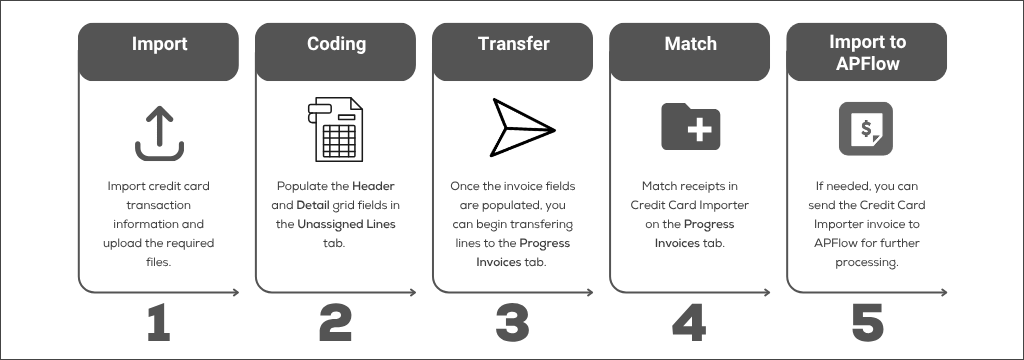
| 1: Using the New Credit Card Import dialog, enter the required information for the transaction. For more information, see Create a New Import. |
| 2: By completing Header and Detail grid fields, data from those fields entered on the Credit Card Importer page are systematically populated into corresponding invoice fields when you click Transfer. |
| 3: Move line(s) from the Unassigned Lines tab into the In Progress Invoices tab. Before moving line(s), determine if all the lines should move together or if just a single line should move. If only one line should move, click the One Line Per Invoice check box. If this check box is left blank, all lines move into the In Progress Invoices tab. Click . See Process Unassigned Credit Card Transactions for more information. |
| 4: In the In Progress Invoices tab, begin matching receipts. See Match Receipts in Credit Card Importer for more information. |
| 5: You can send the Credit Card Importer invoice from the In Progress Invoices tab on to Invoice Entry in APFlow™. For more information, see Imported Invoices. |