APFlow™ Bridge Settings
Use the Bridge Settings page to customize certain aspects of the APFlow workflow. The Universal Bridge Settings apply to all vault bridge types, while certain accounting systems have additional, unique settings that can be configured.
Important
The bridge settings that display are only valid for your current vault.
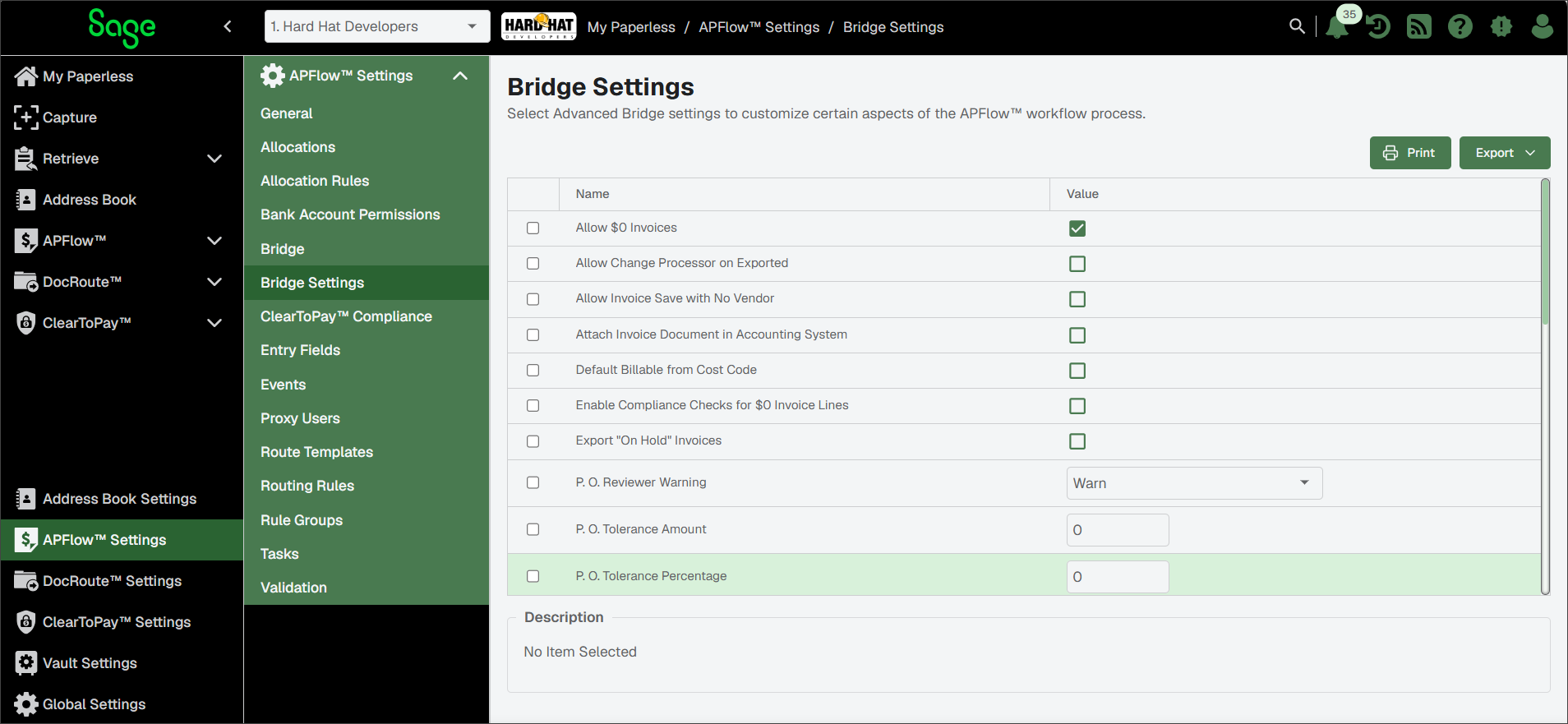
Complete the following steps to access the Bridge Settings page:
From My Paperless, click .
In the navigation bar, click .
Update the bridge settings as appropriate. Some settings are universal and are present for all accounting systems, while certain settings are only present if your vault is bridged to a specific accounting system. See the sections below for descriptions of each setting.
Use the descriptions below to determine which bridge settings you should set in the Value column for your vault.
Allow $0 Invoices | With the check box in the Value column selected, this bridge setting is active and invoices may be approved with an invoice total set to $0 (zero). With the check box in the Value column blank, invoices set to $0 (zero) cannot be approved. |
Allow Change Processor on Exported | Usually, no changes are made to invoices that are exported. This setting allows you to change only the name of the Processor associated with a specific exported invoice. With the check box in the Value column selected, this bridge setting is active and the change processor options are available in Invoice Manager for exported invoices. This also applies to Processors with the dropdown in Invoice Entry. With the check box in the Value column blank, change processor options are not available in Invoice Manager for exported invoices. |
Allow Invoice Save with No Vendor | With the check box in the Value column selected, this bridge setting is active and you can save an invoice without a vendor number. NoteAn invoice without a vendor number cannot be routed or approved, but this setting enables basic header information to be saved. With the check box in the Value column blank, you cannot save an invoice without a vendor number. |
Default Billable from Cost Code | With the check box in the Value column selected, this bridge setting is active and the billable flag on the invoice defaults based on the billable setting on the Cost Code/Task instead of the Job/Project billable setting. With the check box in the Value column blank, the billable flag on the invoice does not default based on the billable setting on the Cost Code/Task. |
Export "On Hold" Invoices | Allow invoices in an On Hold status to export. With the check box in the Value column selected, this bridge setting is active and invoices On Hold are allowed to export. This allows an invoice to display in the Ready for Export page. With the check box in the Value column blank, invoices On Hold are not allowed to export. |
P. O. Reviewer Warning | Determine what type of prompt generates to the Reviewer when a purchase order amount exceeds the committed amount. None is the default. Prompt Types:
|
P. O. Tolerance Amount | This is the amount beyond the established purchase order amount that is still considered acceptable. Any amount above the entered figure triggers the generation of a purchase order amount warning. $0 is the default. NoteWith a Warning, the recipient can still approve. |
P. O. Tolerance Percentage | This is the percentage beyond the established purchase order amount that is still considered acceptable. Any percentage above the entered figure triggers the generation of a purchase order percentage warning. 0% is the default. NoteWith a Warning, the recipient can still approve. |
P. O. Tolerance Type | Identify an amount value, a percentage value or both for the P.O. Tolerance Type. This is the amount or percentage beyond an established purchase order amount or percentage that is still considered acceptable. Any amount or percentage above the entered figure triggers the generation of a purchase order amount or percentage warning. $0 is the default. If Both is selected, both the amount and percentage tolerances must be met. If only one is met and the other is exceeded, the purchase order warning generated. NoteWith a Warning, the recipient can still approve. |
P. O. Warning | Determine what type of prompt generates to the Processor when a purchase order amount exceeds the committed amount. None is the default. Prompt Types:
|
Require Invoice Approval Alert Notes | With the check box in the Value column selected, this bridge setting is active and you are required to enter a note when marking an invoice for Approval Alert. With the check box in the Value column blank, no note is required if you mark an invoice for Approval Alert. |
Require Invoice "Do Not Pay" Notes | With the check box in the Value column selected, this bridge setting is active and you are required to enter a note when marking an invoice for Do Not Pay. With the check box in the Value column blank, no note is required if you mark an invoice for Do Not Pay. |
Require Invoice On Hold Notes | With the check box in the Value column selected, this bridge setting is active and you are required to enter a note when marking an invoice as On Hold. With the check box in the Value column blank, no note is required if you mark an invoice as On Hold. |
Require Invoice Reject Notes | With the check box in the Value column selected, this bridge setting is active and you are required to enter a note when marking an invoice Rejected. With the check box in the Value column blank, no note is required if you mark an invoice for Rejected. |
Require Invoice Reset to Pending Notes | With the check box in the Value column selected, this bridge setting is active and you are required to enter a note when marking an invoice Reset to Pending. With the check box in the Value column blank, no note is required if you mark an invoice Reset to Pending. |
Reviewer Sequence Threshold | Enter the sequence level at which the Reviewer must fully code the item being approved. 0 is the default. |
Subcontract Reviewer Warning | Determine what type of prompt generates to the Reviewer when a subcontract amount exceeds the committed amount. None is the default. Prompt Types:
|
Subcontract Tolerance Amount | This is the amount beyond the established subcontract amount that is still considered acceptable. Any amount above the entered figure triggers the generation of a subcontract amount warning. $0 is the default. NoteWith a Warning, the recipient can still approve. |
Subcontract Tolerance Percentage | This is the percentage beyond the established subcontract amount that is still considered acceptable. Any percentage above the entered figure triggers the generation of a subcontract percentage warning. 0% is the default. NoteWith a Warning, the recipient can still approve. |
Subcontract Tolerance Type | Identify an amount value, a percentage value or both for the Subcontract Tolerance Type. This is the amount or percentage beyond an established subcontract amount or percentage that is still considered acceptable. Any amount or percentage above the entered figure triggers a subcontract amount or percentage warning to generate. $0 is the default. If Both is selected, both the amount and percentage tolerances must be met. If only one is met and the other is exceeded, the subcontract warning generates. NoteWith a Warning, the recipient can still approve. |
Subcontract Warning | Determine what type of prompt generates to the Processor when a subcontract amount exceeds the committed amount. None is the default. Prompt Types:
|
In addition to the universal bridge settings (see Universal Bridge Settings), the following bridge settings are specific to Sage 300 CRE bridged APFlow™ systems.
Tip
It is recommended that you enter values for all Format bridge settings:
Accounting Date | Choose the Accounting Date method that is used to capture the Accounting Date used to post exported invoices. Choose to use the EntryDate, ReceivedDate or InvoiceDate field entry. Or, choose None to be prompted at the time of export to enter the Accounting Date that should be used. |
Allow GL Override on Invoice | In Invoice Entry, on non-Expense line type entries (Job, Equipment, Purchase Order, Subcontract), the populated GL Account field reflects the Sage 300 General Ledger account default. This field is read-only and cannot be modified. With the check box in the Value column selected, the GL Account field becomes active and you can override the Sage 300 default General Ledger account number. |
Allow Unit Price Override | With the check box in the Value column selected, the user can override the unit price With the check box in the Value column blank, the unit price field is read-only. |
Breakout GL | With the check box in the Value column selected, the GL account lookup is broken into prefix ABC and base account in Invoice Entry. With the check box in the Value column blank, the GL account lookup is the master chart of accounts. |
Check Table Name | Leave the field in the Value column blank if check table is not overridden. This is the default. If using named files for CM transaction file, enter the database file name using standard descriptions syntax set on the ODBC DSN. NoteFor example, if using current.cmt instead of register.cmt, enter |
Clear Default Tax Code on Non Taxed PO / Subcontract Lines | With the check box in the Value column selected and bringing in PO or Subcontract lines, if there is no tax code on the line, the default tax code is cleared. With the check box in the Value column blank, and bringing in PO or Subcontract lines, if there is no tax code on the line, the default tax code is not cleared. |
Closed Jobs Warning | Determine what type of prompt generates when entering an invoice against a closed job. Prompt Types:
|
Compliance Checklist for PO | With the check box in the Value column selected, commitment checklist items for Purchase Orders are included during compliance checking. With the check box in the Value column blank, commitment checklist items for Purchase Orders are not included during compliance checking. |
Compliance Checklist Sub | With the check box in the Value column selected, commitment checklist items for Subcontracts are included during compliance checking. With the check box in the Value column blank, commitment checklist items for Subcontracts are not included during compliance checking. |
Display Draw Number | This is a free-form field in Sage. With the check box in the Value column selected, Display Draw Number field in Distribution Lines is visible. With the check box in the Value column blank, the Display Draw Number field in Distribution Lines is not visible. |
Distribution Code Field Name | With the check box in the Value column selected, the distribution code in Invoice Entry is enabled when the value is not blank. The value entered becomes the label associated with the entry field. With the check box in the Value column blank, the distribution code in Invoice Entry is not enabled when the value is not blank. |
Enable AP Account | With the check box in the Value column selected, the AP Account field in the APFlow™ system is enabled. With the check box in the Value column blank, the AP Account field in the APFlow™ system is disabled. |
Enabled AP Account Defaulting | ImportantFor this Advanced Bridge setting to be active, the Enable AP Account setting, above, must also be enabled. With the check box in the Value column selected, the defaulting of the AP Account field in the APFlow™ system is enabled. With the check box in the Value column blank, the defaulting of the AP Account field in the APFlow™ system is disabled. |
Equipment Cost Code Format | Use the field to set the formatting for the equipment cost code as it is configured in Sage 300 CRE. For example: ##-### If the field is blank, formatting for the equipment cost code is disabled. |
Equipment Format | Use the field to set the formatting for the equipment number as it is configured in Sage 300 CRE. For example: ##-#### If the field is blank, formatting for the equipment number is disabled. |
GL Budget Name | When this entry has a valid value, budget checking is active during Invoice Entry and a review using the accounting date setting as the budget period occurs. When this entry is blank, budget checking is not performed. |
GL Format | Identify the format for the GL account number. For example: ##-##-#####.## |
Include Closed Jobs | With the check box in the Value column selected, closed jobs display in the Lookup list. With the check box in the Value column blank, closed jobs do not display in the Lookup list. |
Include Tax not posted to JC | Tax rates excluded from posting to JC are not included in commitment invoiced totals and commitment checks by default. With the check box in the Value column selected, taxes are included, typically GST, in commitment invoiced totals and in commitment checks. With the check box in the Value column blank, taxes are not included in commitment invoiced totals and in commitment checks. |
Invalid GL Period / Budget Reviewer Warning | Determine what type of prompt generates to the Reviewer with an invalid GL period/budget. None is the default. Prompt Types:
|
Invalid GL Period / Budget Warning | Determine what type of prompt generates for the Processor when an invoice is keyed to an invalid GL period. Prompt Types:
ImportantPosting closed periods are blocked when this setting is set to Error. Posting to future periods always initiates a warning when set to Warning or Error. |
Invoice Code 1 Field Name | Enables "Invoice Code 1" field in Invoice Entry when the value is not blank. The value entered here becomes the label associated with the entry field. This value corresponds to the invoice code 1 field in Sage and is included in the export. |
Invoice Code 2 Field Name | Enables "Invoice Code 2" field in Invoice Entry when the value is not blank. The value entered becomes the label associated with the entry field. |
Is Sage Export Hotfix Installed | With the check box in the Value column selected, the speed improvement hotfix (KB 97482) provided by Sage is installed. With the check box in the Value column blank, the hotfix is not installed. WarningSetting this field to True without having the hotfix installed prevents users from exporting invoices. |
Job Budget $0 Warning | With the check box in the Value column selected, the job budget warning is active and generates if a budgeted amount is zero ($0). NoteWith a Warning, the recipient can still approve. |
Job Budget Reviewer Warning | Determine what type of prompt generates to the Reviewer when a job type/job cost entry exceeds the budget. Prompt Types:
|
Job Budget Tolerance | This is the amount beyond the established budget amount that is still considered acceptable. Any amount above the entered figure triggers the generation of a budget warning. 0 is the default. NoteWith a Warning, the recipient can still approve. |
Job Budget Warning | Determine if a prompt generates to the Processor that a job type/job cost entry exceeds the budget. Prompt Types:
|
Job Format | Identify the format for the job code. For example: ##-#### |
Phase Format | Identify the format for the phase code. For example: ##-##-### |
PO Description From Item | With the check box in the Value column selected, use the description from PO item instead of header description. With the check box in the Value column blank, use the header description. |
Processor Compliance Warnings | Determine what type of prompt generates to the Processor when vendor or subcontract items are out of compliance. None is the default. Prompt Types:
|
Purchasing Module Interface | With the check box in the Value column selected, use the Sage 300 CRE Purchasing Module interface for PO receiving operations. The PO Receiving Line Type displays in the New Line Quicklist. With the check box in the Value column blank, the Sage 300 CRE Purchasing Module interface for PO receiving operations is not used. |
Reviewer Compliance Warning | Determine what type of prompt generates to the Reviewer when vendor or subcontract items are out of compliance. None is the default. Prompt Types:
|
Reviewer Sequence Threshold | This is the Sequence level at which the reviewer must fully code the item being approved. For example, if set to 0, the invoice must be fully coded before it can be approved. If set to 1, any Reviewer with a sequence 0 could approve the invoice even if not fully coded. Anyone above the sequence threshold set here (such as 1) are required to fully code the invoice before approval is allowed. |
Sales Tax Override to Liability | With the check box in the Value column selected, the adjusted sales tax balance is systematically moved to Liability Tax. With the check box in the Value column blank, the adjusted sales tax balance must be manually moved to Liability tax. |
Service Module Interface | With the check box in the Value column selected, use the Sage 300 Service module interface for service work order operations. With the check box in the Value column blank, the Sage 300 Service module interface for service work order operations is not used. |
Use Billing | With the check box in the Value column selected, use standard billing item. This is the BL Std Item field on the invoice detailed lines. It is equivalent to the Add Column (Standard Item) in Invoice Entry in Sage 300. With the check box in the Value column blank, the standard billing item is not active. |
Use Property Management Module | If set to True, the Property Management line type is enabled and applies PM GL formatting instead of standard formatting. With the check box in the Value column blank, the Property Management line type is not enabled and the standard formatting is used. |
In addition to the universal bridge settings (see Universal Bridge Settings), the following bridge settings are specific to Sage 100 Contractor bridged APFlow™ systems.
Allow Additional Line Types on PO/Sub Invoices | With the check box in the Value column selected, the user can add an expense or job line to an invoice entry already containing PO/Subcontract lines. | |
Allow Coding Override on PO Lines | With the check box in the Value column selected, the user is allowed to override the coding applied from the Purchase Order. NoteOverriding here does not edit the Purchase Order entry in Sage. It simply changes the coding of the invoice entry. | |
Allow GL Override on Invoice | In Invoice Entry, on non-Expense line type entries (Job, Equipment, Purchase Order, Subcontract), the populated GL Account field reflects the Sage 100 General Ledger account default. This field is read-only and cannot be modified. With the check box in the Value column selected, the GL Account field becomes active and you can override the Sage 300 default General Ledger account number. | |
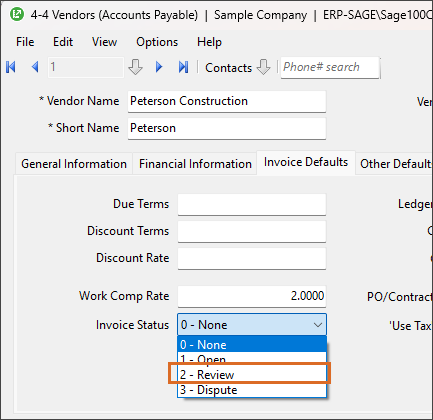
Auto Vendor Hold | With the check box in the Value column selected, the system defaults the vendor hold status based on the vendor's default Invoice Status in Sage 100 Contractor.
If the Invoice Status or Status fields are set to in the accounting system, the check box is systematically selected on the Invoice Entry page in Sage Paperless Construction. | |
CCM Integration - Use Line Description | With the check box in the Value column selected, importing credit card invoices to Sage 100 Credit Card Management uses the line description provided on the line detail instead of the invoice description in the header when creating the journal entries. ImportantThe Enable Credit Card Management Integration setting, below, must also be enabled for this setting to be used. | |
Default PO GL Account | Enter the GL Account to use at the time of export on PO Lines not included on the invoice in Sage Paperless Construction. Sage 100 Contractor requires all PO lines to be sent over via the API so any PO lines not included on the invoice go over as zero amount lines with this default GL Account. If you do not provide a value, the system uses the GL Accounts designated for O/H Cost for Freight and Variance found under 1-8 General Ledger Setup on the Posting Accounts tab. | |
Default PO Sub Account | Enter the Sub Account to use at the time of export on PO Lines not included on the invoice in Sage Paperless Construction. Sage 100 Contractor requires all PO lines to be sent over via the API so any PO lines not included on the invoice go over as zero amount lines with this default Sub Account. If you do not provide a value, the system uses the GL Accounts designated for O/H Cost for Freight and Variance found under 1-8 General Ledger Setup on the Posting Accounts tab. | |
Employee Lookups - Display SSN | With the check box in the Value column selected, employees’ social security numbers are visible in the Employee lookup when indexing. NoteThis bridge setting is only visible to System Administrators. | |
Enable Credit Card Management Integration | With the check box in the Value column selected, credit card invoices are imported to Sage 100 Credit Card Management instead of AP Invoices. | |
Export Job Header | With the check box in the Value column selected, if no job number is entered in the header, export the first job number identified on the invoice line item details. | |
Import Notes | With the check box in the Value column selected, invoice notes are systematically copied to Sage 100. | |
Include Closed Jobs | With the check box in the Value column selected, closed jobs display in the Lookup list. | |
Job Budget $0 Warning | With the check box in the Value column selected, the job budget warning is active and generates if a budgeted amount is zero ($0). NoteWith a Warning, the recipient can still approve. | |
Job Budget Reviewer Warning | Determine what type of prompt generates to the Reviewer when a job type/job cost entry exceeds the budget. Prompt Types:
| |
Job Budget Tolerance | This is the amount beyond the established budget amount that is still considered acceptable. Any amount above the entered figure triggers the generation of a budget warning. 0 is the default. NoteWith a Warning, the recipient can still approve. | |
Job Budget Warning | Determine if a prompt generates to the Processor that a job type/job cost entry exceeds the budget. Prompt Types:
| |
Processor Compliance Warnings | Determine what type of prompt generates to the Processor when vendor or subcontract items are out of compliance. None is the default. Prompt Types:
| |
Restrict Cost Codes | With the check box in the Value column selected, only cost codes which were set up with budgets on the job in Sage are available on the cost code list. | |
Reviewer Compliance Warning | Determine what type of prompt generates to the Reviewer when vendor or subcontract items are out of compliance. None is the default. Prompt Types:
| |
Reviewer Sequence Threshold | This is the Sequence level at which the reviewer must fully code the item being approved. For example, if set to 0, the invoice must be fully coded before it can be approved. If set to 1, any Reviewer with a sequence 0 could approve the invoice even if not fully coded. Anyone above the sequence threshold set here (such as 1) are required to fully code the invoice before approval is allowed. | |
Work Order Date Cutoff Years | Enter the number of years to limit the work orders retrieved. |