Update Contacts in the ClearToPay™ Portal
The Contacts page allows you to manage who on your team can has access to specific ClearToPay functionality (such as Insurance, Lien Waivers, Certified Payroll or Document Upload) via the external portal. As staffing and responsibilities change, you can keep the contact list current by adding or removing contacts for a particular job or tier vendor. When you add a new contact, a request is sent and the ClearToPay core application user (such as a general contractor) can grant or deny access.
Once access is granted, the contact receives an email invitation with a link to set up their username and password to access the portal. The modules they've been given access to appear the next time they log in to the portal.
From one of the portal's job or vendor pages, click .
 |
A page similar to the following displays:
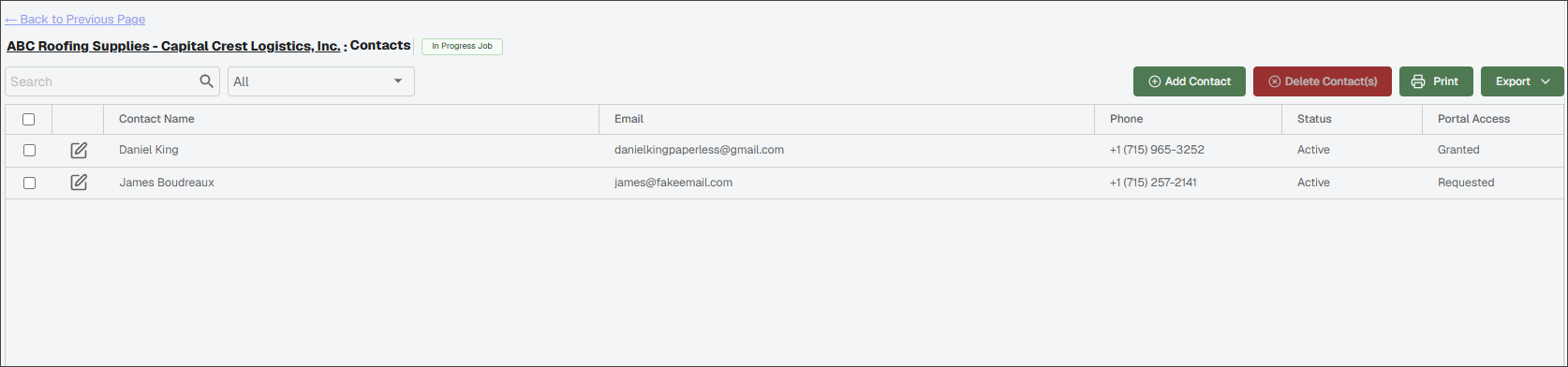
Use the Contacts page to do the following:
| Search for a specific contact by their name or email. | |
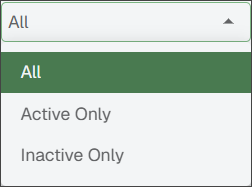
| The Filter dropdown allows you to narrow the list of records displayed by All, Active Only, or Inactive Only. The default view is All. | |
 | To add a new contact for the current job or tier vendor, click . For more information, see Add Portal Contact. | |
 | NoteDeleting a contact removes that record from the current job but does not remove them from the address book.
| |
 | Click to print the Contacts grid. | |
 | Click to export the grid information to Excel, CSV or PDF. | |
 | Click the Edit icon for a particular contact to edit their name, email address or phone number. You can also request updates to the contact's portal access permissions by selecting/deselecting the check boxes in the Portal Permissions section. NoteUsers with Contact Administrator permissions can edit their own and other contact's information. However, they cannot change email addresses as that interferes with the ability to log in to the portal. Once the updates are complete, click . |

Add a new contact by entering their name, email address and phone number. When adding a contact, you can also request portal access. Access requests display as a Requested status until they are reviewed and approved.
From the portal's Contacts page, click .
In the Add Contact dialog, review the sections below:
Note
If there are existing contacts in the system that are associated with the current job or vendor, you can select them from the Available Vendor Contacts grid.
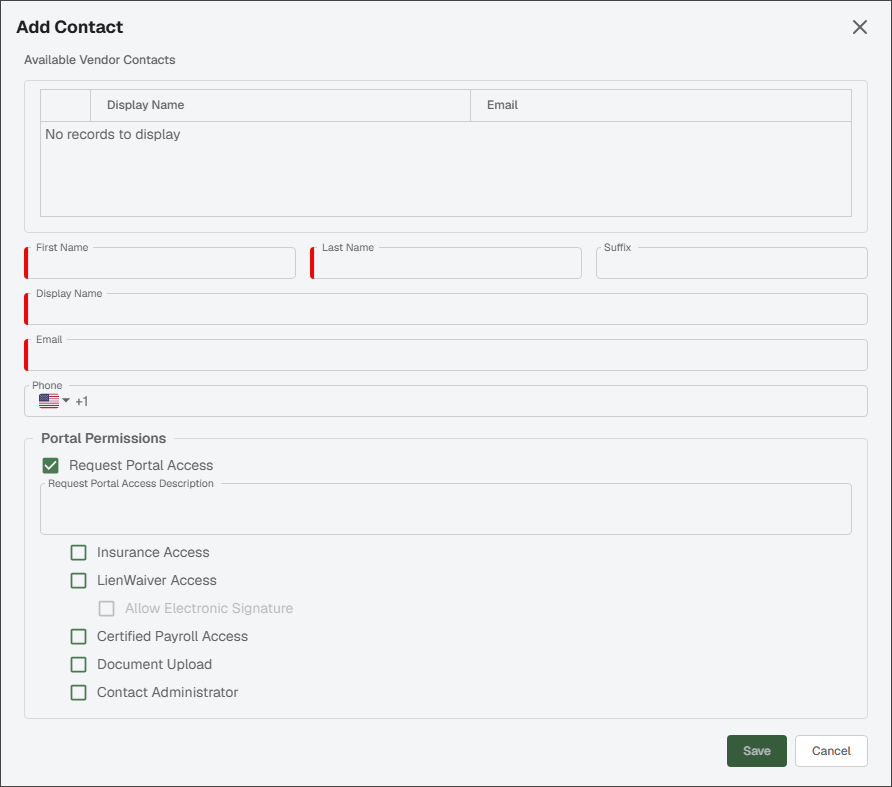
Enter the contact's name in the First Name and Last Name fields.
The Display Name field systematically populates, but you can update it if necessary.
Enter the contact's email address in the Email field.
(Optional) In the Phone field, enter the contact's phone number.
In the Portal Permissions section:
Note
The Request Portal Access section contains check boxes for all the ClearToPay™ modules available for the current vendor.
Select , then deselect check boxes as needed to align with the portal access permissions you want to assign to this contact.
Note
Contact Administrator access means that this contact can add/edit other contacts for the current vendor and request portal access on their behalf.
Enter a reason for the contact access request in the Request Portal Access Description field.
Click .
The access request is submitted to be reviewed in the main application. Once access is granted, the contact receives an invitation and the modules they have been given access to appear the next time they log in to the portal.