Document Statuses
An invoice can move through one or more statuses while in the Invoice Entry workflow.
From My Paperless, click .
From the APFlow™ navigation bar, click .
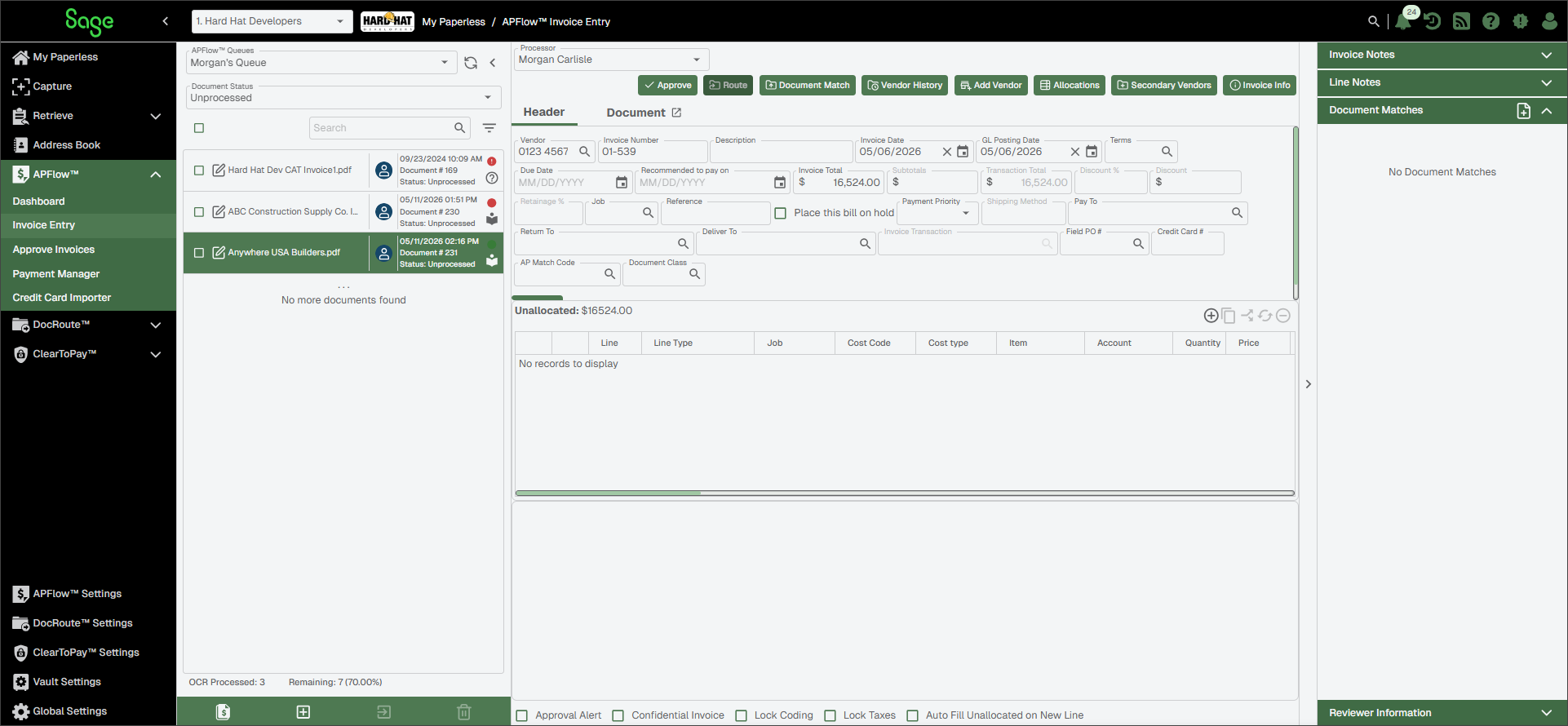
In the APFlow™ Queues field, use the dropdown to select the appropriate queue.
Note
My Queue should display as the default.
Use the Document Status dropdown to select the appropriate status.
Learn about each status in the sections below:
The Unprocessed document queue identifies documents that must be entered into the APFlow™ system for review and approval, or indexed as supplemental invoice documents such as receiving tickets and purchase orders.
Important
Both APFlow™ licensing and Processor rights, are required or APFlow™ is not visible in the left navigation bar.
The Work In Process document queue is the "work center" for the Processor. All invoices processed by the Processor, but not yet exported, can be managed here.
Takes the invoice out of routing without losing the information. An invoice marked as Do Not Pay does not display in Ready for Export. The Do Not Pay button displays when you click the Invoice Manager  icon.
Important
As part of an audit trail, you can require the individual who marks the invoice as Do Not Pay to enter a note explaining their actions.
In there is a setting requiring a note immediately after marking an invoice as Do Not Pay. See Bridge Settings for more information.
If this dialog does not display, it may be because a bridge setting, Require Invoice On Hold Notes, is not selected.
The Ready for Export document queue is where to select invoices ready for export and to produce the export file used by the accounting program to import the invoice data. However, this is not always true. For some accounting systems, Sage Paperless Construction exports into a file. For others, Sage Paperless Construction exports directly into accounting systems. This varies from accounting system to accounting system, based on the export type. It is also configurable for some accounting systems.
The main Export pane contains a list of invoices that are fully approved by all assigned Reviewers. Relevant invoice information displays in the columns.
The Exported document queue is where users with Supervisor permissions can view previously exported invoices and their associated documents in an archival, read-only setting.
Important
If you do not have Supervisor permissions in APFlow™, this dropdown option does not display.
If an exported invoice is modified in your accounting system, you can make the same modifications in Sage Paperless Construction so the data is identical. As a Processor, you must have Allow Reset for Edit permissions. See APFlow™ Settings for more information.
On the Invoice Entry page with Exported Status selected, highlight the previously exported invoice that needs to be modified.
Note
To locate the appropriate invoice, use the Show Filter/Sort
 icon.
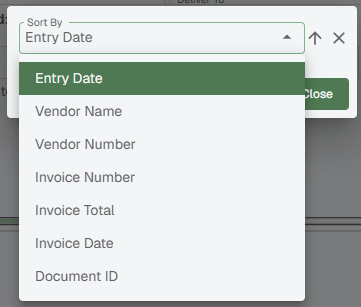
If you do not select a sort option, the Invoice Entry Date (ascending) option is systematically selected.
Click the Reset for Edit
 icon that displays at the bottom of the pane.
In the Document Status dropdown, select the status to view the invoice and make the appropriate modifications.
At the bottom of the pane, the Set To Exported
 icon displays.
Click it to move the invoice from the Set To Exported status back to the Exported status.